
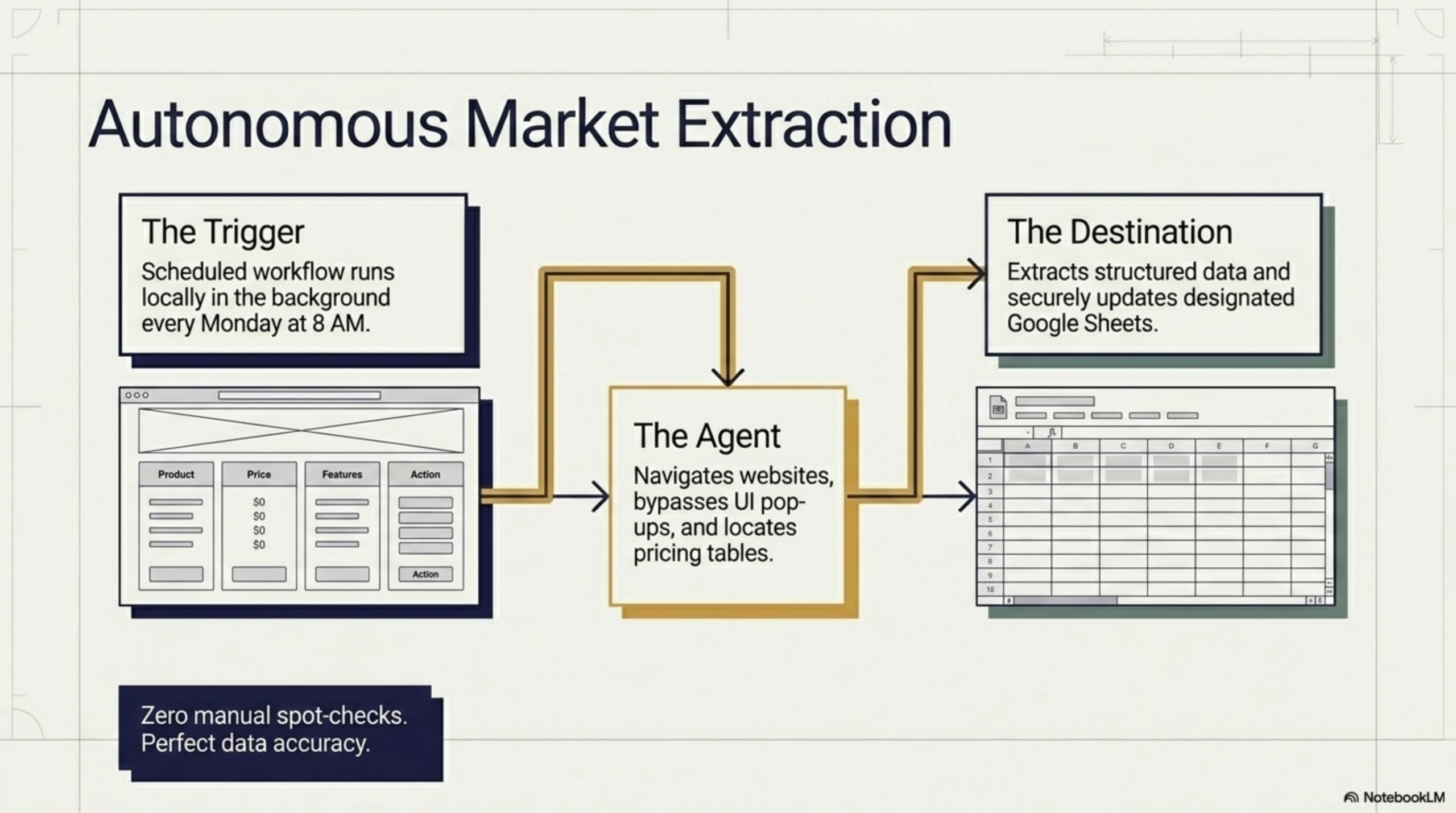
Every week, thousands of knowledge workers sit down and do the same thing: they open a website, manually scan the data they need, copy it cell by cell, and paste it into a spreadsheet. It feels productive. It is not. Manual copy-paste is one of the most expensive habits in modern work — not because any single action takes long, but because it scales terribly. Ten minutes a day is nearly an hour a week, nearly 40 hours a year. And that is assuming you never make a mistake, never lose your place, and never have to re-do a batch because the source changed.
The good news: browser automation now makes it possible to extract data from any website and send it directly to Google Sheets — without writing a single line of code, without setting up a server, and without paying for an API. This guide walks you through exactly how to do it using Agentic Workflow, a Chrome extension built for this kind of task.
Why Extracting Web Data Manually Is Costing You Time
The real cost of manual data extraction is not just the raw time spent copying. It is the cognitive overhead. Every time you switch from a source page to your spreadsheet, your brain has to context-switch — remember where you were, what column you are on, what you were looking for. Research on task-switching consistently shows this kind of context shift costs between 10 and 20 minutes of focused productivity each time it happens.
Multiply that by the number of data sources you check each day — product pages, competitor listings, news aggregators, job boards, CRM portals — and you start to see how the real cost adds up. Manual extraction is not just slow; it is a compounding drain on focus that makes every surrounding task harder.
The Traditional Approach: Web Scrapers and API Integrations (and Their Limits)
The usual solution to this problem involves one of three approaches:
- Python scrapers (Beautiful Soup, Scrapy): Powerful but require coding skills, local environment setup, and ongoing maintenance when the target site changes its HTML.
- No-code scraping tools (Apify, Octoparse, ParseHub): Easier to set up, but typically require cloud accounts, credits, and often struggle with JavaScript-heavy pages or pages behind logins.
- Official APIs + Zapier/Make: Only work if the website exposes an API, and the multi-platform integration overhead is significant.
All of these approaches share a common weakness: they run outside your browser. That means they cannot access pages that require authentication, cannot see data that loads dynamically based on your session, and cannot easily read what is on your screen right now. If you need to automate any website without an API, a browser-native approach is the only reliable option.
The Browser-Native Approach with Agentic Workflow
Agentic Workflow is a Chrome extension that solves this by running automation entirely inside your browser. Because it operates in the same context as your browsing session, it can access any page you can access — including pages behind logins, paywalls, or authenticated portals. It uses a visual no-code node builder where you connect a trigger to DOM selectors to output nodes, and the whole workflow runs locally without any server or API key.
The Google Sheets output node sends extracted data directly to a spreadsheet you specify, using your existing Google account. No OAuth app setup, no middleware, no waiting for a cloud job to finish. The data flows from page to sheet in seconds.
Step-by-Step: Extract Data and Send to Google Sheets
Step 1: Install Agentic Workflow
Install the Agentic Workflow Chrome extension from the Chrome Web Store. Once installed, click the extension icon to open the visual workflow builder.
Step 2: Create a New Workflow
Click New Workflow and give it a name that reflects your use case (e.g., “Product Prices → Sheets” or “Job Listings Tracker”). Choose a trigger type — you can trigger the workflow manually with a button click, or set it to run automatically when you visit a specific URL pattern.
Step 3: Use the DOM Selector to Pick the Data
Add a DOM Selector node to your workflow. This is the core extraction step. The node gives you a point-and-click element picker: click on any element on the page and the selector is captured automatically. You can select a single element or a repeating list — for example, all product titles in a table, or all prices in a grid.
You can chain multiple DOM Selector nodes if you need to extract data from several different parts of the page (e.g., title + price + availability as separate fields).
Step 4: Add a Google Sheets Output Node
Connect the output of your DOM Selector(s) to a Google Sheets node. Paste in the URL of your target spreadsheet. Map each extracted field to a column. You can choose to append new rows each time the workflow runs, or overwrite a specific range.
Step 5: Run and Verify
Click Run Workflow. Within seconds, the extracted data will appear in your Google Sheet. Check the first row to confirm the mapping is correct, then adjust column mappings or selectors if needed. Once verified, your workflow is ready to run on demand — or you can schedule it to run on every page visit.
Use Cases: What Kind of Data Can You Extract?
Agentic Workflow’s DOM-based extraction works on virtually any structured data on a web page. Here are some common use cases:
- E-commerce price tracking: Monitor competitor product prices and send daily snapshots to a pricing spreadsheet.
- Job board aggregation: Extract job titles, companies, and locations from LinkedIn, Indeed, or niche job boards into a master tracker.
- Lead research: Pull company names, contact details, and descriptions from directories or search results.
- News and content monitoring: Extract headlines, publication dates, and links from industry news sites.
- Internal dashboards: Extract KPIs from authenticated internal tools (CRMs, analytics portals) that do not offer easy CSV exports.
- Real estate and listings: Scrape property details, prices, and contact info from listing sites.
Privacy and Security Considerations
Because Agentic Workflow runs entirely in your browser, your data never leaves your machine unless you explicitly send it somewhere (like Google Sheets). There is no cloud processing, no third-party server receiving your extracted content, and no storage of your browsing data outside your own device.
For even greater privacy, you can pair Agentic Workflow with a local AI model via Ollama or WebLLM if your workflow includes any LLM processing steps. This means the entire pipeline — from page extraction to AI analysis to spreadsheet output — can run 100% locally on your machine.
Conclusion
Manual copy-paste from websites to spreadsheets is a solved problem — most people just do not know it yet. With Agentic Workflow, you can set up a reliable, repeatable extraction pipeline in minutes, without any coding, without any cloud services, and without any recurring costs. Whether you are tracking prices, aggregating research, or monitoring competitors, the browser-native approach is faster, more private, and more flexible than any traditional scraper or API integration.
The first workflow you build will save you more time than the setup took. The tenth will save you hours every week.
Ready to start? Install Agentic Workflow from the Chrome Web Store and build your first web-to-spreadsheet automation today — no code, no server, no API key required.


How to Monitor Competitor Prices Automatically with AI » Agentic Workflow
April 27, 2026[…] still rely on manual spot-checks — someone opening a dozen browser tabs every Monday morning, copy-pasting numbers into a spreadsheet, and hoping nothing changed over the weekend. That process is slow, error-prone, and simply […]
How to Automate Any Website Without an API » Agentic Workflow
April 27, 2026[…] Extract data from internal tools or intranets […]