LinkedIn automation is one of the most sought-after productivity hacks for sales teams, recruiters and founders, and one of the riskiest. Get it wrong and you don’t just lose a workflow; you can lose your account. LinkedIn invests heavily in detecting automated activity, and restrictions are common among people who hand their outreach to a bot.
The good news is that a lower-risk way to automate LinkedIn work exists. It means understanding why most tools get caught, and choosing an approach that works with LinkedIn’s security model rather than against it. This guide covers what you need to know. One honest caveat first: LinkedIn’s User Agreement restricts automated access and scraping, so read it and decide what you’re comfortable with. No tool can promise you won’t be restricted.
The pattern
Most bans are not about what you do. They are about how fast you do it.
How fast. Speed and volume are what give bots away.Bursts of profile views or requests no person could produce are a strong signal.
Version texte
- The pattern: Most bans are not about what you do. They are about how fast you do it.
Why most LinkedIn automation tools get caught
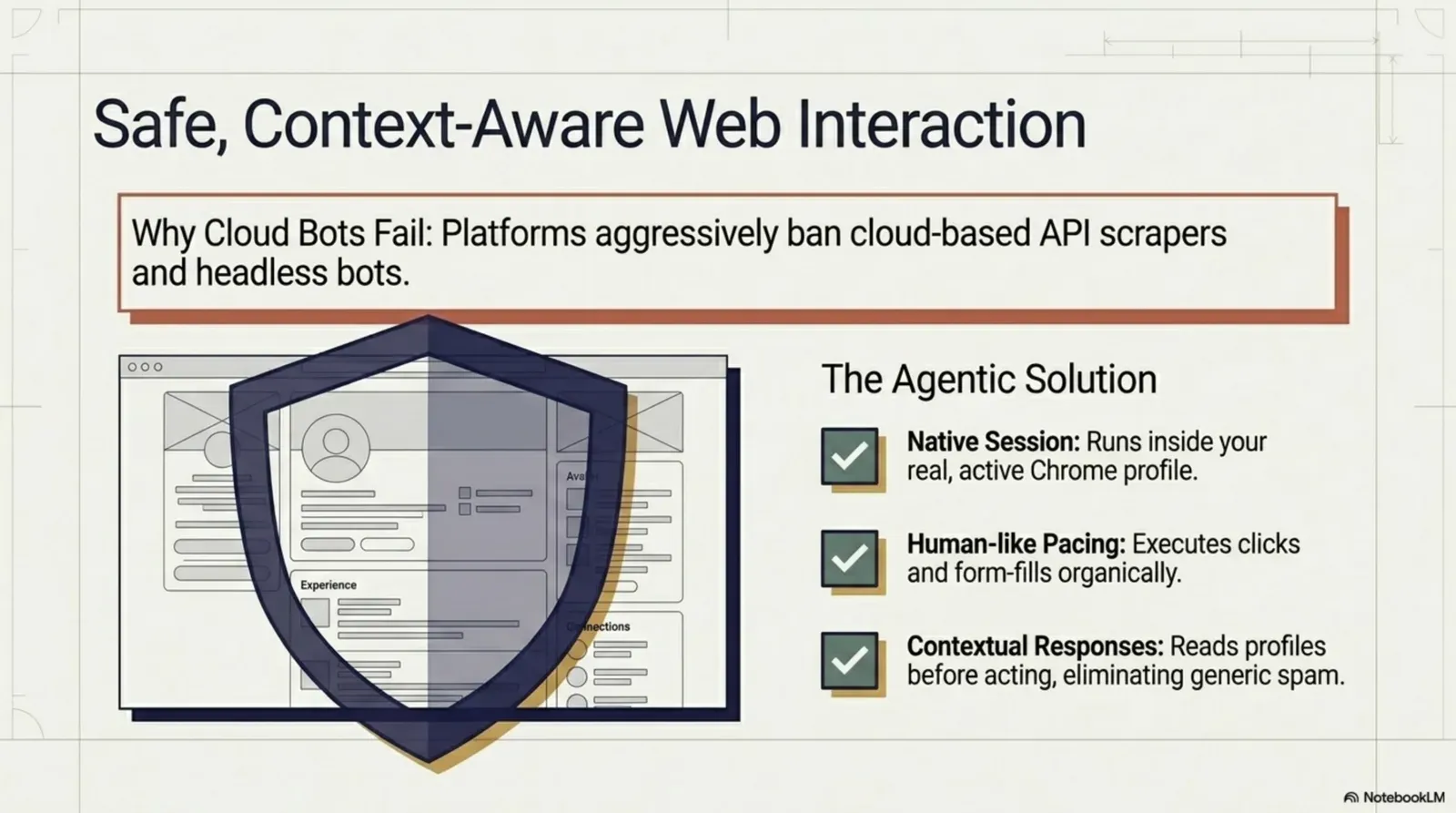
Traditional LinkedIn automation tools, whether browser extensions that run campaigns for you or cloud-based scrapers, work by simulating clicks and navigation at a pace no person could match. Detection systems are built to spot exactly that.
What tends to trigger them:
- Inhuman speed: visiting 200 profiles in 10 minutes, sending 50 connection requests in an hour, or scraping without natural pauses.
- Headless browser fingerprints: cloud tools that start a separate browser session have a different fingerprint from your real one, and the mismatch can be detected.
- Logging in from elsewhere: when a tool signs in to LinkedIn from its own servers, the IP address and device differ from your usual pattern.
- Volume spikes: a month’s worth of connection requests in one day after weeks of low activity.
Most restricted accounts aren’t caught doing anything dramatic. They’re caught doing normal things (viewing profiles, sending messages) at a speed and volume that isn’t human.
The safer approach: automation inside your own browser
The basic flaw of most LinkedIn tools is that they act outside your real browser session. Browser-native tools flip this: they run inside the Chrome session you use every day.
In your own browser, it is your session, at your pace.The extension runs in your tab: same cookies, fingerprint and IP; no separate login.
Version texte
- Your own browser: You on LinkedIn · A cloud bot: A cloud automation tool
- You on LinkedIn → A cloud automation tool: your LinkedIn login
- A cloud automation tool → You on LinkedIn: 200 profiles, at bot speed
- Device and IP: not yours · Pace: bot speed
- A cloud automation tool → Your own browser · Device and IP: yours · Pace: yours · Separate login: none
When an automation runs inside your browser:
- Your session cookies, fingerprint and IP address are what LinkedIn expects from you
- There’s no separate login, no headless browser, no session mismatch
- You stay in control: pause, review and adjust at any point
Agentic Workflow takes this approach. It is a Chrome extension that runs workflows in your active browser session, built on a visual no-code canvas. No servers, no external login, no separate bot session. And because LinkedIn offers no public API for this kind of work, working on the page itself is the only way to automate it at all.
What to automate, and what never to automate
The key principle is automate research and preparation, keep the moment of contact human.
Avant
Never automate
- Bulk connection requests
- Auto-sent messages
- Endorsements at scale
- Mass follows
- Scraping past 1st degree
Contact
The actions detection watches most closely.
Après
Safe to automate
- Profiles you open
- Lists as you scroll
- AI message drafts
- Notes in your tracker
- Job-change alerts
Research
Preparation on pages you visit yourself.
Drag the line to compare.The slider works with the keyboard too.
Version texte
- Before: Never automate, Contact. The actions detection watches most closely.
- After: Safe to automate, Research. Preparation on pages you visit yourself.
- Compare before and after
In the safe zone:
- Profile data: reading name, title, company and connection info from profiles you visit as you browse
- List building: collecting structured data from search results into a sheet or CRM as you scroll
- Message drafting: an AI first draft based on someone’s profile, which you review and send yourself. An AI form filler can put the draft into LinkedIn’s message field, ready for review.
- Note-taking: logging profile visits and key details in your outreach tracker
- Content monitoring: tracking posts from target accounts or job-change signals
Never automate:
- Bulk connection requests: even with delays, mass campaigns are a primary enforcement target. Send them yourself, with AI-drafted notes.
- Auto-messaging: automated direct messages, even personalised ones, go against LinkedIn’s terms and are often detected.
- Endorsing skills at scale: a well-known bot signal.
- Following hundreds of accounts in a session: people don’t follow 150 accounts in an afternoon.
- Scraping beyond your first-degree network at speed.
Build a safe LinkedIn research workflow
Here is a workflow that collects lead data as you browse LinkedIn search results, one page at a time, when you choose to run it.
One row per person in your sheet.Google Sheets appends the items; a webhook to your CRM works too.
Version texte
- A search results page: 10 people you are looking at
- Read the page: the visible profile cards, as text
- AI extracts the fields: name, title, company, location
- Google Sheets: 10 new rows in your tracker
You start it
Open a LinkedIn search results page yourself and run the workflow from AWFlow’s side panel or the right-click menu. It does not browse on its own.
It reads what you see
A page-reading node collects the profile cards visible on screen: names, titles, companies and profile links.
AI structures it
An Information Extractor node, with a prompt like “Extract name, current title, company and location for each person. Return a list.”, turns the raw text into clean fields.
It lands in your tracker
A Google Sheets node appends one row per person, or an HTTP Request node sends them to your CRM. Then you scroll on at your normal pace and run it again when you want.
The whole workflow runs in your browser, in your session, at your speed. To LinkedIn it looks like normal browsing, because it is.
Use AI to personalise outreach
What actually drives replies is personalisation. A message that mentions someone’s recent post, their company’s latest launch or a shared connection does far better than a template blast. AI makes that practical without being spammy:
- Visit a prospect’s profile normally
- Run a workflow that reads their headline, about section and recent activity
- An AI node writes a first-draft connection note
- The draft appears in the side panel for you to review, edit and send yourself
Minutes saved per prospect, and you still press send.Example timings.
Version texte
- Read this profile and write a 2-sentence connection note. Mention one specific thing from their recent posts. No sales pitch.
- Hi Sam, your post on cutting onboarding time in half with a self-serve checklist was spot on; we saw the same thing with our customers. I'd love to connect and compare notes.
- Research + writing: 5 min · AI draft + your edit: 30 s
You send every message yourself; the AI does the research and the first draft. That keeps messages authentic and cuts the time per outreach from minutes to under a minute.
Pace: the golden rule
Whatever you automate, pace is your most important safety lever. Detection is largely about volume and speed; the same actions at a human pace rarely stand out.
200 profiles in 10 minutes, 50 invites an hour
Burst: what detection is built to catch.Volume spikes in short windows are a primary signal.
Version texte
- Your daily pace Calm: Risk of a flag low · Profiles a day ~30 · 15 personal invites, spread over the day
- Your daily pace Busy: Risk of a flag medium · Profiles a day ~80 · 80 profile views and a few invites
- Your daily pace Burst: Risk of a flag high · Profiles a day 200+ · 200 profiles in 10 minutes, 50 invites an hour
Rules of thumb that many practitioners use (LinkedIn doesn’t publish its limits):
- Connection requests: around 15–20 a day, sent by you with personal notes
- Profile views: stay under roughly 80–100 a day; even manual browsing gets flagged at high volume
- Messages: keep first-message volume low; quality over quantity
- Data collection: only from pages you visit yourself; never loop through hundreds of profiles in one session
- Rest days: build in quiet days, the way a real person has them
A workflow that runs in your browser, when you run it, makes staying inside these limits easy. The tool works with you, not around you.
Try it
Automating LinkedIn doesn’t have to mean gambling with your account. The tools that get people restricted share one flaw: they pretend to be you from outside your browser. Browser-native automation for research, drafting and data collection, with you in control of every send, is effective and far lower-risk. LinkedIn is one example; there are many more browser tasks AI can handle the same way.
The closest docs example collects every link on a page into a Google Sheet, one row per link. It is the shape of the research workflow above: add an AI extraction step between reading the page and the sheet.
À vous
Start from a page-to-sheet workflow
Open it in AWFlow: it saves the links on the page to Google Sheets. Add an AI step to extract names and titles.
Ouvrir dans AWFlow (s’ouvre dans un nouvel onglet)docs.awflow.io/examples/save-links-to-sheet.awfCall to action. Scan the code or click the link.Opens the Save links to a sheet docs example in AWFlow's import page.
Version texte
- Start from a page-to-sheet workflow · Open it in AWFlow: it saves the links on the page to Google Sheets. Add an AI step to extract names and titles. · https://docs.awflow.io/examples/save-links-to-sheet.awf
In short
- Speed, not actions, gets accounts flagged
- Run in your own browser, at your pace
- Automate research, send messages yourself
Three. AI prepares, you send.Extraction and drafting automated; contact stays manual.
Version texte
- In short
- Speed, not actions, gets accounts flagged
- Run in your own browser, at your pace
- Automate research, send messages yourself