Ops, sales ops, agencies
Same portal, same clicks, new data every week?
The hook. If you can do it once, you can record it.Record user actions once, replay them as a parameterized UI Automation node.
Version texte
- Ops, sales ops, agencies: Same portal, same clicks, new data every week?
Every Monday you open the same web portal, click the same menu, type the same kind of values into the same fields and press the same button. Then you do it again for the next row of the sheet. The portal has no API, your automation tool can’t touch the page, and nobody is going to write you a script for a twenty-minute chore.
That routine doesn’t need a project. It needs a recording. In this guide you’ll record the routine once in Chrome, swap the typed text for values from your data, and replay it from a right-click, a keyboard shortcut or a schedule. No code. I’ll also be straight about where recordings break, because that’s where most no-code browser automation falls over.
What does “record once, replay” actually mean?
The idea
If you did it with your mouse, a recording can do it again.
Each action becomes a step you can replay on the next row.Captured events are stored as a list of UI Automation actions with selectors.
Version texte
- The idea: If you did it with your mouse, a recording can do it again.
A browser recorder watches what you do on a page and writes it down as steps: click this button, type into that field, pick this option. Replaying runs the same steps on the same page later. In AWFlow (Agentic Workflow), the steps land in a UI Automation node, which is one box in a workflow. Put a sheet before it and a check after it, and a chore turns into a workflow you can run again.
It’s the non-technical side of a topic I covered for developers in how the recorder works under the hood. Here you only need Chrome and the extension.
How do you record your browser actions?
portal.example.com/tickets/new
- Recording…4 captured
- TypeCompany name
- SelectPriority
- ClickSave ticket
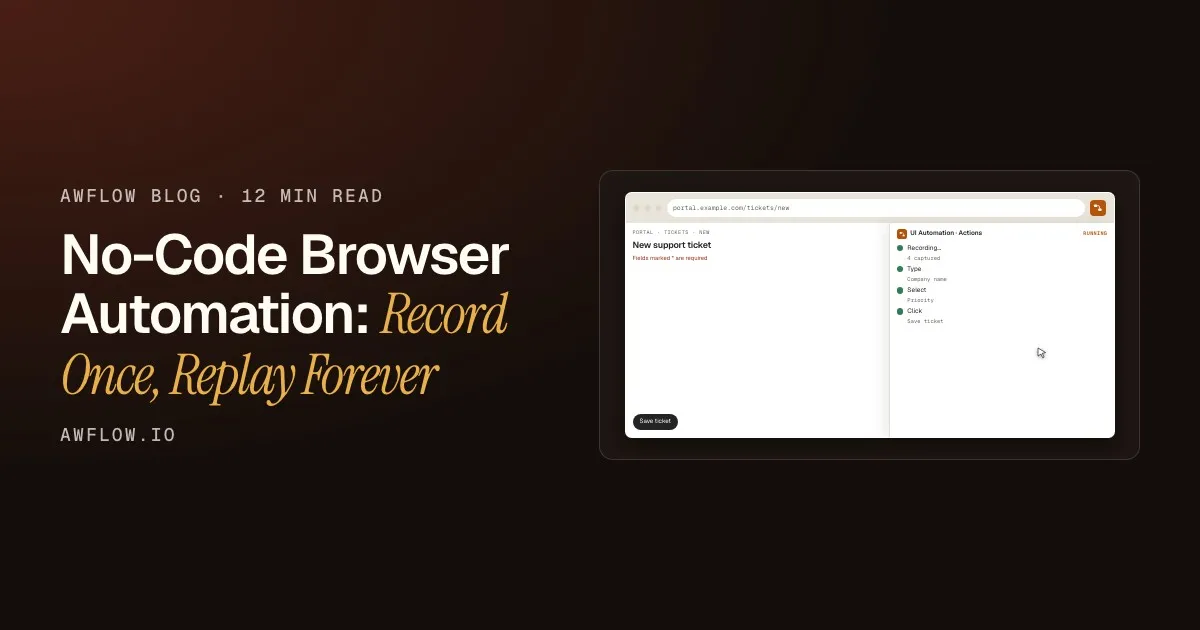
Use the page normally. Each action becomes a step.Clicks, typing, scrolls and keys are captured and added to the Actions list.
Version texte
- portal.example.com/tickets/new: New support ticket
- UI Automation · Actions
- Recording…: 4 captured · Type: Company name · Select: Priority · Click: Save ticket
Open the page you work in
Go to the portal, the CRM or the admin page where the routine starts. You stay signed in as yourself: the recording happens in your own tab, so there’s no separate login to set up.
Press Record actions
Add a UI Automation node to a workflow, open its settings and press Record actions. The button turns into Stop recording and shows a counter (“Recording… 4 captured”). While you record, the element under your pointer is outlined, so you can see what will be targeted.
Do the routine, then stop
Click, type, choose from drop-downs, press keys. Clicks, typing, scrolls and keys are captured automatically. If a click opens another page, the recording follows you. Press Stop recording and every action is now a line in the node’s Actions list.
Typing is stored once per field, not once per keystroke. The list you get back is short enough to read, which matters for the next part.
Why does the recording still work next week?
A step is only as good as its selector: the address the replay uses to find “the Save button” again. A careless recorder writes something like “the third button in the second box”, which breaks as soon as the page moves a box. The AWFlow recorder tries the most stable address first and only falls back to position when nothing better exists.
The selector ladder
What the recorder tries first, in order
- The element's id (fait)most → least stable
- A test hook (data-testid, data-test, data-cy, data-qa) (fait)most → least stable
- Its aria-label, with its role (fait)most → least stable
- A form field's name (fait)most → least stable
- A unique combination of classes (fait)most → least stable
- The shortest position path (fait)most → least stable
Position is the last resort, and the first thing to break.Shortest nth-child path.
Version texte
- What the recorder tries first, in order
- The element's id
- A test hook (data-testid, data-test, data-cy, data-qa)
- Its aria-label, with its role
- A form field's name
- A unique combination of classes
- The shortest position path
You can check any step yourself: next to each Target Element there is a Ping button that highlights what the selector finds on the page right now. If Ping finds the wrong thing, or nothing, pick the element again with the crosshair.
A recording breaks the moment the website changes.
It keeps working while the element keeps its id, test hook, label or name. When those go, that step is skipped.
Stable addresses survive most redesigns. Check after each change.If the target is not found within the wait timeout, the action is skipped and the next one runs.
Version texte
- A recording breaks the moment the website changes.
- It keeps working while the element keeps its id, test hook, label or name. When those go, that step is skipped.
Read that last part carefully, because it’s the honest limit. When a target can’t be found within the Wait timeout (2 seconds by default), the action is skipped and the next one runs. The workflow doesn’t stop with an error. So if a step matters, check its result: add Get Element Data after the node and an IF that stops the workflow when the page doesn’t show what you expect.
How do you replay it for every row of a sheet?
A recording types exactly what you typed: “Acme Ltd”, every time. To make it useful, replace the text you typed with a value from your data. Every text setting in AWFlow accepts {{ }} expressions, including the Text of a recorded Type action. Change Acme Ltd to something like {{ $input.company }}, where company is a field of the row coming in.
Then put your data in front of the node. A Google Sheets node can read a range of rows (it can also append or update rows, which is handy for writing a status back). Most nodes run once per item, so the UI Automation node runs once per row without a loop. Use Split in Batches if you want to go a few rows at a time.
| Company | Priority |
|---|---|
| Acme Ltd | High |
| Northwind | Normal |
| Globex | Low |
| Initech | Normal |
| Company | Priority | Ticket |
|---|---|---|
| Acme Ltd | High | saved |
| Northwind | Normal | saved |
| Globex | Low | saved |
| Initech | Normal | saved |
Write a status back to the sheet so you know what was done.Example values: add Get Element Data + Google Sheets update to record the real result.
Version texte
- Company | Priority: Acme Ltd | High · Northwind | Normal · Globex | Low · Initech | Normal
- UI Automation
- Company | Priority | Ticket: Acme Ltd | High | saved · Northwind | Normal | saved · Globex | Low | saved · Initech | Normal | saved
Auto-fill a form you fill every week
The most common recording is data entry: a form you fill with different values each time. Record it once with sample values, swap them for {{ }} fields, and feed it rows. If the form is a standard HTML form, you may not need a recording at all: Form Fill and Submit Form fill and send a form in one step each, and Get Forms Schema lists the real field ids for you. The fill a web form from saved values guide walks through that version.
Recordings win on everything that isn’t a clean form: custom drop-downs, “Load more” buttons, menus that open on hover, a dialog to accept, a filter to set before the form appears. If the values change every time and you’d rather have AI choose them, see build an AI form filler for any website.
How do you run it without opening the editor?
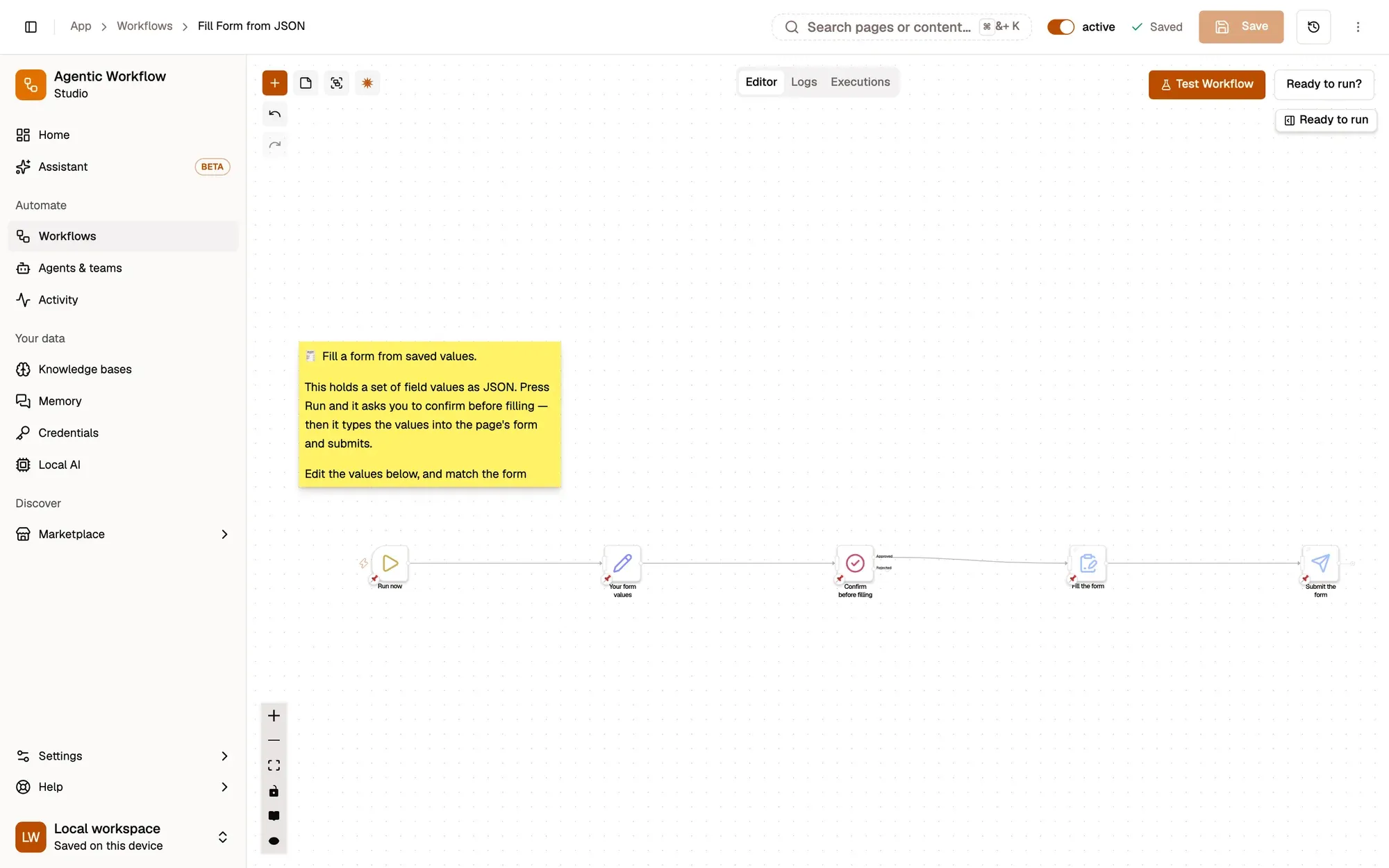
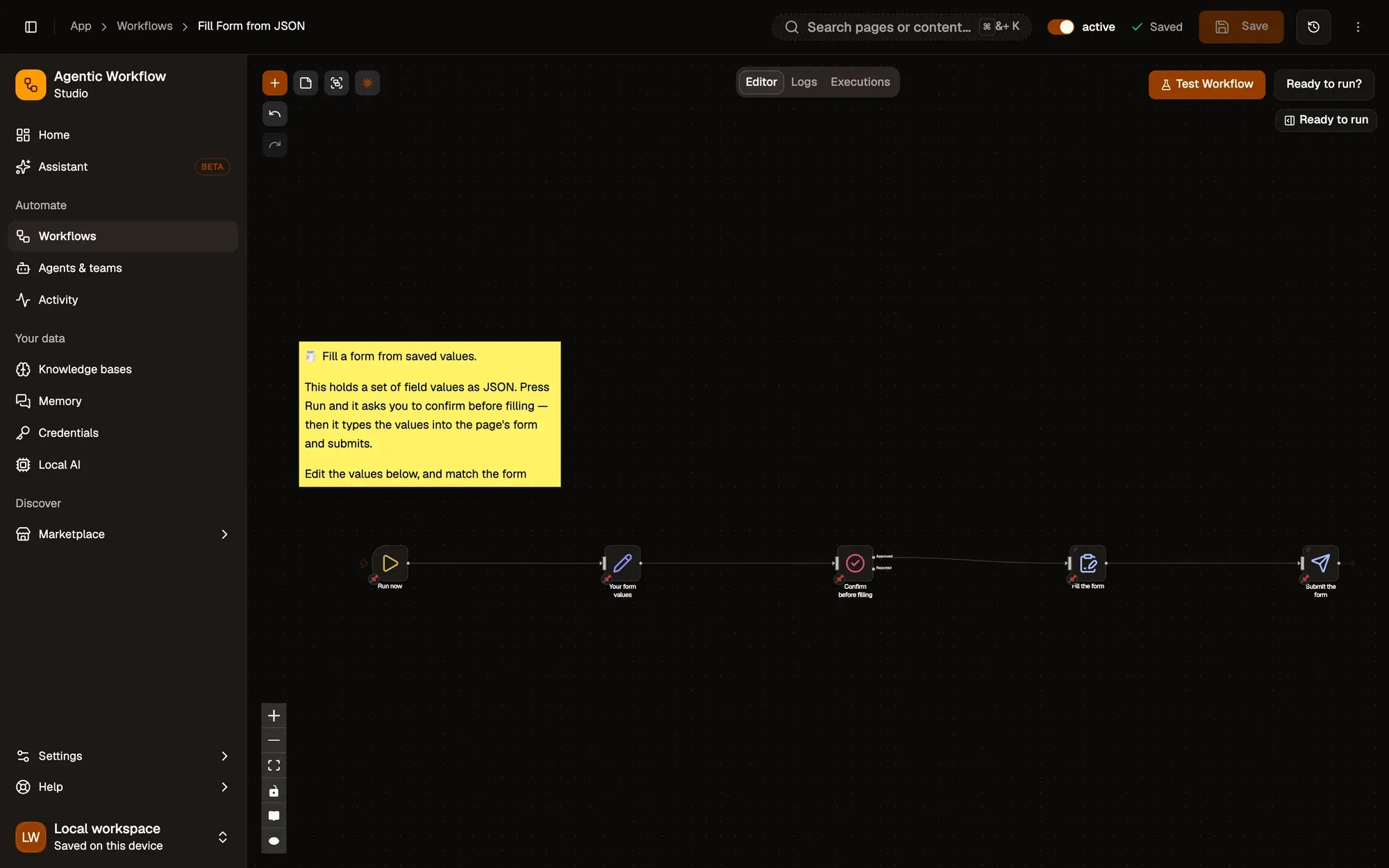
Three boxes, and the routine runs the way you work.Trigger → approval → page actions.
Version texte
- 1. Choose how it starts: Swap Run now for right-click, a hotkey or a schedule.
- 2. Ask before it submits: Wait For Approval pauses until you say yes.
- 3. The page steps: Your UI Automation node goes here.
Pick the start that matches how the routine happens:
- From the right-click menu (Context Menu trigger): right-click on the page and choose your workflow. You can limit it to certain URL patterns, so it only shows up on the portal.
- From a keyboard shortcut (Hotkey trigger): four slots, with the keys set in your browser’s shortcut settings.
- On a schedule (Schedule trigger): every few minutes, daily, weekly or monthly. It runs in your browser, so plan it for times when Chrome is open.
Before anything gets submitted, add Wait For Approval. It pauses the run and asks you once; put it inside a loop if you want one yes or no per row. For the first few runs, approving each submission is the cheapest insurance there is.
Where do recordings break, and what do you do then?
Recordings are reliable on pages that don’t change much. Here is where they stop, straight from the node’s documented limits:
- A new page in the middle of the list. Recording follows you across page loads, but replay runs inside the page: when a click opens a new page, the rest of that list stops. End the list at that click, then continue in a second UI Automation node after a Wait For Element (or a Tab Control step with Wait For Load).
- File uploads can’t be recorded or replayed. Browsers don’t let a script choose a file.
- Embedded frames from another site (some payment or chat widgets) aren’t recorded.
- Drag & drop replay is best effort; some pages ignore a simulated drag.
- A missing element is skipped, not failed. The same goes for a failed Assert step: with On failure = stop, the remaining actions are skipped but the node still finishes. Check the page afterwards with Get Element Data and an IF.
- The site changed its markup. If the stable addresses are gone, the step is skipped. Open the node, Ping the steps and re-pick or re-record the ones that broke.
- 0.0 sRead rows4 rows from the sheet
- 1.2 sApprove?approved
- 3.4 sTypeCompany name: Acme Ltd
- 5.4 sSelectPriority: High
- 9.4 sClickSave ticket: not found, skipped
- 9.6 sCheck pageno confirmation → stop
A run where the button moved. The click was skipped, and the check after it caught it.Example log: the target was not found within the wait timeout; Get Element Data + IF stopped the workflow.
Version texte
- Example run · New tickets from sheet · 0.0 s Read rows: 4 rows from the sheet · 1.2 s Approve?: approved · 3.4 s Type: Company name: Acme Ltd · 5.4 s Select: Priority: High · 9.4 s Click: Save ticket: not found, skipped · 9.6 s Check page: no confirmation → stop · Example run: the check caught a skipped click
That last line is the habit worth keeping: record, swap in your data, run, check. Look at the run history after the first scheduled run, not after the twentieth.
Is a browser recorder better than a desktop macro tool?
It depends where the work happens. Desktop macro tools like Keyboard Maestro automate your whole Mac: apps, windows, files, the clipboard. Keyboard Maestro runs on macOS only and is sold as a one-time licence. AWFlow only automates the browser, but it runs on any system that runs Chrome, its local mode is free, and its steps target the page’s structure (ids, labels, field names) rather than positions on the screen. If your routine lives in web portals, a browser recorder is the closer fit; if it jumps between desktop apps, a desktop macro tool is. The full side-by-side is in Agentic Workflow vs Keyboard Maestro.
For sales routines on LinkedIn and similar sites, the same recorder works, but go slowly and stay in your own session: automate LinkedIn prospecting without getting banned covers the pacing. And if you’re comparing tools more broadly, start with the best browser automation tools in 2026 and how to automate a website that has no API.
FAQ
What is the best software for recording browser interactions without code?
Pick one that records into steps you can read and edit, uses stable selectors rather than screen positions, and can replay with your own data. AWFlow’s UI Automation node does this in Chrome: press Record actions, use the page, press Stop recording, then replace typed text with {{ }} values.
Can non-technical staff record browser actions and schedule them?
Yes. Recording needs no code, and a Schedule trigger can run the workflow every few minutes, daily, weekly or monthly while Chrome is open. Add Wait For Approval before anything is submitted until you trust it.
Can I replay a recording for every row of a Google Sheet?
Yes. Read the rows with a Google Sheets node, put the UI Automation node after it and use {{ }} fields in the recorded Type actions. The node runs once per row.
Does it work on sites behind a login?
It runs in your own browser tab, where you’re already signed in, so there’s no separate login to automate. Respect each site’s terms and pace yourself on sites that limit automation.
What can’t be recorded?
File uploads, embedded frames from another site, and (reliably) drag and drop. A click that opens a new page also ends that list on replay: continue in a second node.
Start here
Open a ready form workflow
It fills a form after you approve. Keep it, or swap its Fill step for your own recording.
Ouvrir dans AWFlow (s’ouvre dans un nouvel onglet)docs.awflow.io/examples/fill-form-from-json.awfOpen it in AWFlow, then record your own routine in place of the fill step.
Version texte
- Open a ready form workflow · It fills a form after you approve. Keep it, or swap its Fill step for your own recording. · https://docs.awflow.io/examples/fill-form-from-json.awf
The example above fills a standard form with Form Fill, after an approval step. Use it as is for simple forms, or replace its fill step with a UI Automation node holding your recording. If you don’t have AWFlow yet, install the extension, open the portal you fill every week and press Record actions.
In short
- Record the routine once, in your own tab
- Swap typed text for {{ }} values from your rows
- Run it from right-click, a hotkey or a schedule
- Check the result: a missing element is skipped, not failed
Check it. That's what keeps it honest.
Version texte
- In short
- Record the routine once, in your own tab
- Swap typed text for {{ }} values from your rows
- Run it from right-click, a hotkey or a schedule
- Check the result: a missing element is skipped, not failed