On this page
Before you start
Install the recipe
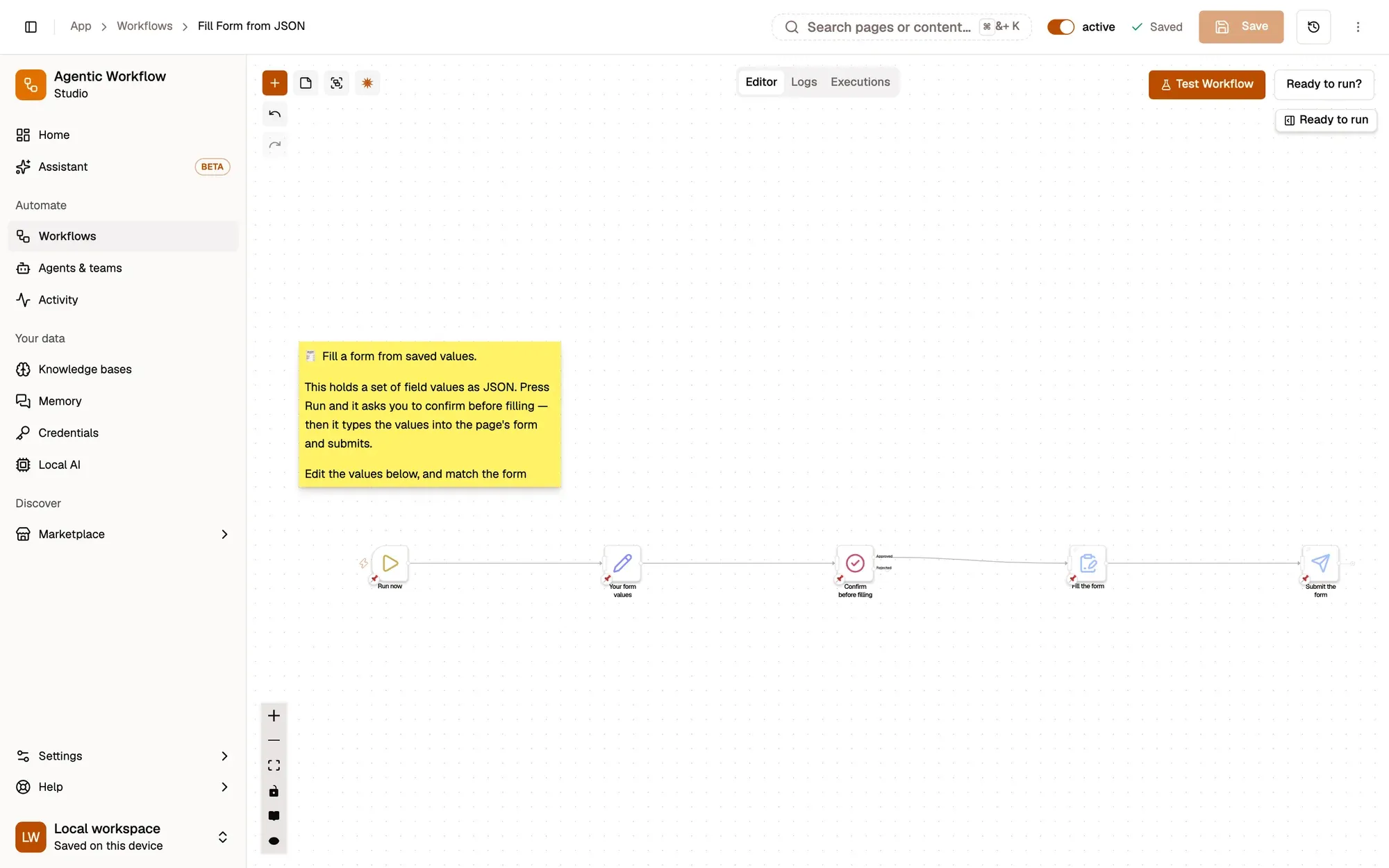
Install the recipe and open Your form values. Put your own values in. To import the file yourself, use Add Workflow › Import, choose the .awf and click Create & open. Then click Make it mine at the bottom of the canvas, tick the box and confirm, so you can edit it.
Run it on the form
Node: When Started
When Started has no settings; run the workflow from the right-click menu on the page with the form.
Keep your values
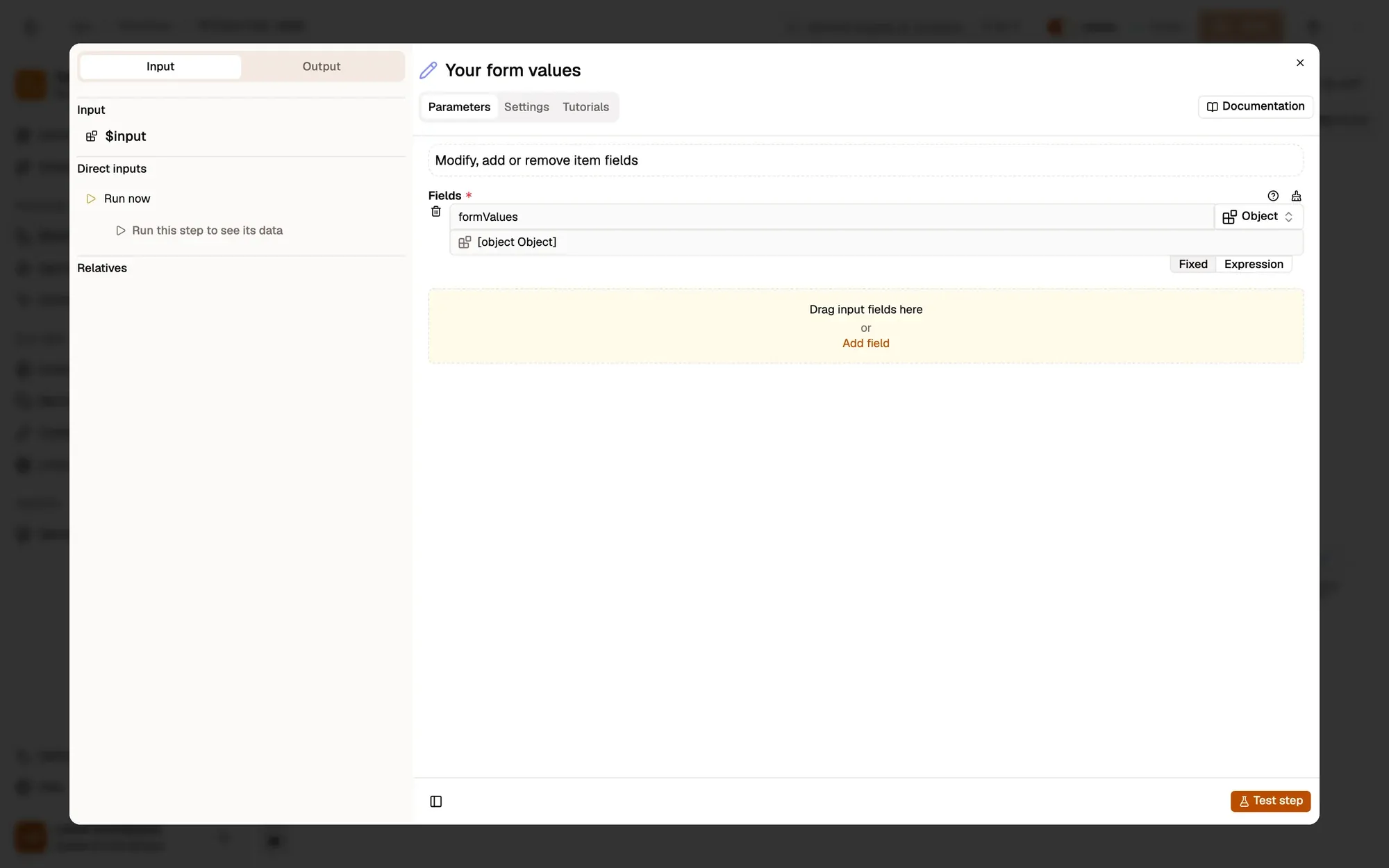
Node: Edit Fields
Edit Fields holds one object, formValues, with name, email and message.
Ask before filling
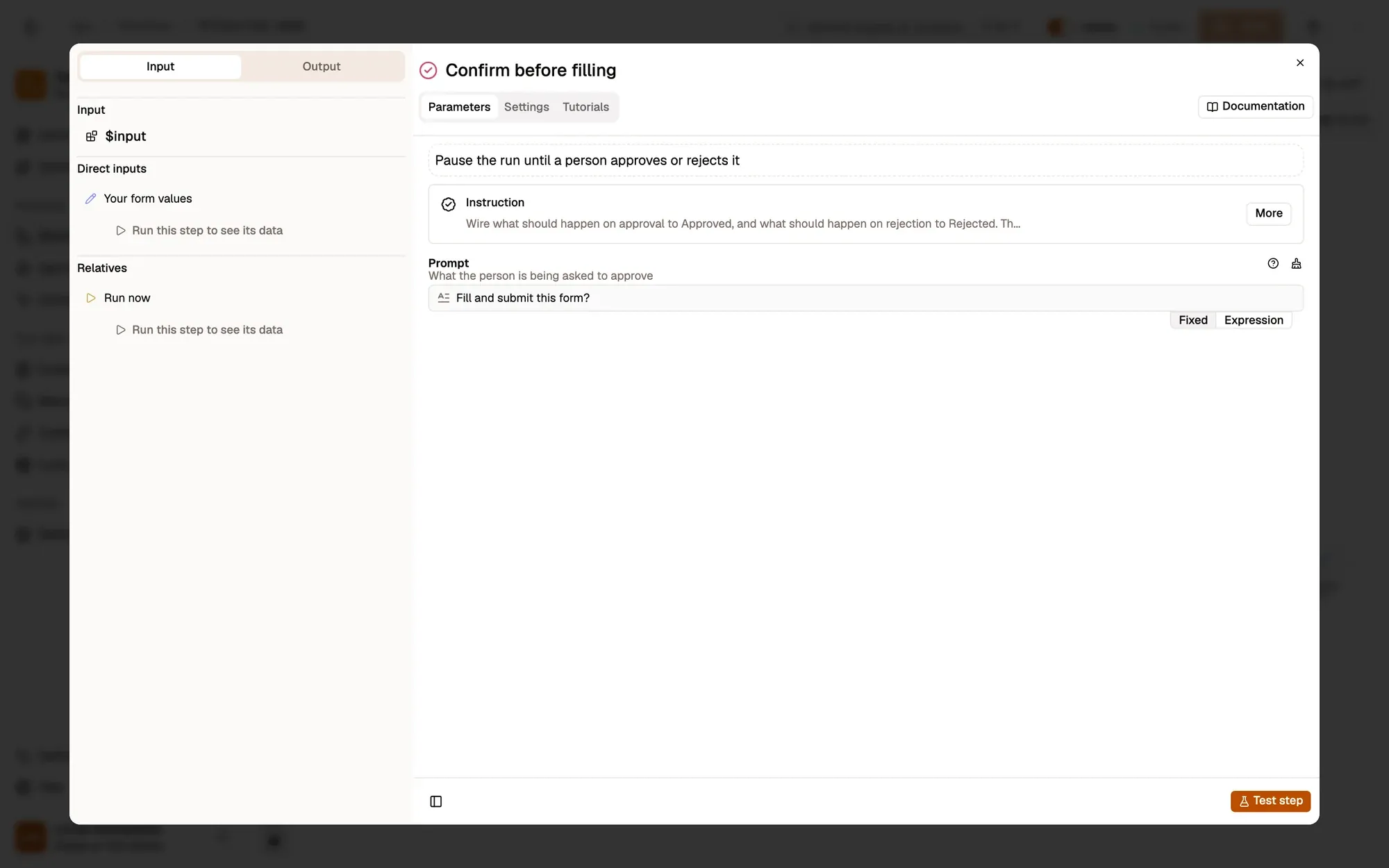
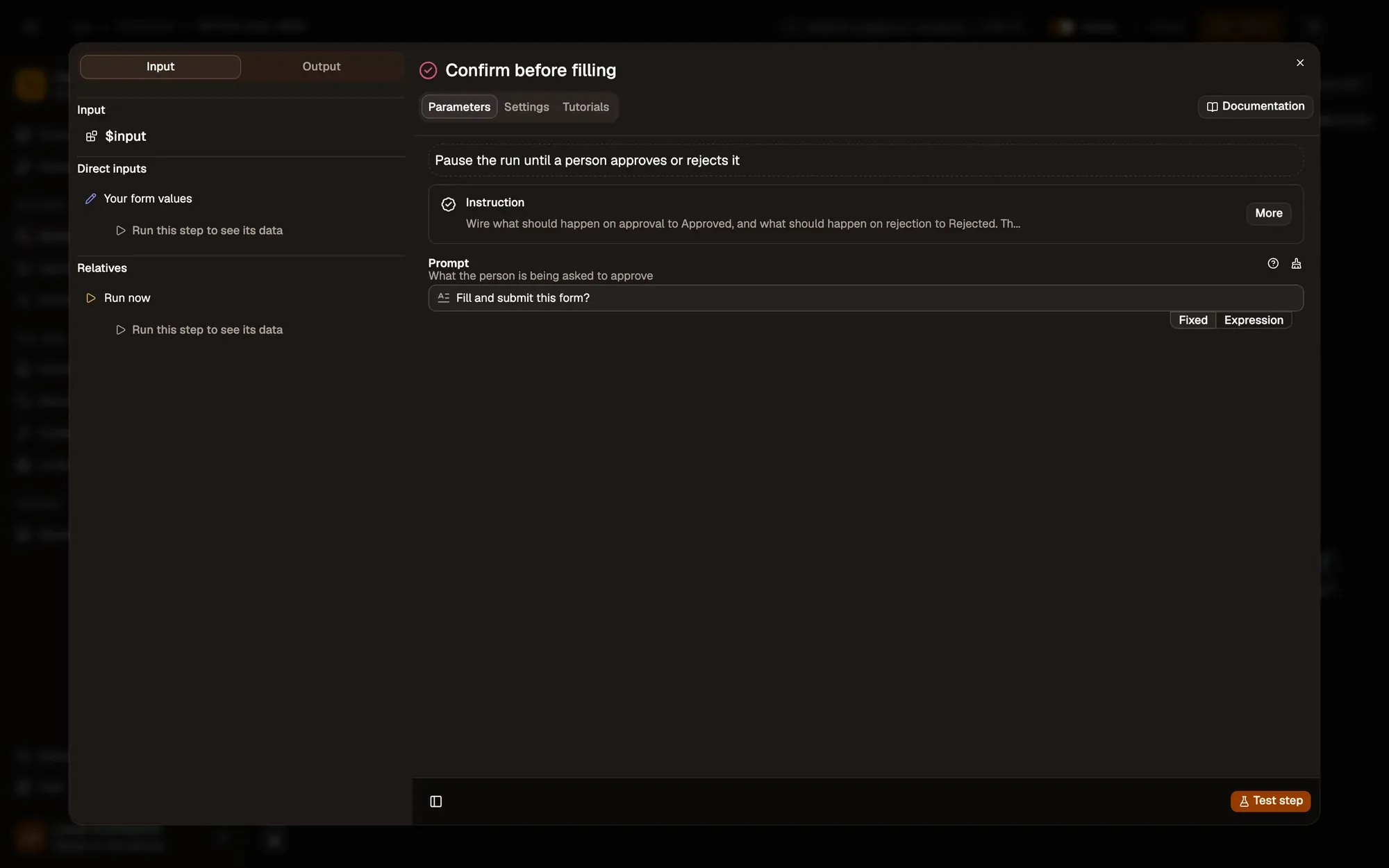
Node: Wait For Approval
Wait For Approval pauses with Fill and submit this form?. Nothing is typed until you approve.
Fill the fields
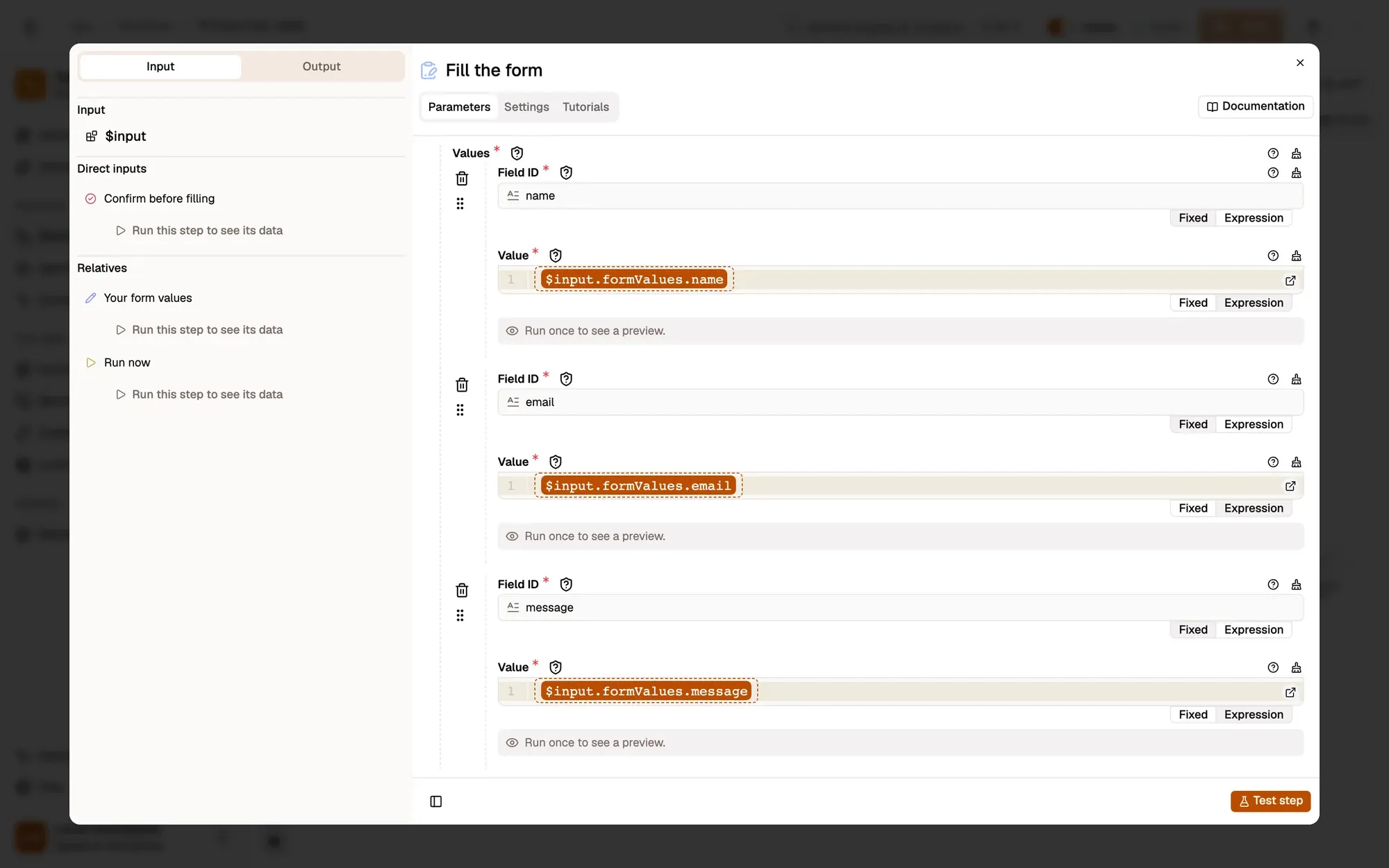
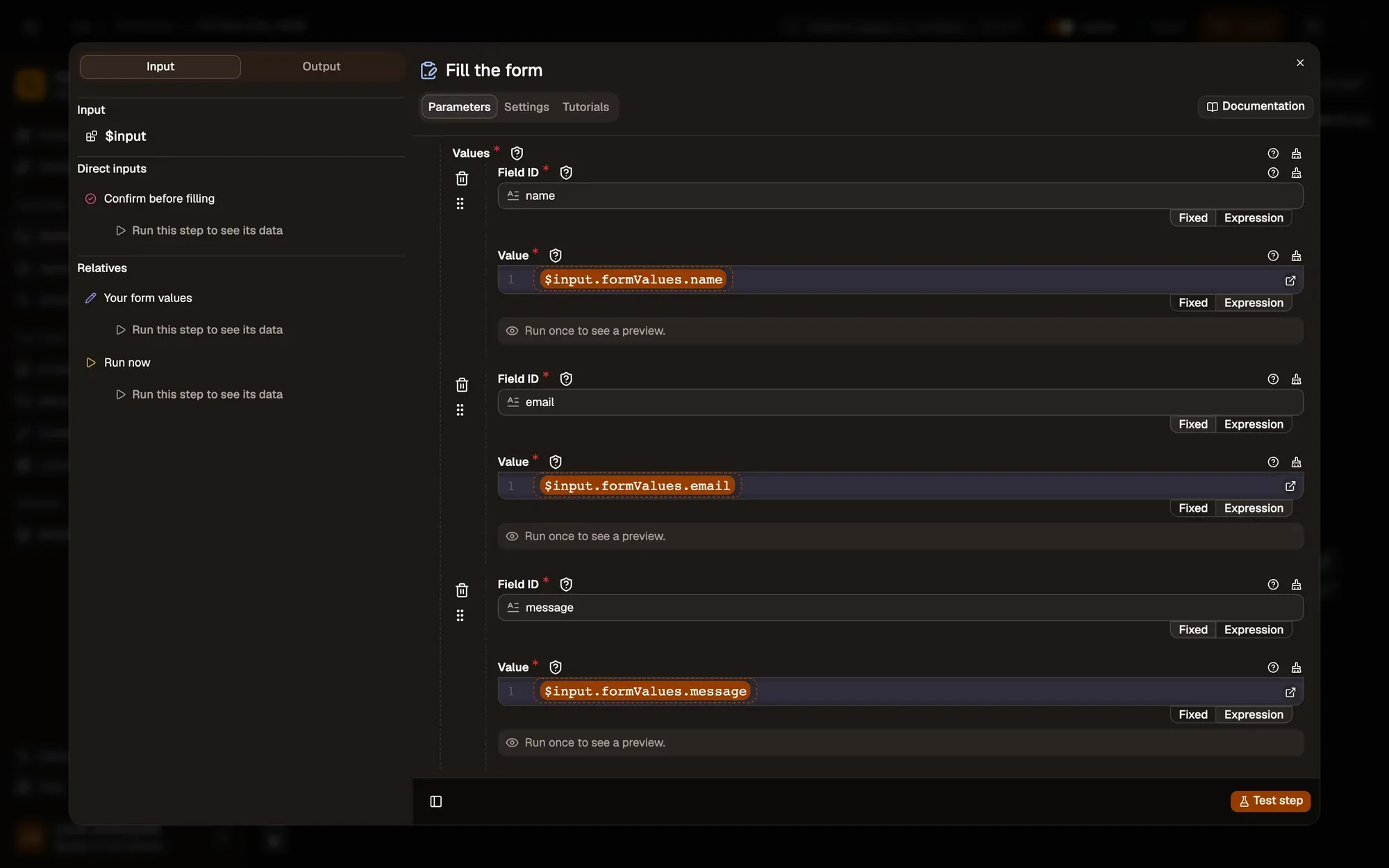
Node: Form Fill
Form Fill finds the first form on the page and types each value into the field whose id is name, email or message.
Submit the form
Node: Submit Form
Submit Form submits the element matching form.
Run it and check the result
Open Fill the form and change the field ids to the ones on your form. Save the workflow, open the page with the form, right-click it and choose Agentic Workflow › Personal Workflows › Fill Form from JSON. Approve the request. The fields fill in and the form is sent.
Common problems
Some fields stay empty
Their ids differ from the ones in Form Fill. Use Get Forms Schema to read the real ids.
The wrong form is filled
The page has several forms. Change formSelector in Form Fill and the DOM Selector in Submit Form to target the right one, such as #contact-form.
The run seems stuck
It's waiting for your approval. Approve it in the run panel or the in-page card.
Collect only what you need, keep the run rate reasonable, and respect each site's terms of use.
Learn this properly: build it from scratch.
Short lessons with a quiz at the end of each module.