On this page
Before you start
Install the recipe
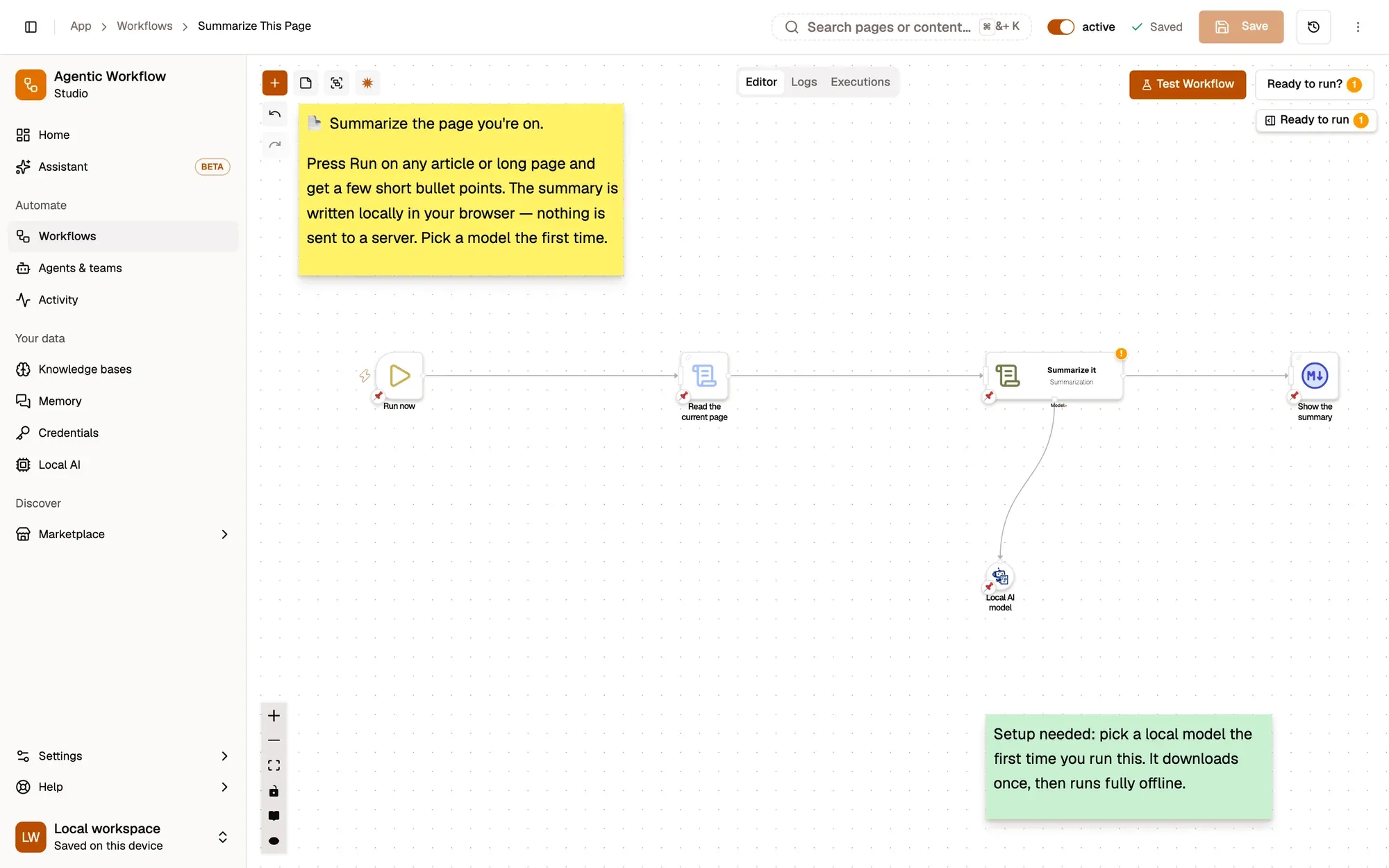
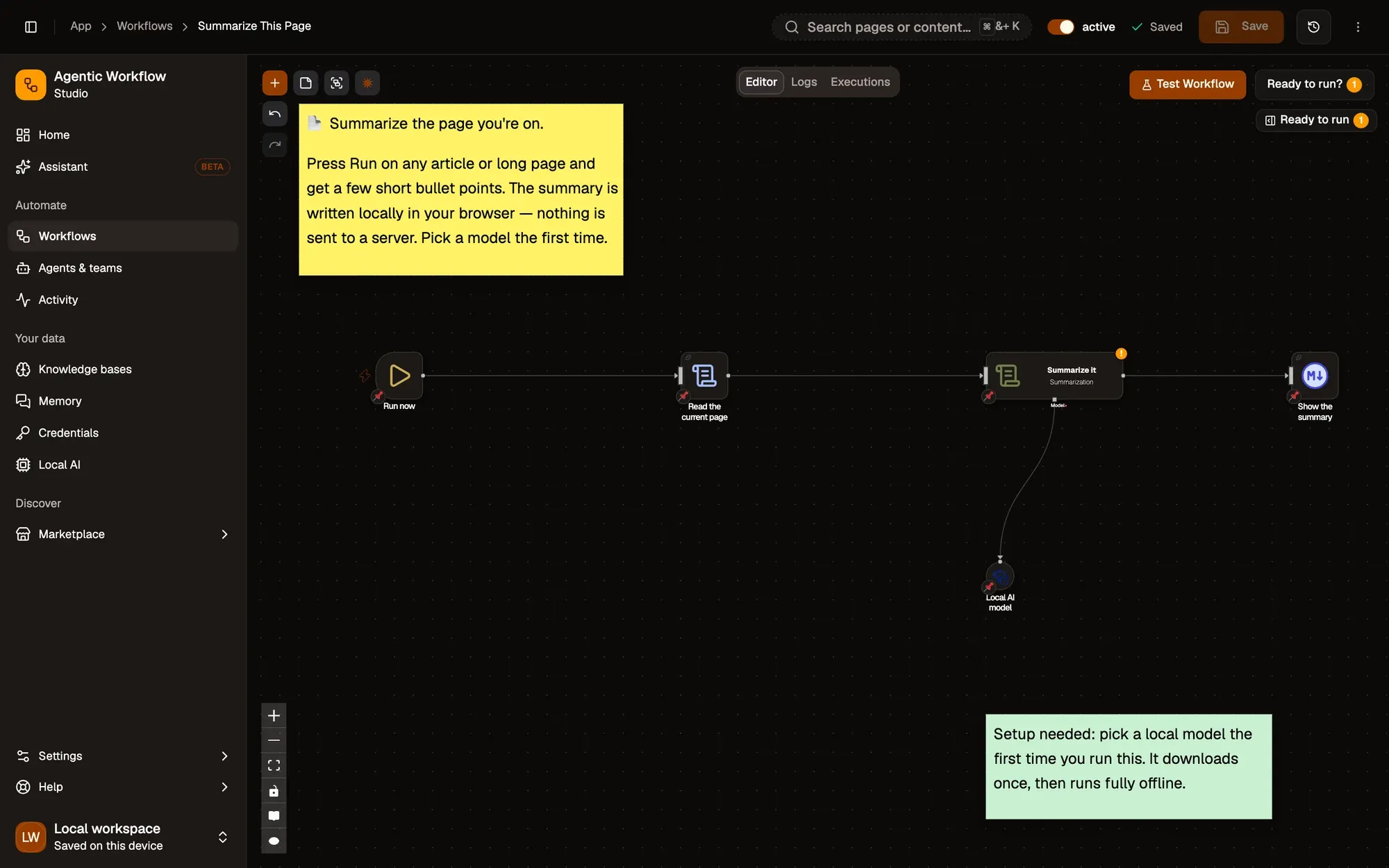
Install the recipe, open it on the canvas and pick a model in Local AI model. The first run downloads it once; installed models start right away. See Local models. To import the file yourself, use Add Workflow › Import, choose the .awf and click Create & open. Then click Make it mine at the bottom of the canvas, tick the box and confirm, so you can edit it.
Start it when you want
Node: When Started
The workflow runs when you click Test Workflow, run it from the workflow list, or pick it in the right-click menu under Agentic Workflow.
Read the current page
Node: Get All Text
Takes the text you can see on the active tab (Visible text only is on), and puts it in the text field.
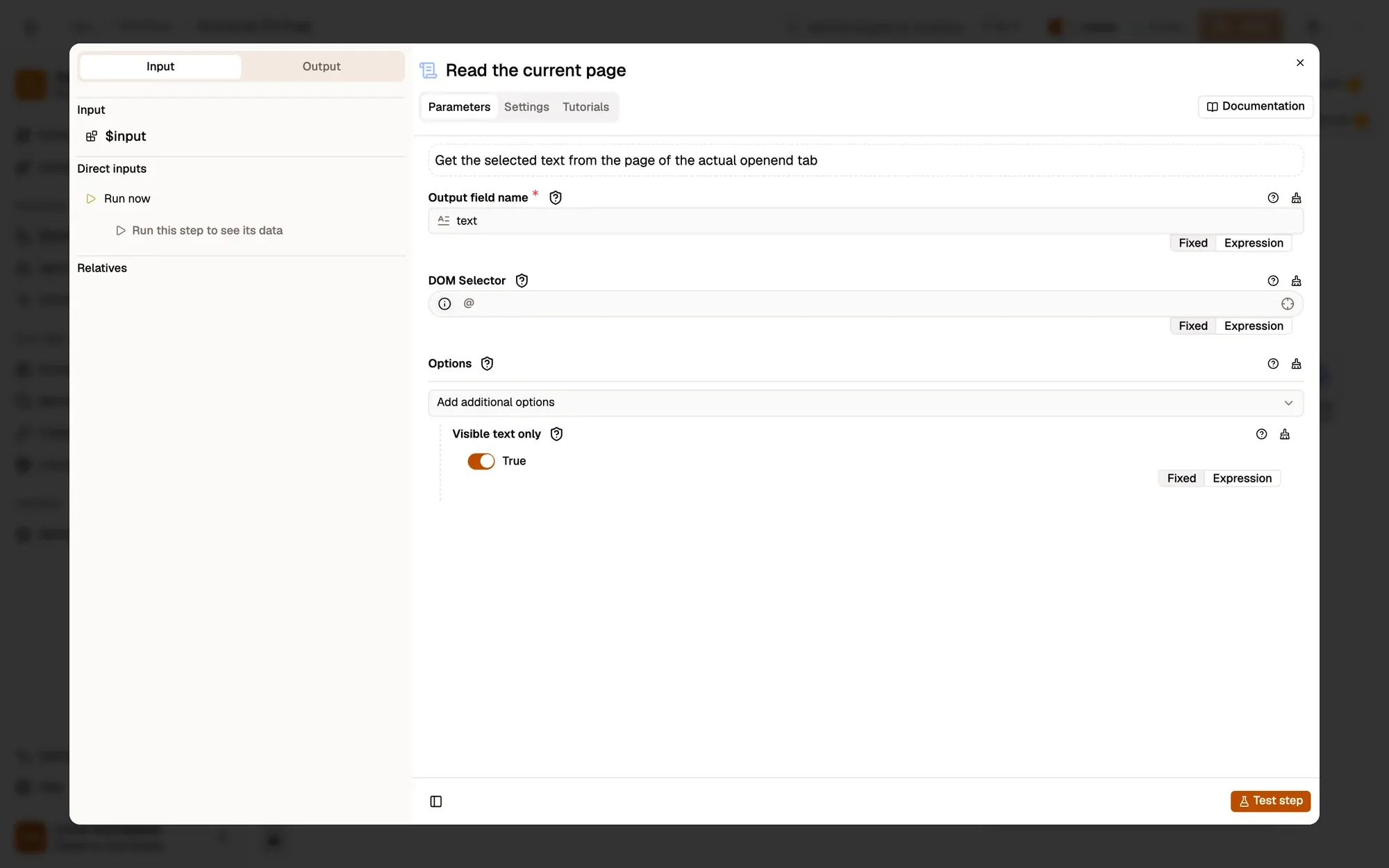
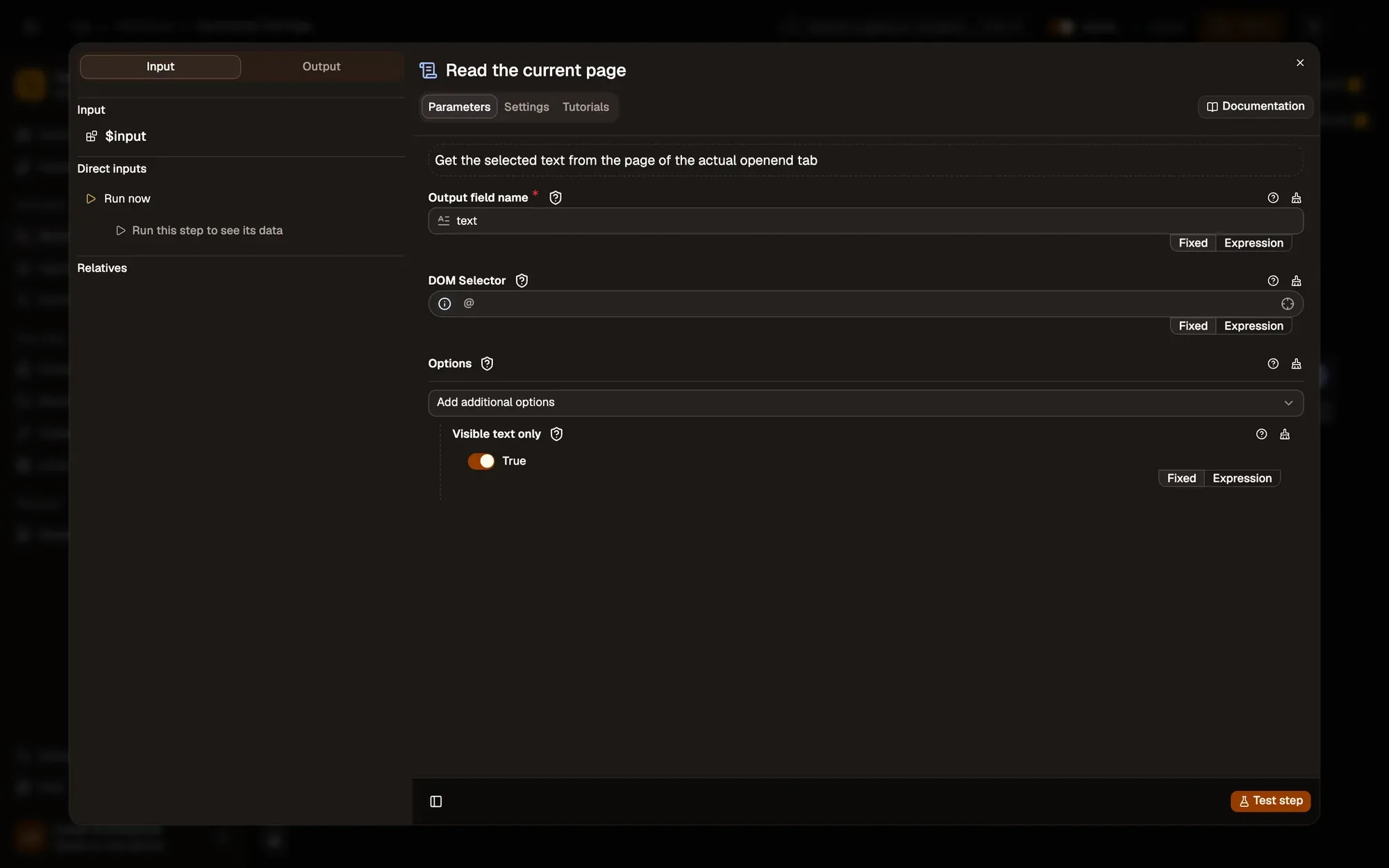
article or main to skip menus, comments and footers.Summarize it on your device
Node: Summarization
The Summarization node asks the Web LLM model for at most 120 words as a few bullet points. The model runs in your browser through WebGPU. Also uses the Web LLM node.
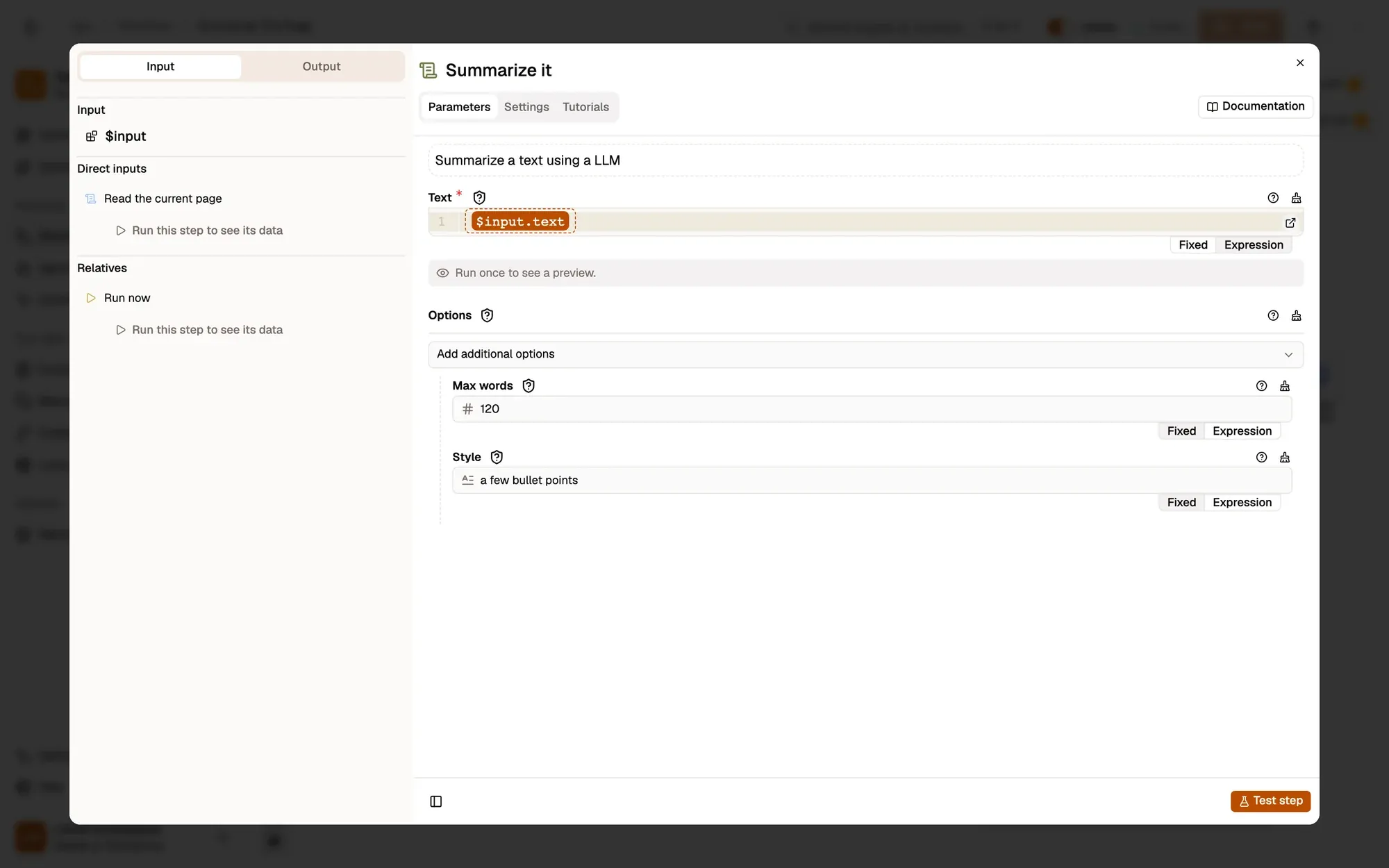
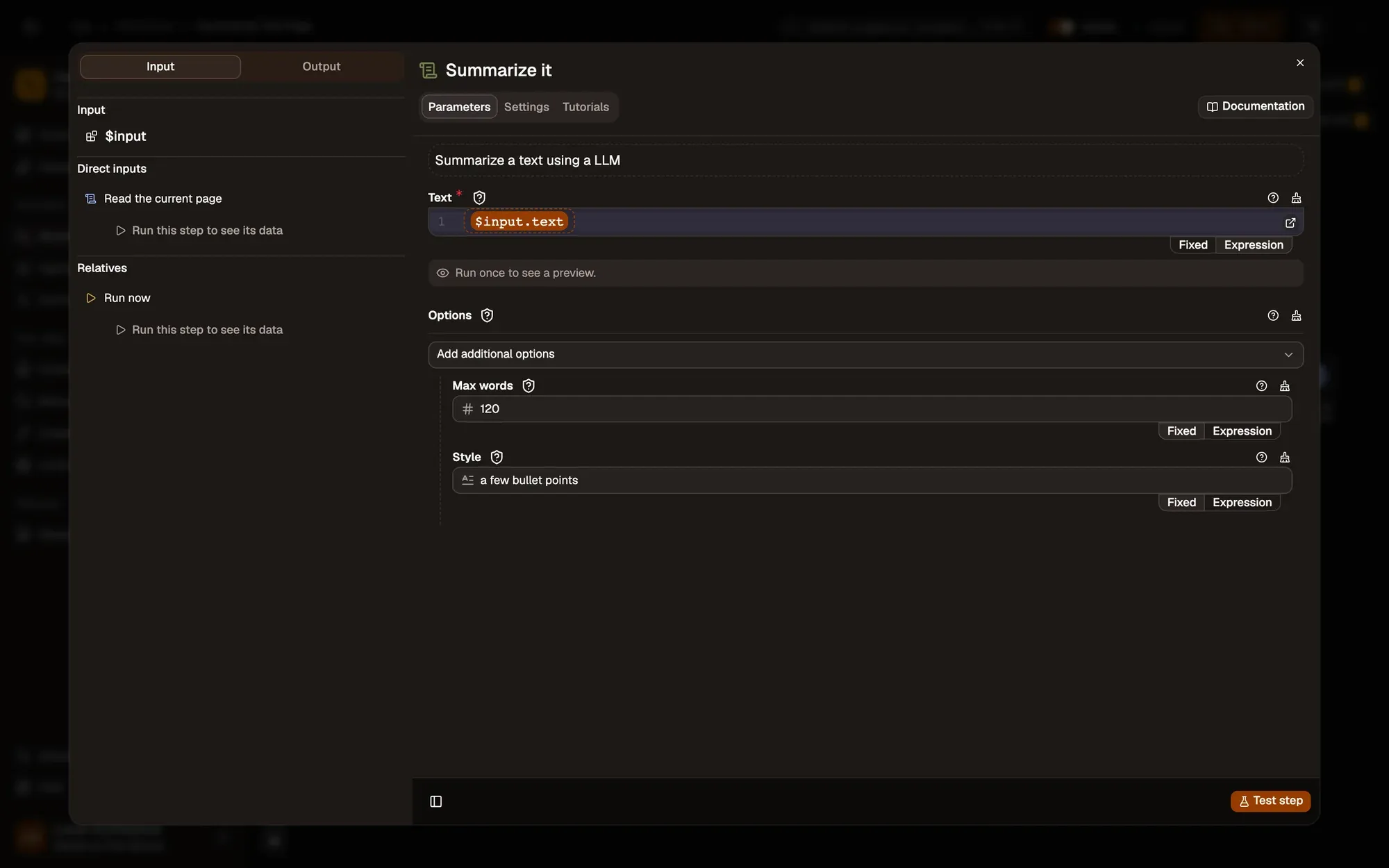
one short paragraph), or pick a bigger model in Model.Show the summary on the page
Node: Display Markdown
Display Markdown opens a panel in the bottom-right corner of the tab, titled Page summary, with a copy button.
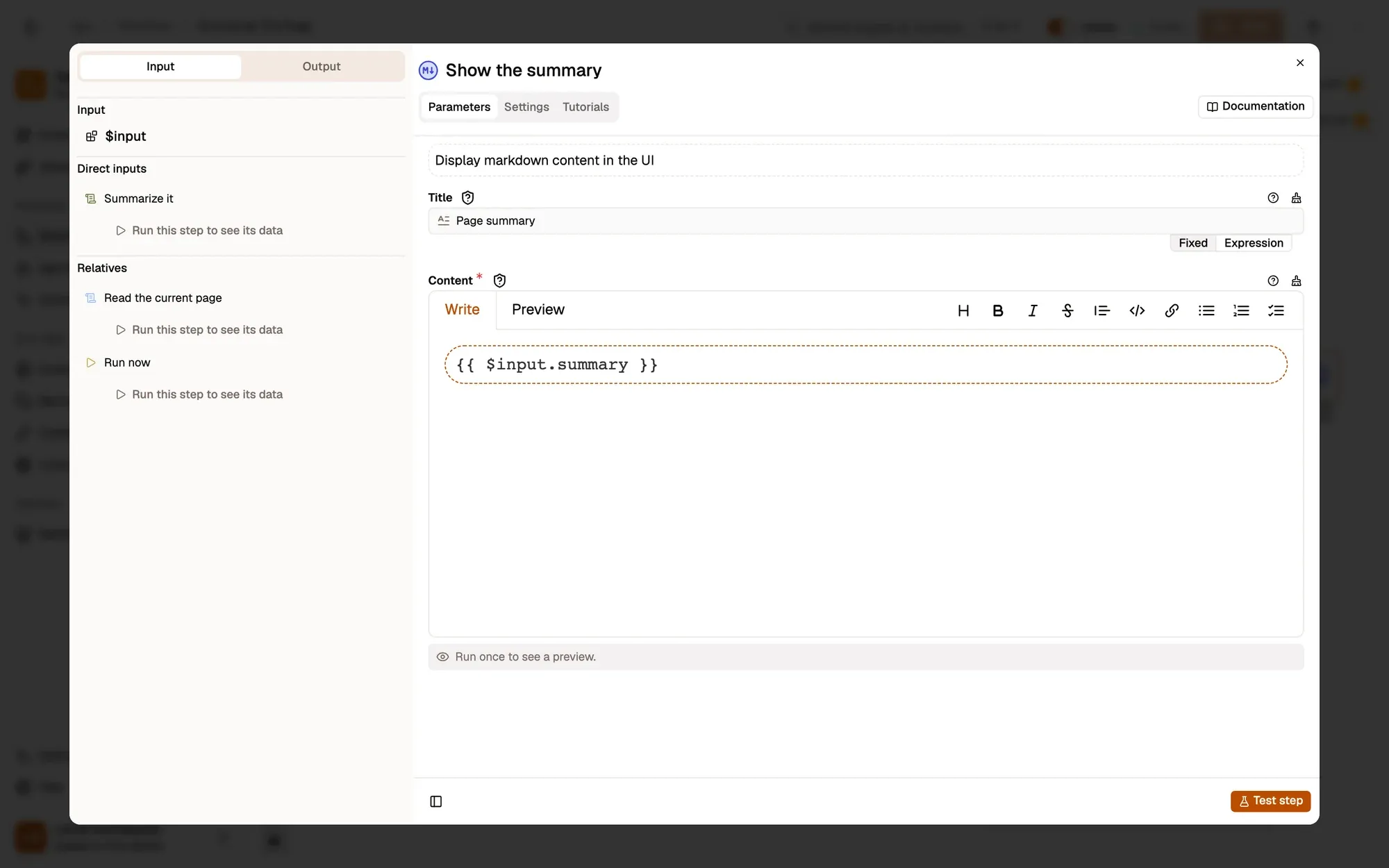
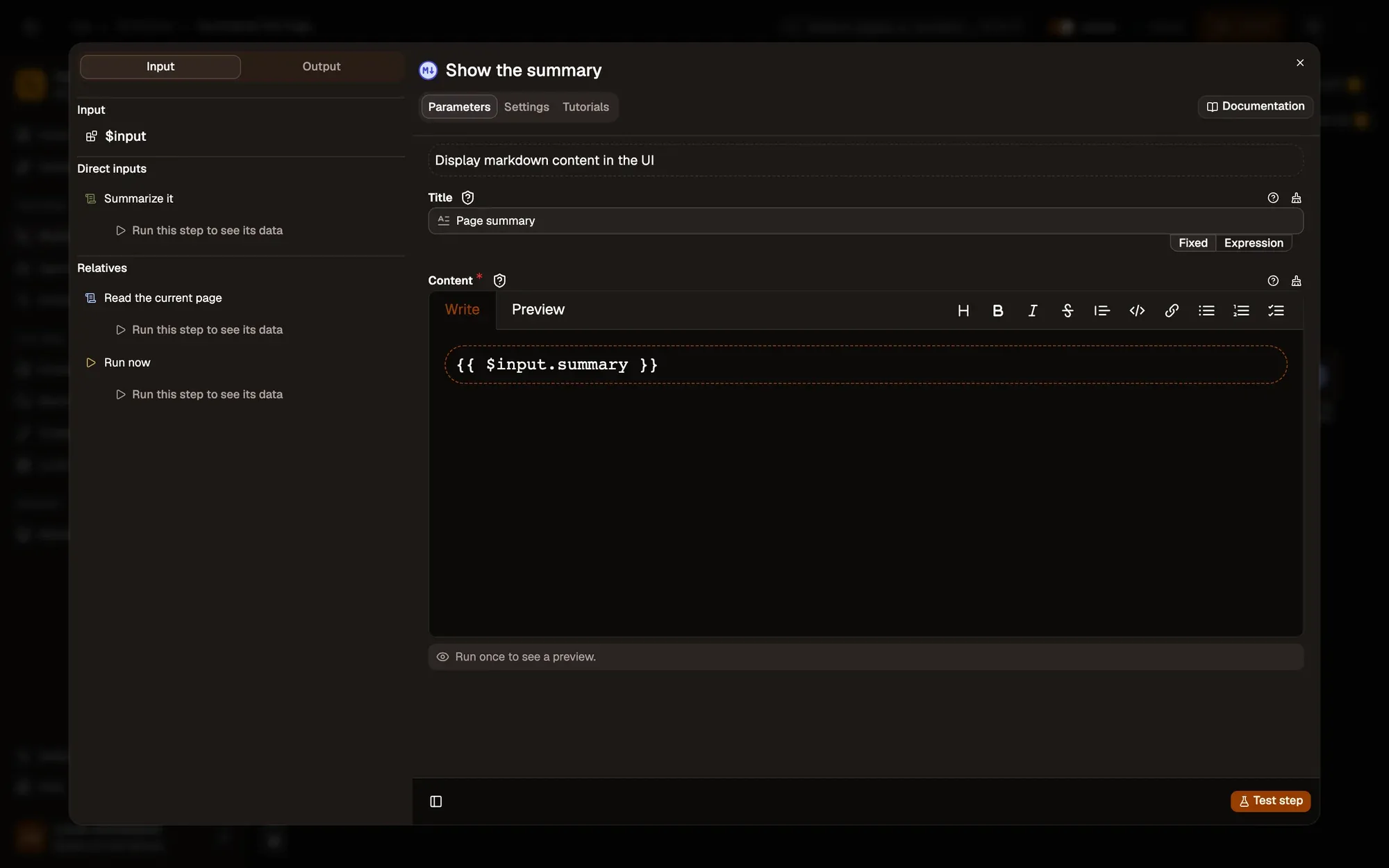
Run it and check the result
Save and activate the workflow, then open a long article. Right-click the article and choose Agentic Workflow › Personal Workflows › Summarize This Page. If it's missing, choose Get / Refresh Workflows first. A Page summary panel opens in the corner of the article with a few bullet points.
Common problems
The panel never appears
Display Markdown shows on the active tab. Run it from the right-click menu on the article itself, so the article is the active tab.
The model doesn't load
Web LLM needs WebGPU, which some browsers and graphics cards lack. Use Transformers Chat as the model instead.
The summary covers the menu and the cookie banner
Set DOM Selector on Get All Text to the article's container.
Collect only what you need, keep the run rate reasonable, and respect each site's terms of use.
Learn this properly: build it from scratch.
Short lessons with a quiz at the end of each module.