On this page
Before you start
Install the recipe
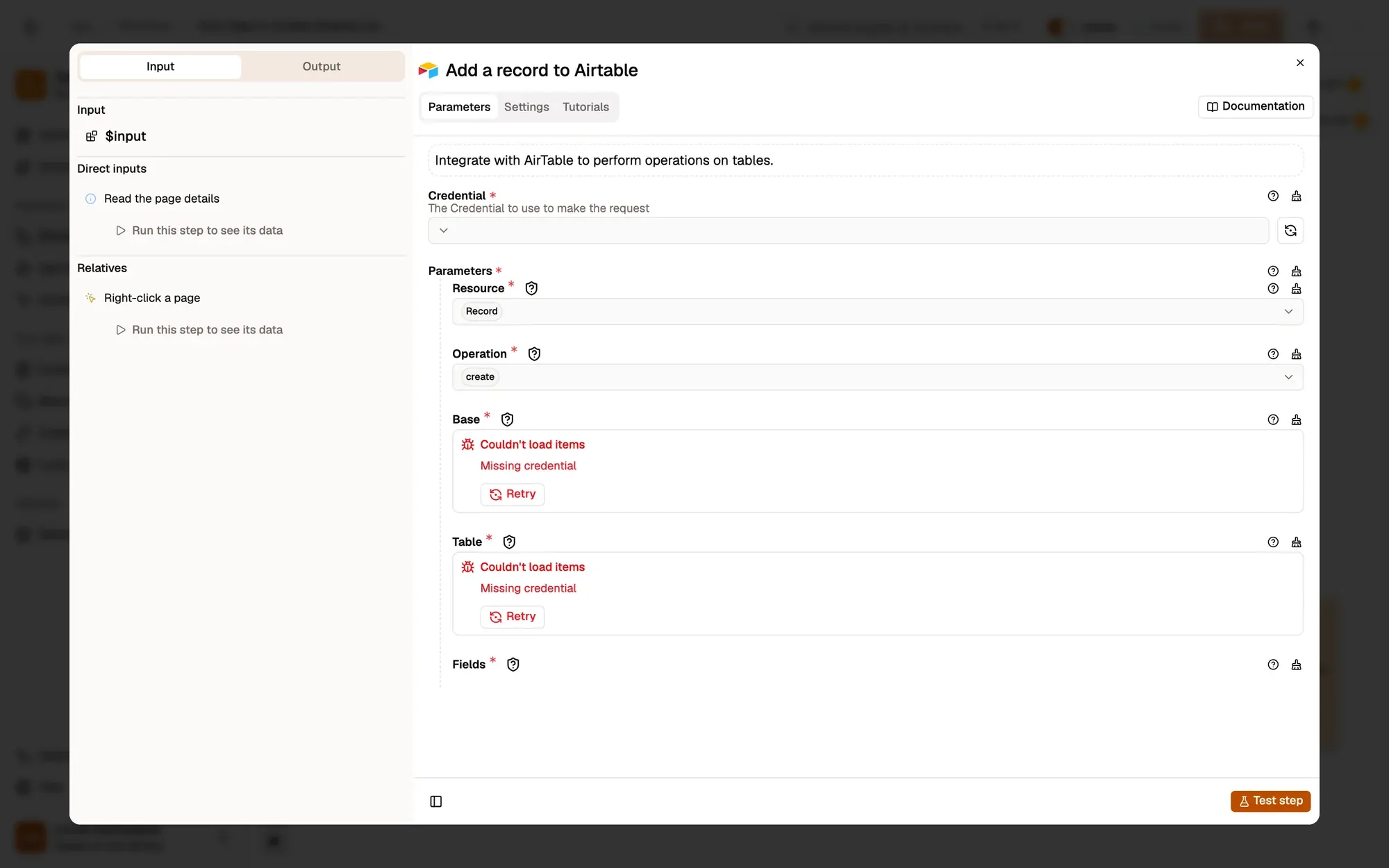
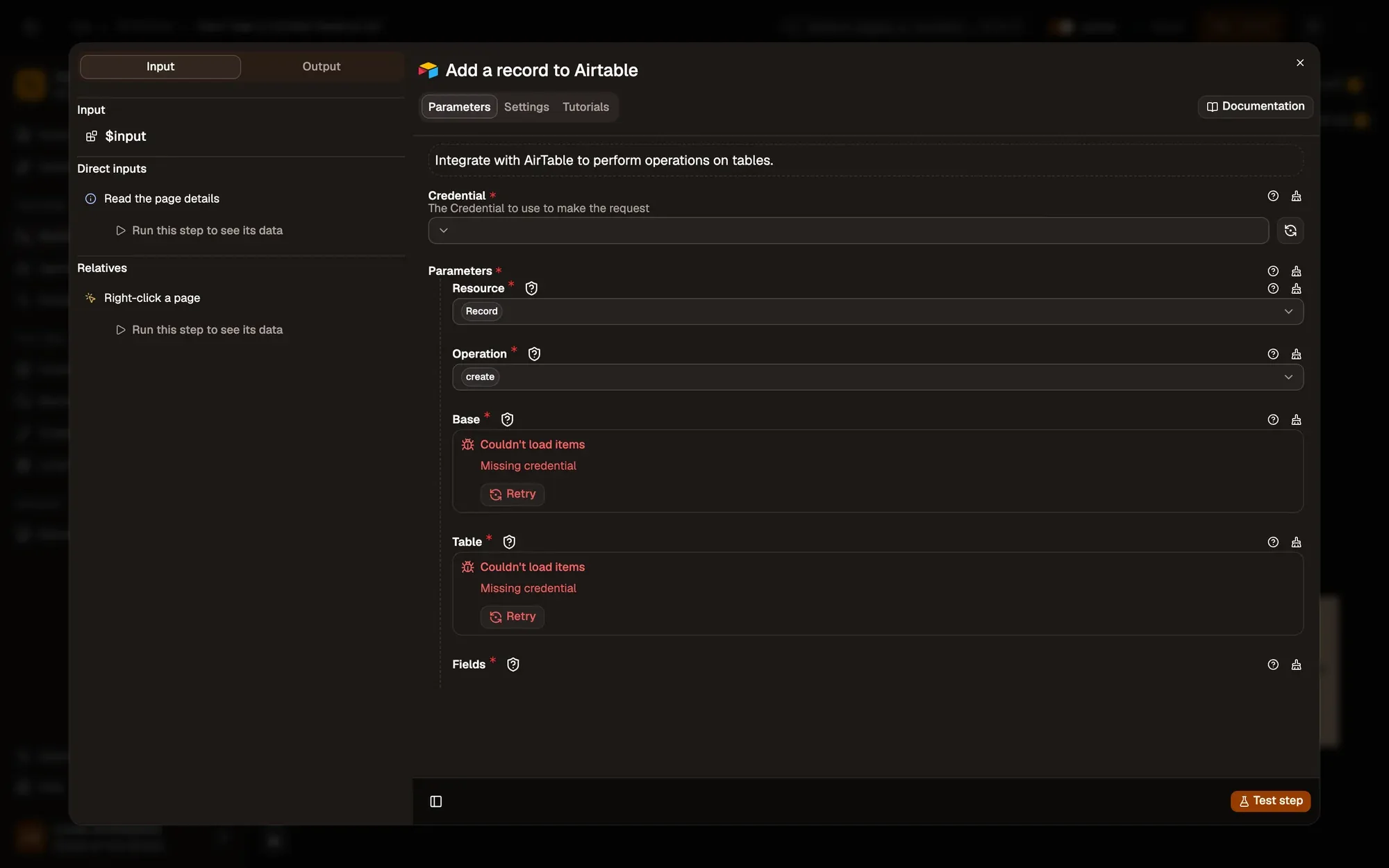
Install the recipe. Open Add a record to Airtable, choose or create an Airtable connection, then pick the Base and Table. See AirTable. To import the file yourself, use Add Workflow › Import, choose the .awf and click Create & open. Then click Make it mine at the bottom of the canvas, tick the box and confirm, so you can edit it. To add the connection itself, see Create a connection.
Right-click the page
Node: Context Menu
With Menu Contexts set to Page, the workflow appears when you right-click anywhere on a page.
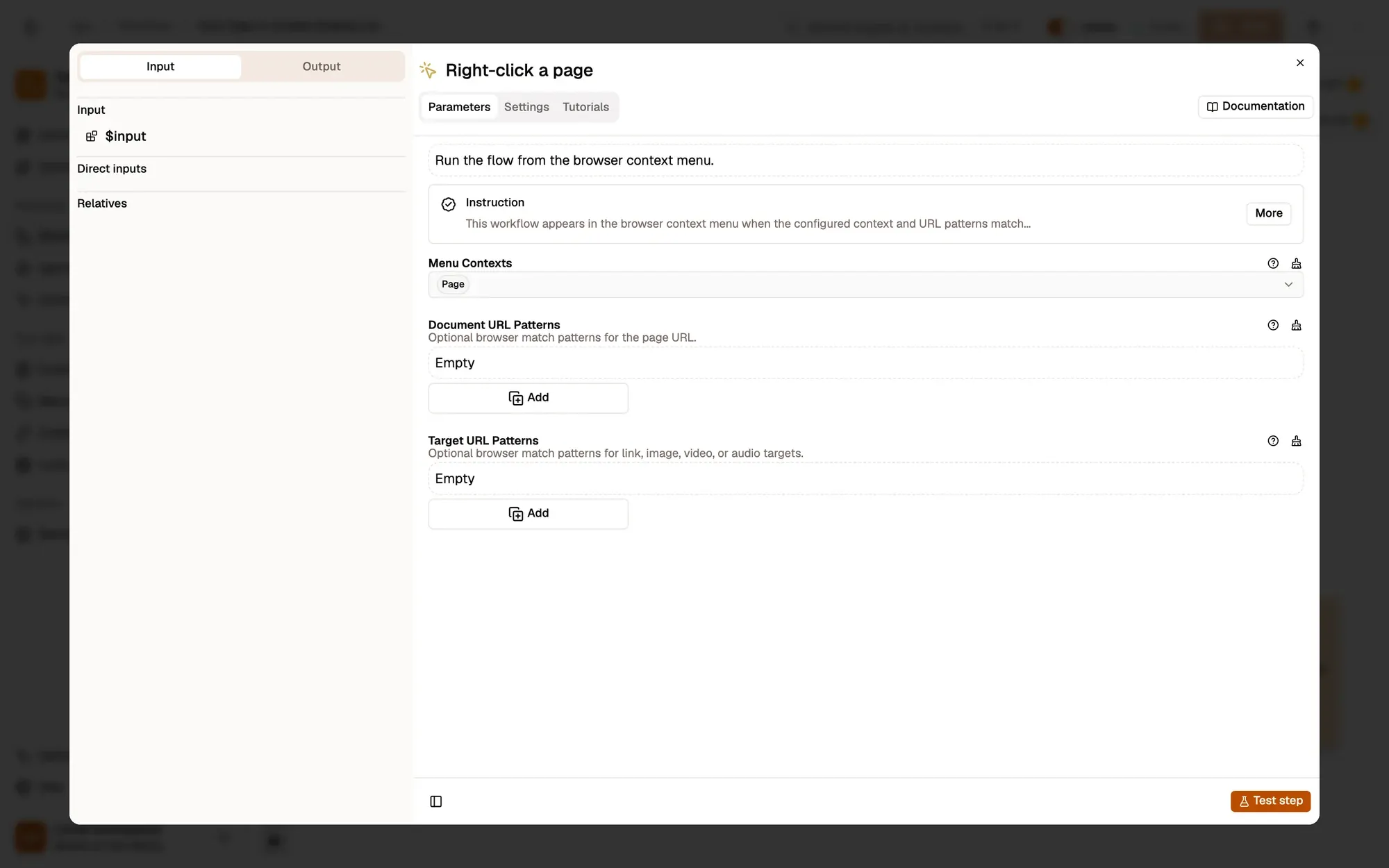
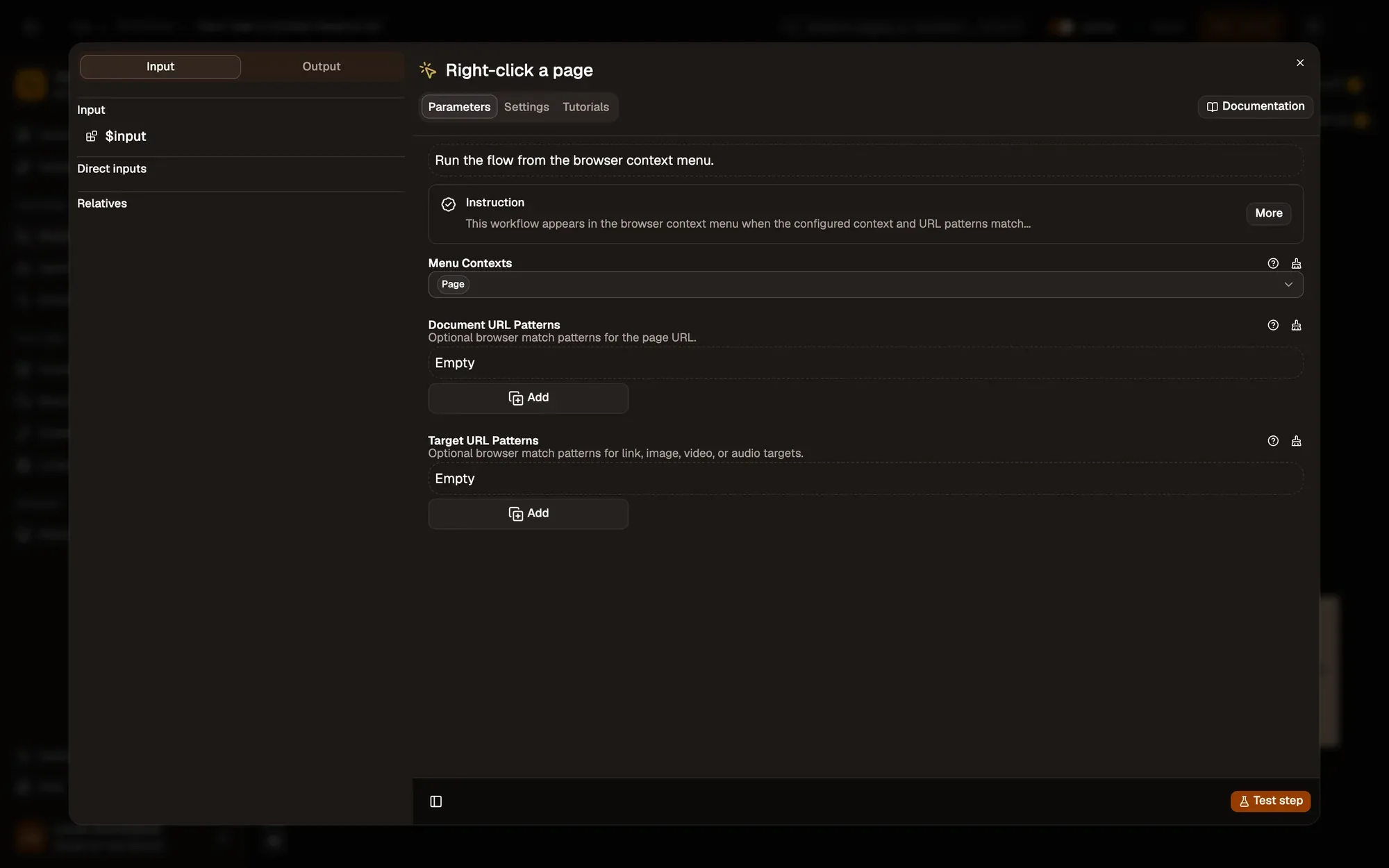
linkUrl).Read the page details
Node: Get Page Metadata
Get Page Metadata returns the page's title, url, description and other details, with no settings to fill in.
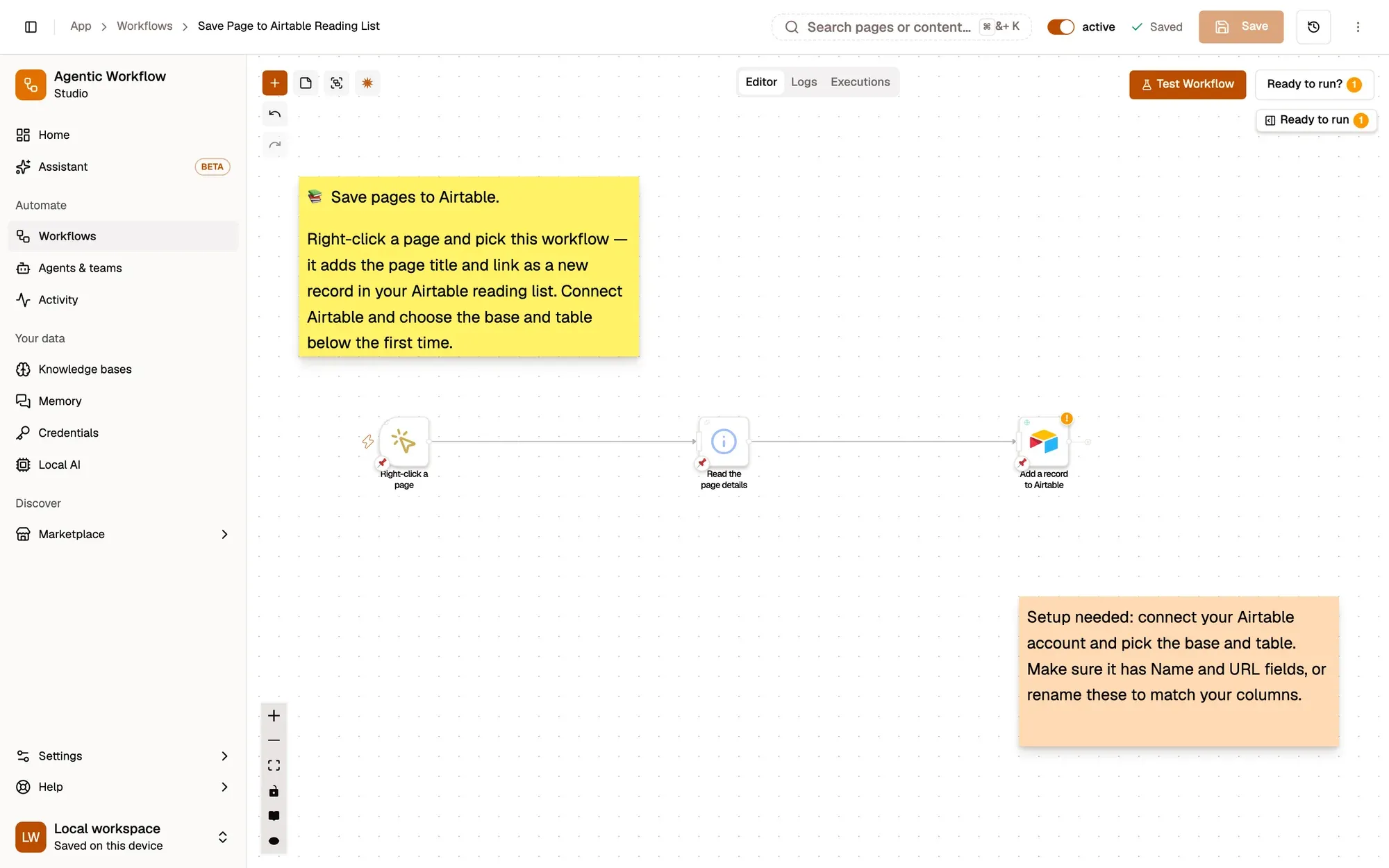
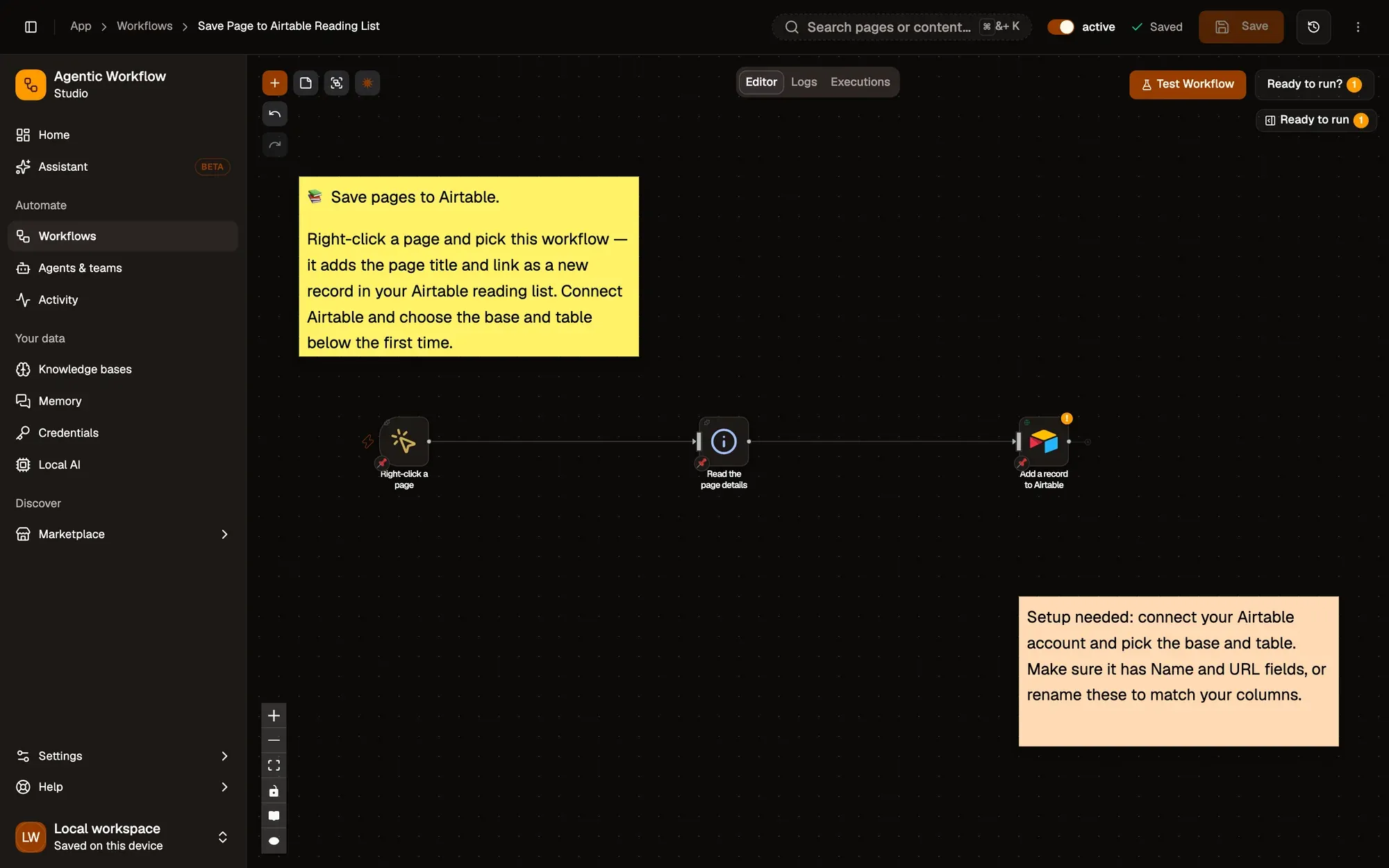
description to a Notes column in the next step.Add a row to Airtable
Node: AirTable
Creates a record with Name = {{ $input.title }} and URL = {{ $input.url }} in the base and table you pick.
Saved on.Run it and check the result
Make sure the table has a Name and a URL column (or rename the keys in the node to your columns). Save and activate the workflow. Right-click any page and choose Agentic Workflow › Personal Workflows › Save Page to Airtable Reading List. Open the table in Airtable: a new row shows the page title and link.
Common problems
"Unknown field name"
A key in the record's fields doesn't match a column in your table. Column names are case-sensitive.
The run fails on Airtable with an authorization error
The connection's token can't reach this base. Give it access to the base in Airtable, then check the connection in AWFlow.
The menu entry is missing
Activate the workflow, then right-click and choose Get / Refresh Workflows.
Collect only what you need, keep the run rate reasonable, and respect each site's terms of use.
Learn this properly: build it from scratch.
Short lessons with a quiz at the end of each module.