On this page
Before you start
Install the recipe
Install the recipe and save it. No setup is needed. To import the file yourself, use Add Workflow › Import, choose the .awf and click Create & open. Then click Make it mine at the bottom of the canvas, tick the box and confirm, so you can edit it.
Run it on the page
Node: When Started
When Started has no settings. A workflow whose only trigger is When Started is also listed in the right-click menu.
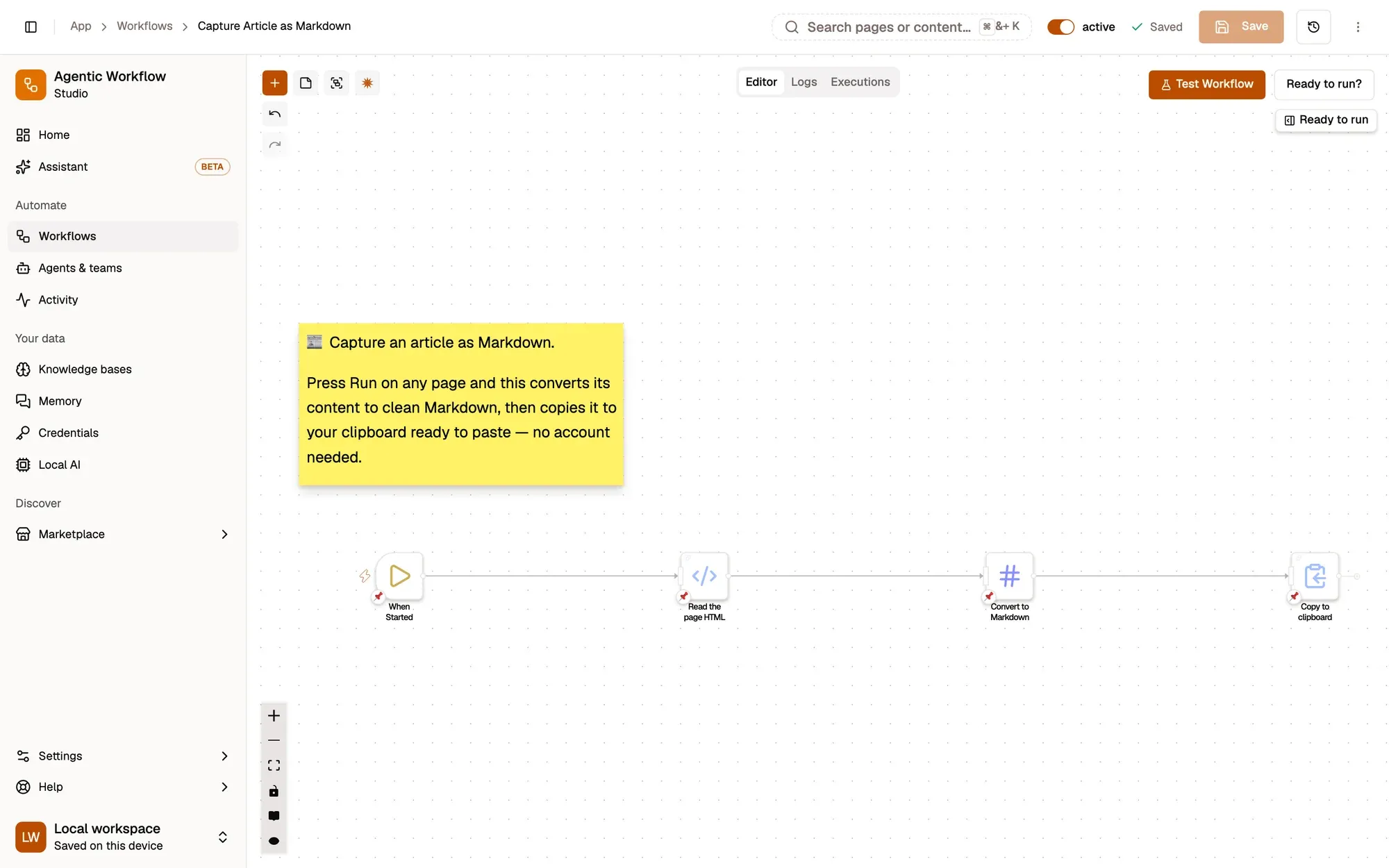
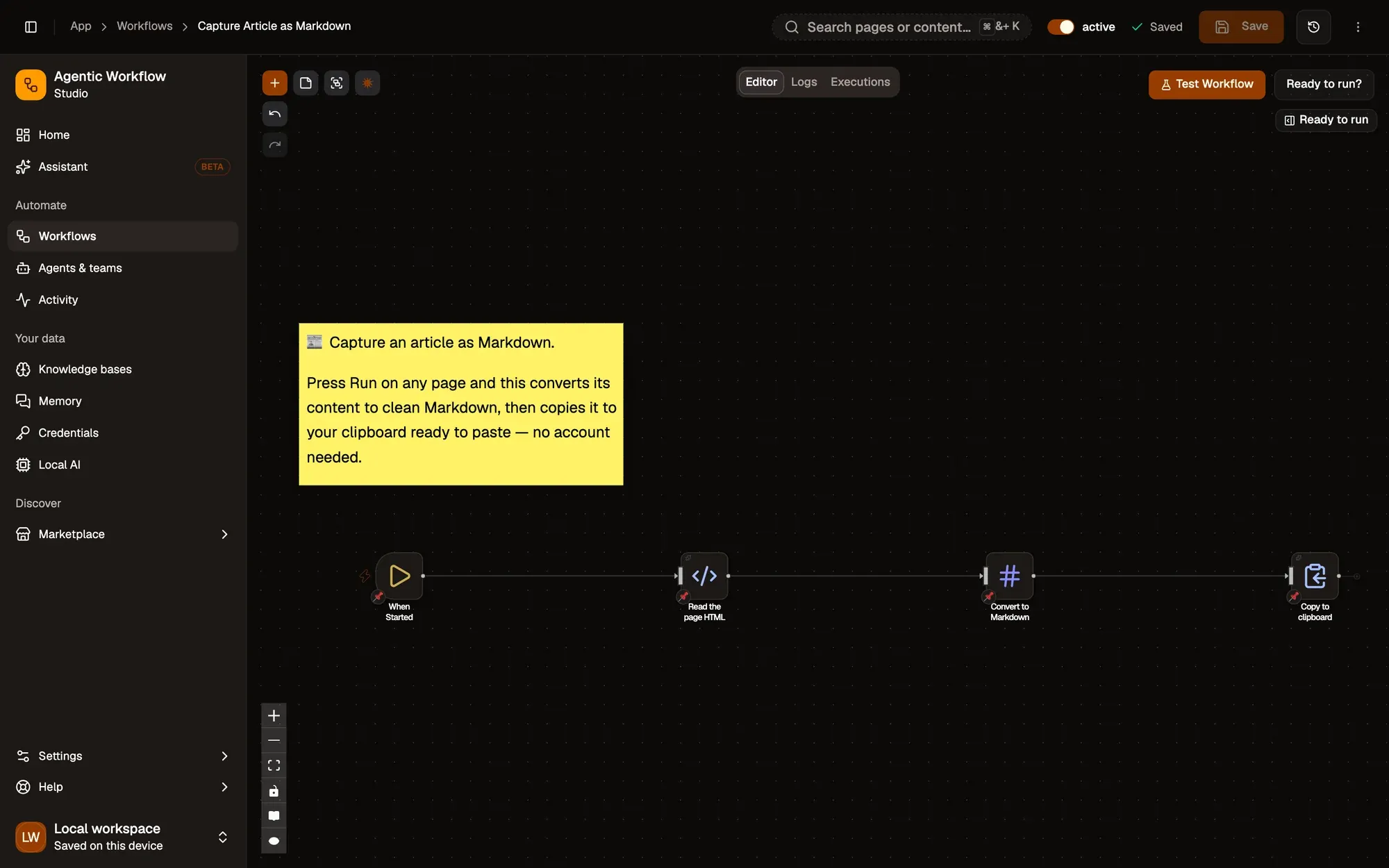
Read the page HTML
Node: Get All HTML
Get All HTML puts the page's HTML in the html field.
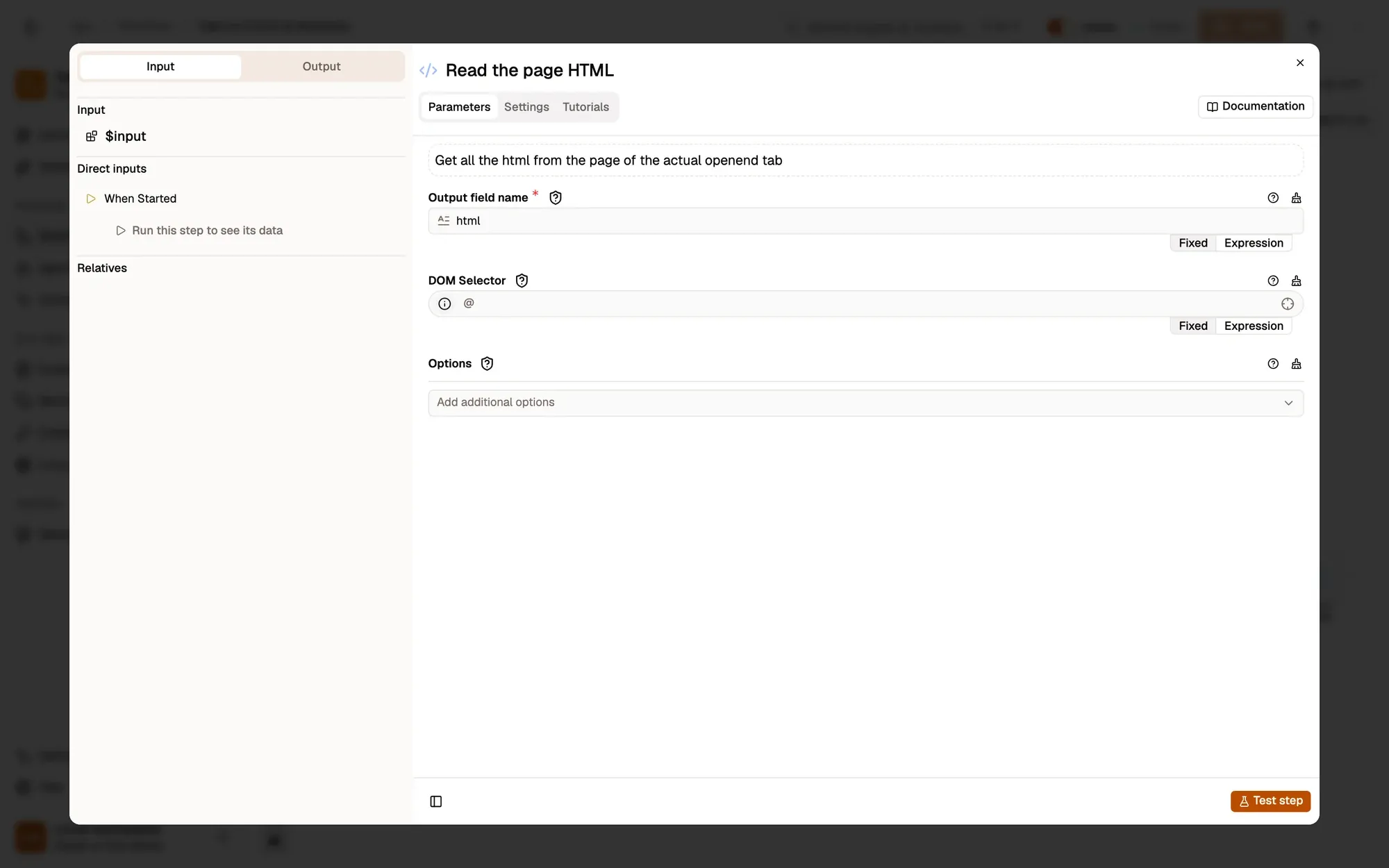
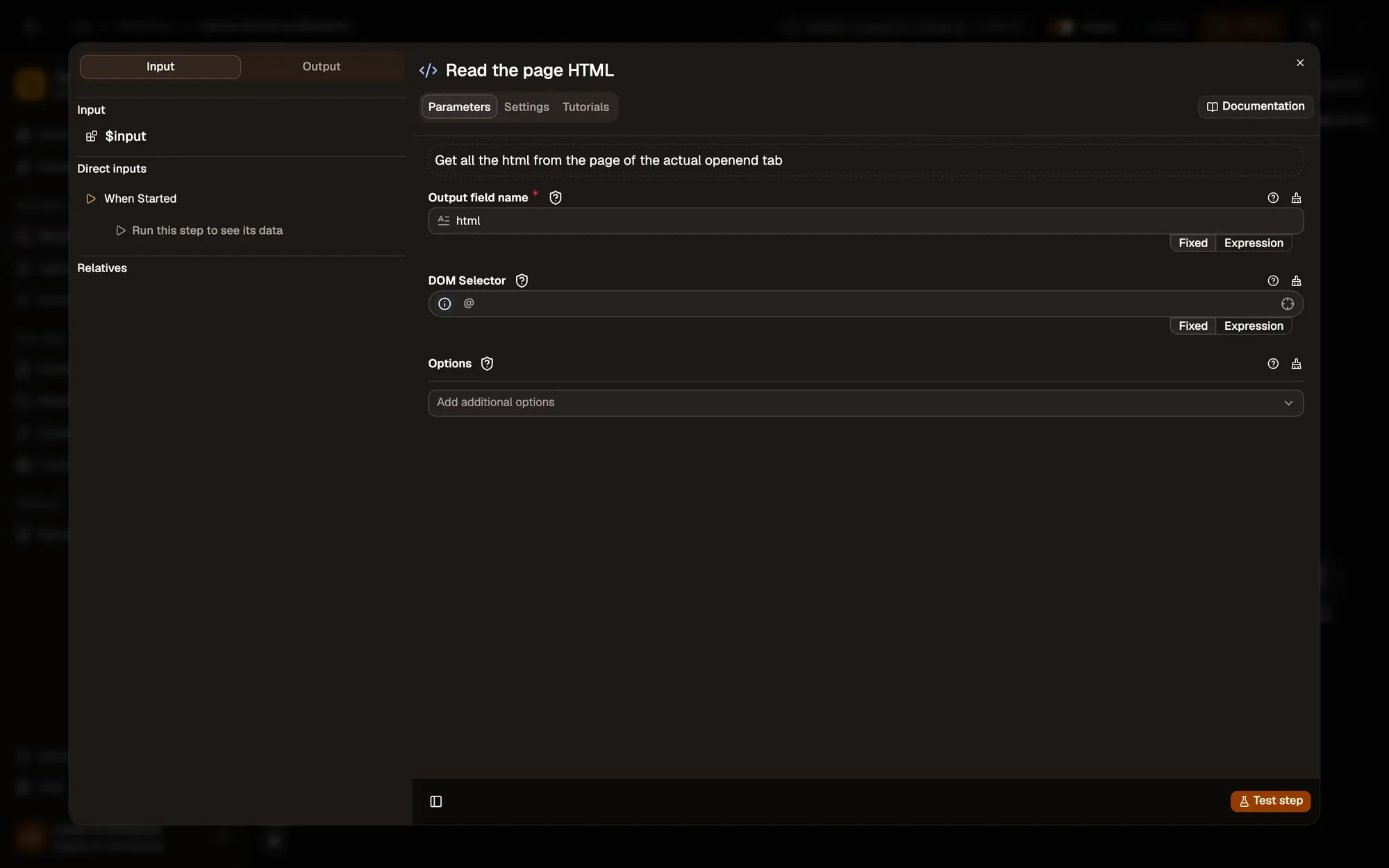
article or main so menus and footers stay out.Convert it to Markdown
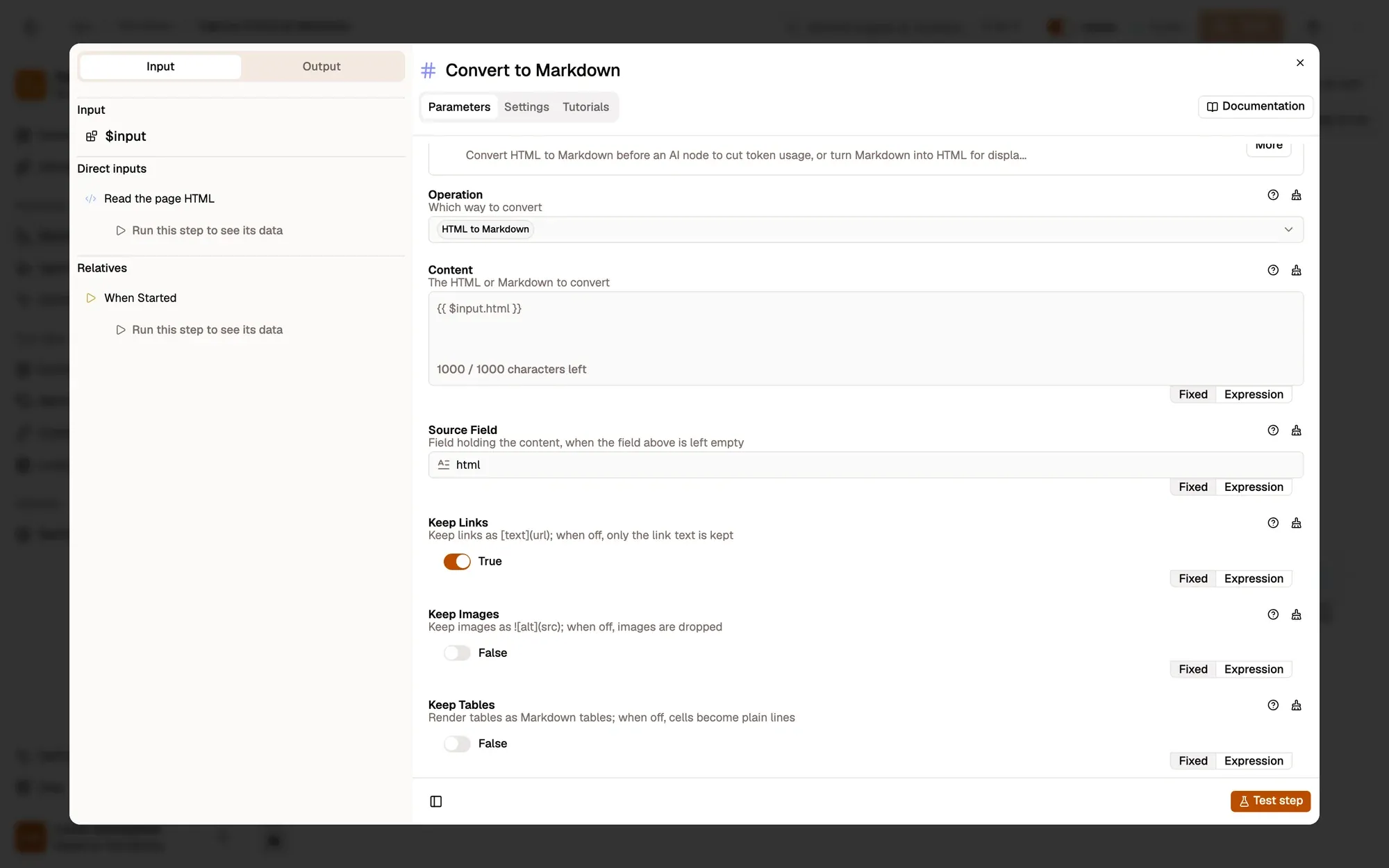
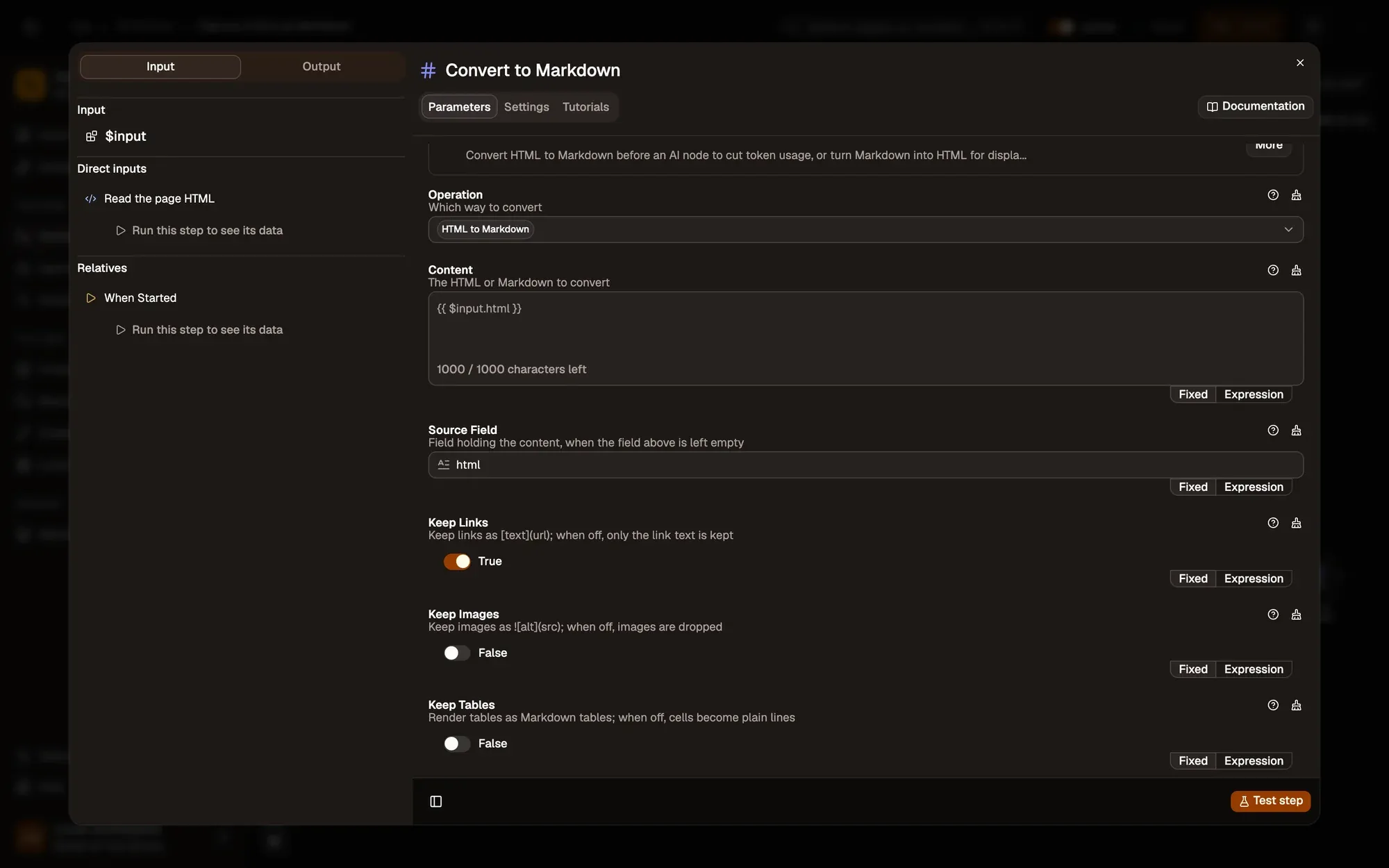
Node: Markdown
Markdown with Operation HTML to Markdown reads html, keeps links (Keep Links on) and writes markdown.
Copy it to the clipboard
Node: Clipboard Write
Clipboard Write copies the Markdown, ready to paste.
Run it and check the result
Open an article, right-click it and choose Agentic Workflow › Personal Workflows › Capture Article as Markdown. Paste into a note: you get headings, paragraphs and links as Markdown.
Common problems
The Markdown is full of menus and ads
Set DOM Selector on Get All HTML to the article container.
Nothing is pasted
Clipboard Write writes on the page you ran it on. Run it from the right-click menu on the article rather than from the canvas.
Images are missing
Keep Images is off by default in this recipe; turn it on in the Markdown step.
Collect only what you need, keep the run rate reasonable, and respect each site's terms of use.
Learn this properly: build it from scratch.
Short lessons with a quiz at the end of each module.