On this page
Before you start
Install the recipe
Install the recipe and save it. No setup is needed. To import the file yourself, use Add Workflow › Import, choose the .awf and click Create & open. Then click Make it mine at the bottom of the canvas, tick the box and confirm, so you can edit it.
Run it on the page
Node: When Started
When Started has no settings; run it from the right-click menu on the page with the table.
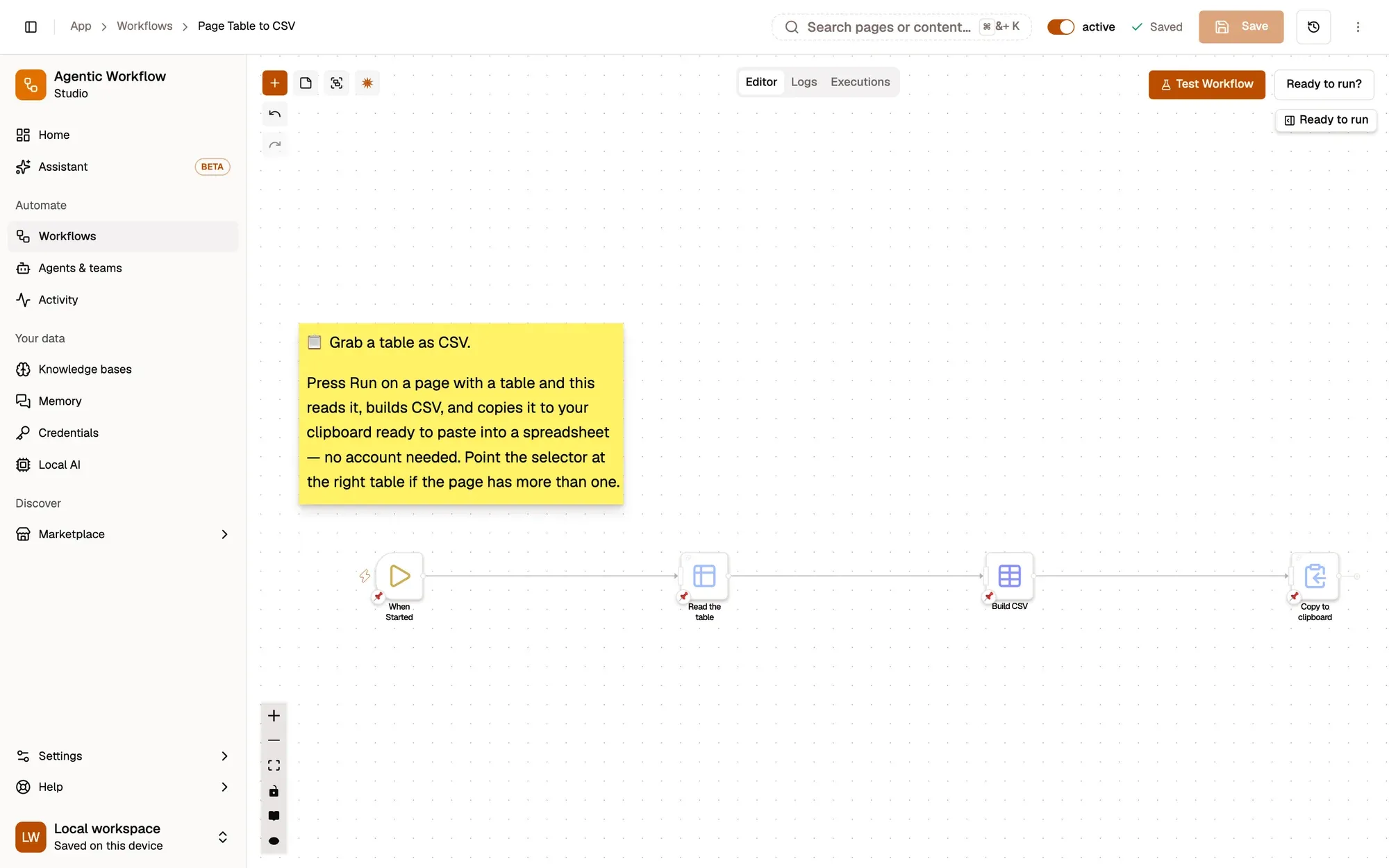
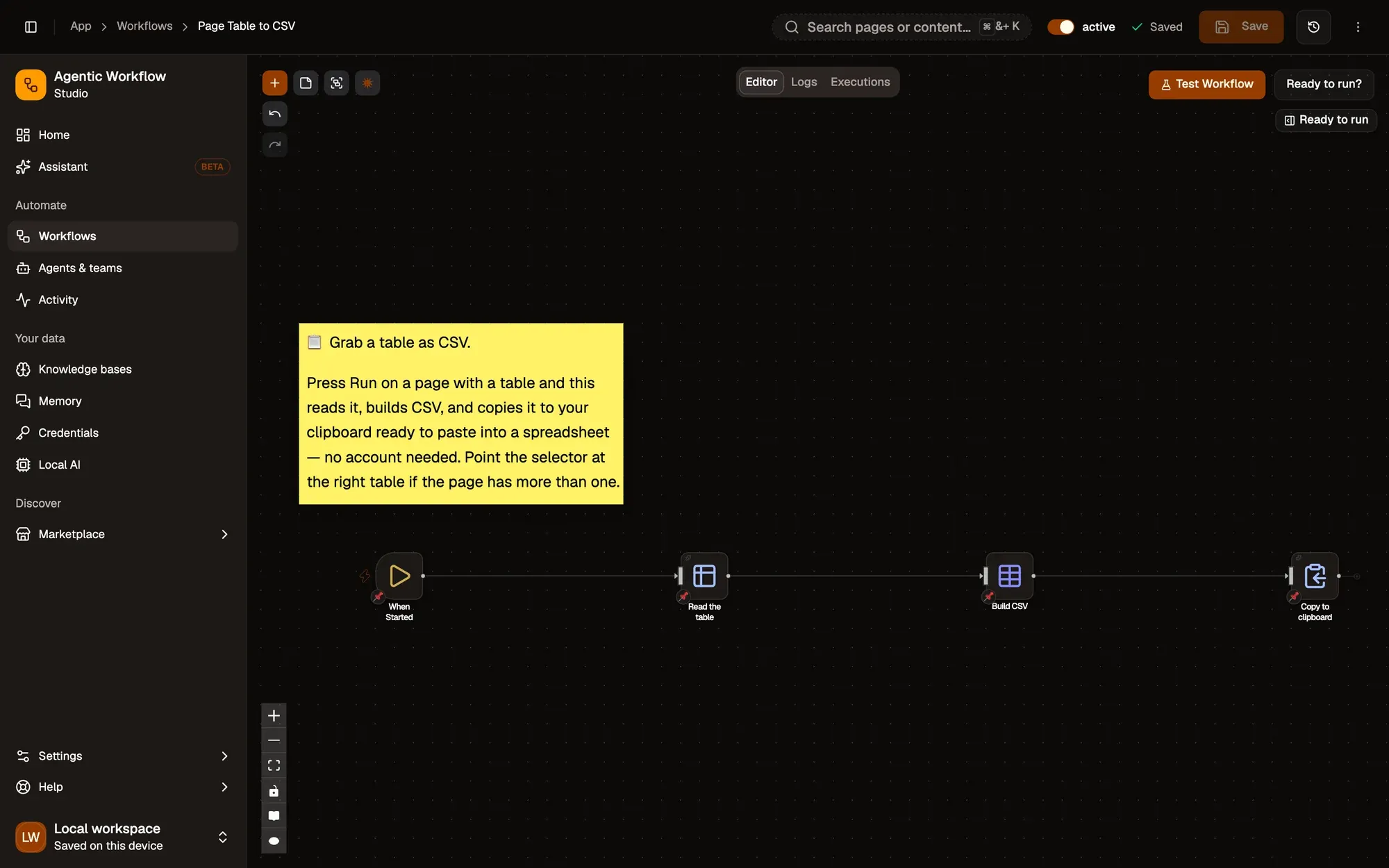
Read the table
Node: Get Structured Data
Get Structured Data in table mode reads the first table on the page, one item per row, using the first row as the column names.
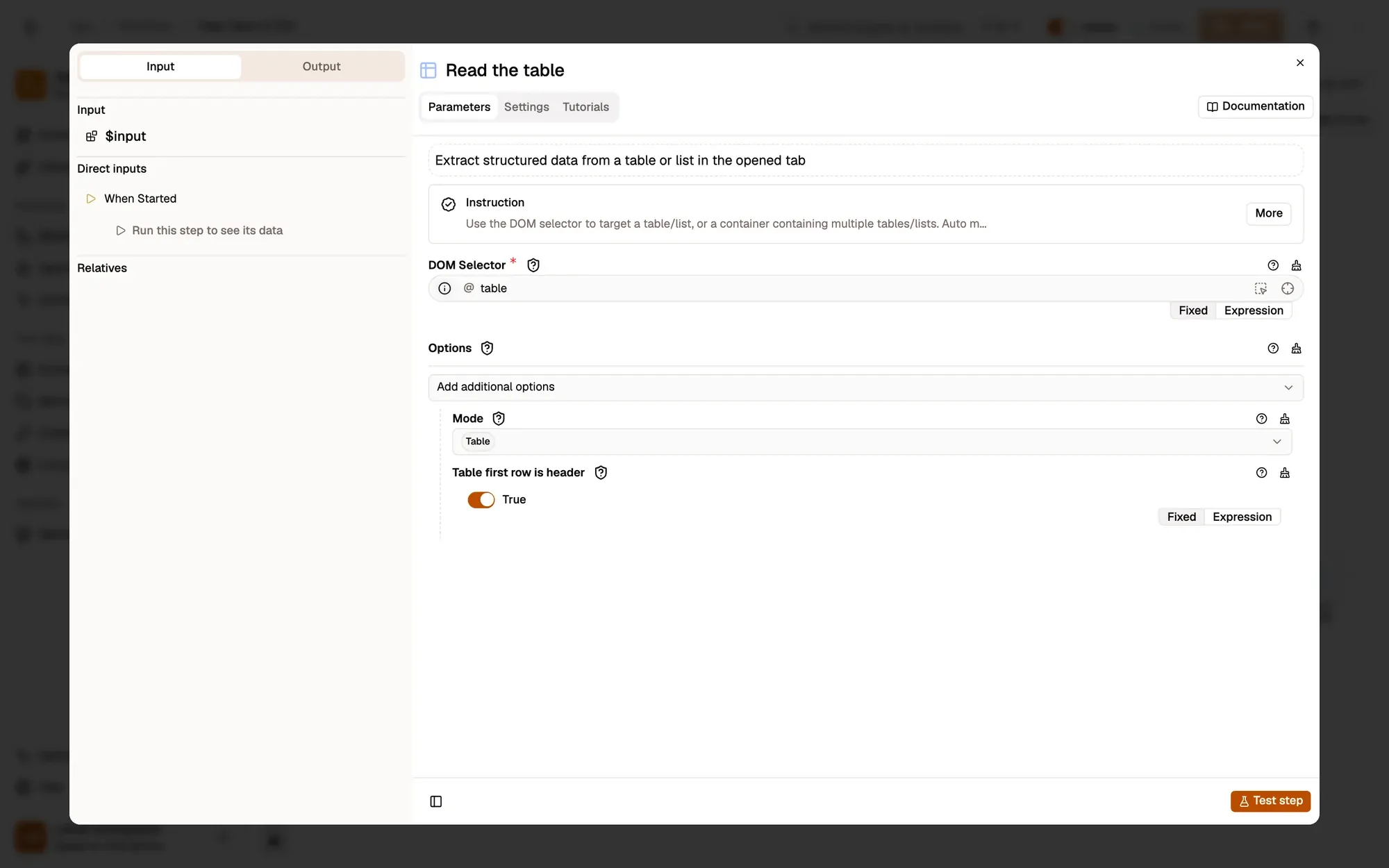
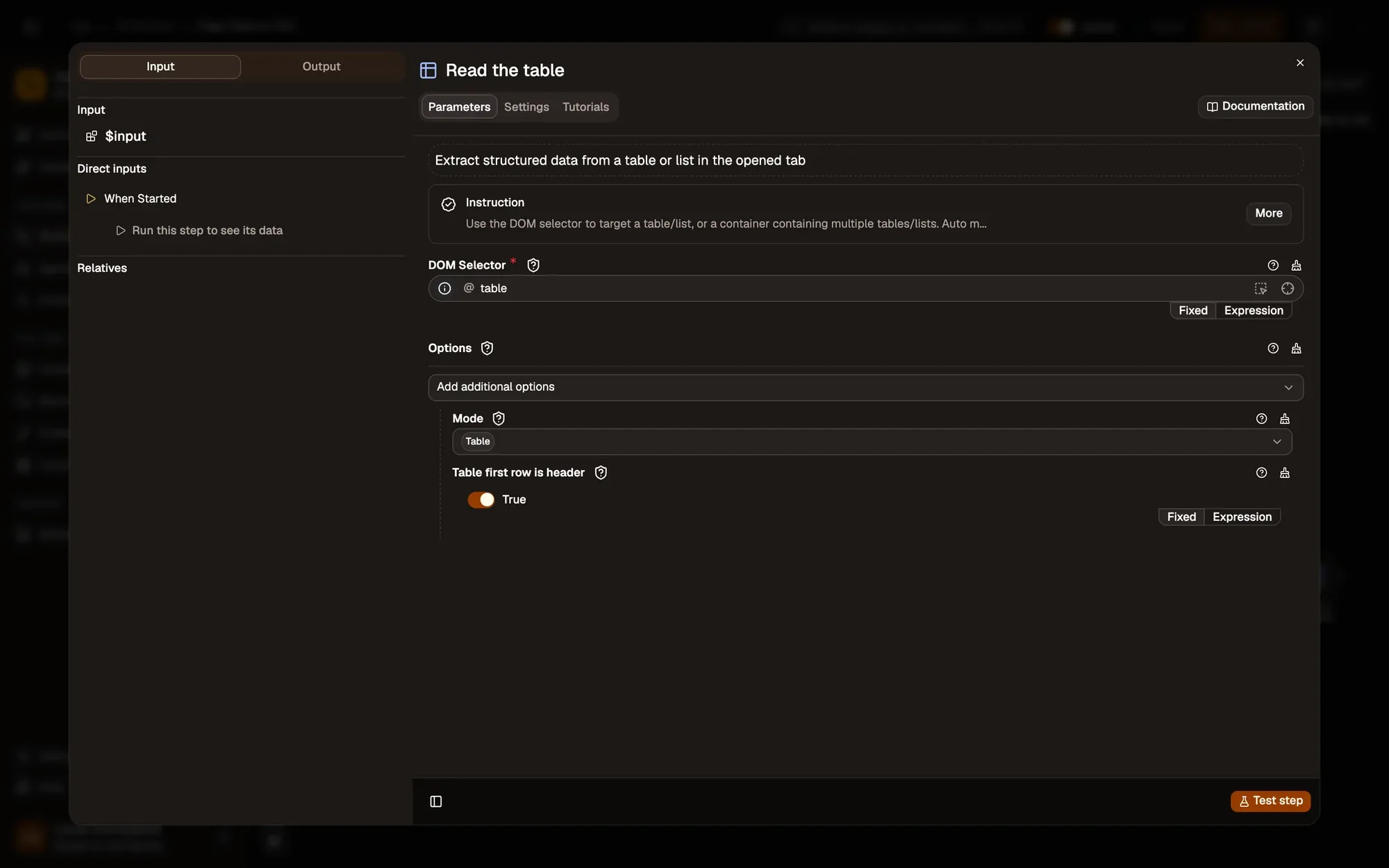
#results table, when the page has several.Build the CSV
Node: CSV
CSV Build turns the rows into CSV text in the csv field, quoting values that need it.
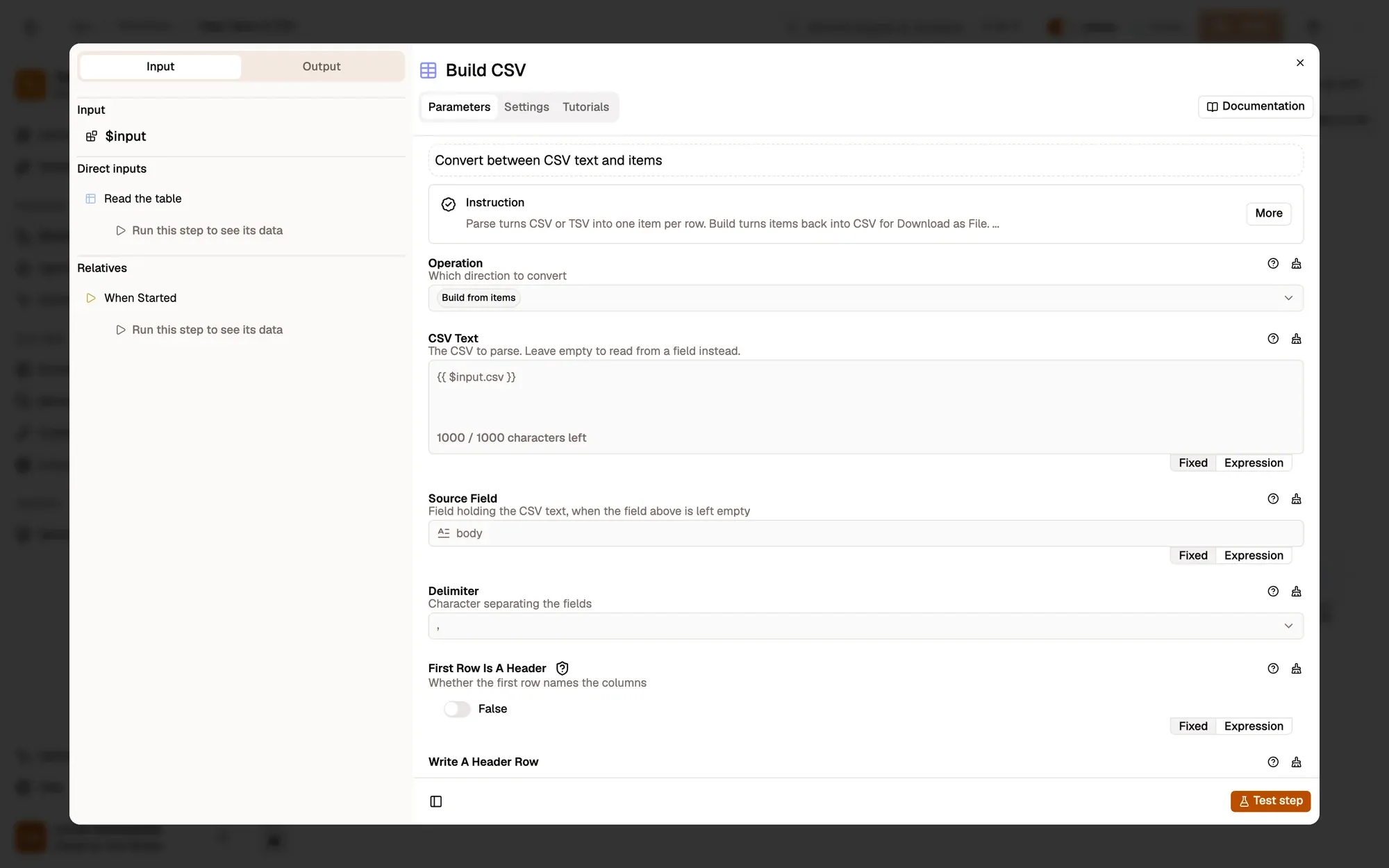
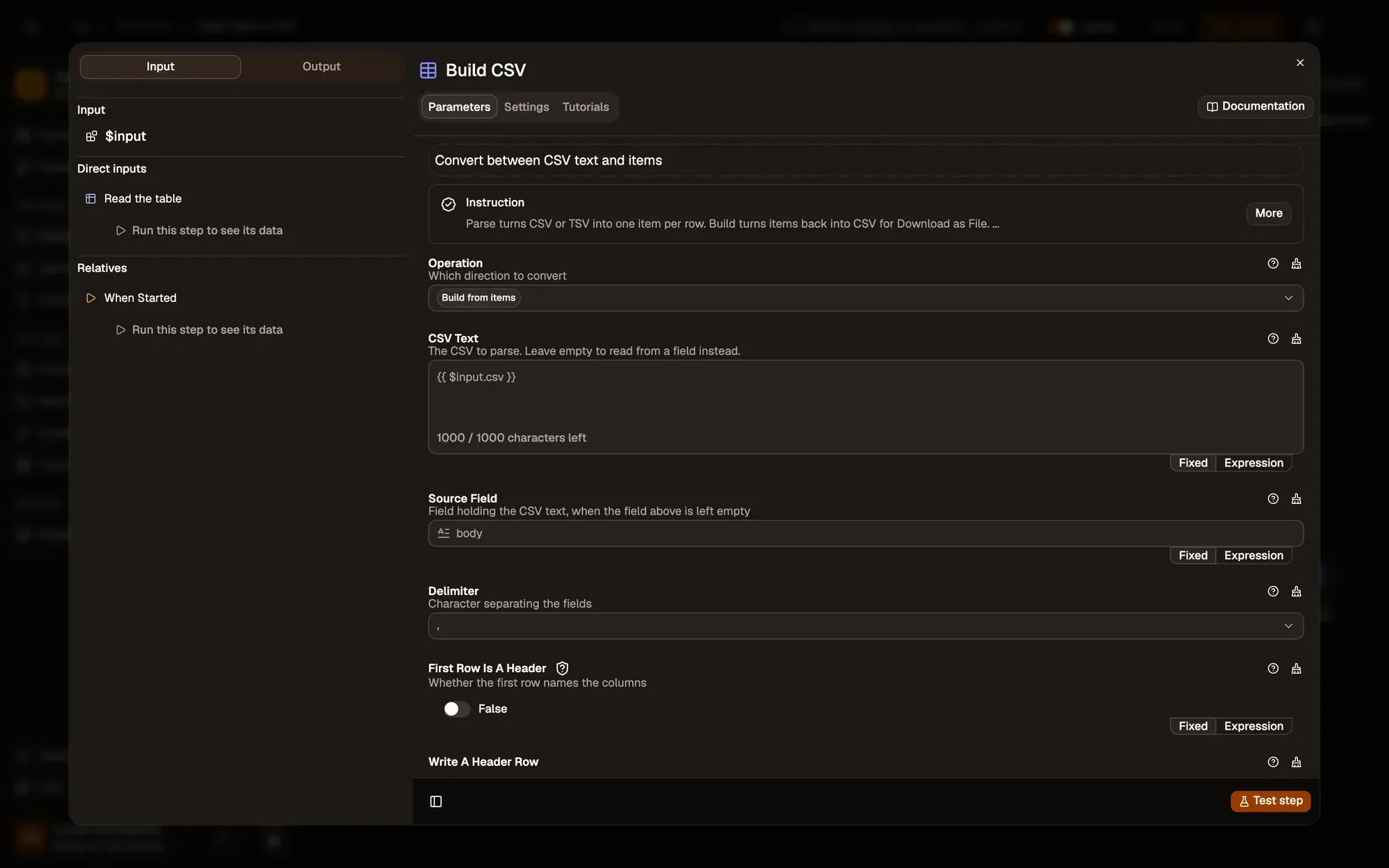
; for spreadsheets set to a European locale.Copy it
Node: Clipboard Write
Clipboard Write copies the CSV, ready to paste into Google Sheets, Excel or Numbers.
.csv file with Save as File instead.Run it and check the result
Open a page with a table, such as a Wikipedia list. Right-click it and choose Agentic Workflow › Personal Workflows › Page Table to CSV. Paste into a new spreadsheet: each column lands in its own cell.
Common problems
The wrong table is copied
The page has several tables. Set DOM Selector to the one you want; the data extraction guide shows how to find a selector.
Column names are the first data row
The table has no header row. Turn off Table first row is header.
Nothing is copied
Run it from the right-click menu on the page itself, not from the canvas.
Collect only what you need, keep the run rate reasonable, and respect each site's terms of use.
Learn this properly: build it from scratch.
Short lessons with a quiz at the end of each module.