On this page
Before you start
Install the recipe
Install the recipe. In Send a push notification, pick a connection and set Topic to a hard-to-guess name such as jobs-k7f3q. See Push Notification. To import the file yourself, use Add Workflow › Import, choose the .awf and click Create & open. Then click Make it mine at the bottom of the canvas, tick the box and confirm, so you can edit it. To add the connection itself, see Create a connection.
Watch the job list
Node: Element Change
Element Change watches the element matching .jobs-list and fires when its content changes, after 500 ms of quiet.
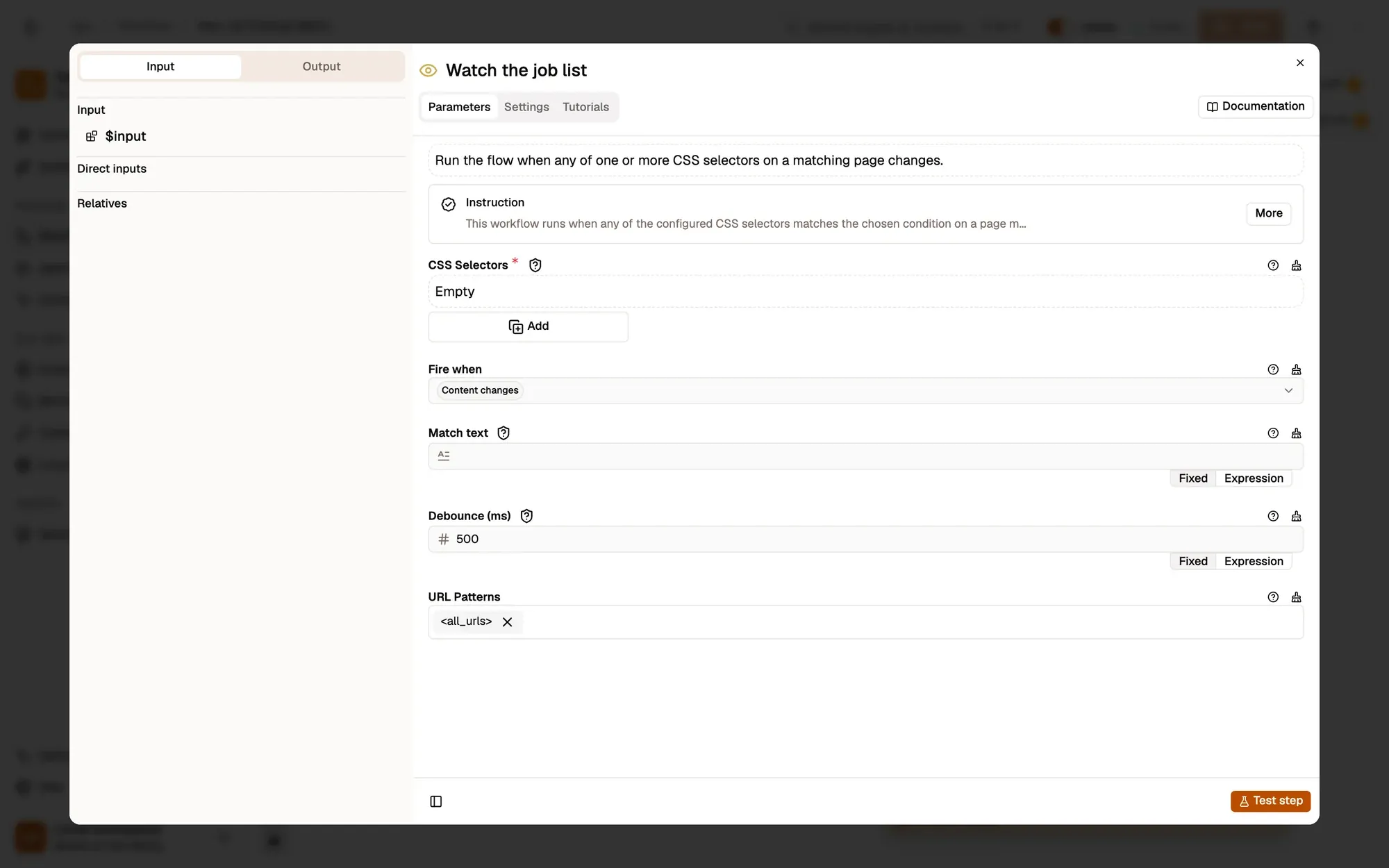
https://jobs.example.com/*.Send a push notification
Node: Push Notification
Push Notification sends New jobs with high priority through ntfy to the topic you choose. Install the ntfy app on your phone and subscribe to the same topic.
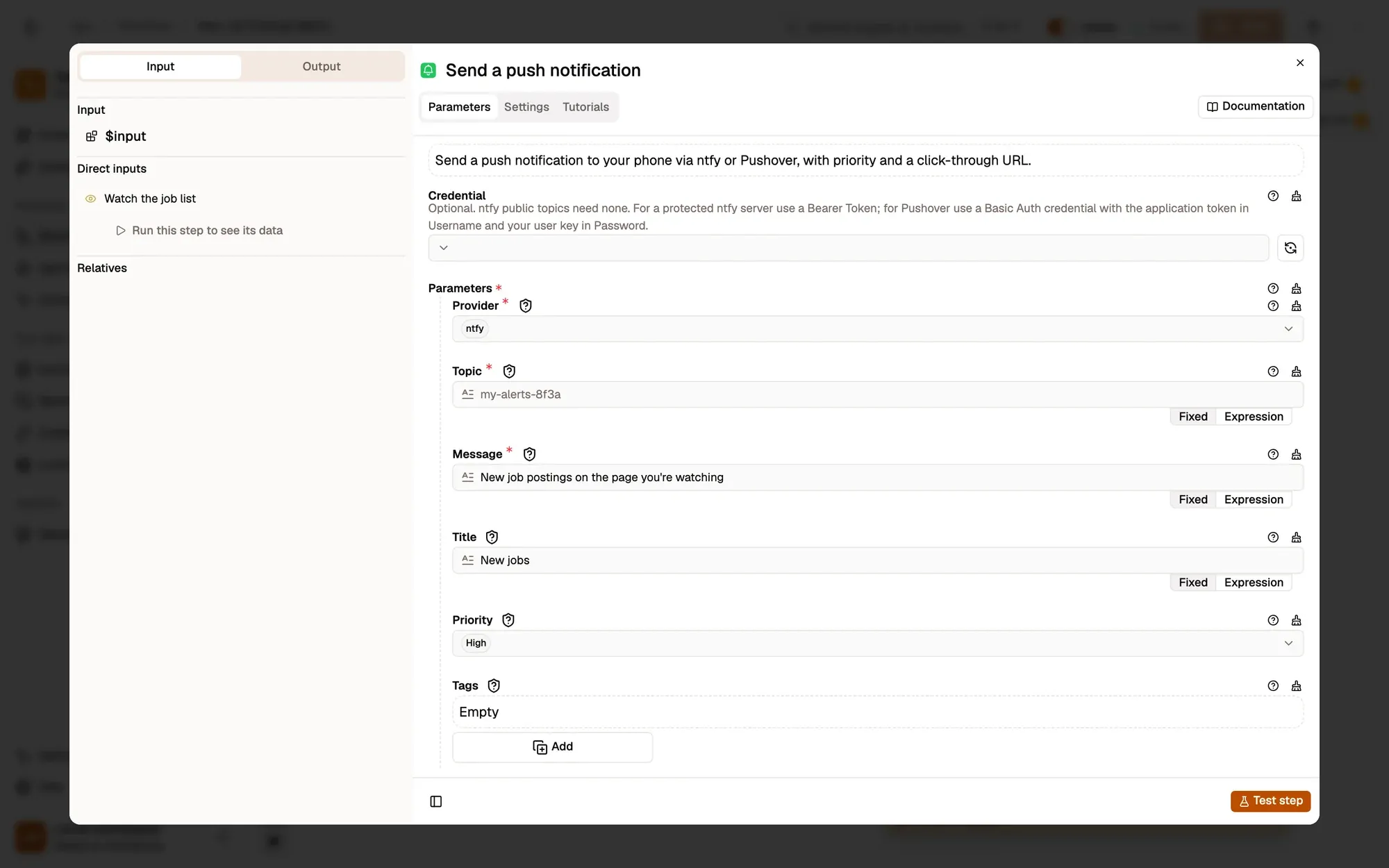
{{ $input.url }}, or use Fire when Text matches with a keyword such as Designer to be told only about roles you want.Run it and check the result
Subscribe to the same topic in the ntfy app on your phone. In Watch the job list, pick the job list on the careers page with the crosshair, then save and activate the workflow. Keep the page open. To test right away, edit the list's text in the browser's developer tools: your phone shows New jobs.
Common problems
No alert
Element Change only watches pages that are open. Keep the careers page in a tab, and check that the selector still matches after the site changes its layout.
Too many alerts
Some pages rewrite the list on every scroll. Raise Debounce (ms), or watch a more specific element such as the job count.
The phone gets nothing
The topic on your phone differs from the one in the node; topics are case-sensitive.
Collect only what you need, keep the run rate reasonable, and respect each site's terms of use.
Learn this properly: build it from scratch.
Short lessons with a quiz at the end of each module.