Not long ago, automating a browser meant learning Python, installing Selenium, juggling ChromeDriver versions and debugging scripts at 11 pm because a CSS class changed. Browser automation was the developer’s domain, and non-developers had no real alternative.
That era is over. A new generation of no-code browser automation tools has arrived, and the gap between “I wish this was automated” and “this is automated” has shrunk from weeks to minutes. This guide is for the non-developer who wants practical, working automations without touching code.
Before
The old way
- Learn Python
- Install Selenium
- Run a server
- Read stack traces
Code
Scripts, servers, and fixes at 11 pm.
After
The new way
- Install an extension
- Click the element
- Connect blocks
- Press Test
No code
Point, connect, run. In your own browser.
Drag the line to compare.The slider works with the keyboard too.
Text version
- Before: The old way, Code. Scripts, servers, and fixes at 11 pm.
- After: The new way, No code. Point, connect, run. In your own browser.
- Compare before and after
What is browser automation?
Browser automation means telling a web browser to do tasks for you, tasks you would otherwise do by hand:
- Clicking buttons and moving between pages
- Filling and submitting forms
- Pulling text, data or images from pages
- Watching pages for changes
- Chaining several actions in sequence
The browser is the universal interface of the modern web. If a task involves a website, there’s a good chance browser automation can handle it, whether or not the site has an API or any integration at all.
The old way: code-based tools
Traditional browser automation tools were built by developers, for developers:
- Selenium: the original browser automation framework, mostly used with Python or Java
- Puppeteer: a Node.js library for controlling headless Chrome
- Playwright: Microsoft’s modern, cross-browser automation framework
They are powerful, and engineering teams use them for testing, data pipelines and scraping. But for anyone without a development background, the barriers are high: you need to program, you need a development environment or a server to run them, scripts break when a site changes its HTML, there’s no visual interface, and debugging means reading stack traces.
For a non-developer who just wants to stop copying data between tabs, that’s the wrong tool.
The new way: no-code browser automation
No-code tools flip the model. Instead of writing a script that describes what should happen, you show the tool what to do: you point at elements on the page and connect blocks of logic.
Agentic Workflow is a Chrome extension that brings this to the browser itself. You build workflows on a visual canvas by adding and connecting blocks (nodes), with no code, no server and no infrastructure. Every workflow runs in your browser, on the live page, as you. The same ideas apply to automating websites that don’t offer an API, developer or not.
If the word “workflow” sounds technical, think of a recipe:
The dish is the result.Run output.
Text version
- A recipe: Ingredients ≈ A workflow: Inputs: a page, a file
- A recipe: "When the oven is hot" ≈ A workflow: Trigger
- A recipe: Each step ≈ A workflow: A node
- A recipe: The dish ≈ A workflow: The output
Because it runs inside the browser, it works on:
- JavaScript-heavy single-page apps
- Pages that need you to be logged in
- Content that only appears after you interact with the page
- Internal tools and intranets your company uses
What can a non-developer automate?
More than you’d think:
Without code
What you can hand over to a workflow
- Copy data from pages into a sheet (done)automated
- Fill the same forms for you (done)automated
- Watch a page and tell you when it changes (done)automated
- Summarise or translate what you read (done)automated
- Collect details from many pages (done)automated
Research: the same fields from many pages.A list of URLs, a loop, extraction, one table out.
Text version
- What you can hand over to a workflow
- Copy data from pages into a sheet
- Fill the same forms for you
- Watch a page and tell you when it changes
- Summarise or translate what you read
- Collect details from many pages
If you can do it by hand in a browser, there’s a good chance you can automate it. See five browser tasks AI can do for you for concrete examples, and how to build an AI form-filler for one in depth.
Getting started, step by step
- Install the extension from the Chrome Web Store. No account needed to start.
- Open AWFlow by clicking the extension icon: it opens in the side panel, next to the page.
- Create a workflow: on the Workflows page, click Add Workflow, choose Blank canvas (or start from a template) and give it a clear name.
- Add a trigger: it decides when the workflow runs: when you start it, on page load, from the right-click menu, on a hotkey or on a schedule.
- Add a step that reads the page. Where a step needs a part of the page, pick it with the visual element picker: just click the element, no CSS to write.
- Add an AI step if you want one, with a plain-language instruction: “Summarise this in 3 bullet points” or “Extract the company name and job title”.
- Add an output: show the result in the side panel, copy it to the clipboard, add it to a sheet, or act on the page.
- Press Test Workflow, look at what each step produced, and adjust until it’s right.
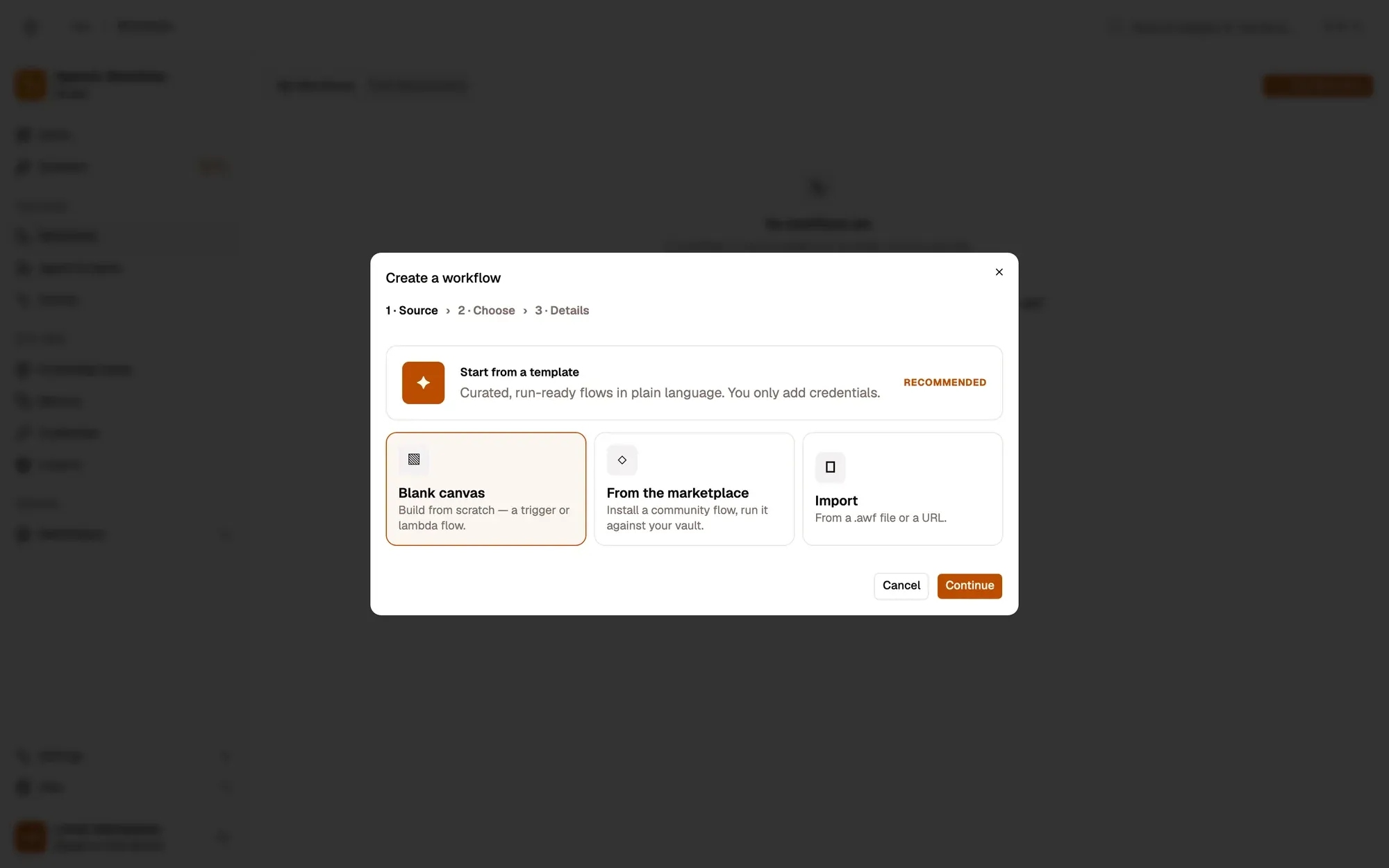
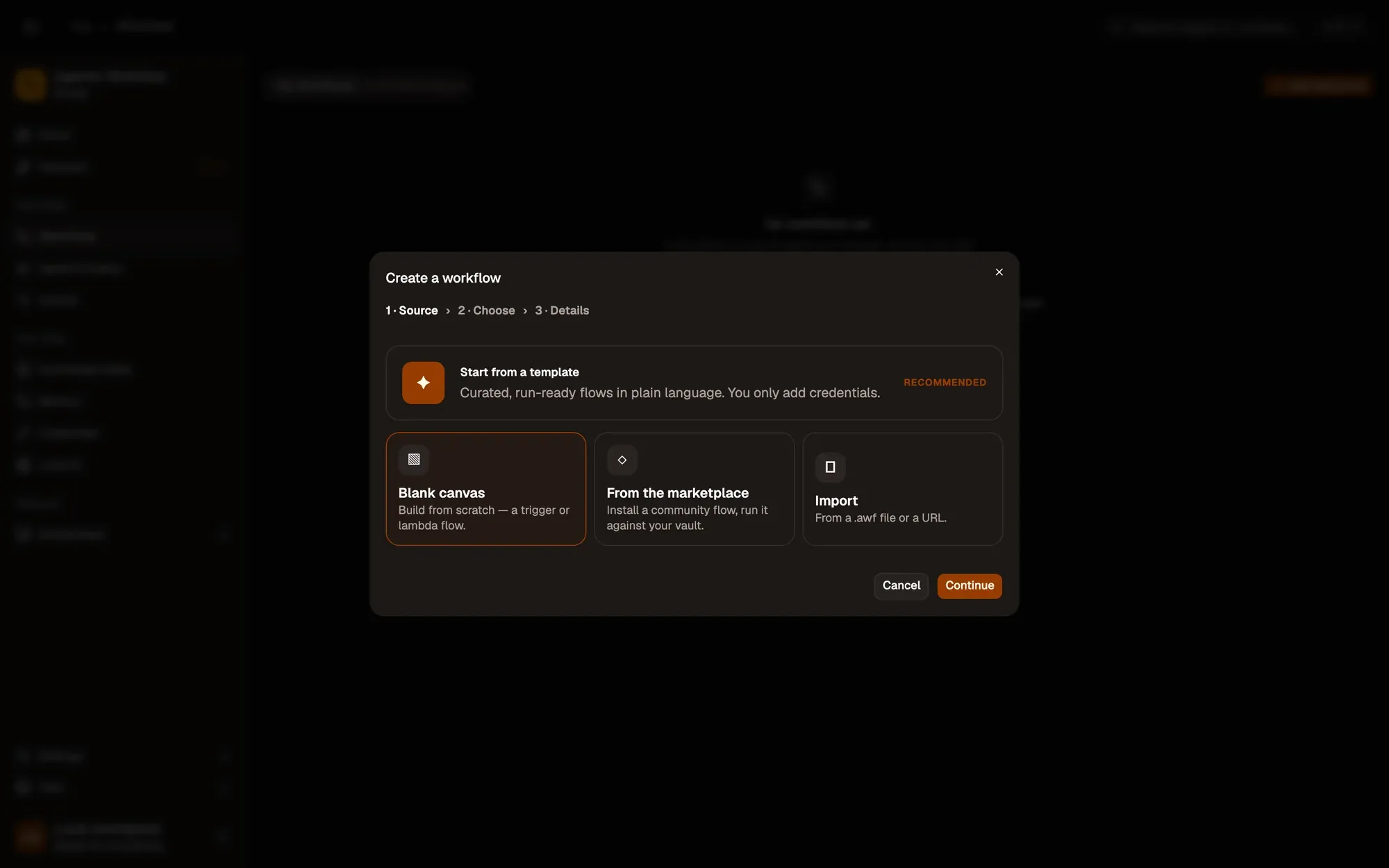
Two clicks to an empty canvas.Templates are the recommended start.
Text version
- 1. Start from a blank canvas: Or pick a template, the marketplace or an import.
- 2. Continue: Then name your workflow.
Pick a starting point
Choose Blank canvas to build from scratch, or a template if one is close to what you want.
Name it and continue
Give the workflow a name you’ll recognise later, like “Summarise job posts”.
You’re on the canvas
From here you add steps and connect them. That’s all a workflow is.
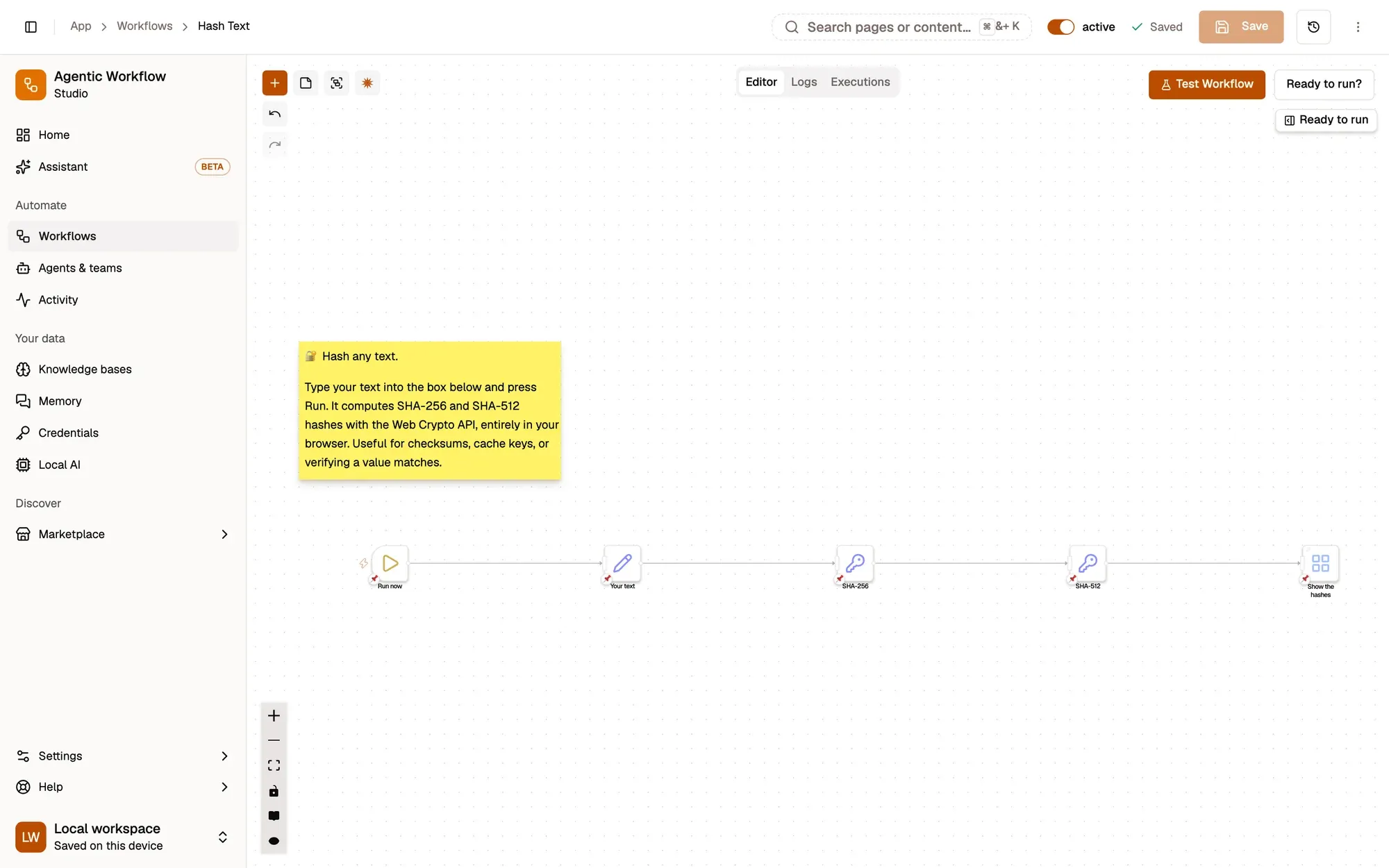
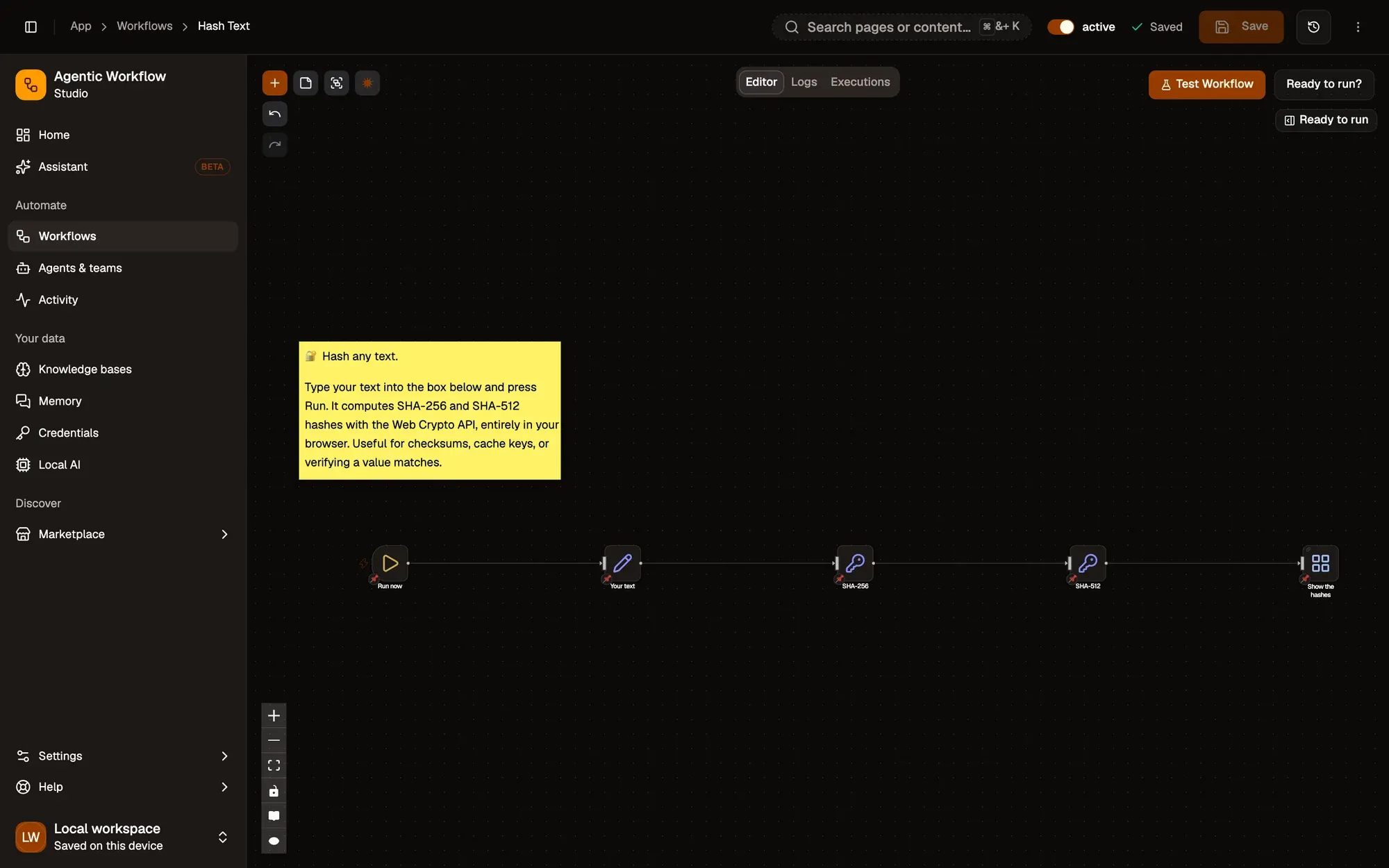
Add, connect, test. No code.Everything is saved with the workflow.
Text version
- 1. Add a step: Search for what you want: Get All Text, Summarize, Google Sheets…
- 2. Connect steps: Drag from a step's handle to the next one.
- 3. Test it: Run it now and see each step's result.
Not sure which blocks you need? Describe the workflow to Aria, the built-in assistant, and it drafts it for you to review:
HotkeyRead the selected textGet Selected TextTranslate it on this deviceTranslateCopy the resultClipboard WriteYou review it before it's saved.A proposed change to the workflow, applied when you approve.
Text version
- When I press a shortcut, translate the text I selected into French and copy it.
- Start on a keyboard shortcut (Hotkey) · Read the selected text (Get Selected Text) · Translate it on this device (Translate) · Copy the result (Clipboard Write)
- Here's a 4-step workflow. Pick your shortcut, then test it on any page.
- Translate selection · 4 nodes added
Five automations you can build today
Any non-developer can build these in under 30 minutes:
- Summarise any article: read the page text, pass it to an AI step with a summary instruction, show the summary in the side panel.
- Compare product prices: read the price on each competitor page and collect them in a sheet.
- Fill a repetitive form: keep your answers in one step and fill the form with one click, after your OK.
- Watch a job board: trigger when the job list changes and get a notification.
- Translate or reformat text: select text, run the workflow, get the rewritten version on your clipboard.
Common misconceptions
Browser automation is only for developers.
If you can click it in a browser, you can automate it: by pointing at the page and connecting blocks.
Flip it. Point, connect, test.A visual editor with an element picker and plain-language AI instructions.
Text version
- Browser automation is only for developers.
- If you can click it in a browser, you can automate it: by pointing at the page and connecting blocks.
A few more worth clearing up:
- “I need to know CSS selectors.” No: the element picker lets you click the element.
- “It will break when the site updates.” Selectors can drift, but re-picking an element is a quick fix, not a code rewrite.
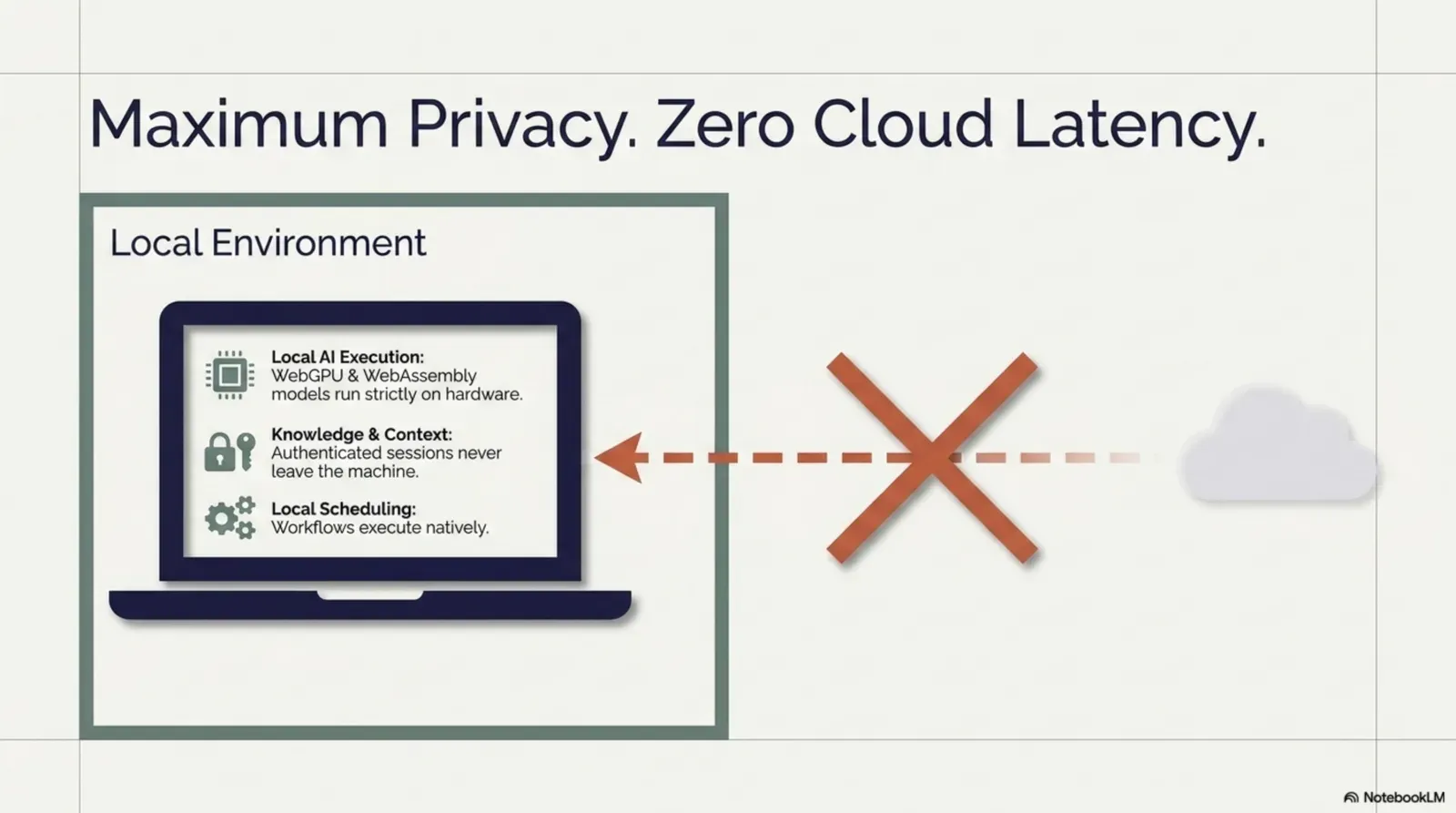
- “I need an API key for AI.” No: AI can run on your device (WebLLM and Chrome’s built-in AI in the browser, or Ollama on your computer).
- “My data goes to a server.” Workflows run in your browser. Data only leaves if you add a step that sends it, such as a cloud AI model or an app integration.
Try it
Browser automation no longer needs a computer science degree. What’s left is a clear idea of what you want to stop doing by hand. Whether you’re a marketer collecting campaign data, a researcher compiling sources or an operations professional tired of data entry, no-code browser automation is ready for you.
Your turn
Your first workflow, ready to open
Open it in AWFlow: it reads the text you select on a page and passes it on. Then add your own steps.
Open in AWFlow (opens in a new tab)docs.awflow.io/examples/first-workflow.awfCall to action. Scan the code or click the link.Opens the First workflow docs example in AWFlow's import page.
Text version
- Your first workflow, ready to open · Open it in AWFlow: it reads the text you select on a page and passes it on. Then add your own steps. · https://docs.awflow.io/examples/first-workflow.awf
In short
- No code: point, connect, test
- It runs in your browser, as you
- Aria can draft it from a sentence
Three. Describe it, review it.Aria Build mode proposes the workflow.
Text version
- In short
- No code: point, connect, test
- It runs in your browser, as you
- Aria can draft it from a sentence