In 3 seconds
An AI agent is not a prompt. It is a flowchart.
The hook. Say it before anything else.A 3-second opener before the first chapter.
Text version
- In 3 seconds: An AI agent is not a prompt. It is a flowchart.
When you ask an AI assistant to do something real, such as build an automation from a sentence, it is tempting to picture one very clever prompt doing everything. In practice, reliable agents are built as a graph of small steps: ask a question if the request is unclear, look for something similar, decide what to do, produce a draft, check it, fix what is wrong.
This post explains the vocabulary (LangChain, LangGraph, state, checkpoint), shows the real graph behind AWFlow’s assistant, Aria, and says honestly where running such a graph inside a browser is harder than on a server.
Chain, graph, loop: three shapes of agent
Start with the names. LangChain is a toolkit of building blocks: chat models from different providers, prompts, tools and chains. LangGraph sits on top of it and adds structure for agents: you describe the steps as nodes and the allowed moves between them as edges.
The difference between a chain and a graph is the difference between a recipe and a flowchart:
A limit stops you going round forever.Loops need a bound, or an agent can retry indefinitely.
Text version
- In the kitchen: A recipe: steps in a fixed order ≈ In an agent: A chain: one fixed sequence
- In the kitchen: A flowchart: if sticky, add flour ≈ In an agent: A graph: branches and loops
- In the kitchen: A bookmark where you stopped ≈ In an agent: A checkpoint: pause, then resume
- In the kitchen: "Stop after three tries" ≈ In an agent: A limit on how many repairs
The simplest agent is a loop: think, act, look at the result, repeat until the goal is met. Most agents you have read about are this shape.
- Lap 1ThinkLook for a priceActReads the page textObserveTwo prices: €449 and €389
- Lap 2ThinkWhich one is current?ActReads the struck-out oneObserve€449 is the old price
- Answer: €389, down from €449
It stops when it has an answer.Termination on a goal check; a real loop also needs a step limit. Example run.
Text version
- 1. Think: Look for a price · Act: Reads the page text · Observe: Two prices: €449 and €389
- 2. Think: Which one is current? · Act: Reads the struck-out one · Observe: €449 is the old price
- Answer: €389, down from €449
A loop is flexible but loose. When a task has a known structure, such as building a workflow, you get better results by drawing the structure explicitly. That is what a graph is for.
The graph behind Aria
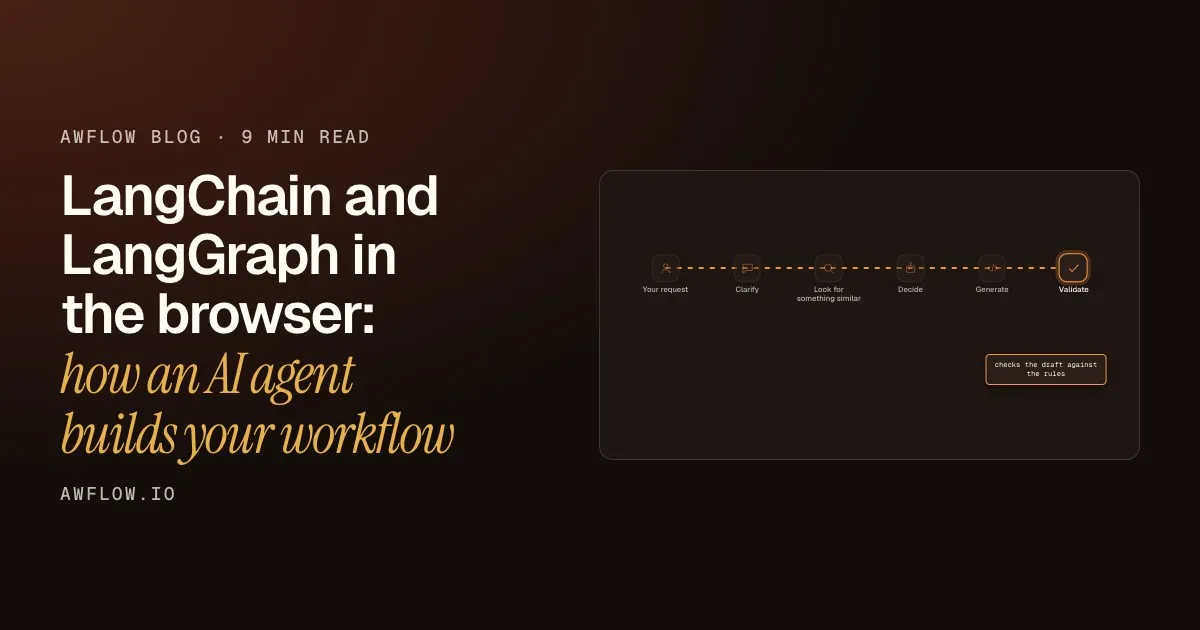
Aria is the assistant in AWFlow: you describe an automation and it drafts the workflow for you to review. Under the surface, that is a LangGraph graph. Here is its happy path, in order:
It checks the draft before showing it to you.A validate node runs the same rules as the editor and lists errors.
Text version
- Your request: "Email me when this page changes"
- Clarify: asks a question if unclear
- Look for something similar: finds an existing workflow
- Decide: reuse, adapt or build
- Generate: writes a draft workflow
- Validate: checks the draft against the rules
You describe it
You write what you want in plain words. Nothing has to be a command or a template.
It asks if it is unsure
If something is unclear, the graph stops and asks you a question instead of guessing.
It looks for an existing workflow
Starting from a similar workflow saves work and makes the result more reliable.
It decides how to proceed
Reuse the match, adapt it, or build something new. Reuse goes straight to checking.
It writes the draft
The assistant produces a workflow draft for the chosen route.
It checks its own work
Before you see anything, the draft is validated against the same rules as the editor.
Two parts of this graph are worth a closer look, because they are the reason to use a graph at all.
A loop with a limit
When validation finds errors, the graph does not give up and does not loop forever. It sends the draft to a repair step and validates again, up to a fixed number of times. In AWFlow that limit is three.
- Lap 1Validate2 errors foundRepairFix the 2 errors
- Lap 2ValidateNo errorsRepairNothing to fix
- Valid draft, or 3 repairs used
It stops when the draft is valid, or after three repairs.The repair count is bounded so the graph always terminates. Example laps.
Text version
- 1. Validate: 2 errors found · Repair: Fix the 2 errors
- 2. Validate: No errors · Repair: Nothing to fix
- Valid draft, or 3 repairs used
A pause that remembers
When the graph needs an answer from you, it pauses. A checkpoint stores where it was, so that when you reply it continues from the same place instead of starting over.
It carries on from where it stopped and shows a draft.Execution continues from the checkpoint, through validation to the proposal.
Text version
- You → Aria's graph: "Tell me when this page changes"
- Aria's graph → You: "Which page?" (paused)
- You → Aria's graph: "This one."
- Aria's graph → You: Draft ready to review
You stay in control at the end: Aria proposes the change and you review it before anything is saved.
You review the change before it is saved.A proposed change, applied only on approval. Example conversation.
Text version
- Tell me when the price on this page drops.
- Check which page you mean · Find a similar price-watch workflow · Adapt it to this page · Check the draft against the rules
- I adapted a price-watch workflow to this page. Review it before saving.
- Price watch · draft ready for review
Honest limits of running this in a browser
An agent graph in a browser works, and it is a good fit for AWFlow because the workflow, the data and the assistant live on your device. It is not free of trade-offs:
- Small local models need help with tools. Cloud models have built-in tool calling. On-device models often do not, so AWFlow describes the tools in the prompt and parses the calls out of the reply. It works, but it is less robust, and it is why a graph with validation and repair matters more for local models.
- Memory is per session. The checkpointer that lets a run pause lives in the page’s memory, so a paused run does not survive a reload.
- Small models get structure, not freedom. For local models the generate step prefers schema-guided output, which constrains the draft to valid shapes.
A better agent just needs a bigger prompt.
Reliable agents are structure: steps, routes, a bounded repair loop and a place to pause.
The fact. Reliability comes from the graph around the model.Explicit nodes, conditional edges, bounded loops and checkpoints.
Text version
- A better agent just needs a bigger prompt.
- Reliable agents are structure: steps, routes, a bounded repair loop and a place to pause.
See it for yourself
You can watch this graph work. Switch Aria to Build mode, describe what you want, and read the draft it proposes.
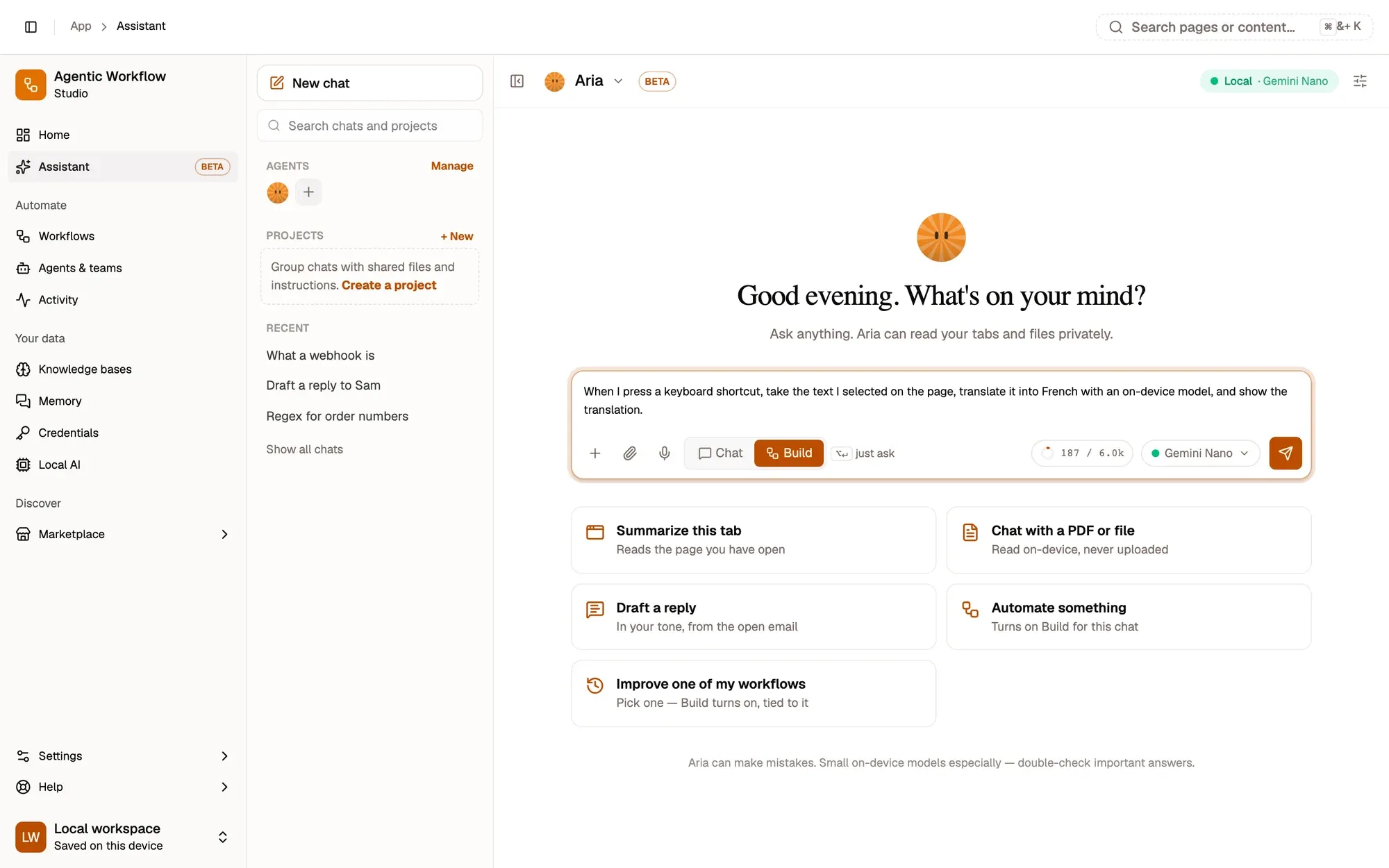
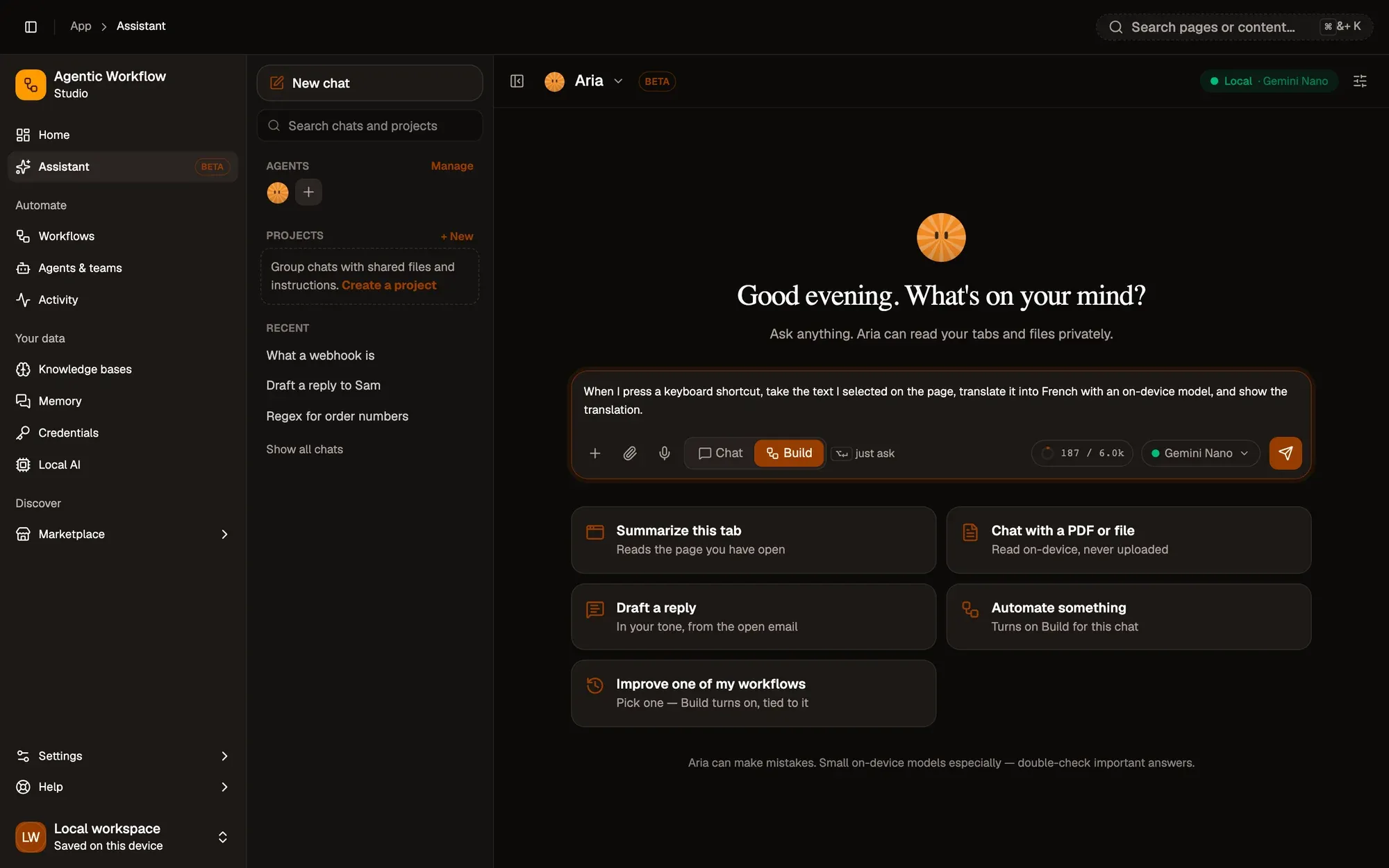
That is the whole loop: describe, review, save.Nothing is saved until you approve the proposed change.
Text version
- 1. Describe it: Plain words are enough.
- 2. Switch to Build: Aria drafts a workflow.
- 3. Pick the model: In your browser, or a cloud model.
Step-by-step instructions are in the Build with Aria guide.
What we covered
- Agents are graphs, not prompts
- A bounded loop repairs the draft
- A checkpoint lets it pause and resume
Three. A pause remembers where it stopped.An in-memory checkpointer, so a paused run lasts as long as the page.
Text version
- What we covered
- Agents are graphs, not prompts
- A bounded loop repairs the draft
- A checkpoint lets it pause and resume