Right-click. Filed where it belongs.
Stop copying links by hand. One right-click sends the page, with its title and link, straight into your reading list or database.

Good pages get lost in tabs.
You find something worth keeping, copy the link, switch apps, paste, add a title, and forget the next one. Bookmarks pile up where nobody looks, and your actual notes app never hears about it.
Three steps. One right-click after that.
Connect your app
Install the template and connect Notion, Airtable or Raindrop once. Credentials are stored encrypted, and you choose whether they live in your account or only in this browser.
Right-click any page
A Context Menu trigger adds the action to the right-click menu, on every page you visit.
It lands with the details
AWFlow reads the page title and link and creates the record. Add an on-device AI step if you also want a summary.
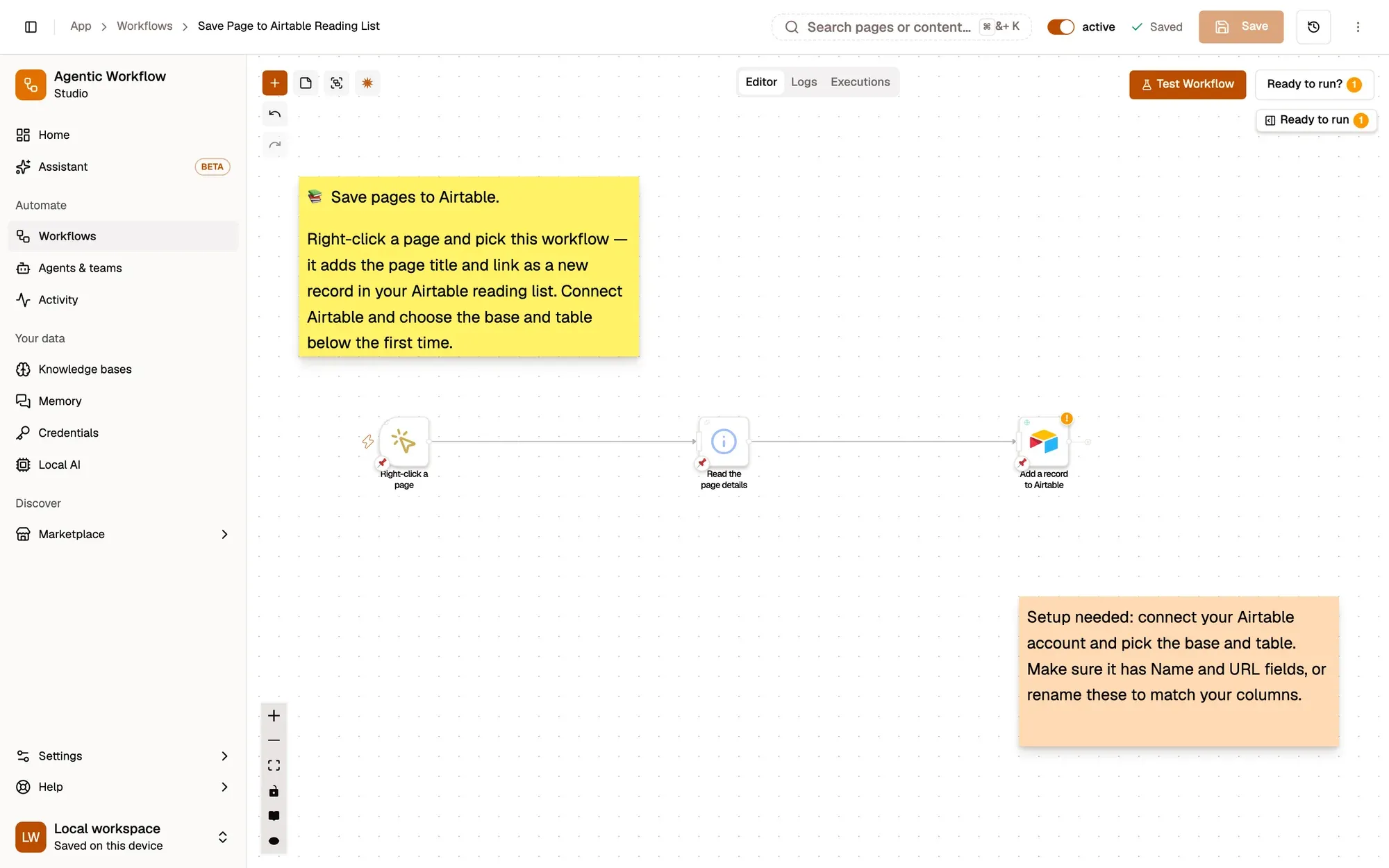
Pick your destination.

Save Page to Notion
Right-click any page to file its title and link in your Notion database.
CaptureTouches Notion AWFlow teamFree
Save Page to Airtable Reading List
Keep a reading list in Airtable with one right-click per page.
CaptureTouches AirtableAWFlow teamFree
Bookmark Page to Raindrop
Save the page to your Raindrop reading list with a single right-click.
CaptureTouches RaindropAWFlow teamFree
Three things.
- RequiredThe AWFlow extensionChrome, Edge, Brave or another Chromium browser; Firefox 140 or later also works.
- RequiredA connected appNotion, Airtable, Raindrop or Google Sheets, connected once from the template.
- OptionalAn accountInstalling from the Marketplace needs you to be signed in. The docs Airtable recipe can be imported as a file in a local workspace.
Same idea, other captures.
- Quotes
Clip a quote
Save the highlighted text to a Notion database with the page it came from.
- Markdown
Copy as Markdown
Turn the article into clean Markdown on your clipboard.
- Email
Email it to yourself
Send the selection to your own inbox through Gmail.
Quick answers.
Does it work on pages behind a login?
Yes. AWFlow reads the page in your own tab, so anything you can see, it can file.
Where does the page information go?
To the app you connected, and only when you run the workflow. The workflow adds nothing else.
Can it add a summary too?
Yes. Add an on-device AI step before the save step. On-device models are free and run on your hardware.
Keep the good stuff. In one click.
Free to start. Build in a local workspace with no login; installing from the Marketplace needs you to sign in. Connect your app once, then right-click whenever something is worth keeping.