Lesson 1 5 min
Find a model that fits your device
AWFlow runs AI models inside your browser. Find one by task, check that it fits, and install it once.
Three engines, one page
Open Local AI in the sidebar (or Settings › Local models). Once a model is installed it works offline, costs nothing per use, and no image, text or audio leaves your device. You choose a model; AWFlow picks the engine:
- WebLLM: chat and text-generation models (Llama, Qwen, Phi and more) on WebGPU.
- TensorFlow.js: vision, text and embedding models.
- transformers.js: the widest range of tasks, from image captioning and translation to Whisper speech-to-text.
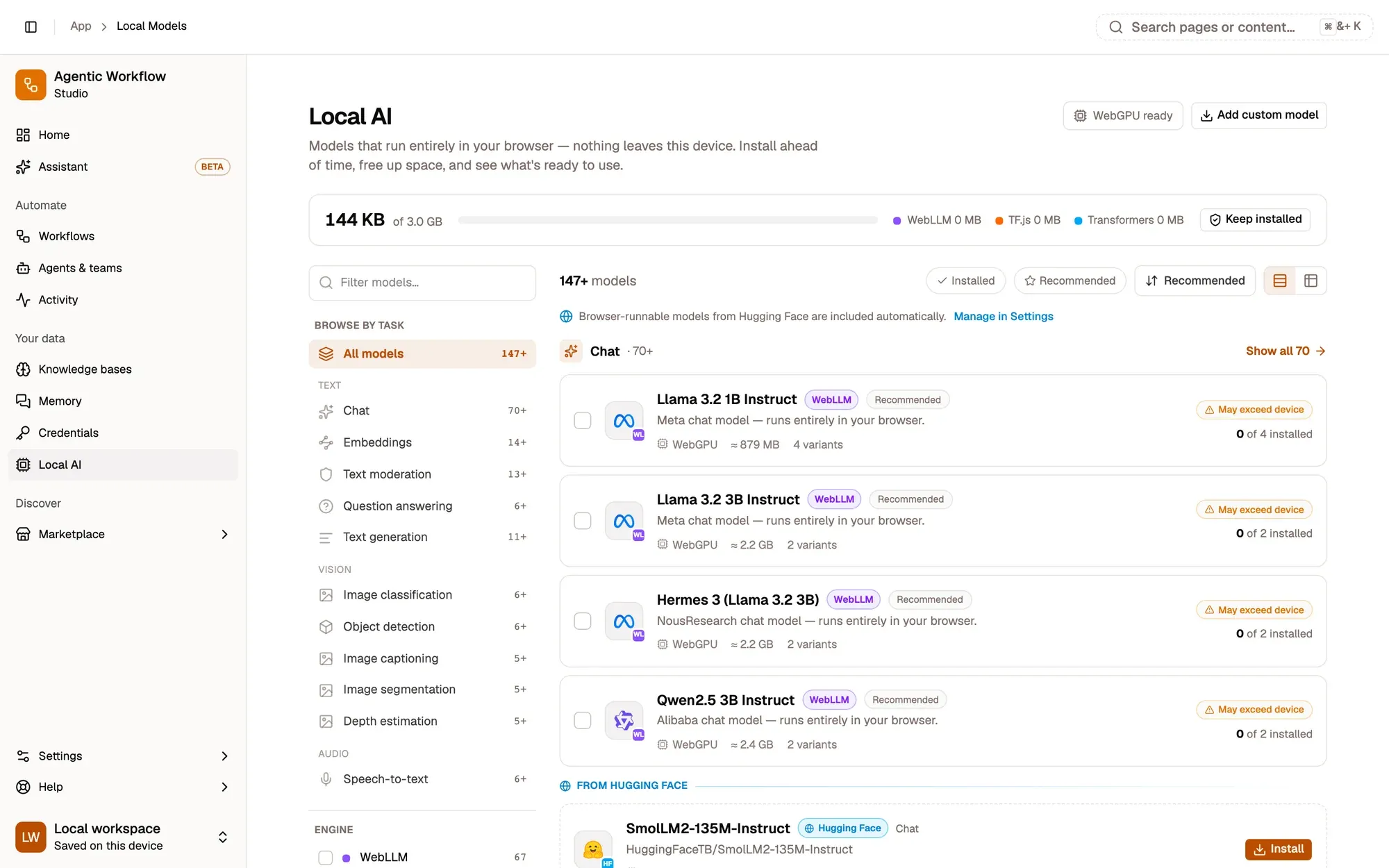
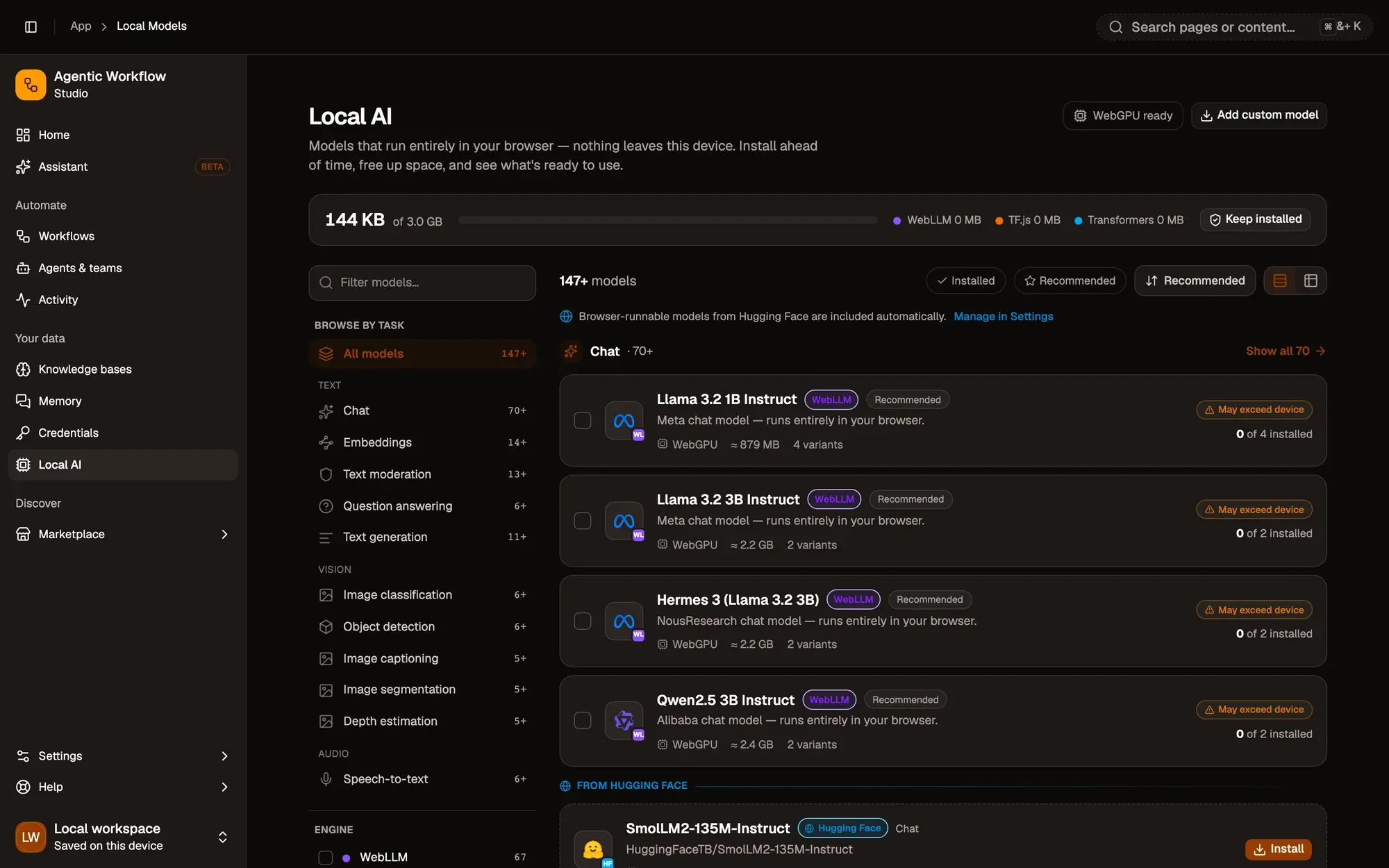
The page groups models by task: Chat, Image classification, Object detection, Speech-to-text, Embeddings and more. Use the search box to filter by name, and the engine filter to narrow the list to one engine.
Pick a variant
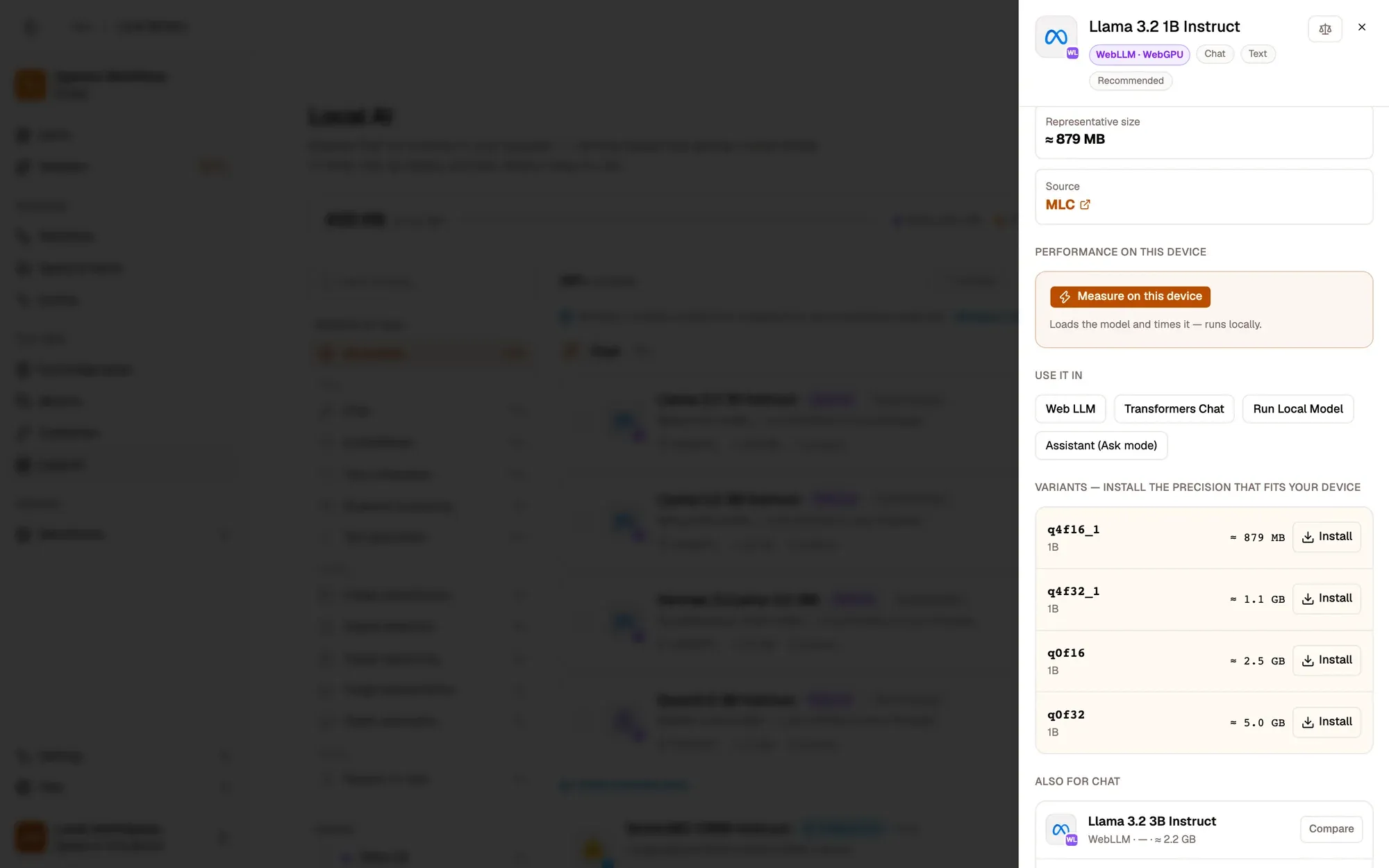
Open a model to see its variants: the same model at different precisions. A smaller variant trades a little quality for less memory and a faster load. Each variant shows:
- an estimated size, marked ≈ where the browser doesn’t expose an exact figure;
- a device fit: Fits comfortably, Tight fit or Exceeds memory;
- whether it’s installed.
Models that exceed your device’s estimated memory are still listed and installable, with a warning: they may run slowly or fail to load.
Install, test, keep
Click Install on a variant. Downloads run in the background, one at a time, and you can cancel them from the download panel in the corner. When it’s done, click Test: AWFlow loads the model and runs a quick check. If the test fails, try a smaller variant.

Browsers can delete stored data, models included, when space runs low. Turn on Keep models installed in the storage header; when the browser grants it, the header shows Protected.
Key takeaways
- You pick a model; AWFlow picks the engine (WebLLM, TensorFlow.js or transformers.js).
- Device fit and the estimated size tell you what your machine can run.
- Keep models installed asks the browser not to clear big downloads when space runs low.