Lesson 2 5 min
Narrate every step
Plain-language notes turn your workflow into a story anyone can read. A flow where every step has a note earns the Narrated badge.
Add a note
Right-click a step on the canvas and click Annotate this step (it reads Edit note when the step already has one). In Explain this step, write what the step accomplishes in plain words, or click Draft with AI for a first draft, then Save note. The note shows as a sticky callout under the step.
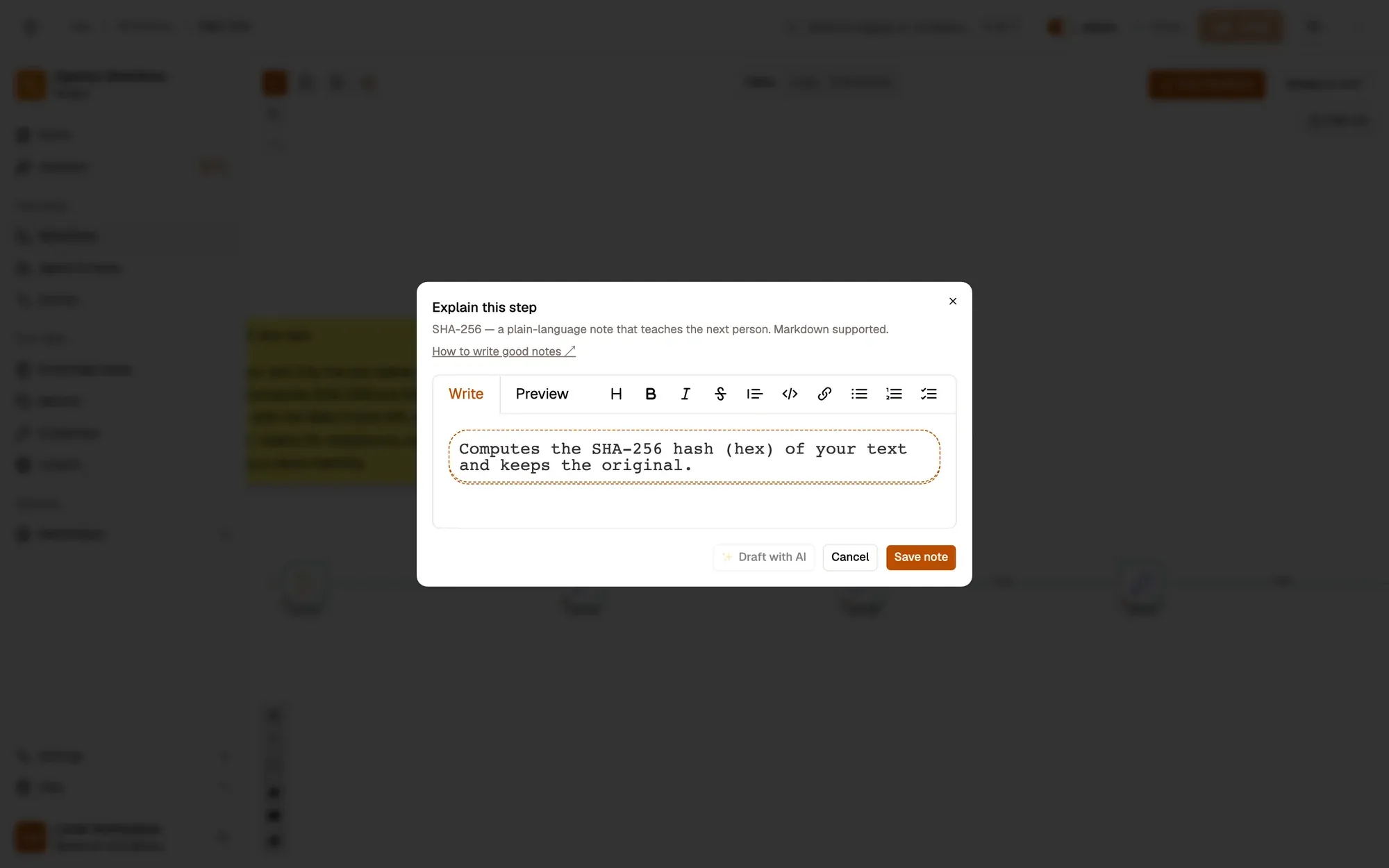
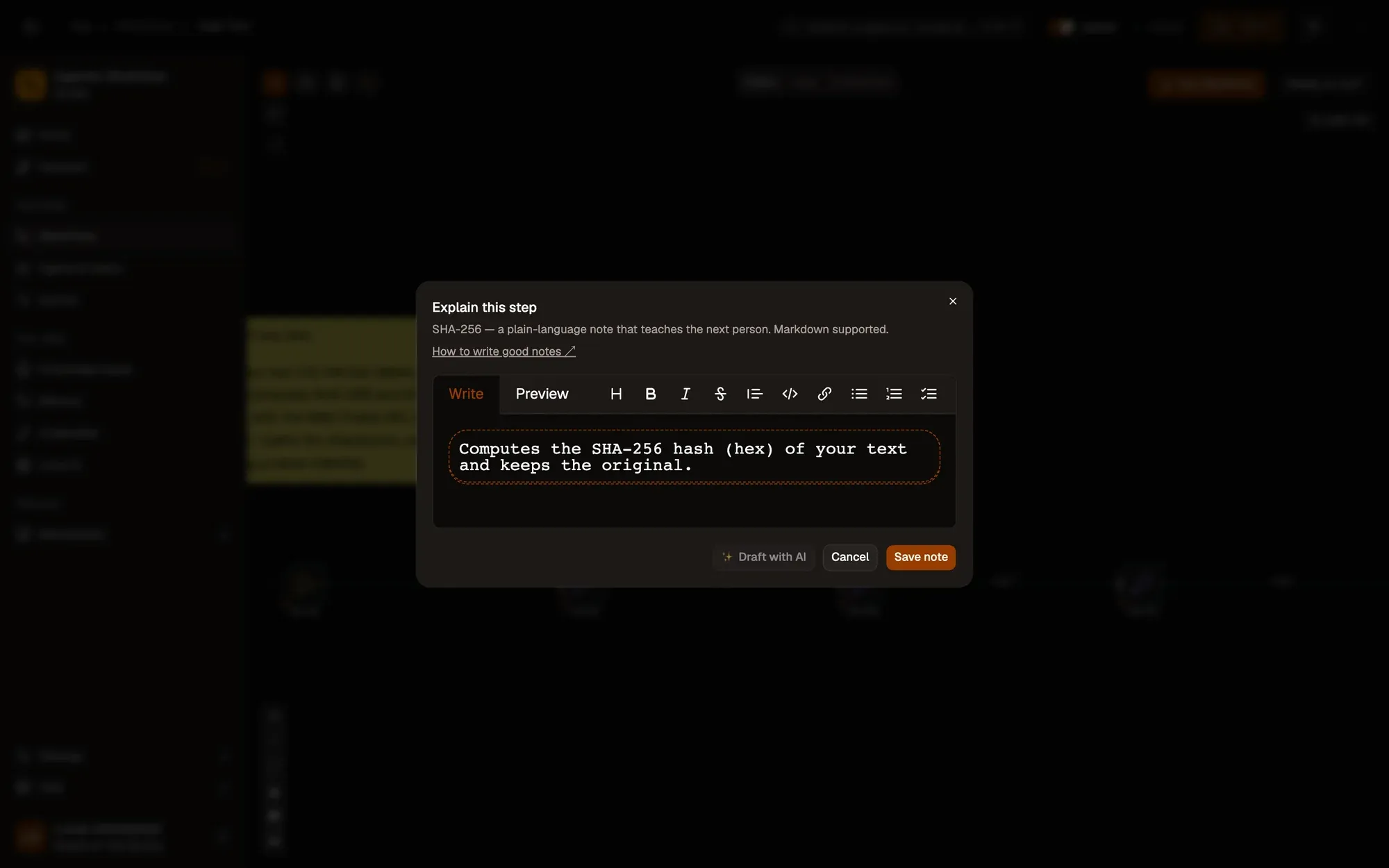
Say what the step accomplishes (“Grabs the product price from the page”), not how it’s configured.
Read it as a story
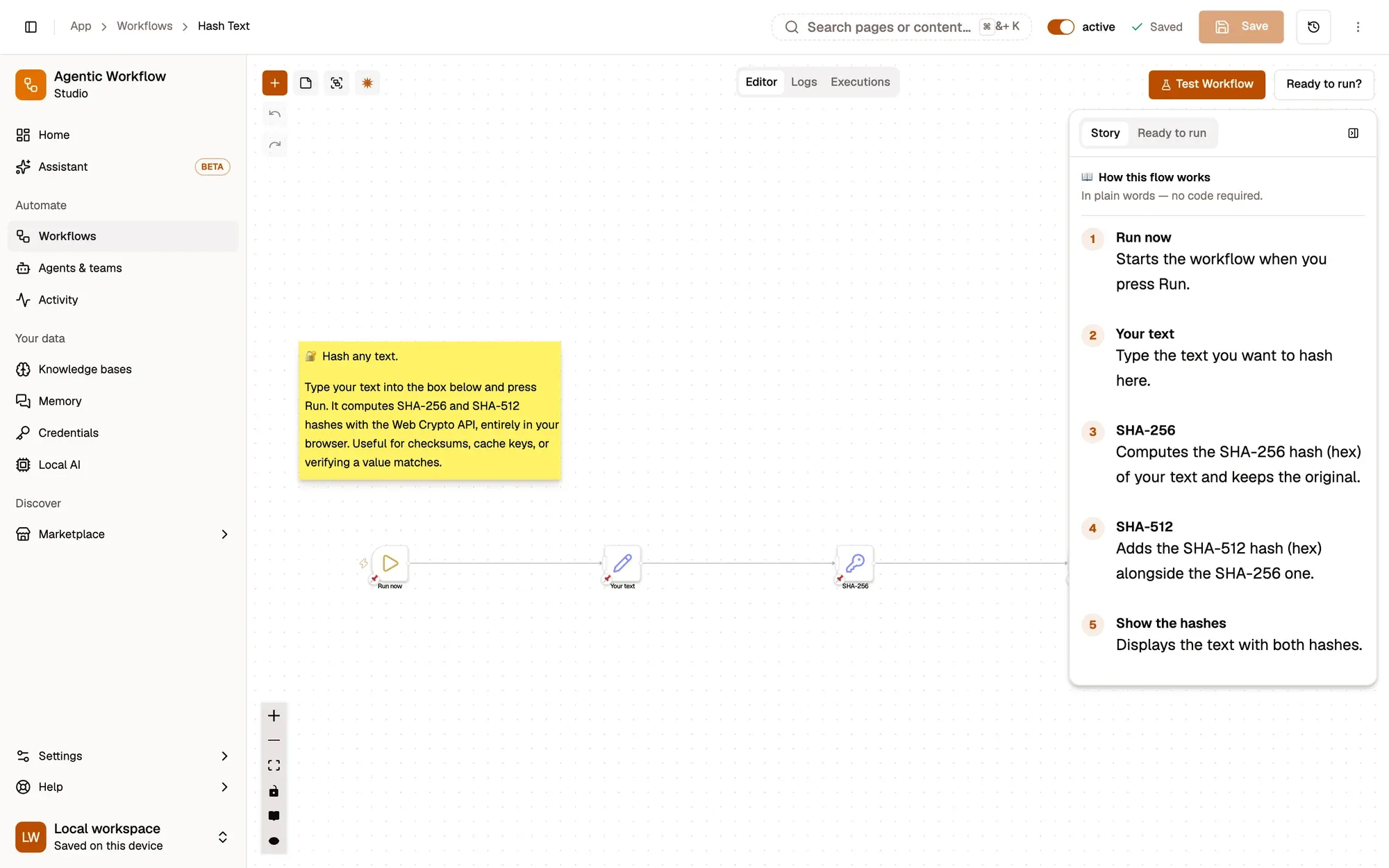
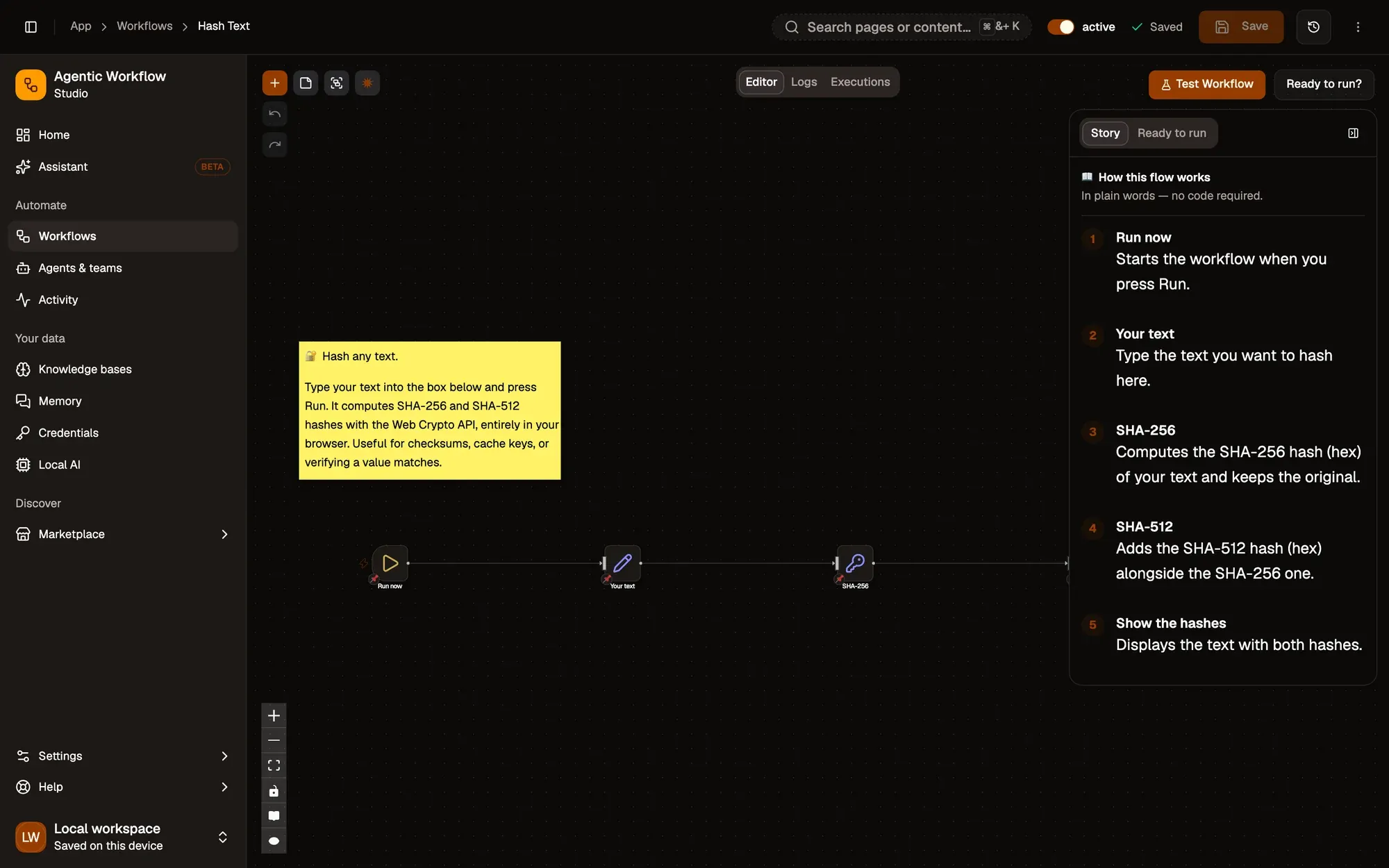
Click How this flow works, the book icon in the canvas controls. The Story tab lists every step in the order the flow runs, with its note, and shows a gap where a note is missing. When someone opens a template or a downloaded flow that has notes, the story opens automatically.
Fill the gaps
In the story, Draft missing notes drafts a note for every step without one: Accept, tweak the text, Skip, or Accept all. Nothing is written until you accept, and your step settings, such as keys or tokens, are never sent. Drafting uses the AI provider you set up for the assistant, or a local model.
The publish wizard needs these notes too: its Explain the steps step counts a step as explained once its note has at least 8 words, and Next stays disabled until every step is explained. A flow where every step has a note earns the Narrated badge on its Marketplace card and listing.
Key takeaways
- Right-click a step, then Annotate this step to write its note.
- How this flow works reads all the notes as a numbered story.
- Draft missing notes lets AI propose notes you accept or skip.