Lesson 3 7 min
Publish and release new versions
Walk through the publish wizard, check what installers will see, pass review, and ship updates with Release.
The wizard
On Workflows, open the ⋮ menu at the start of the workflow’s row and click Publish. Each Next saves the step to your draft:
- Basics: a name and description a stranger understands.
- Media: an icon (an emoji or an image), then screenshots, or Generate a preview image in one of four layouts (Spotlight Halo, Cinematic Split, Filmstrip or Mosaic). A listing holds up to four previews.
- Details: at least one category, tags and the language.
- Explain the steps: one plain sentence per step.
- Review & publish.
Review & publish
The last step shows your listing as people will see it, then:
- the secret check: publishing is blocked until anything that looks like a key, token or password is blanked or moved into a credential;
- These values won’t be shared: the fields installers will fill in;
- Permissions & Safety: what the workflow can access and where it connects, worked out from its steps.
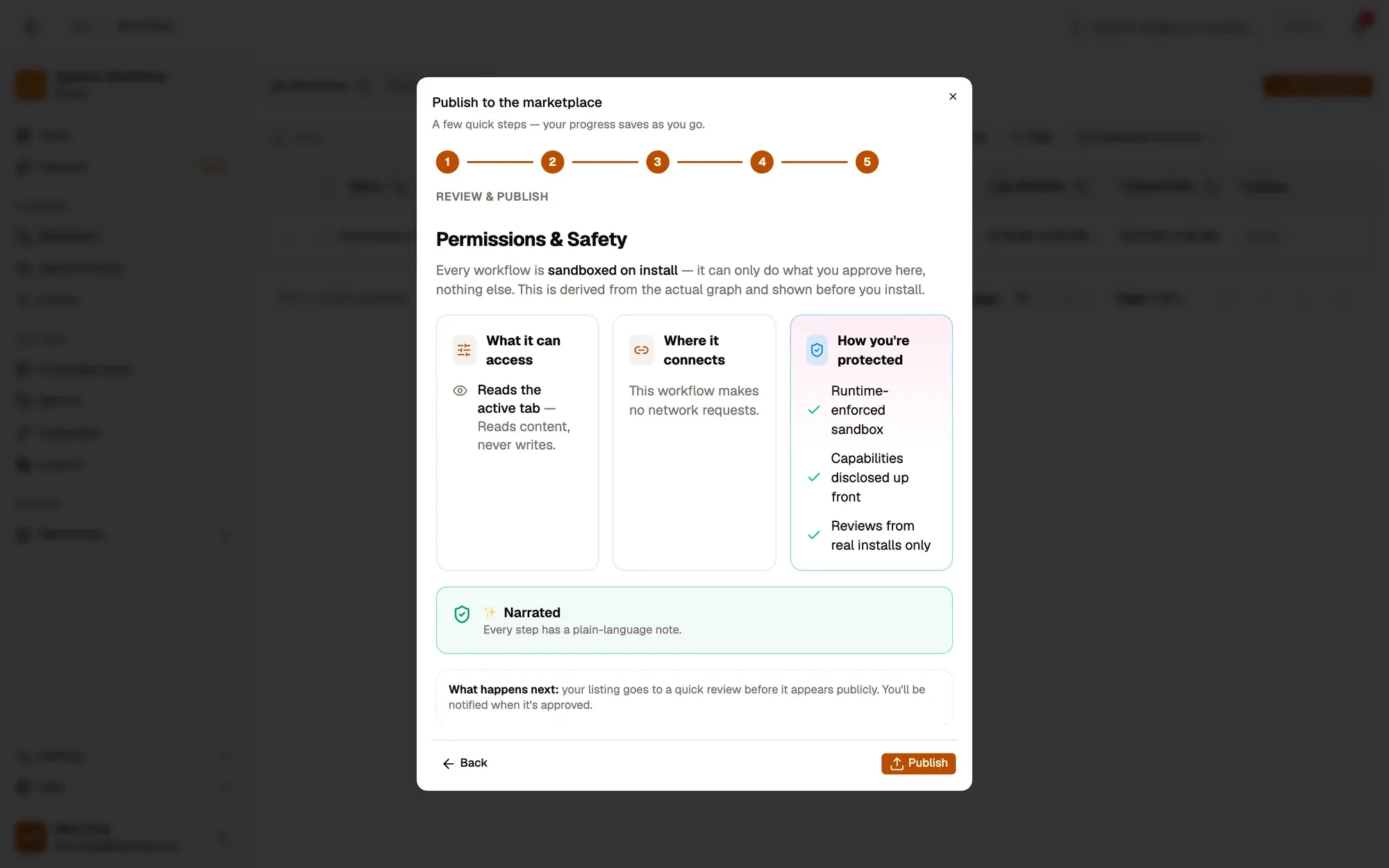
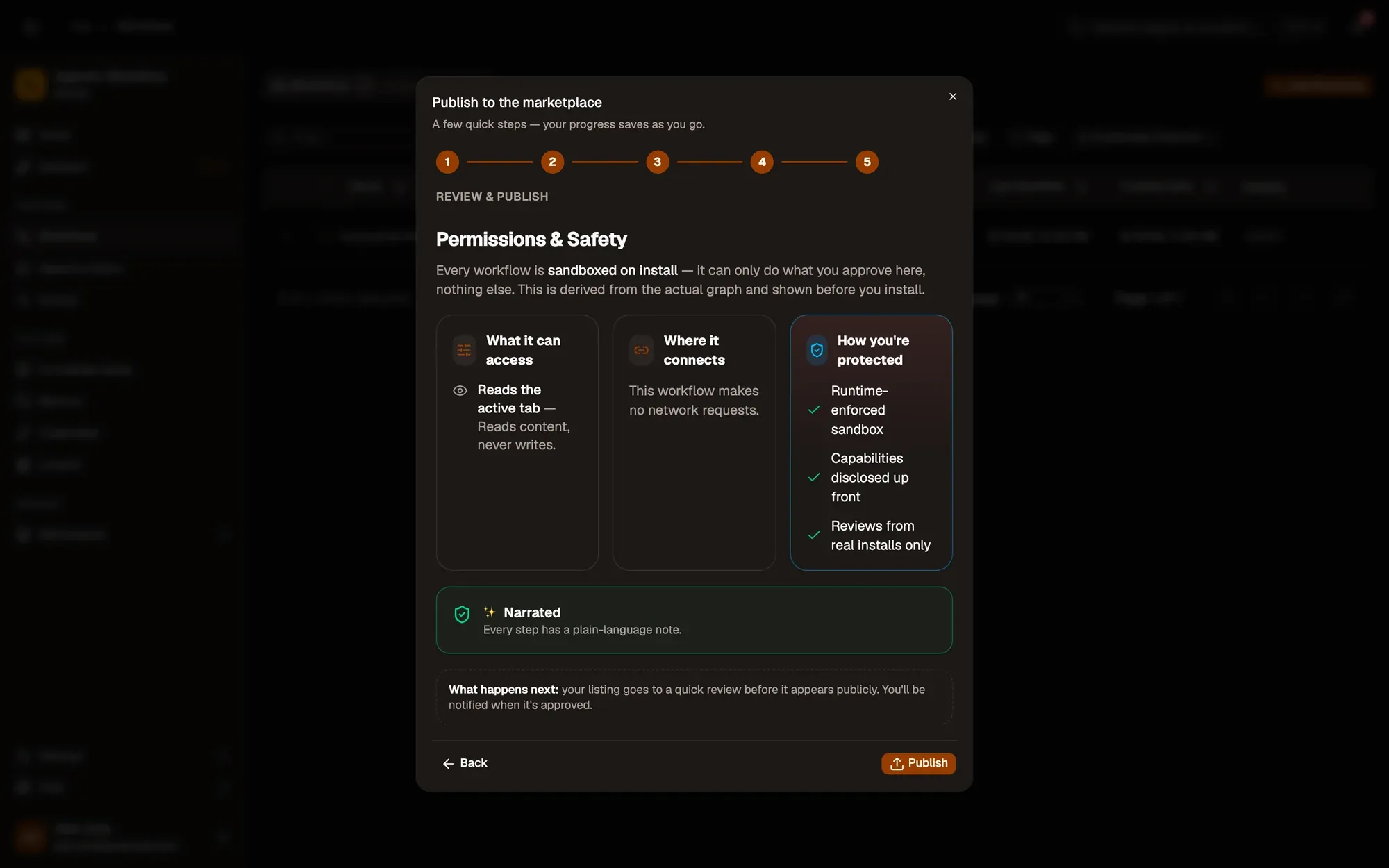
Installers see the same summary before they install, and confirm it once. Click Publish: the listing shows In review in My published workflows, goes to a quick moderation review, and appears in the Marketplace once approved. You get a notification when it’s live, or when it’s sent back with the moderator’s note.
Some listings carry a Verified publisher badge. It’s a role the AWFlow team gives a publisher’s account, not an identity check.
New versions
Use Release in the workflows table and write what’s new. The dialog shows the changes since the last version, any new access it needs, and the fields that stay blank for installers. A release of a live listing is reviewed while the current version stays live. People who installed it see Update available, and only approve again if the new version needs more access.
To take a listing down, Stop sharing in My published workflows: everyone who installed it keeps a working copy, and Share again brings it back.
Key takeaways
- Each Next saves your draft, so you can stop and come back.
- Permissions & Safety is worked out from your steps; installers see the same summary before they install.
- Release shares a new version; the live version stays up while it's reviewed.