Agent architecture
Your AI agent needs the web. Which door should it use?
One question, four possible answers.Search API, scraping API, cloud browser or the user's own browser.
Text version
- Agent architecture: Your AI agent needs the web. Which door should it use?
You give an AI agent a task, and somewhere in the middle it needs the web: a price, a status page, a form, a dashboard you are signed in to. There are several ways to wire that up, and most guides only describe the one their product sells.
This one is a decision guide. I build AWFlow, a browser extension whose agents work in your own browser, so I’ll say where that approach wins and where it plainly doesn’t. If you want the case for giving agents a browser at all, start with why AI agents need a browser, not just an API. This article is about which browser, and when you don’t need one.
What is the best architecture for an AI agent that needs web access?
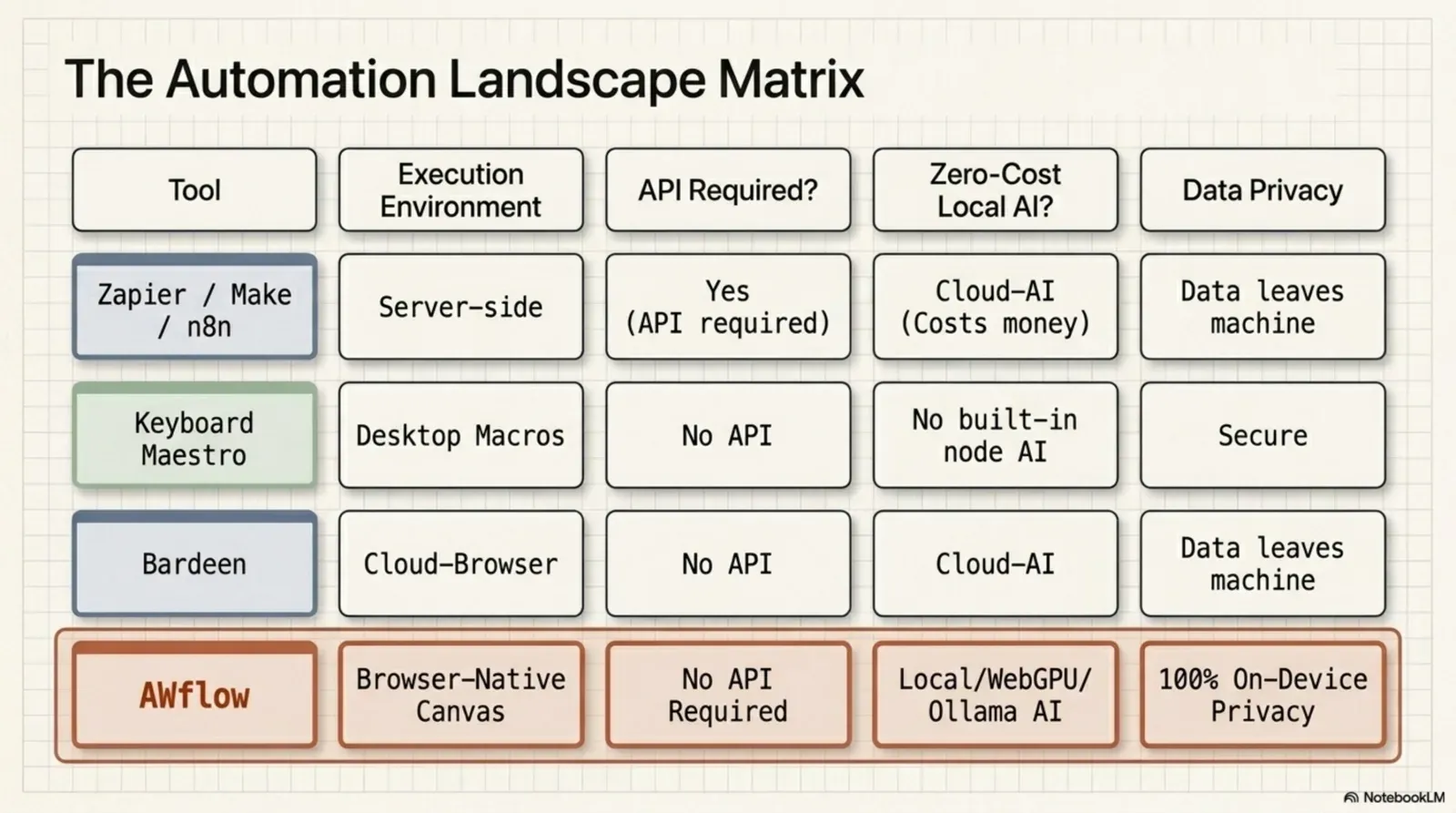
There isn’t one best architecture. There are four doors to the web, and each one answers a different question.
The short answer
Pick the door by the job, not by the hype.
The job decides: facts, page data, volume or your logins.Route by data source, auth requirement and concurrency.
Text version
- The short answer: Pick the door by the job, not by the hype.
- A search API. The agent sends a query and gets back links and snippets. Good for public facts.
- A fetch or scraping API. The agent asks a service to download a page and return its text or HTML. Good for reading public pages it already knows.
- A cloud browser. A real browser runs on someone’s server, and the agent drives it remotely. Good for volume and for running with nobody around.
- Your own browser. The agent works in the browser you already use, with the sessions you already have. Good for logged-in, personal, low-volume work.
Your own browser when the job needs your logins.Local browser with the user's existing profile, cookies and sessions.
Text version
- AI agent · Search API · Scraping API · Cloud browser · Your own browser
- AI agent → Search API: public facts
- AI agent → Scraping API: known pages
- AI agent → Cloud browser: volume
- AI agent → Your own browser: your logins
Most real agents end up using two or three of these. The question is which one to reach for first.
When should an agent use web search instead of browser automation?
When the agent needs facts, not actions. “What is the latest version of this library?” or “Which suppliers sell this part?” are search questions. A search call is one round trip and returns text the model can read directly. Driving a page to find the same answer means loading it, waiting for scripts, reading a snapshot and probably scrolling. It is slower, and it gives the model more to read.
An AI agent needs a browser to use the web.
For public facts, a search call is faster and simpler. Use a browser when the agent must act, or the page is behind your login.
The fact: search for facts, a browser for actions and logins.Search for retrieval; page automation for authenticated reads and side-effecting actions.
Text version
- An AI agent needs a browser to use the web.
- For public facts, a search call is faster and simpler. Use a browser when the agent must act, or the page is behind your login.
Switch to a browser when one of these is true:
- The agent has to do something: fill a form, click a button, change a setting.
- The page is behind a login that a search engine never sees.
- The content only appears after scripts run or after an interaction (a tab, a filter, a “load more”).
In AWFlow, an agent with the web search skill searches DuckDuckGo in a background tab. That only works in the extension, because it needs a real tab. It is usually the cheapest first step, even for an agent that also has a browser.
Cloud browser or Chrome extension?
This is where the honest answer depends on volume.
Cloud browsers win at volume
A cloud browser service runs many browser sessions on servers. Your code (or your agent) opens a session over the network, drives it, and closes it. If you need hundreds of runs, runs at 3 a.m. with your laptop shut, or a fresh clean session for every customer, that is exactly what they are for.
A fleet splits them. At volume, the cloud wins.Horizontal scaling across remote sessions; cost scales with sessions.
Text version
- 32 · Your browser (1) · Cloud browser fleet (8)
- Your browser: 1 × 32 · Cloud browser fleet: 8 × 4
- Your browser: ≈ 32 min · Cloud browser fleet: ≈ 4 min
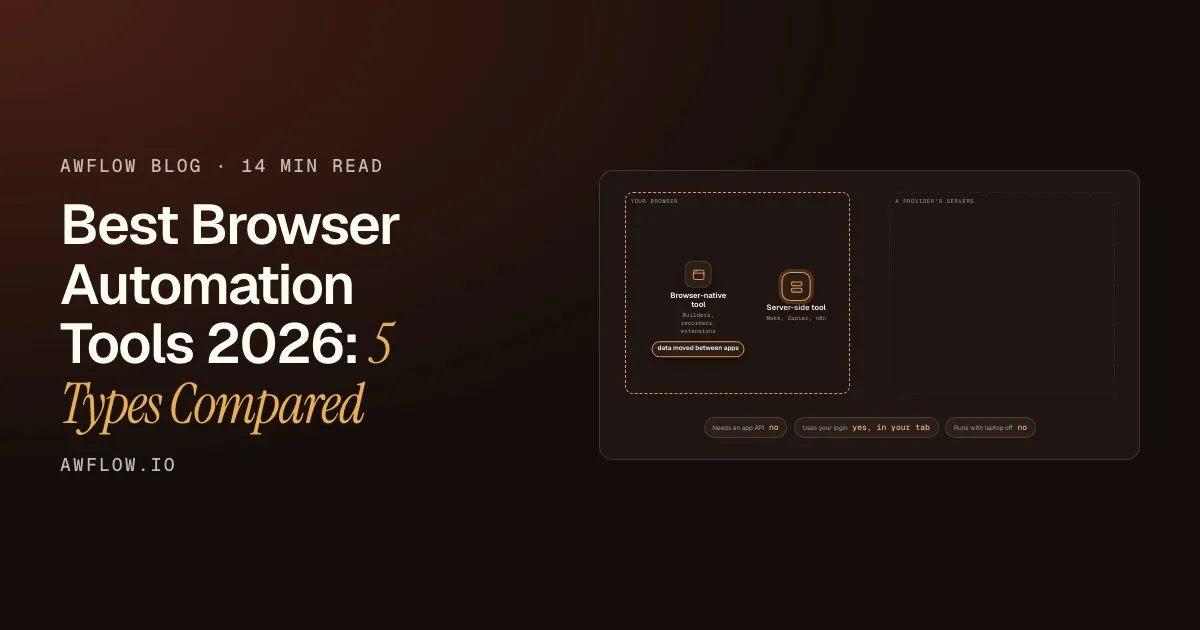
AWFlow doesn’t do this. It runs in one person’s browser, and it doesn’t run at all when that browser is closed. If your job is “check 10,000 product pages every hour”, you want a server-side tool. The browser vs server automation comparison goes deeper on that split.
Your own browser wins at “logged in, a few times a day”
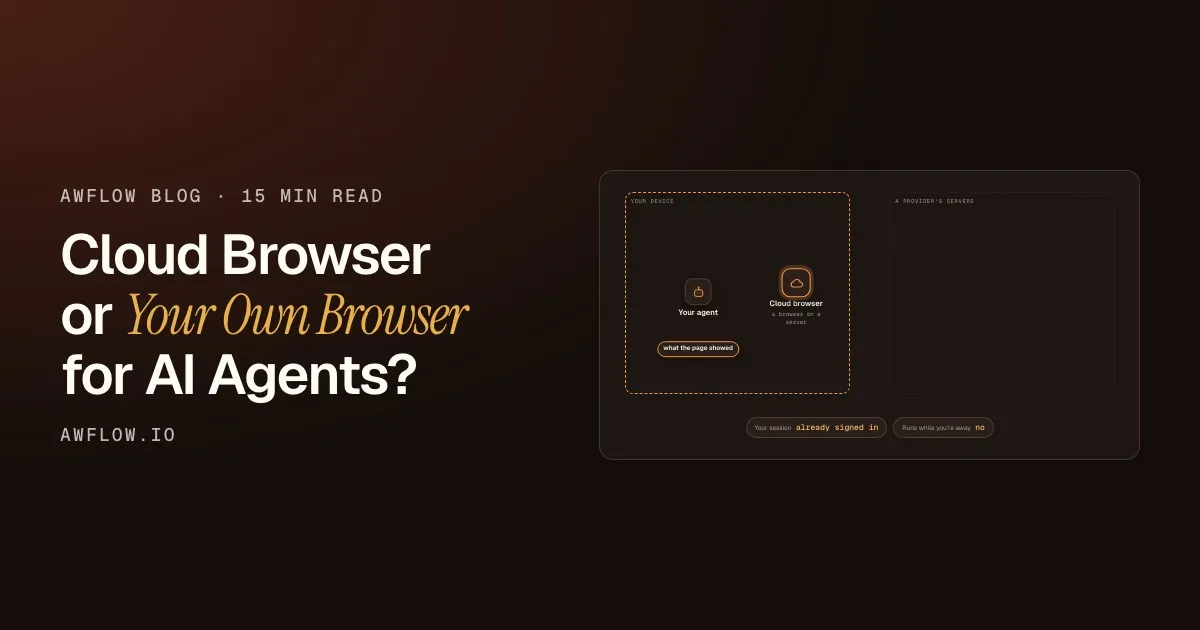
Now take a different job: “Check the status of my three open orders on the supplier portal and tell me which ones slipped.” That needs your account. A cloud browser can do it, but first it needs to sign in as you somewhere else, and keep that session alive on a machine you don’t control.
In your own browser, the agent starts already signed in. The cost: it only runs while the browser is open.Same profile and cookies locally; no remote session; no unattended execution with the browser closed.
Text version
- Your device: Your agent · A provider's servers: Cloud browser
- Your agent → Cloud browser: the task + your login
- Cloud browser → Your agent: what the page showed
- Your session: set up on a server · Page you see: not the same tab
- Cloud browser → Your device · Your session: already signed in · Runs while you're away: no
In AWFlow, an agent with the browser skill opens its own tab in your browser, grouped as “NAME · agent”, and never touches the tabs you are working in. Because it is a normal tab in your browser, it sees the sites as you do. If you are already signed in to that portal, so is the agent.
One caveat on privacy: the page stays in your browser, but the agent’s model still reads a snapshot of it. If you use a cloud model, that snapshot goes to the model provider. With a local model, it doesn’t leave your machine.
| Feature | AWFlow | Cloud browser |
|---|---|---|
| Where the browser runs | In your own browser, on your device | On the provider's servers |
| Many sessions in parallel | No: one person's browser | Yes, that is the point |
| Pages you are already signed in to | Yes, your existing sessions | Only after you set up a login there |
| Runs with your computer off | No | Yes |
| Where the session lives | Your browser profile | A remote browser profile |
| Setup | Install an extension | An account, an API key and code |
Setup. An extension vs an account and code.Install vs SDK integration and API keys.
Text version
- Where the browser runs: AWFlow: In your own browser, on your device; Cloud browser: On the provider's servers
- Many sessions in parallel: AWFlow: No: one person's browser; Cloud browser: Yes, that is the point
- Pages you are already signed in to: AWFlow: Yes, your existing sessions; Cloud browser: Only after you set up a login there
- Runs with your computer off: AWFlow: No; Cloud browser: Yes
- Where the session lives: AWFlow: Your browser profile; Cloud browser: A remote browser profile
- Setup: AWFlow: Install an extension; Cloud browser: An account, an API key and code
What’s the difference between an AI browser agent and a browser automation API?
A browser automation API gives you commands: open this URL, click this selector, read this element. Your code decides every step. A browser agent gives those commands to a model: it looks at the page, decides the next step, acts, and looks again.
- Lap 1LookOrders page, 3 rowsDecideOpen the first orderActClick order #1
- Lap 2LookStatus: delayedDecideNote it, go backActClick order #2
- Lap 3LookStatus: shippedDecideAll three checkedActWrite the answer
- Done: one order slipped
It stops when the job is done, or at a step limit.Bounded by maxSteps (AWFlow agent default: 25 tool rounds).
Text version
- 1. Look: Orders page, 3 rows · Decide: Open the first order · Act: Click order #1
- 2. Look: Status: delayed · Decide: Note it, go back · Act: Click order #2
- 3. Look: Status: shipped · Decide: All three checked · Act: Write the answer
- Done: one order slipped
The loop is the easy part to draw. The interesting part is what the model actually sees on each “look”. Sending a screenshot is expensive and vague. Sending the whole HTML is long and noisy. AWFlow sends a snapshot built for the model.
The model answers with a ref, not a guess.Tool call such as browser_click {ref: e12}, resolved in the page.
Text version
- The agent's tab: a page with buttons, links and text
- Tag what you can act on: up to 120 elements, each gets a ref
- Add the visible text: up to 2,500 characters
- Fence it as untrusted: page text is data, not instructions
- The model picks a ref: browser_click e12
It starts from the tab
The agent’s tab is an ordinary tab in your browser, loaded like any other page.
Clickable things get short names
Instead of describing buttons in words, the snapshot tags up to 120 visible interactive elements with refs like e12.
The words come along, trimmed
Up to 2,500 characters of visible page text are added, so the model knows what the page says.
Page text is treated as untrusted
A web page can contain text aimed at the agent (“ignore previous instructions…”). The text is fenced as data, and if it matches known injection patterns, the snapshot gets a warning and the session is flagged. We wrote up the rest of that harness work in our agent harness audit.
The model answers with a ref
The model calls a tool such as browser_click with e12, and the click lands on that exact element.
The available actions are short and specific: browser_open, browser_look, browser_click, browser_type, browser_select and browser_scroll.
Can an agent log in to sites for me?
Partly, and the “partly” matters. Because the agent’s tab is in your browser, sites you are already signed in to just work. Signing in from scratch is a different story. CAPTCHAs and two-factor prompts exist to stop exactly this, and typing a password counts as a sensitive action. On every page the agent drives, AWFlow shows an overlay (“agent · step N · label”) with Pause, Take over, Resume and Stop. When a site needs a human, you take over, sign in, and hand it back.
The harder problem isn’t clicking. It is deciding which clicks the agent may make on its own. Every tool call goes through rules first: allow, ask, block, or hand over. You can list sites the agent must never touch, or the only sites it may touch. A click that commits something (book, pay, send, delete, sign in) is classified as a submit and, with the default preset, the agent has to ask.
Only then does the click run.On deny, the model is told the user declined and not to retry.
Text version
- Agent → Rules: click "Reserve" (e12)
- Rules → You: Allow this click?
- You → Rules: Allow once
- Rules → Agent: go ahead
Two rules are not up to the agent. Payments always hand over to you, and actions such as sending as you or deleting stay on “ask” whatever preset you pick. And when an agent runs as a background routine with nobody watching, every “ask” is denied and logged, so an unattended run can read and prepare but cannot commit. We cover how this plays out across a team of agents in agent teams that don’t loop.
How do you mix search, workflows and a browser in one agent?
You don’t have to choose one door. In AWFlow, an agent gets skills, and each skill becomes tools: web search, a browser tab, your own workflows as tools, and the tools of any MCP server you connect. The model picks per step; the rules decide what it may do.
You get one answer, with the risky steps approved by you.Final message; submit-class calls went through the rules engine.
Text version
- Weekly supplier check → Your agent
- Web search: find the facts · Your workflow: save to my sheet · Browser tab: read the portal
- Web search → 5 links · Your workflow → 1 row added · Browser tab → order status
- A short report for you
The workflow door is the underrated one. A workflow you built and tested (say, “save this row to my sheet”) is a predictable tool: the agent decides when to use it, but not how it works. We explain why our own agents lean on that in our AI agents run on workflows.
What doesn’t exist yet: an outside agent (Claude, ChatGPT or your IDE) calling into AWFlow to use your browser. AWFlow can use MCP servers, but it isn’t one. We’re working on that direction; until it ships, the agent has to live inside AWFlow.
Which one should you pick?
| Your situation | Start with |
|---|---|
| The answer is public and you just need facts | A search API |
| You already know the public pages and only need their text | A scraping or fetch API |
| Hundreds of runs, runs at night with your computer off, or a fresh session per customer | A cloud browser |
| A few runs a day on sites you’re signed in to, and you’d rather keep your sessions on your machine | Your own browser |
| A mix of the above | One agent with several tools, and rules on the risky ones |
Frequently asked questions
How do AI systems interact with websites without using a browser? Through search APIs (query in, links and snippets out) and fetch or scraping APIs (URL in, page text out). They work well for public, static content and stop working when the page needs a login or an interaction.
Is a Chrome extension or a cloud service better for browser automation? For volume and unattended runs, a cloud service. For logged-in, personal tasks a few times a day, an extension in your own browser is simpler and keeps your sessions where they are.
Can an AI agent fill in forms and click buttons for me? Yes, in its own tab, through rules you set. In AWFlow, committing clicks ask first by default, and payments always come back to you.
Headless browser automation is too slow for my workflow. What are faster options? First ask whether the job needs a browser at all: if the data is public and static, a search or fetch API skips rendering the page. If the job needs your logins, running the steps in the browser you already have open skips launching a browser, starting a session and logging in on every run. If the job needs volume, speed comes from running many sessions side by side, which is what cloud browser services sell.
Which platforms can handle thousands of concurrent web tasks? Cloud browser services: they run many browser sessions on servers and bill for browser time. AWFlow is not built for that. It runs in your own browser while it is open and does not spread work across many parallel sessions; it is for the logged-in, personal tasks described above.
Does the agent see my other tabs? No. An AWFlow agent works in its own grouped tab. The separate Browser Tool node, which you add to a workflow yourself, acts on the active page and asks for approval on every call.
What happens when a site shows a CAPTCHA? The agent can’t solve it for you. You take over from the overlay, then resume.
Start small
Try the your-browser door
Open this workflow in AWFlow: it reads the page you're on and summarises it, in your browser.
Open in AWFlow (opens in a new tab)docs.awflow.io/examples/summarize-this-page.awfStart with the simplest job: read the page you're on.
Text version
- Try the your-browser door · Open this workflow in AWFlow: it reads the page you're on and summarises it, in your browser. · https://docs.awflow.io/examples/summarize-this-page.awf
The smallest useful step is reading the page you’re already on. When that works, give an agent the browser skill and a rule set, and let it take the next step with your approval. Get AWFlow at awflow.io/download.
In short
- Search for facts; a browser for actions and logins
- Cloud browsers win at volume; your browser wins at your logins
- The hard part is consent: rules, approvals, hand-over
Rules before clicks. That is what makes an agent usable.
Text version
- In short
- Search for facts; a browser for actions and logins
- Cloud browsers win at volume; your browser wins at your logins
- The hard part is consent: rules, approvals, hand-over