Are you still right-clicking and choosing “Save Image As” dozens of times to collect assets from a web page? Whether you’re doing competitive research, building a dataset or gathering media for a project, collecting images by hand is a huge time-sink.
Before
By hand
- Right-click
- Save Image As
- Pick a folder
- Repeat 64 times
64 clicks
Right-click, Save Image As, name it, repeat.
After
With a workflow
- Run
- Done
1 click
Every image on the page, downloaded.
Drag the line to compare.The slider works with the keyboard too.
Text version
- Before: By hand, 64 clicks. Right-click, Save Image As, name it, repeat.
- After: With a workflow, 1 click. Every image on the page, downloaded.
- Compare before and after
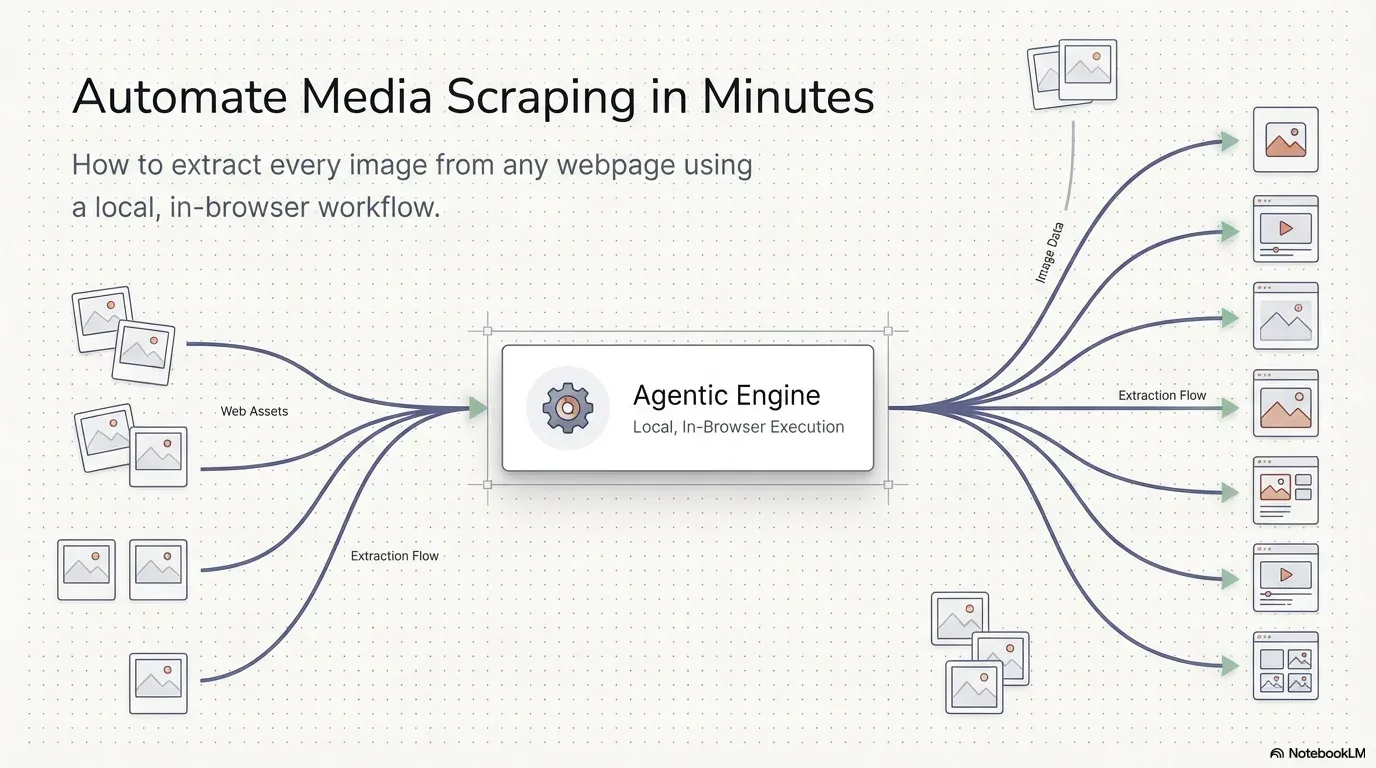
In our video tutorial, “Extract Every Image From Any Webpage Using a Browser Workflow”, we show how to turn your browser into an automation engine that does the heavy lifting for you.
Watch the tutorial
What the tutorial covers
It walks you through building your own “Image Scraper” workflow from scratch with the Agentic Workflow extension. Instead of relying on third-party extensions that might track your data, you build a private, local automation that extracts and downloads every image from any website in one click.
Inside the video, step by step
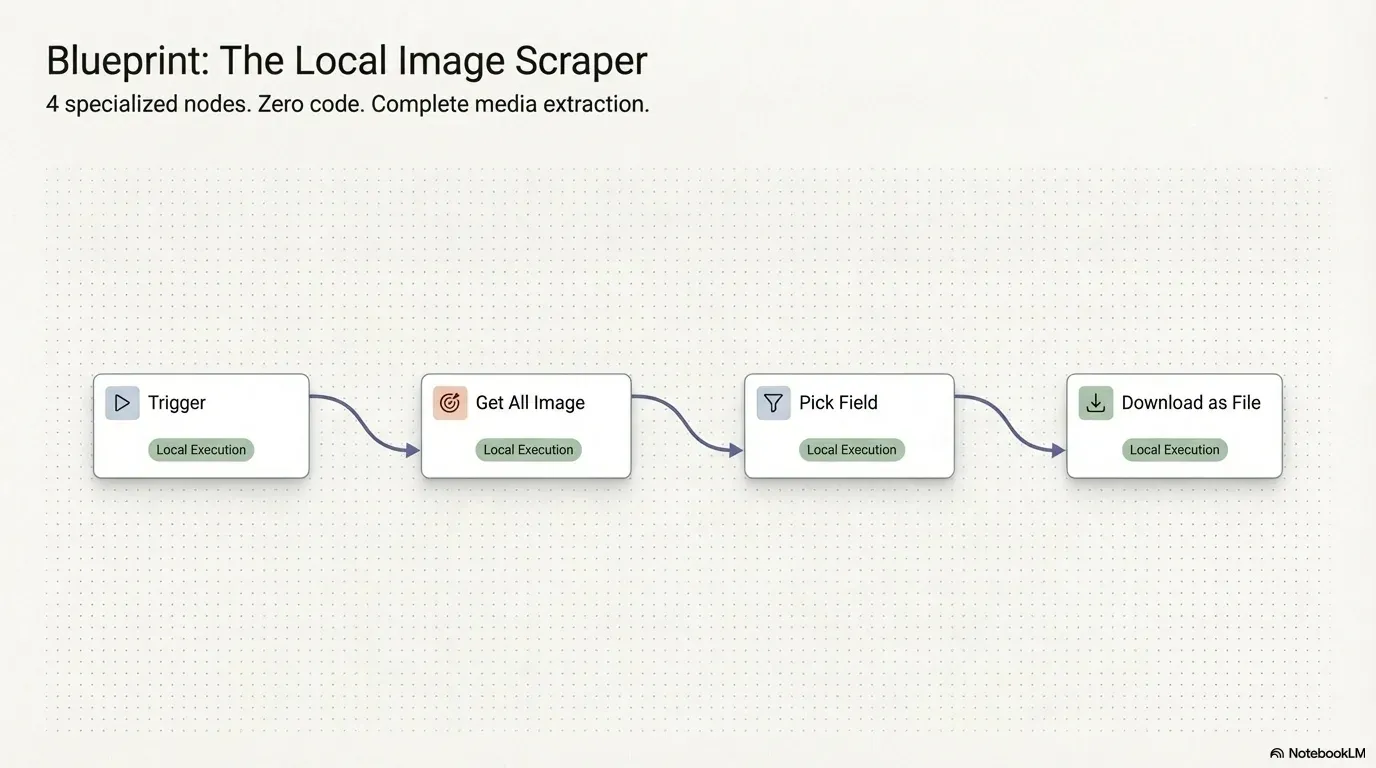
The workflow uses four nodes on the visual, no-code canvas:
Your browser downloads them all.Download as file saves each image to your device.
Text version
- Any web page: a product page full of images
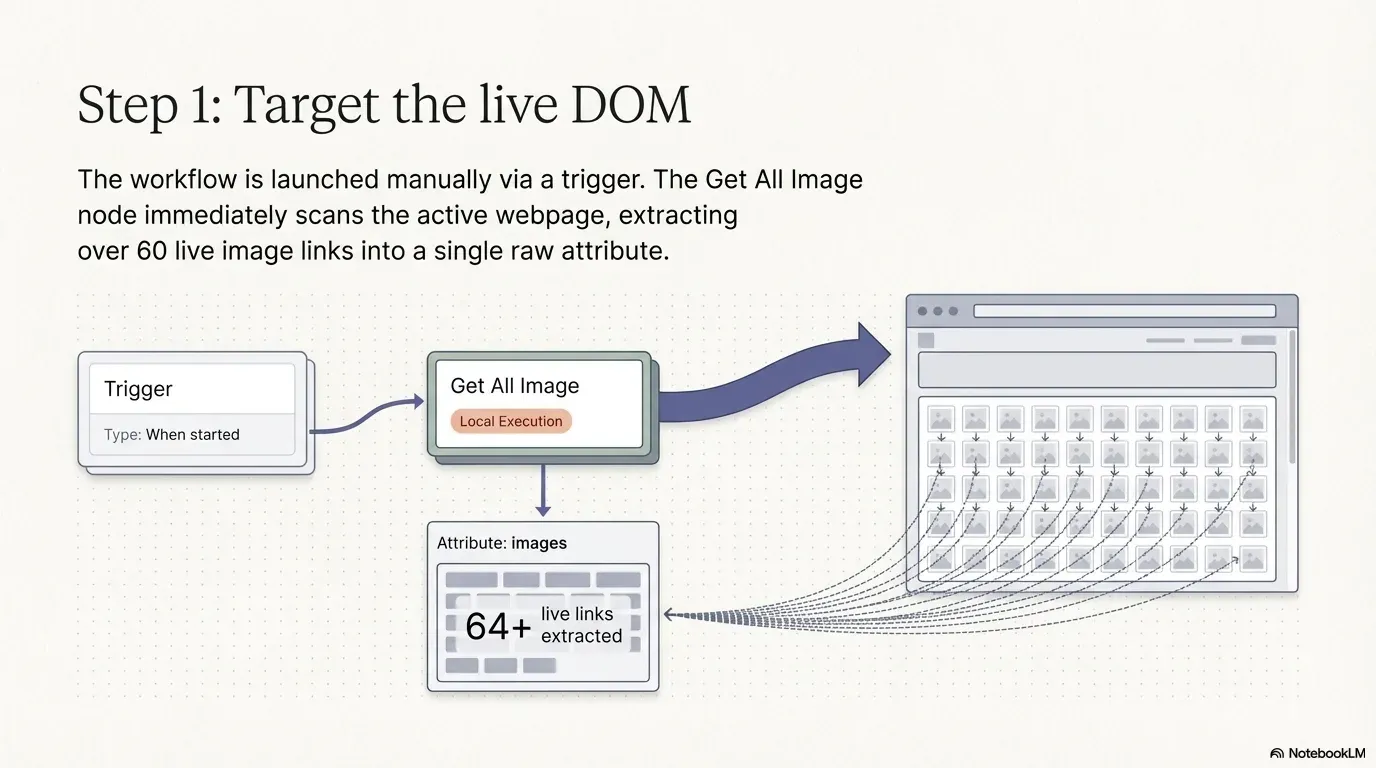
- Trigger: you start it on the page
- Get All Images: 64 images found
- Pick Field: 64 clean image links (src)
- Download as file: 64 files in your folder
Start on the page
Open the page with the images and start the workflow. It runs on the page you’re looking at.
The trigger
Every automation needs a starting point. Here it’s a trigger you launch whenever you need the scraper on a live page.
Get All Images
This node reads the live page and collects every image on it. In the video, it finds more than 60 images on the Agentic Workflow website.
Pick Field
Raw data can be messy. Pick Field keeps only what you need: a clean list of image addresses (src).
Download as file
Finally, Download as file makes the browser download every image straight to your device.
Why a browser workflow instead of a standard scraper?
Traditional scrapers often run on outside servers and can miss images that load dynamically or content behind a login. Agentic Workflow runs in your browser, so it sees exactly what you see.
- Privacy first: the pages you scrape and the images you collect stay on your machine.
- No code: if you can describe the task, you can build it on the canvas.
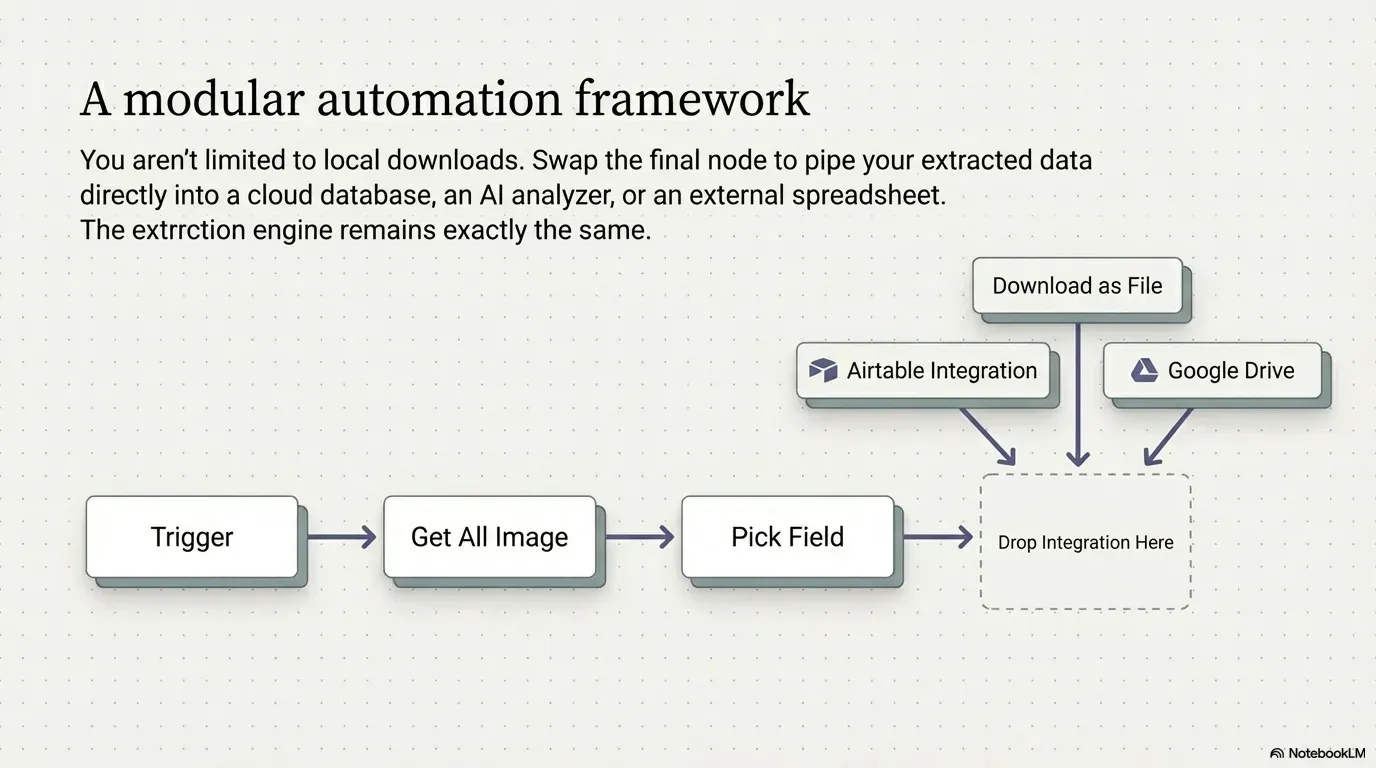
- Flexible: you don’t have to stop at downloading.
The last node is yours to choose. Swap Download as file for another destination:
Swap the last node
Where your images can go instead
- Your Downloads folder (done)automated
- An Airtable base, as links (done)automated
- A Google Drive folder (done)automated
- A JSON list on your clipboard (done)automated
Copy the list for later.Clipboard Write with the src list.
Text version
- Where your images can go instead
- Your Downloads folder
- An Airtable base, as links
- A Google Drive folder
- A JSON list on your clipboard
Respect copyright and each site’s terms: collecting images for research is different from republishing them.
Ready to start?
Stop wasting time on repetitive saving. By the end of this five-minute tutorial, you’ll have a reusable tool that replaces any image-scraping extension. Install the extension and follow along with the video to build your first workflow.
In short
- Four nodes: trigger, get, pick, download
- It runs on the page you see, privately
- Swap the last node for any destination
Three. Downloads, Airtable, Drive, clipboard.Any output node.
Text version
- In short
- Four nodes: trigger, get, pick, download
- It runs on the page you see, privately
- Swap the last node for any destination