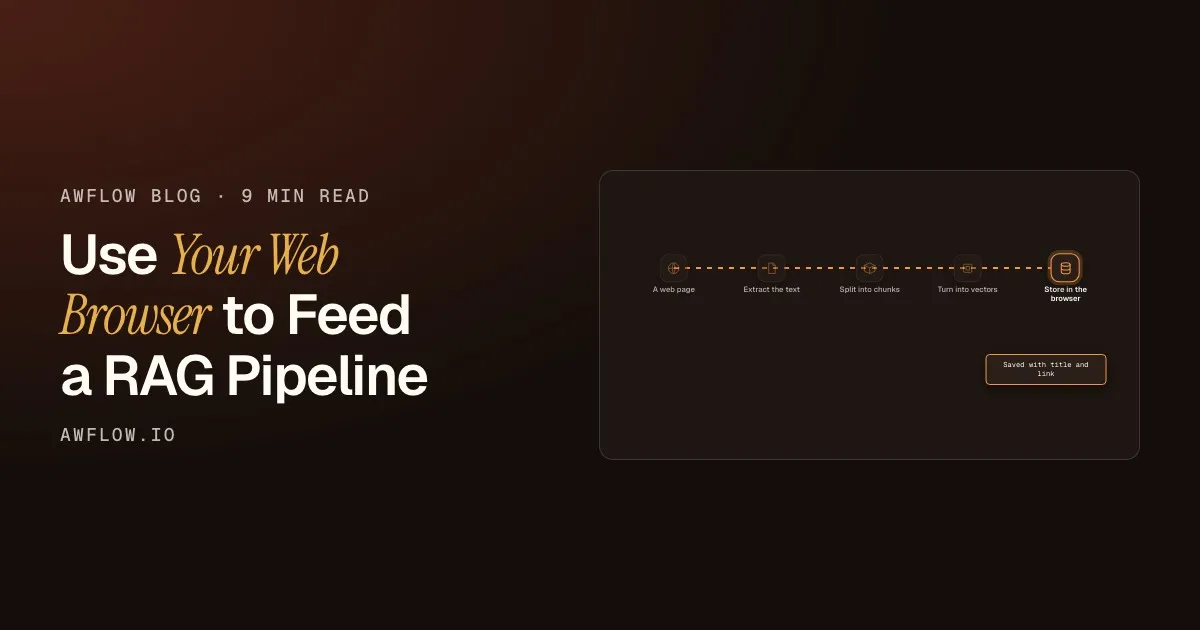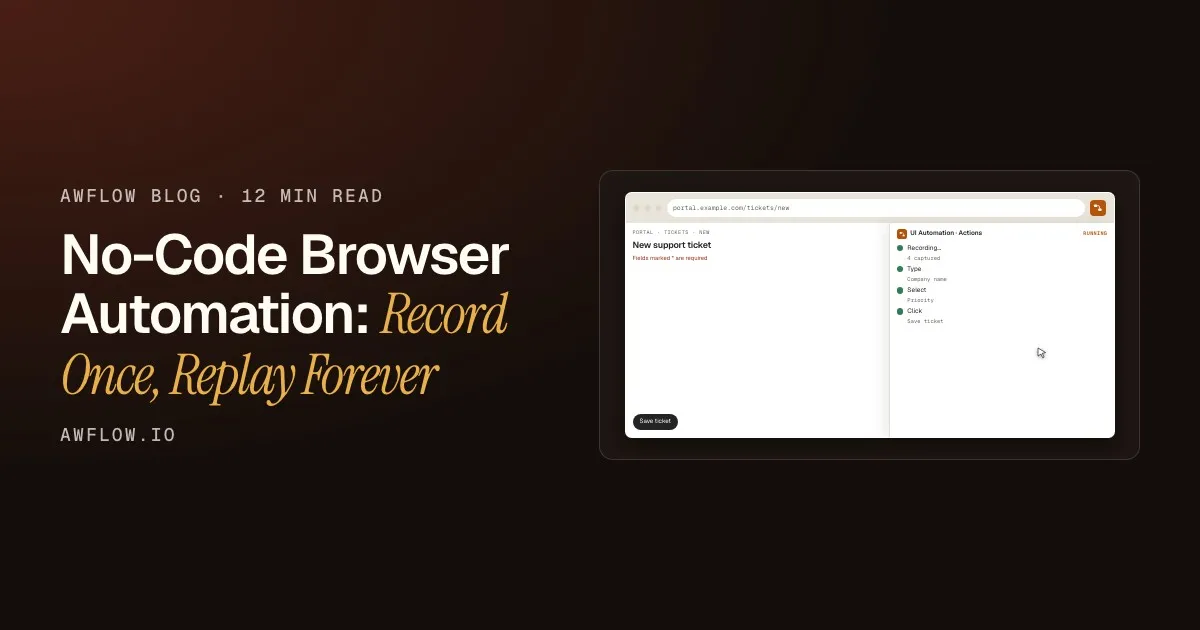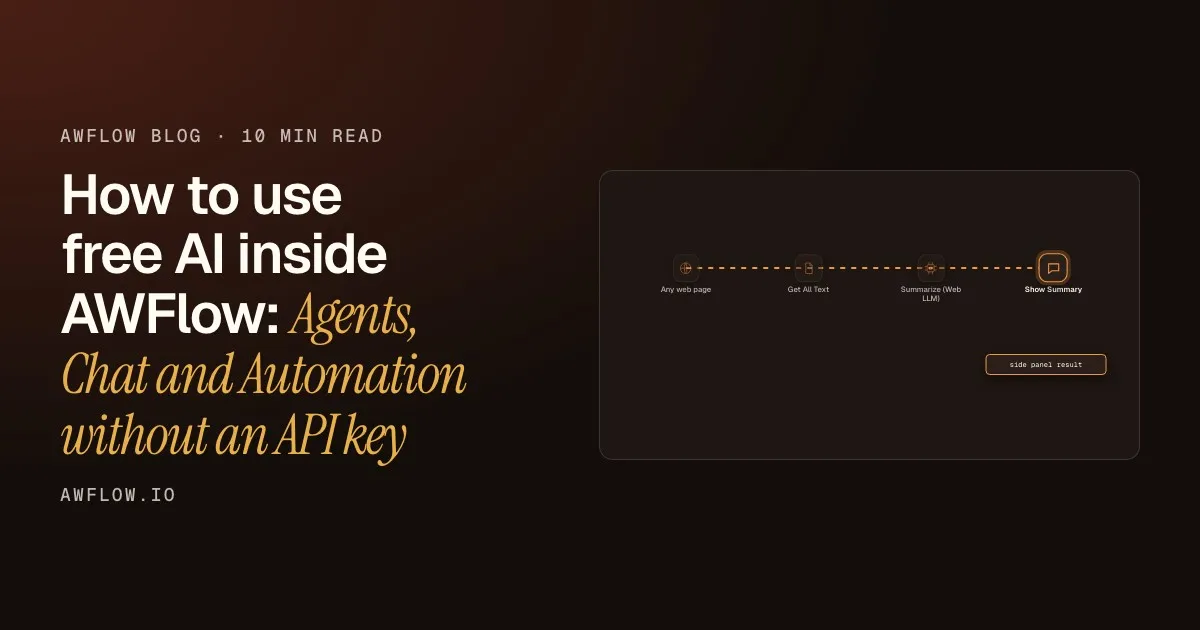
Builder notes
Your Selenium script, rebuilt as a few nodes in your own Chrome.
The hook. Same job, no driver.Map script calls to workflow nodes that run in a signed-in browser.
Text version
- Builder notes: Your Selenium script, rebuilt as a few nodes in your own Chrome.
You wrote a small script to pull a report out of a portal every Monday. It worked for a month. Then the browser updated and the driver didn’t, the login started asking for a second factor, and the headless run on your server began failing at a step that works fine when you click it yourself.
For jobs you run for yourself, behind your own logins, there is another way to do the same thing: a visual workflow that runs in the Chrome you are already signed into. Every step of your script has a matching node. This post is the translation table, plus an honest list of the cases where you should keep Selenium or Playwright.
If the DOM and selectors are new to you, start with DOM automation without code. This post is for people who would normally open an editor.
Why look past Selenium for a small job?
Selenium and Playwright are code libraries that drive a browser, often headless on a server. They are the right tool for test suites and pipelines. For a weekly personal job, most of the effort goes into things around the task: installing the library, matching the driver to the browser, scripting a login, keeping a machine running.
The pattern
Most small scripts repeat the same handful of steps.
The same steps every time. Only the page and the selectors change.The control flow is generic; the selectors are the site-specific part.
Text version
- The pattern: Most small scripts repeat the same handful of steps.
The extension runs in your browser and reuses the session you already have: no headless browser and no stored passwords. When the site asks you for a second factor, you answer it once in your normal tab, like any other day.
Before
A script with a driver
- Install the library
- Match driver to browser
- Script the login
- Keep a machine running
4 moving parts
Library, driver, login, a machine that stays up.
After
A workflow in your Chrome
- Install the extension
- Already signed in
- Pick elements on page
- Schedule in the flow
1 extension
Runs while your browser is open.
Drag to compare. Note the catch: the browser has to be open.No headless mode: the extension needs a running browser.
Text version
- Before: A script with a driver, 4 moving parts. Library, driver, login, a machine that stays up.
- After: A workflow in your Chrome, 1 extension. Runs while your browser is open.
- Compare before and after
How does each script step map to a node?
Here is the mapping. The left column uses the names you know from Selenium (Python) and Playwright; the right column is the node and the setting that does the same job.
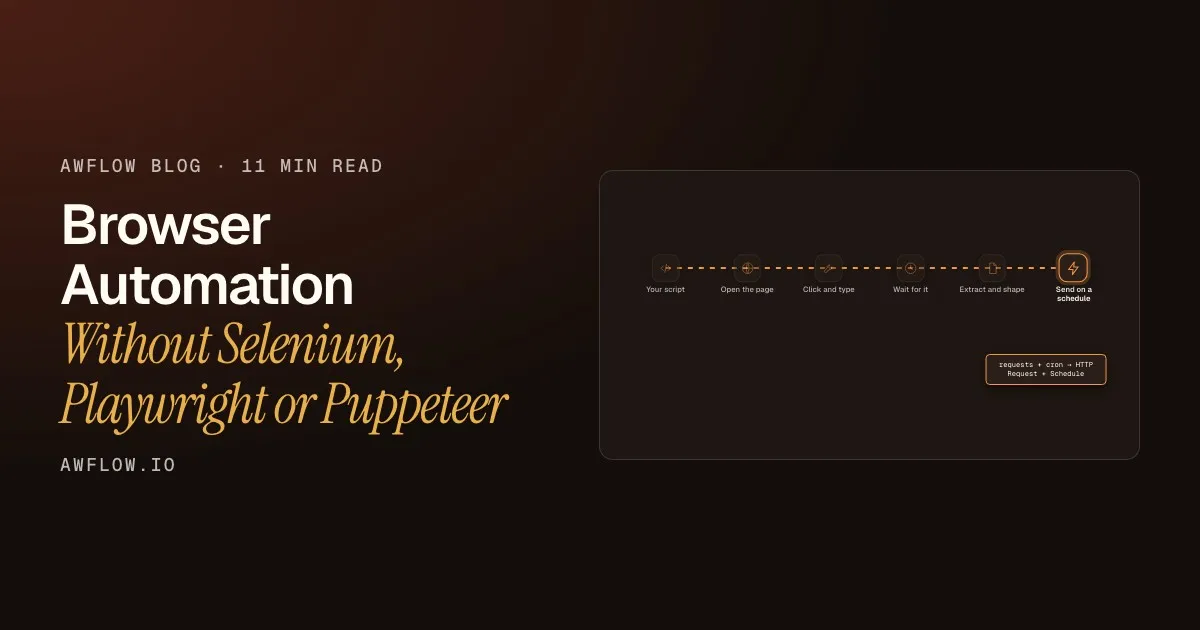
Send it on a timer. HTTP Request for the API call, Schedule for the cron.HTTP Request: GET/POST/PUT/DELETE/PATCH/OPTIONS/HEAD; Schedule trigger replaces crontab.
Text version
- Your script: open → act → wait → extract → send
- Open the page: driver.get → Tab Control: navigate
- Click and type: click / send_keys → UI Automation
- Wait for it: WebDriverWait → waitForElement
- Extract and shape: page_source → Get Structured Data
- Send on a schedule: requests + cron → HTTP Request + Schedule
The full table:
| In your script | In the workflow |
|---|---|
driver.get(url) / page.goto(url) |
Tab Control → navigate (or open for a new tab) |
element.click() / page.click() |
UI Automation → click (also dblclick, rightclick, hover) |
send_keys() / page.fill() |
UI Automation → type, clear, select, check (or Form Fill for a whole form) |
WebDriverWait(...) / page.waitForSelector() |
UI Automation → waitForElement (visible, attached or detached), or the Wait for Element node |
assert on the page |
UI Automation → assertExists, assertText |
driver.page_source / page.content() |
Get All HTML (or Get All Text for just the words) |
| a loop over table rows | Get Structured Data (mode Table, List or Auto) |
driver.save_screenshot() / page.screenshot() |
Screenshot Page |
requests.post(...) |
HTTP Request (JSON, form-urlencoded or multipart bodies) |
| your own Python function | Code node (Python, see below) |
a line in crontab |
Schedule trigger |
Each row is one node on a canvas, and the data flows from one to the next as items. Here is a real example from the docs, the equivalent of a “scrape this table to CSV” script:
Page Table to CSV
Run it. Four nodes, no driver, no loop to write.One run; each node shows its output. Row count is an example.
Text version
- table-to-csv.awf
- started by hand
- 12 rows read from the table
- CSV text built
- copied to clipboard
Where does your Python go?
You don’t have to give up code. The Code node runs Python with Pyodide, inside a dedicated worker. It’s a good place for the logic that is easier to write than to click: parsing, scoring, reshaping a list.
Inputs
inputjsonSettings
Outputs
resultjsonWhat comes out: whatever your code returns.Output field `result`, null when nothing is returned.
Text version
- Code (Python)
- input (json)
- Language: Python, run with Pyodide · Where it runs: A fresh worker for every run · Network: Off: call APIs with HTTP Request · Timeout: Stops the worker, really stopping the code
- result (json)
Three things are different from your usual Python:
- No network inside the code. The node can’t call an API itself. Put an HTTP Request node before or after it.
- No access to the page. Read the page with the page nodes, then pass the result in.
- No
pip install. The node doesn’t load extra packages, so stick to the standard library (jsonand friends). If you need a heavy library, that job probably belongs in your script.
How do you keep selectors honest?
In a script you write By.CSS_SELECTOR by hand and find out it’s wrong at run time. In a workflow you click the crosshair next to Target Element and pick the element on the page; Ping highlights what a selector matches before you run anything. Or press Record actions, do the task once, and each click and keystroke becomes a step (how the recorder picks selectors).
One behaviour catches people who come from test frameworks:
If a step can't find its element, the run fails.
A UI Automation step whose element isn't found in time is skipped. Add assertExists to stop the run instead.
What actually happens: the action is skipped. Use an assert to fail loudly.Missing target within the wait timeout → action skipped with a warning; assertExists (onFailure: stop) throws.
Text version
- If a step can't find its element, the run fails.
- A UI Automation step whose element isn't found in time is skipped. Add assertExists to stop the run instead.
So when a step matters, put an assertExists or assertText right after it, the same way you’d assert in a test.
Your workflow is also a file. Export it as a .awf: a small JSON text file with the steps, connections and notes. You can commit it, diff it and share it, and your credentials are never part of the file.
When should you keep Playwright?
AWFlow is not a replacement for a test framework. It needs your browser to be open, and it works in your session, one run at a time. Here is the fair comparison:
| Feature | AWFlow | Selenium / Playwright |
|---|---|---|
| Setup | Install the extension | Install the library and a browser it can drive |
| Sites behind your login | Uses the session you're already signed into | Your script logs in or loads a saved session |
| Headless, on a server or in CI | No: it needs your browser open | Yes, that's what they're built for |
| Many runs in parallel | No: one browser, your session | Yes: start as many browsers as you need |
| Custom logic | Python in the Code node, no network | Any code you can write |
| Who can change it | Anyone who can read a canvas | Someone who reads the code |
Handover. A canvas is easier to hand over.Visual workflow vs source code.
Text version
- Setup: AWFlow: Install the extension; Selenium / Playwright: Install the library and a browser it can drive
- Sites behind your login: AWFlow: Uses the session you're already signed into; Selenium / Playwright: Your script logs in or loads a saved session
- Headless, on a server or in CI: AWFlow: No: it needs your browser open; Selenium / Playwright: Yes, that's what they're built for
- Many runs in parallel: AWFlow: No: one browser, your session; Selenium / Playwright: Yes: start as many browsers as you need
- Custom logic: AWFlow: Python in the Code node, no network; Selenium / Playwright: Any code you can write
- Who can change it: AWFlow: Anyone who can read a canvas; Selenium / Playwright: Someone who reads the code
Keep the script when:
- the job runs in CI or on a server, or needs to run while your laptop is closed;
- you need many runs at once, or many accounts;
- it’s a test suite, with fixtures and reports.
Move it to a workflow when it’s a personal or team routine on sites you already use, a few times a day at most, and the hardest part of the script was the login. For the bigger picture of where each approach wins, see browser automation vs server automation.
FAQ
Can I do Python web automation without Selenium?
Yes, for jobs in your own browser. The workflow nodes do the browser part (open, click, type, wait, extract) and the Code node runs your Python on the result. For headless runs on a server you still need a library like Selenium or Playwright.
Is there a way to automate a browser without Selenium or Puppeteer?
Yes, for jobs you run in your own browser. Puppeteer is a JavaScript library that drives Chrome from a script, much like Playwright, so the same translation table applies: each page.goto, page.click or page.type becomes a node. You skip installing a library and launching a separate browser, because the workflow runs in the Chrome you already have open. Keep Puppeteer for headless runs on a server, in CI or at scale.
Is there a browser automation API without managing Playwright infrastructure?
Not as an API you call from your code today. AWFlow runs workflows inside your browser, started by hand, from the right-click menu, a hotkey or a schedule. There is no server for you to manage, but also no endpoint for your own code to call.
How often can a schedule run?
The browser rounds alarms to about a minute, so think in minutes, not seconds. Scheduled workflows run while the browser is open.
Can a workflow wait for hours or days?
Yes. A Wait of a minute or more in the extension survives closing the tab and restarting the browser, up to 30 days.
What does “dom automation” mean here?
Acting on the page’s elements (the DOM) the way you would: reading text, clicking buttons, filling inputs. The DOM automation guide explains it without code.
Start here
Rebuild your first scraper
It fetches a page, pulls each item out with CSS selectors and shows the data. Swap in your URL and selectors.
Open in AWFlow (opens in a new tab)docs.awflow.io/examples/web-scrape-to-json.awfYour turn. Open it, change two settings, run it.
Text version
- Rebuild your first scraper · It fetches a page, pulls each item out with CSS selectors and shows the data. Swap in your URL and selectors. · https://docs.awflow.io/examples/web-scrape-to-json.awf
Pick the script you maintain most reluctantly, open the starter above, and rebuild it node by node using the table. If it turns out to need CI or parallel runs, you’ll know in ten minutes, and the script stays. Get AWFlow to try it.
In short
- Most small scripts are the same few steps
- Each step has a node; the table maps them
- Python fits in the Code node, without network
- Assert the steps that matter
- Keep Playwright for CI, headless and scale
Use both. That's the honest answer.
Text version
- In short
- Most small scripts are the same few steps
- Each step has a node; the table maps them
- Python fits in the Code node, without network
- Assert the steps that matter
- Keep Playwright for CI, headless and scale