Most automation tools call APIs. That works well when the service you’re automating has one. But a huge part of the web has no API, or has one that’s locked behind a paid plan, rate-limited, or doesn’t expose the data you need.
The web page itself, however, is always there. The button exists. The table exists. The form exists. If you can see it in your browser, the information is there, in the DOM, ready to be used.
Browser DOM automation means working with that rendered page directly, without an API. And you no longer need to write code to do it.
The idea
If you can see it on the page, a workflow can use it.
Click it, fill it, read it, without an API.DOM actions: read text, click, type, wait, extract.
Text version
- The idea: If you can see it on the page, a workflow can use it.
What is the DOM and why does it matter?
The DOM (Document Object Model) is the live, structured version of a web page inside your browser. When a page loads, the browser reads its HTML and builds a tree of elements: headings, paragraphs, buttons, inputs, tables. Scripts can read and change any of it in real time.
To read the price, the workflow finds it in the DOM by following a path of nested elements.
The page as your browser holds it: a tree of boxes inside boxes, from the whole page down to one price.
Document Object Model: the live element tree built from the HTML. Elements are addressed with CSS selectors or XPath and can be read and modified.
What it means, in one line.Definition with related terms.
Text version
- To read the price, the workflow finds it in the DOM by following a path of nested elements.
- DOM: The page as your browser holds it: a tree of boxes inside boxes, from the whole page down to one price. Document Object Model: the live element tree built from the HTML. Elements are addressed with CSS selectors or XPath and can be read and modified. (CSS selector, HTML, Element)
This matters because everything you see on a page is addressable. If you can identify an element (by its CSS selector, its XPath or its text), you can:
- Read its text
- Click it
- Fill it with a value
- Wait for it to appear
- Extract it as structured data
- html
- head
- title
- body
- nav
- main
- h1
- div.price
- button
- footer
Address of the price
A selector is this path written down: main .price
The path to it is how a workflow finds the price.CSS selector resolves the path; querySelector returns the node.
Text version
- html
- head, body
- title, nav, main, footer
- h1, div.price, button
- Address of the price: html › body › main › div.price
One box: the page
Every page starts from a single element that holds everything else.
Inside it: a head and a body
The visible content lives in the body.
Inside those, more boxes
Navigation, the main content, the footer, each with its own children.
Down to the price
Keep opening boxes and you reach the element you want.
The path is the address
That path, written down, is a CSS selector. It’s how a workflow finds the price every time.
Traditionally, doing this from a program meant Selenium, Playwright or Puppeteer: all of which mean writing code, setting up a runtime and managing headless browser sessions. That’s a big barrier for non-developers.
The gap between “has an API” and “has a web page”
Think of the tasks knowledge workers do every day that have no API:
- Checking a competitor’s pricing page for changes
- Filling in a vendor portal form to submit a weekly report
- Pulling job postings from a board that doesn’t expose them by API
- Copying invoice data from an accounting app’s web interface into a spreadsheet
- Submitting a form in an internal tool built on legacy software
These tasks are very common, and they’re exactly what automation is meant to remove. But Zapier, n8n and Make work with APIs from their servers: they don’t click a button in your tab or read a cell on your screen. Browser DOM automation fills that gap.
How no-code DOM automation works
The classic, code-based approach targets elements with CSS selectors:
document.querySelector('.submit-button').click();
document.querySelector('#email-field').value = 'user@example.com';
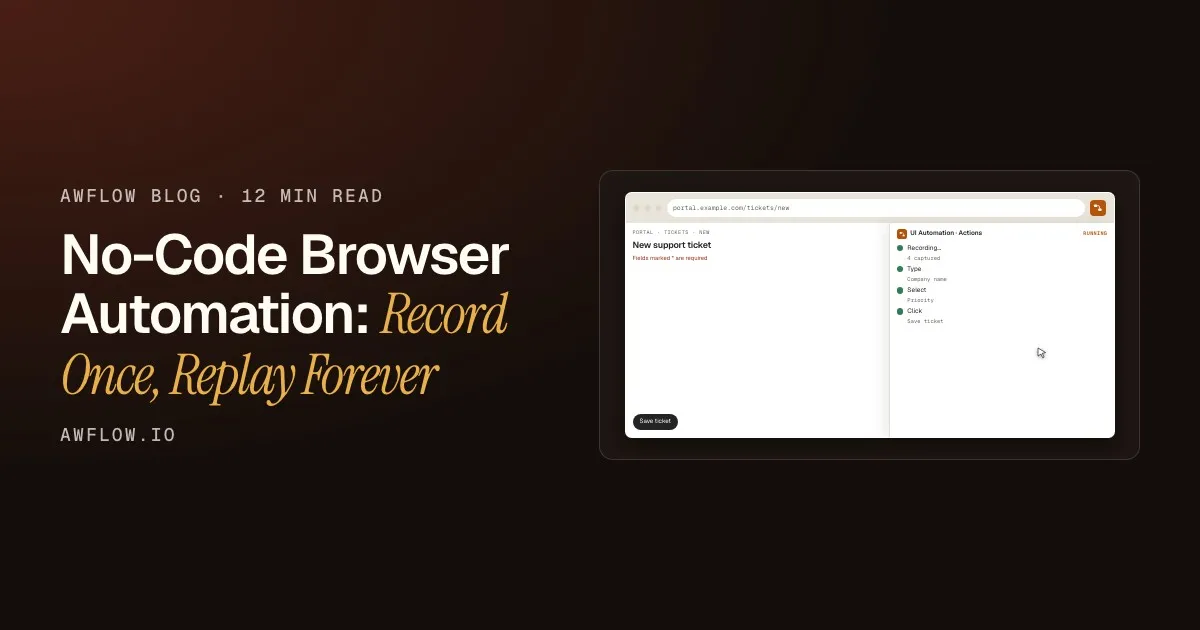
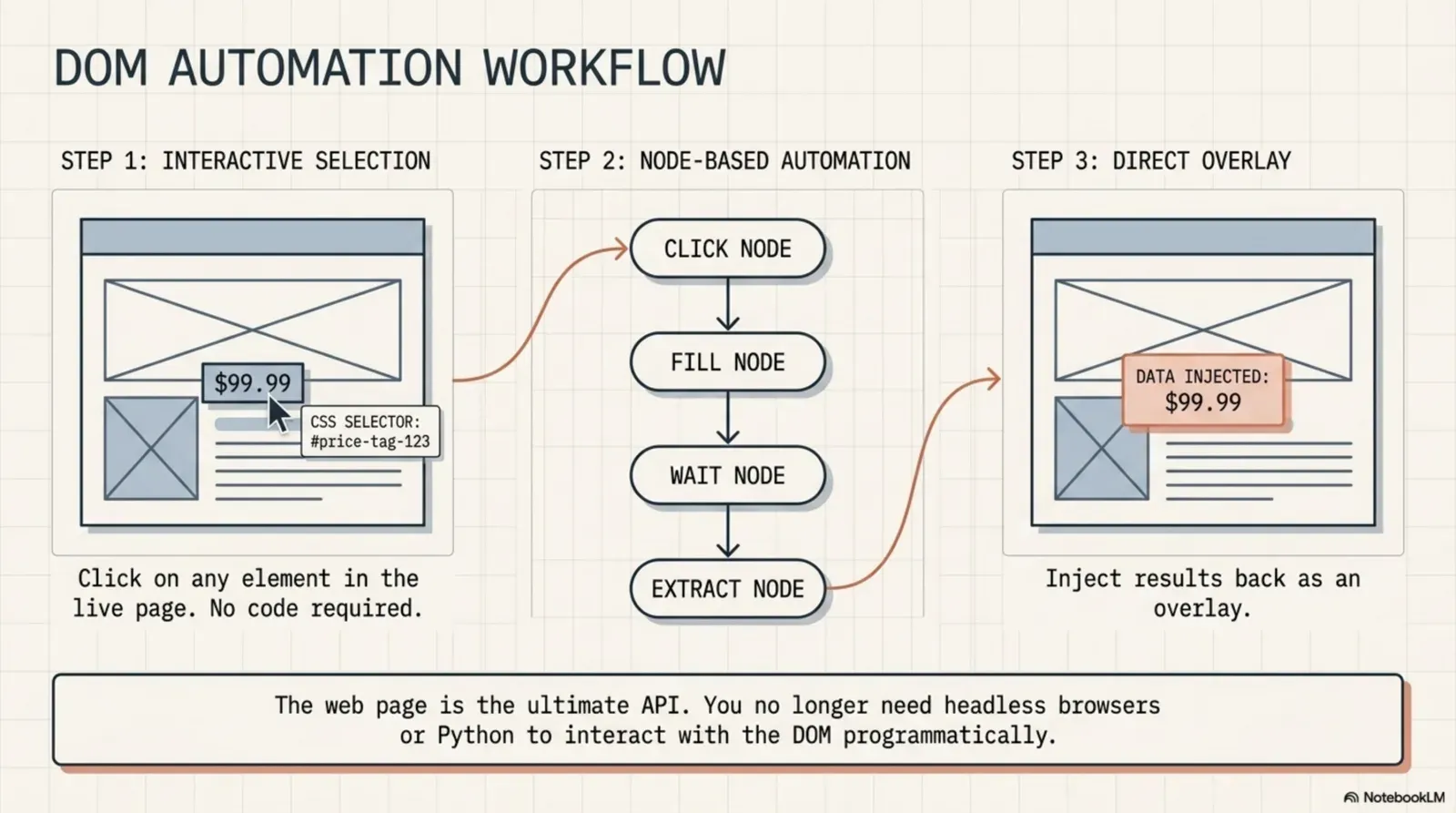
No-code tools replace that with a visual picker. Instead of writing a selector, you click the element on the live page and the tool writes the selector for you. Then you choose what to do with it (read it, click it, fill it) in a form.
The workflow logic is the same as any node-based automation: a trigger fires, nodes run in order, data flows between them. The difference is that the nodes are browser actions rather than API calls.
What DOM automation nodes can do
In Agentic Workflow, each kind of page interaction is a node:
| Node | What it does | Example |
|---|---|---|
| Get Element Data | Reads one element you picked | The price on a product page |
| Get All Text | Reads all the visible text of the page | An article body to summarise |
| Get Structured Data | Reads tables and lists as rows | A table of results |
| UI Automation | Replays clicks, typing and scrolling you recorded | Open a dropdown, scroll to load more |
| Form Fill / Submit Form | Fills a form’s fields and submits it | A search box or a weekly report form |
| Wait For Element | Waits until an element exists, shows or contains text | Wait for results after a search |
| Tab Control | Opens, navigates, reloads or closes tabs | Open the portal’s report page |
| Display Markdown / Highlight Elements | Shows results or marks elements on the page | An AI summary next to the article |
Why this is different from headless scraping
Headless tools like Puppeteer and Playwright are powerful, but they are a different thing:
- Headless tools usually run on a server. They start a separate Chrome with none of your sessions, cookies or browser state. If the page needs a login, you automate the login too, and deal with CAPTCHAs, two-factor codes and bot detection.
- In-browser tools run in your own Chrome session. You’re already logged in. The page loads exactly as it does for you, because it is you, with a workflow running alongside.
In your browser, you are already in.The extension reuses your session; no credentials leave it.
Text version
- Your browser: Your Chrome · A scraping server: Headless browser
- Your Chrome → Headless browser: your login, to sign in again
- Headless browser → Your Chrome: the page, if not blocked
- Login to automate: yes · Bot checks to pass: often
- Headless browser → Your browser · Login to automate: no · Bot checks to pass: rarely · Credentials stored: none
That makes in-browser DOM automation much simpler for personal and work tasks behind a login: no session management, no stored credentials, no bot mitigation to fight.
A practical example: data from a portal
Say you pull weekly metrics from an internal reporting portal with no API. By hand: log in, go to the report, find the number, copy it, paste it into a spreadsheet. Thirty seconds if you’re fast, and it adds up over 50 reports a month.
It adds a row to your sheet.The Google Sheets node appends the value with the date.
Text version
- Monday, 9:00: the Schedule trigger fires
- Tab Control: opens the report page
- Wait For Element: the table has loaded
- Get Element Data: weekly signups: 1,284
- Google Sheets: a new row for this week
Once built, it runs every week. To the portal, nothing changed: the request came from your real browser, with your real session, as always.
How Agentic Workflow handles DOM automation
Agentic Workflow is a Chrome extension that brings node-based workflow automation into the browser. Page actions are first-class nodes on the canvas, not an add-on.
When a node needs part of a page, you click that element on the live page; Agentic Workflow writes a CSS selector for it and fills in the node. You choose what to do with it and connect it to the next node.
Because it runs inside your browser, on the sites you allow it to access, it works with:
- Pages behind a login (no re-login)
- Dynamically rendered apps (React, Angular, Vue)
- Pages that block server-side scrapers
- The tabs you have open
And because it’s node-based, you can chain page actions with AI nodes in the same workflow: read a page, send the text to a model for analysis, and show the result, all without leaving the browser.
Web Scrape to JSON
A page becomes data. No API, no code.One run, outputs per node (example values).
Text version
- web-scrape-to-json.awf
- started
- page loaded: 48 KB of HTML
- 12 items: title, price, link
- a table of 12 rows
Try it
Your turn
Turn a page into data
Open it in AWFlow, point it at a page with a list, pick the fields, and run it.
Open in AWFlow (opens in a new tab)docs.awflow.io/examples/web-scrape-to-json.awfCall to action. Scan the code or click the link.Opens the Web scrape to JSON docs example in AWFlow's import page.
Text version
- Turn a page into data · Open it in AWFlow, point it at a page with a list, pick the fields, and run it. · https://docs.awflow.io/examples/web-scrape-to-json.awf
Related: node-based workflow automation beyond Zapier and n8n, and run AI nodes in Chrome with WebLLM and Chrome’s AI API to add local AI to your page workflows.
In short
- The page is the API
- Click to pick, no selectors to write
- Your session, no login to automate
Three. It runs as you, in your browser.No headless session, credentials or bot mitigation.
Text version
- In short
- The page is the API
- Click to pick, no selectors to write
- Your session, no login to automate