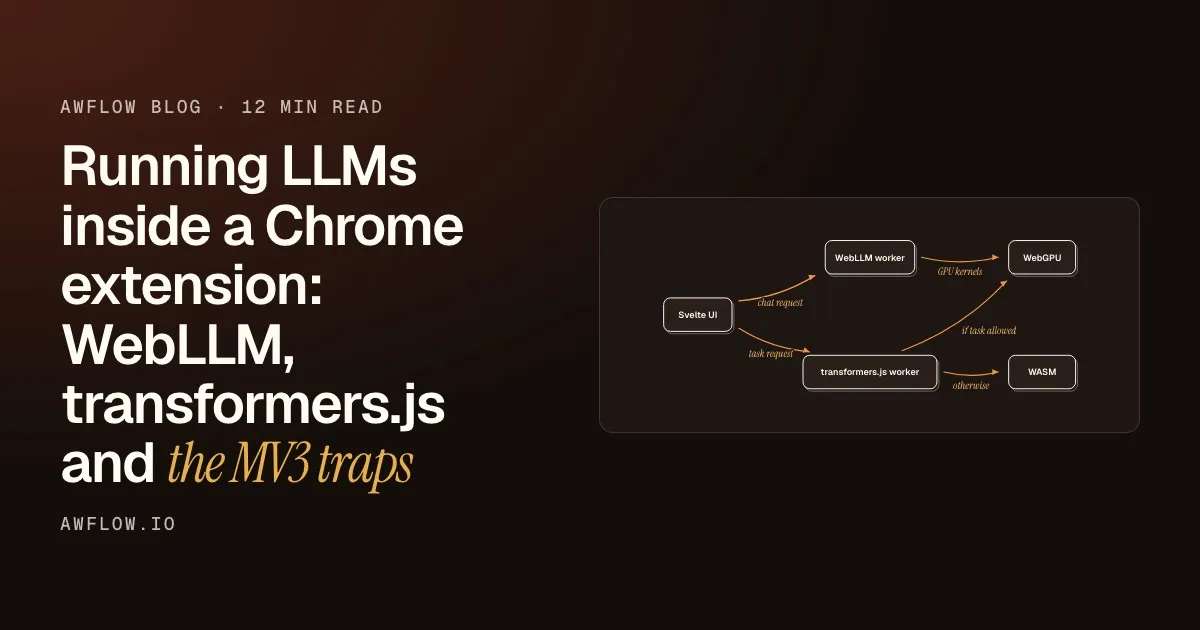
Running a local LLM used to mean installing Ollama, downloading a multi-gigabyte model and keeping a local server running in the background. That’s fine on a developer’s machine, but it’s a real barrier for everyone else, and for shared or locked-down computers.
There’s now a third option: run the model inside the browser itself. With WebLLM or Chrome’s built-in AI (the Prompt API, which runs Gemini Nano), you can run LLM inference in the browser: no server to run, no API key, no install beyond the browser and your extension.
The third option
No server, no API key: the model runs inside your browser.
Inside your browser, on your own hardware.Prompts and outputs stay on the device.
Text version
- The third option: No server, no API key: the model runs inside your browser.
Two ways to run LLMs in the browser
Option 1: WebLLM
WebLLM is an open-source library from the MLC AI team that runs LLMs in the browser through WebGPU. It downloads a model to the browser’s cache on first use, then runs it entirely on your device.
WebLLM runs the model on WebGPU, so your graphics card does the heavy maths.
A way for web pages and extensions to use your graphics card for fast calculations.
A browser API for GPU compute and rendering, successor to WebGL for compute work. WebLLM compiles model kernels for it.
What it means, in one line.Definition with related terms.
Text version
- WebLLM runs the model on WebGPU, so your graphics card does the heavy maths.
- WebGPU: A way for web pages and extensions to use your graphics card for fast calculations. A browser API for GPU compute and rendering, successor to WebGL for compute work. WebLLM compiles model kernels for it. (WebLLM, WebAssembly, GPU)
- Uses WebGPU for hardware acceleration (needs a WebGPU-capable browser and GPU)
- Supports browser-optimised versions of Llama, Phi, Qwen, Gemma, Mistral and others
- First use downloads the model (from a few hundred MB to several GB)
- After that, it runs offline with no server
- Exposes an OpenAI-compatible API inside the page or extension
WebLLM works well on machines with a decent GPU, including Apple Silicon Macs. On machines without a capable GPU, it is slow or unavailable. For how WebGPU compares with WebGL and WebAssembly, see WebGPU vs WebGL vs WebAssembly.
Option 2: Chrome’s built-in AI (Prompt API)
Google has built AI inference into Chrome. The Prompt API (the LanguageModel interface) gives pages and extensions access to Gemini Nano, a small model that Chrome itself downloads and manages on your device. Chrome extensions can use it.
- No model for you to ship: Chrome downloads Gemini Nano the first time it’s needed and keeps it updated
- Desktop only (Windows, macOS, Linux, some Chromebooks), with hardware requirements: about 22 GB of free disk space and either a GPU with more than 4 GB of VRAM or 16 GB of RAM
- Runs on Chrome’s own inference engine
- Still evolving: check Chrome’s documentation for current availability
The trade-off: less model capability for almost no setup. If the user’s Chrome supports it, the AI is already there.
Why this is a meaningful shift
Both approaches remove the classic architecture where every AI call is a trip to a server. The request path becomes your tab → a model in your browser → back to your tab, instead of your tab → an HTTPS request to a provider → a remote GPU → back.
WebLLM or Chrome AI: the model is already here.In-browser inference; nothing leaves the device; works offline once downloaded.
Text version
- Your device: Your workflow · The internet: Cloud model
- Your workflow → Cloud model: the page text + your prompt
- Cloud model → Your workflow: the answer
- Needs an API key: yes · Data leaves device: yes
- Cloud model → Your device · Needs an API key: no · Data leaves device: no · Works offline: yes
The in-browser path is private (nothing leaves the device), works offline and costs nothing per call. The trade-off is capability: in-browser models are smaller than frontier cloud models, and speed depends on your hardware. For the tasks that show up most in workflow automation (summarise, classify, extract, short drafts), they are often enough.
What in-browser AI nodes make possible
When your workflow tool can use WebLLM or Chrome’s AI as its model, the whole automation, from trigger to reading the page to AI reasoning to showing the result, runs in your browser with no outside dependency.
The summary appears. No network call at any step.Display Markdown in the side panel.
Text version
- A news article: opened in your browser
- Trigger: a hotkey or the page loading
- Get All Text: the article body
- AI step + Web LLM: a 3-sentence summary
- Display Markdown: shown beside the article
At no step is there an outside API call. The user needs no AI provider account, no Ollama, no development environment. They install the extension, the model downloads once, and it works.
WebLLM vs Chrome’s built-in AI: when to use each
| WebLLM | Chrome built-in AI | |
|---|---|---|
| Model | Your choice: Llama, Phi, Qwen, Gemma… (up to several billion parameters) | Gemini Nano, chosen and updated by Chrome |
| First-run setup | You download the model you pick | Chrome downloads Gemini Nano itself |
| Hardware | A WebGPU-capable GPU | Desktop Chrome; a GPU with more than 4 GB VRAM or 16 GB RAM, plus disk space |
| Maturity | Stable library | Evolving browser API |
| Offline | Yes, after download | Yes, after download |
| Privacy | Local | Local |
| Best for | Better output, a model you choose | Simplest setup, light tasks |
In practice: use WebLLM when you need better output or a specific model and the machine has a capable GPU. Use Chrome AI when you want the simplest possible setup and a small model is enough for the task.
In-browser AI with Agentic Workflow
Agentic Workflow is a Chrome extension built on the idea that workflows, including their AI steps, can run inside the browser. It has a Web LLM model node (you pick an in-browser model; installed ones are ready immediately, others download on first use, or install them from the Local Models page) and a Chrome AI node that uses Chrome’s on-device model.
Inputs
prompttextSettings
Outputs
completiontextWhat comes out: the answer, made on your device.WebGPU inference in the extension.
Text version
- Web LLM (AI model)
- prompt (text)
- Model: an in-browser model you pick · Temperature: 0.5 · Download: once, or from Local Models
- completion (text)
When you pick Web LLM or Chrome AI as the model:
- The inference runs in your browser, next to your workflow
- No data goes to an outside server for the AI step
- It works offline once the model is downloaded
- There’s no API key to manage and no per-token cost
The workflow itself is the same as with any other model: a trigger, page nodes, AI nodes and an output. Only where the model runs changes. That is fully browser-native AI automation: a workflow that reads the page, reasons about it and acts on it, inside the browser.
Related: how to choose, install and compare a local AI model, how to use Ollama in a workflow automation tool, and node-based workflow automation beyond Zapier and n8n.
Try it
Your turn
Run an AI step inside your browser
Open it in AWFlow: it summarises the page with Web LLM. Pick a model the first time; after that it works offline.
Open in AWFlow (opens in a new tab)docs.awflow.io/examples/summarize-page-llm-chain.awfCall to action. Scan the code or click the link.Opens the Summarize page (LLM chain) docs example in AWFlow's import page.
Text version
- Run an AI step inside your browser · Open it in AWFlow: it summarises the page with Web LLM. Pick a model the first time; after that it works offline. · https://docs.awflow.io/examples/summarize-page-llm-chain.awf
In short
- WebLLM: your model, on your GPU
- Chrome AI: Gemini Nano, managed by Chrome
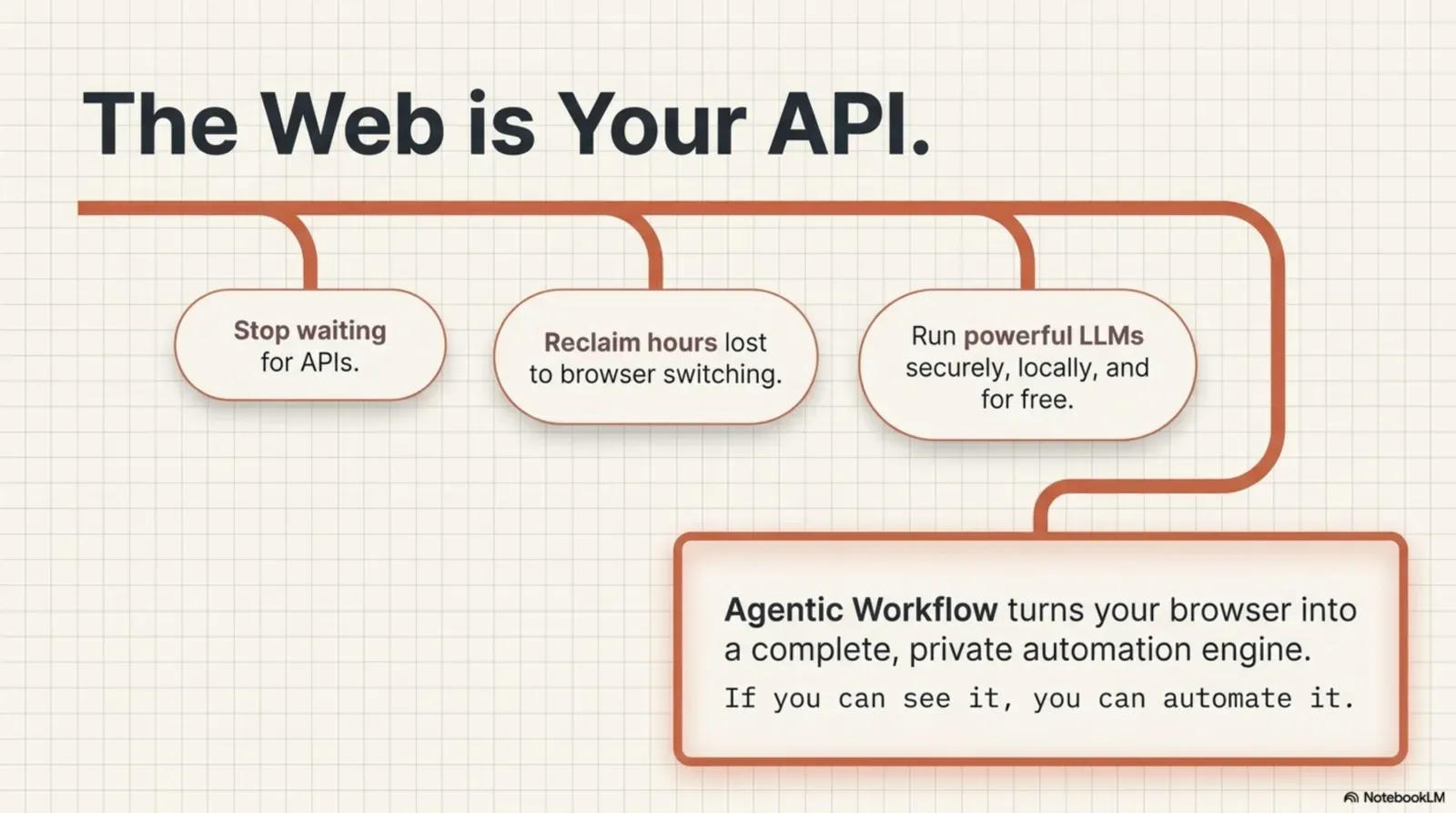
- Either way, nothing leaves the device
Three. Private, free per call, offline.In-browser inference.
Text version
- In short
- WebLLM: your model, on your GPU
- Chrome AI: Gemini Nano, managed by Chrome
- Either way, nothing leaves the device