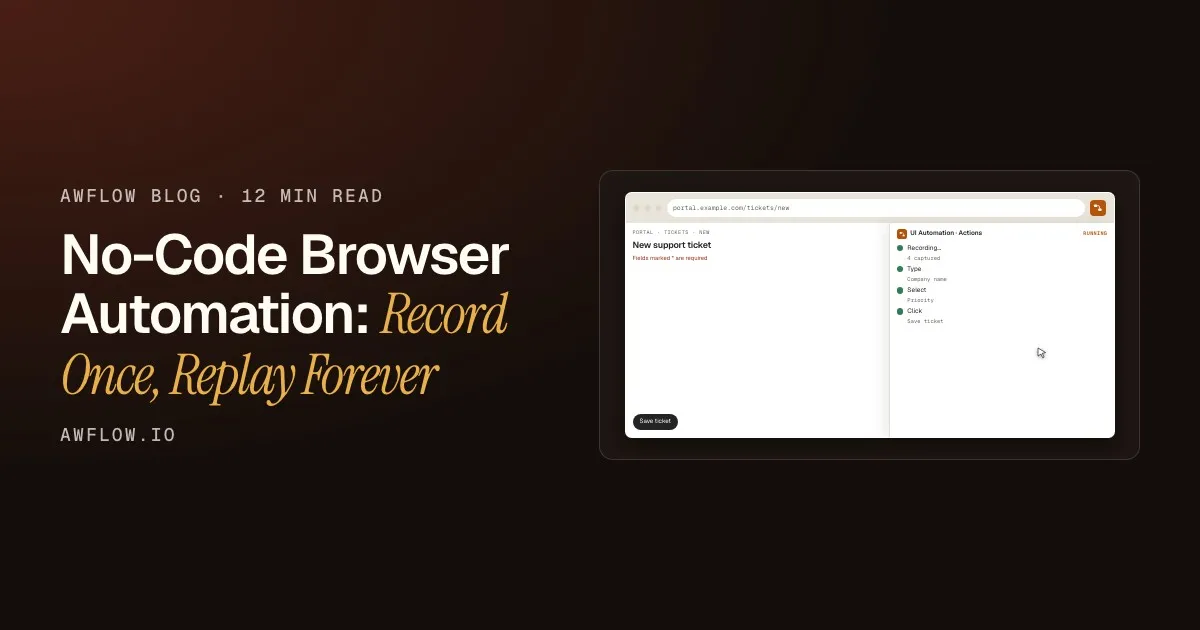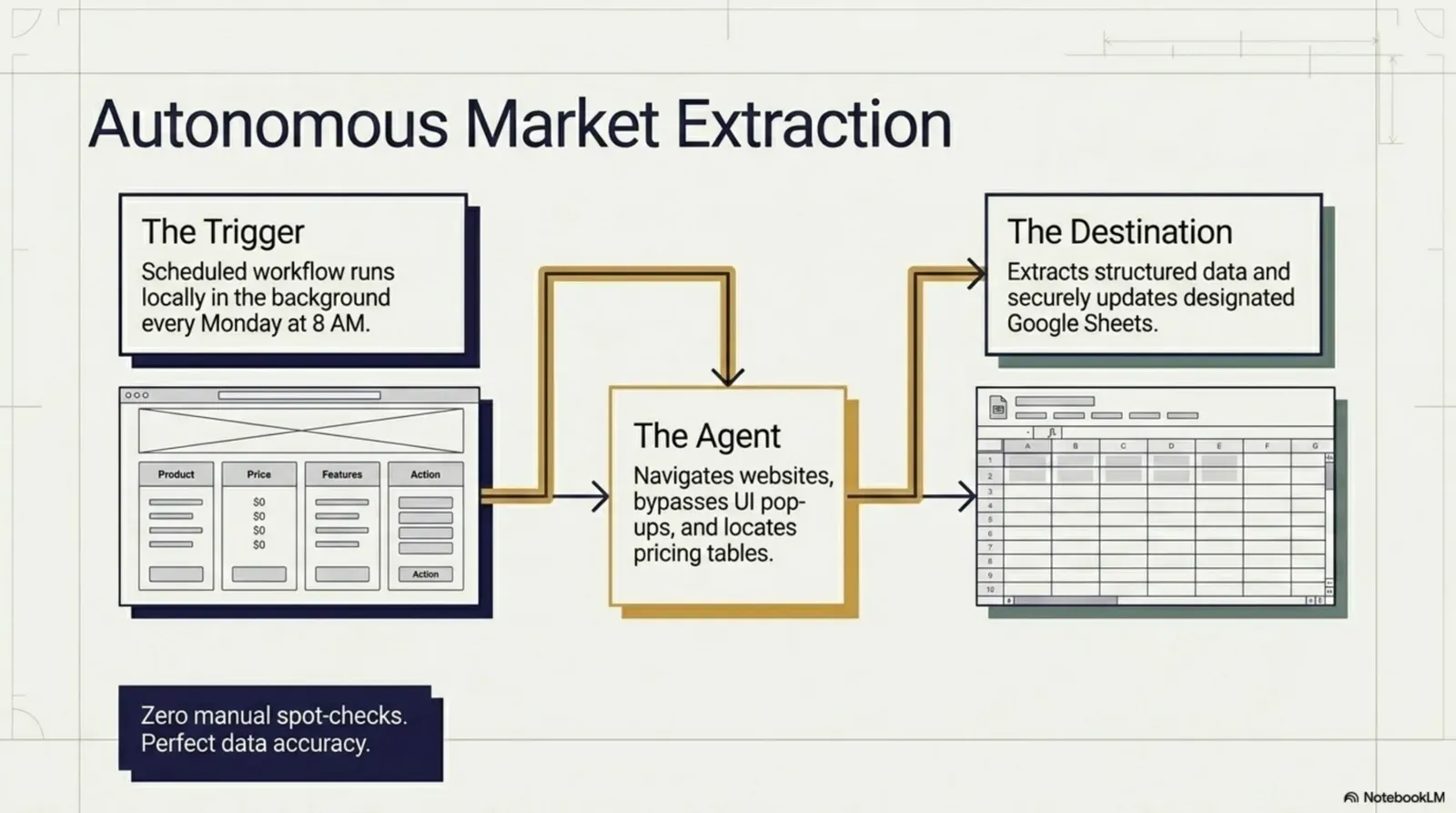
Every week, a lot of people sit down and do the same thing: open a website, scan for the data they need, copy it cell by cell and paste it into a spreadsheet. It feels productive. It isn’t. Manual copy-paste is one of the most expensive habits in modern work, not because one copy takes long, but because it scales badly. And that’s assuming you never make a mistake, never lose your place, and never redo a batch because the source changed.
Move the sliders to use your own numbers.
Example figuresIt adds up to about 40 hours a year: a full working week.÷ 60 minutes. Mistakes and re-dos not included.
Text version
- Minutes of copy-paste a day: 10 min · Working days a year: 230 days
- Hours a year spent copying: 38 h
The good news: browser automation now lets you extract data from almost any website and send it straight to Google Sheets, without code, without a server and without a scraping service. This guide shows you how with Agentic Workflow, a Chrome extension built for this kind of task.
Why copying web data by hand costs more than time
The real cost isn’t only the minutes spent copying. It’s the switching. Every jump from the source page to your spreadsheet means remembering where you were, which column you’re on and what you were looking for. Repeat that across every source you check (product pages, competitor listings, news sites, job boards, portals) and it becomes a steady drain on focus that makes everything around it harder.
The usual approaches, and their limits
The usual solutions fall into three groups:
- Python scrapers (Beautiful Soup, Scrapy): powerful, but you need to code, set up an environment and maintain them when the site changes its HTML.
- No-code scraping services (Apify, Octoparse, ParseHub): easier, but typically cloud accounts and credits, and they can struggle with JavaScript-heavy pages or pages behind a login.
- Official APIs with Zapier or Make: only if the website has an API, with extra plumbing between platforms.
They share one weakness: they run outside your browser. So pages that need your login, data that loads based on your session, and what’s on your screen right now are hard for them to reach. To automate a website without an API, a browser-native approach is the reliable option.
The browser-native approach
Agentic Workflow runs the automation inside your browser. Because it works in your browsing session, it can read any page you can open, including pages behind a login or in internal portals. You build it by connecting nodes on a visual canvas, and it runs in your browser.
The Google Sheets node then appends the extracted data to the spreadsheet you choose, through a Google connection you set up once. No middleware, no waiting for a cloud job: data goes from page to sheet in seconds.
Step by step: from a web page to Google Sheets
This is the workflow from the docs recipe Save every job post on a page to Google Sheets. It works for any page that shows data in a table or a list: jobs, products, leads, listings.
One new row per item in your sheet.Google Sheets: Append Values into Worksheet, with fields mapped to columns.
Text version
- A page with a table: a job board, 20 rows
- Context Menu: you right-click: Save to Sheet
- Get Structured Data: the table, read as rows
- Split Out: one item per row
- Google Sheets: 20 rows appended
Install Agentic Workflow
Install the Agentic Workflow extension and open it in the side panel. Create a workflow, or install the recipe and edit it.
Choose how to start it
A Context Menu trigger adds “Save to Sheet” to the right-click menu. You can also run it by hand, or with Page Load on a specific URL pattern.
Read the data
Get Structured Data in table mode reads a table as rows. For data that isn’t in a table, use Get Element Data on the elements you pick with the visual picker, or let an Information Extractor AI node pull the fields out of the page text.
One item per row
Split Out turns the list of rows into separate items, so the next step writes one row each.
Write to your sheet
Google Sheets appends each item as a row. Map each field (Title, Company, Location, Link…) to a column. Run it once, check the first rows, adjust the mapping, and you’re done.
The one-time setup is the Google connection. In Connections, add Google, follow the built-in guide, then check the connection:
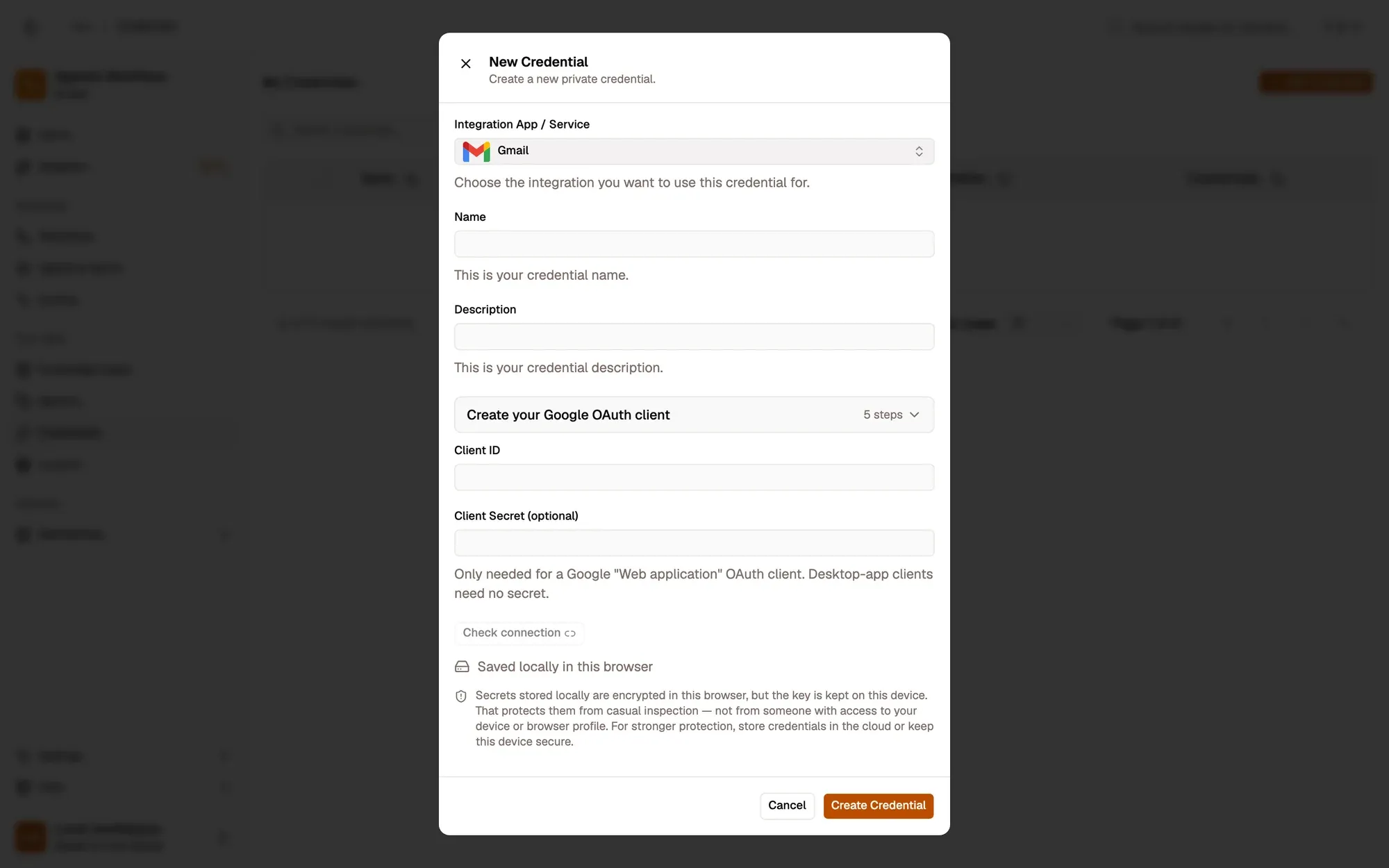
Once, for every workflow.One credential, reused.
Text version
- 1. Follow the guide: It walks you through the Google side, step by step.
- 2. Check the connection: Sign in with Google and confirm it works.
- 3. Save it: Every Google Sheets node can now use it.
What kind of data can you extract?
- E-commerce prices: watch competitor prices and send daily snapshots to a pricing sheet.
- Job boards: collect titles, companies and locations into one tracker.
- Lead research: pull company names, contacts and descriptions from directories or search results.
- News monitoring: headlines, dates and links from industry news sites.
- Internal dashboards: KPIs from internal tools (CRMs, analytics portals) with no easy export.
- Listings: property details, prices and contacts from listing sites.
Respect each site’s terms: some restrict automated extraction.
Privacy and security
Agentic Workflow runs in your browser, so the extracted data goes only where you send it: here, your own Google Sheet. There’s no extra scraping server in the middle.
The rows go to your own sheet, nowhere else.Google Sheets API call with your credential.
Text version
- The web page · Your browser · Local AI (optional) · Your Google Sheet
- Your browser → The web page: reads
- Your browser → Local AI (optional): extracts fields
- Your browser → Your Google Sheet: appends rows
If your workflow uses an AI step, pair it with a local model (WebLLM in the browser, or Ollama on your computer) and the whole pipeline, from page to analysis, runs on your machine until the rows reach your sheet.
Try it
Copy-paste from websites into spreadsheets is a solved problem; most people just don’t know it yet. Set up the pipeline once, in minutes, with no code and no recurring cost. The first workflow saves more time than it took to build.
Your turn
Send a page to Google Sheets
Open it in AWFlow: it collects every link on the page into your sheet, one row each. Swap the first step to read a table instead.
Open in AWFlow (opens in a new tab)docs.awflow.io/examples/save-links-to-sheet.awfCall to action. Scan the code or click the link.Opens the Save links to a sheet docs example in AWFlow's import page.
Text version
- Send a page to Google Sheets · Open it in AWFlow: it collects every link on the page into your sheet, one row each. Swap the first step to read a table instead. · https://docs.awflow.io/examples/save-links-to-sheet.awf
In short
- Ten minutes a day is a week a year
- Read, split, append: four nodes
- Data goes only to your sheet
Three. No scraping service in the middle.In-browser extraction; optional local AI.
Text version
- In short
- Ten minutes a day is a week a year
- Read, split, append: four nodes
- Data goes only to your sheet