Knowledge workers spend hours every week reading web pages to pull out a handful of useful facts. Research reports, news articles, product documentation, academic papers, competitor pages: the volume is relentless, and the signal-to-noise ratio is brutal. Reading every page in full isn’t sustainable. Skimming misses things. Copy-pasting into a chatbot is repetitive and slow.
There’s a better way: read the page automatically and summarise it with AI, in the browser, without leaving the tab. This article shows how, with no code, no server and no API key. It’s one branch of a bigger guide: how to automate a website with no API, even behind a login.
The problem: too much content, too little time
Information overload isn’t new, but the web has made it acute. A typical research session looks like this: you open 12 tabs on a topic; each page has 1,500 to 3,000 words; you need 3 to 5 specific facts from each.
Reading time for one research session
0h 40m
12 pages, 1,500–3,000 words each, to find a few facts per page. Example figures
Only a quarter of it was the part you needed.The rest is the cost of finding it.
Text version
- Reading time for one research session: 0h 40m
- Reading to find the facts: 30 min
- The facts you needed: 10 min
Repeat that across a week of research and you’ve lost hours to reading that could have gone to analysis, writing or decisions. The content is valuable; the time spent digging it out by hand isn’t.
Traditional scraping vs AI summarisation
Traditional web scraping extracts structured data at scale. It’s powerful for prices, names, addresses and other consistently formatted data. As a knowledge tool, it has limits: it pulls raw text without understanding it, it usually needs code (Python with Beautiful Soup or Scrapy), it can struggle with JavaScript-rendered pages, and its output needs more tools to be useful.
AI summarisation goes further. Instead of only pulling text, it understands it: the key points, answers to your questions, bullet points, action items. Combined with reading any live page in your browser, it becomes a real research tool. To take it further, build a personal AI research assistant that runs in your browser.
Thirty times less to read, in the same tab.Example figures. Check important facts against the source.
Text version
- A long web page (2,400 words)
- Read + summarise → A 5-bullet summary (80 words)
- Words to read: 2400 → 80 (−97%) · Reading time: 10 min → 0.5 min (−95%) · Tabs used: 2 → 1 (−50%)
How browser-native AI summarisation works
Reading and summarising work best together, in the same place, without round trips through other systems:
- The browser has the live page: the fully rendered page as you see it, including content loaded by scripts and pages behind your login.
- A step reads the text you need: the article body, the product description, the comments, while skipping navigation, ads and footers.
- An AI step summarises it with a local or cloud model.
- The result appears in the side panel next to the page, or is copied to your clipboard or sent to a Google Sheet, without switching tabs.
Agentic Workflow implements this pipeline as a no-code Chrome extension. Every step is a visual node; where a step needs part of the page, you point at it.
Step by step: summarise any page
The docs example Summarize this page is the whole workflow, ready to copy. Here it is, with the summary step open:
Open the summary step to set length and style.Summarization options: Max words and Style.
Text version
- summarize-this-page.awf
- Max words: 120 · Style: a few bullet points · Model: Local AI model (Web LLM)
- Install the Agentic Workflow extension. No sign-up needed to start.
- Copy the workflow to your AWFlow (or create one and add the same four nodes).
- Choose what to read. Read the current page (Get All Text) takes all the readable text. To read only the article, set its DOM Selector by clicking the article body with the picker.
- Set the summary. In Summarize it, choose the length and style. For more control, swap in a Basic LLM Chain and write your own instruction.
- Choose the model. The example uses a model that runs in your browser. You can swap in a cloud model or Ollama.
- Run it on any page. The summary appears in the side panel.
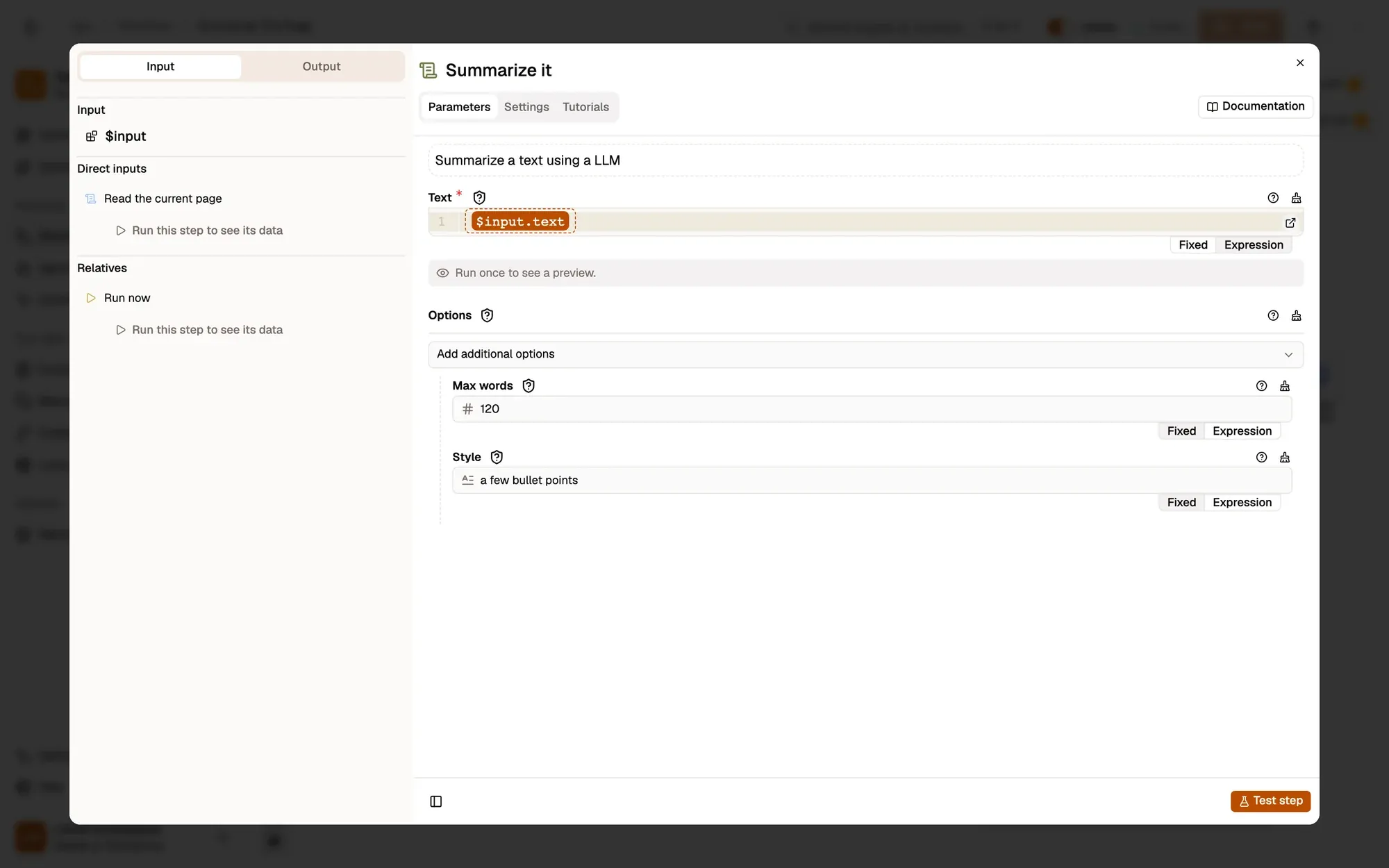
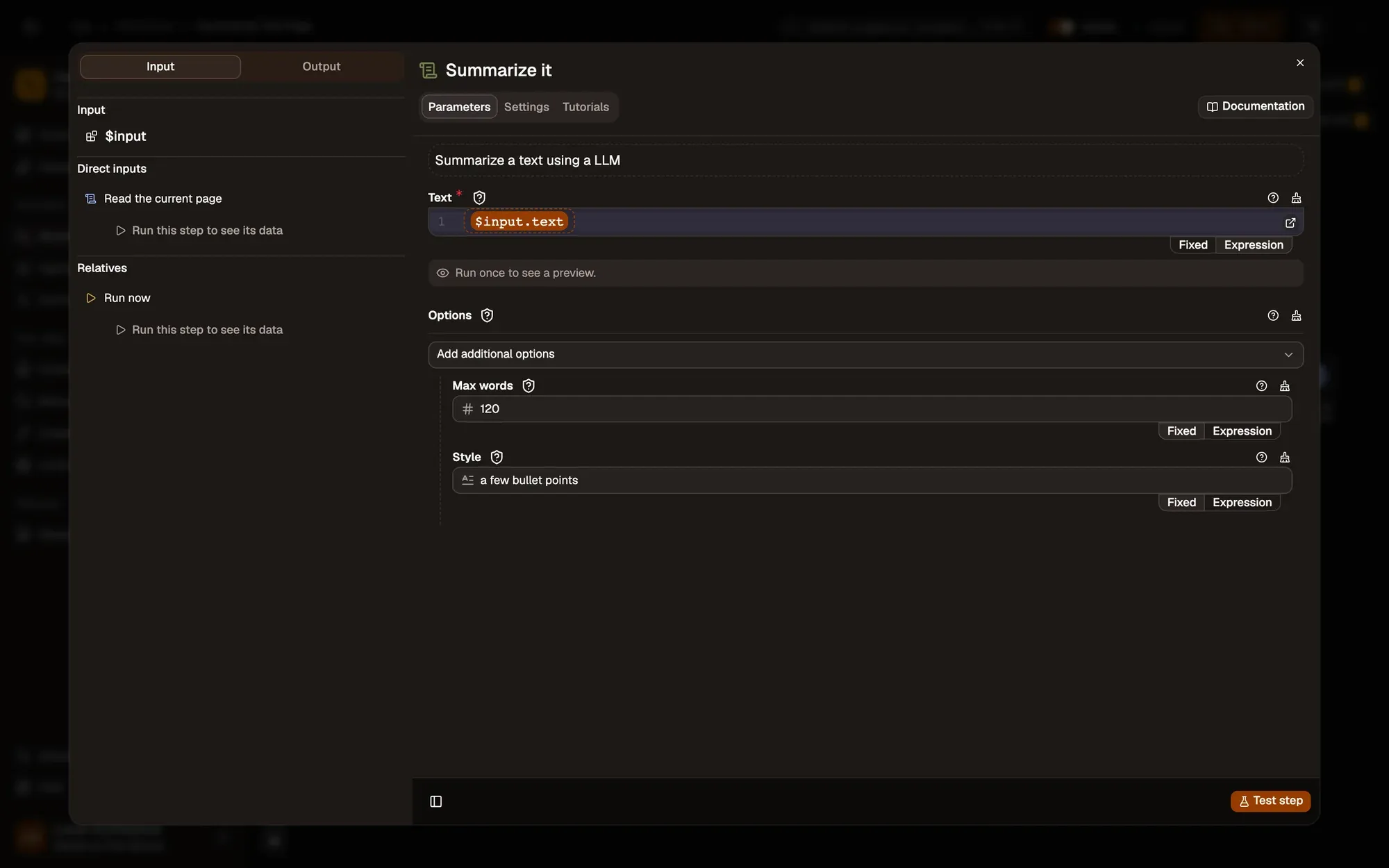
Two settings, and the summary fits your use.Saved with the workflow.
Text version
- 1. How long: Cap the summary at a number of words.
- 2. What shape: Bullet points, one paragraph, key facts…
Customise your summaries
The same workflow adapts to many uses just by changing the instruction:
- Bullet summary: “Summarise in 5 bullet points”, for quick scanning
- Key quotes: “Extract the 3 most important direct quotes”, for research and attribution
- Action items: “List every recommended action or next step”, for docs and how-tos
- Executive summary: “Write a 100-word summary for a business audience”
- Tone: “Is the tone positive, negative or neutral? Why?”
- Question answering: “Based on this page, answer: [your question]”
Seconds, not minutes.Example timings.
Text version
- List every recommended action or next step on this page, as a checklist.
- ☐ Rotate API keys every 90 days ☐ Turn on two-factor sign-in for admins ☐ Move backups to a separate account ☐ Review access logs weekly
- Finding them by hand: 8 min · With the workflow: 10 s
Save a variant per format and pick the one you need with a click.
Where it saves the most time
- Content research: competitor articles and source material in seconds
- Due diligence: key facts from company websites, press releases and filings
- Customer support: long threads and documentation pages
- Academic research: a paper’s core argument before you decide to read it in full
- News monitoring: several sources without reading each in full
- Product evaluation: features, pricing and limits from SaaS pages
- Legal and compliance: terms, policies and regulations in plain language
Run it locally for privacy
A common worry with AI browser tools: if page content goes to an outside AI service, sensitive information could be exposed. Agentic Workflow can keep it all on your device, with WebLLM in the browser (as in the example) or Ollama on your computer running Llama 3, Mistral or Gemma. Reading and summarising then happen entirely on your machine: no data leaves, no API key, no usage costs.
WebLLM: the model is downloaded once and runs inside your browser.Quantised weights load into WebGPU; inference is local, with no network after the first download.
Text version
- Your device: Your browser · The internet: AI company server
- Your browser → AI company server: your prompt + page text
- AI company server → Your browser: the answer
- Round trip: ≈ 1.5 s · Leaves your device: yes
- AI company server → Your device · Network: none · Leaves your device: no · Works offline: yes
That makes the workflow usable on confidential documents, internal tools and sensitive research where a cloud AI wouldn’t be appropriate.
Try it
Summarising web pages with AI is no longer for data engineers. With Agentic Workflow, it’s a five-minute setup any browser user can run on demand. And summaries are just the start of what AI can do in the browser. Let AI do the reading; you do the thinking.
Your turn
Summarise your next page
Open it in AWFlow and run it on the page you're reading. The model runs in your browser.
Open in AWFlow (opens in a new tab)docs.awflow.io/examples/summarize-this-page.awfCall to action. Scan the code or click the link.Opens the Summarize this page docs example in AWFlow's import page.
Text version
- Summarise your next page · Open it in AWFlow and run it on the page you're reading. The model runs in your browser. · https://docs.awflow.io/examples/summarize-this-page.awf
In short
- Most reading is searching
- Read, summarise, show: one click
- Keep it local for sensitive pages
Three. WebLLM or Ollama.On-device inference.
Text version
- In short
- Most reading is searching
- Read, summarise, show: one click
- Keep it local for sensitive pages