Here is a routine that repeats dozens of times a day for researchers, journalists, analysts and knowledge workers: open a tab, find an article or report, read a section, switch to another tab to ask an AI assistant about it, copy and paste the text, wait for the answer, switch back, repeat. It’s fragmented, slow and tiring, not because any step is hard, but because the constant switching erodes focus and makes it hard to build a clear picture across several sources.
What if your AI research assistant lived in the browser, on the page you’re already reading: no tab switching, no copy-paste? That is what you can build with Agentic Workflow, a Chrome extension for visual AI automations that run in your browser. This guide shows you how, step by step.
Minutes back on every source, and your focus with them.Example figures.
Text version
- Chatbot tab: Read (0–1.5), Copy (1.5–2.2), Switch (2.2–2.8000000000000003), Prompt, wait (2.8–4.199999999999999), Switch (4.2–4.8), Find place (4.8–6)
- On the page: Read (0–1.5), Run (1.5–1.9), keep reading (1.9–6)
- ≈ 4 min per source
What a browser-native research assistant can do
A browser-native research assistant differs from a standalone AI tool in one key way: it reads the page you’re on and works in that context, without you pasting it in. It can:
- Summarise any article or report in one click
- Extract key claims, statistics or names from a page
- Answer specific questions about the current page
- Compare information across several pages you’ve read
- Point out contradictions or gaps between sources
- Turn raw web content into structured notes or outlines
- Rewrite dense technical content in plain language
Because it runs in your browser, it works on pages behind a login, subscription content you have access to, internal documents and web apps: places a standalone chatbot can’t reach.
How it works
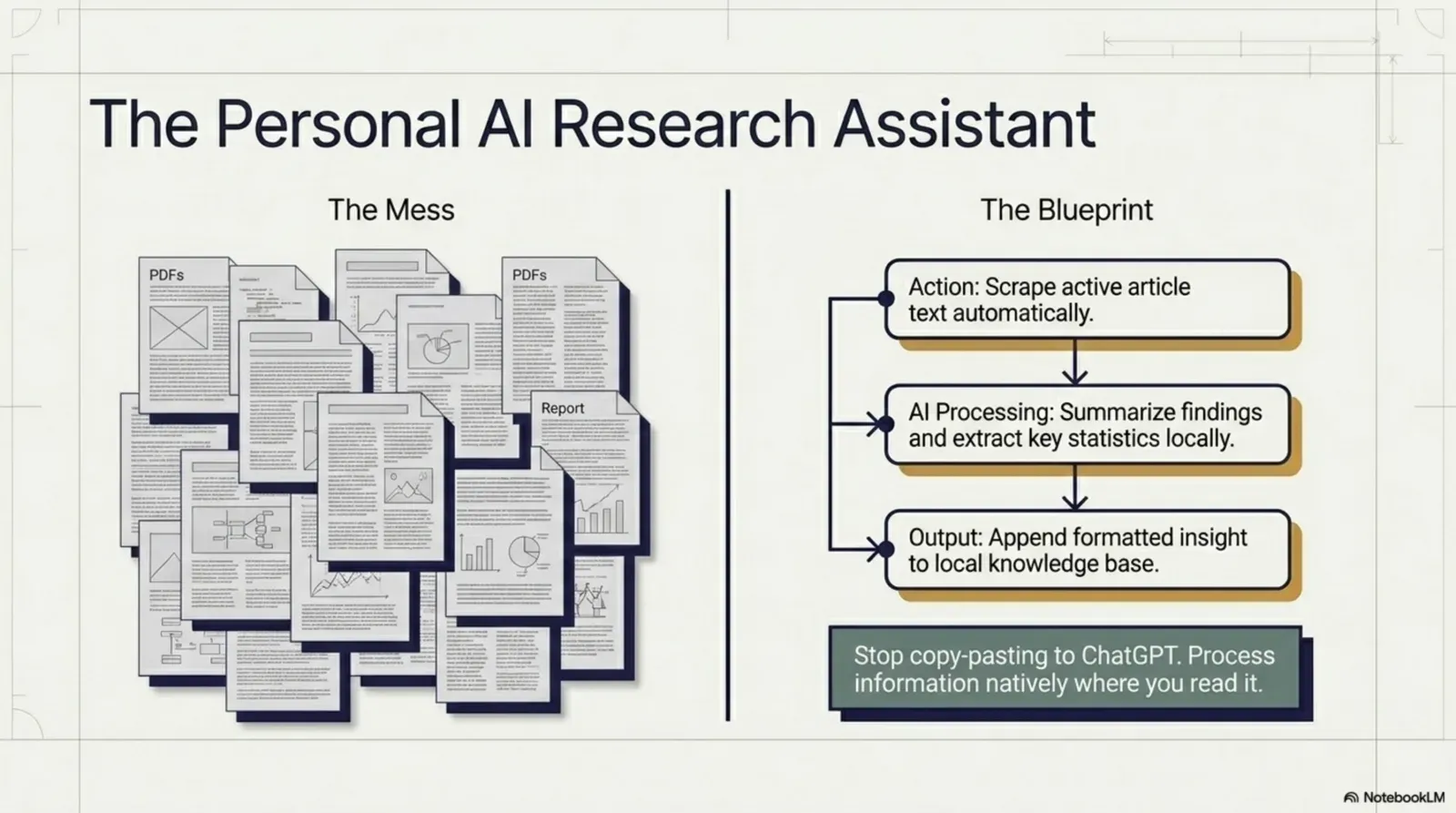
A research assistant workflow has four parts: a trigger (a hotkey, the right-click menu, or a button in the side panel) that starts it on the current page; a step that reads the page; an AI step that sends the text to a model (in the cloud, or on your device) with your research instruction; and an output that shows the answer next to the page or saves it to a note, a sheet or a file.
Everything runs in your browser. No data goes to an outside server unless you choose a cloud AI provider or an output that sends it.
Build your research assistant, step by step
The docs example Summarize page (LLM chain) is exactly this assistant in its simplest form. Open it, then make it yours.
Summarise this page in 3 bullets
One run, no tab switch.Outputs per node (example values).
Text version
- summarize-page-llm-chain.awf
- run on this page
- 6,800 words of text
- 3 bullets from the model
- shown in the side panel
1. Choose how to start it
Install the Agentic Workflow extension and open the example. For a research assistant, replace When Started with a Hotkey trigger (fastest) or a Context Menu trigger, so you can run it from any page. Name it “Research assistant”.
2. Read the page
Get All Text reads the readable text of the page. To read only the article (not menus and comments), set its DOM Selector with the visual picker: click the article body once. For very long pages, choose a model with a large enough context, or summarise in parts.
3. Write your research instruction
In Basic LLM Chain, write the instruction. The page text is passed in as context. For example: “Summarise this article in 5 bullet points, focusing on findings and statistics”, or “List every claim that needs verification”.
4. Show the answer next to the page
Display Markdown shows the answer in AWFlow’s side panel, next to the page. Add Clipboard Write or a Google Sheets node to save it too.
5. Run it on the next article
Press your hotkey on any page. The answer arrives without leaving the tab.
Good research instructions are specific about what to pull out:
Minutes saved on every source.Example timings.
Text version
- List the main claims in this article. For each, say what evidence is given, or write 'no evidence'.
- 1. Remote teams ship 18% faster: survey of 412 companies (vendor-run). 2. Async standups cut meeting time in half: no evidence. 3. Time-zone overlap matters more than headcount: two case studies.
- Reading for this: 12 min · Assistant + your check: 2 min
Advanced: research across several pages
For bigger projects, collect what you learn from each page, then combine it. Add a Data Store node to your assistant so each run saves its summary under a project name; a second workflow reads all the saved summaries and asks the model for one brief.
For example: read five papers, let the assistant summarise each one, then run the synthesis to get one research brief, without leaving your reading flow.
One brief comes out: agreements, conflicts, gaps.A single completion over the combined context.
Text version
- Paper 1 summary: method + 3 findings · Paper 2 summary: contradicts finding 2 · Paper 3 summary: larger sample
- method + 3 findings + contradicts finding 2 + larger sample → Synthesis prompt
- Synthesis prompt → Your notes: One research brief
For a large body of documents you search often, a knowledge base in AWFlow can index them on your device so an agent answers from them.
Use a local model for privacy
If you research sensitive material (competitive intelligence, legal documents, medical information, confidential company data), you may not want it sent to a cloud provider. Agentic Workflow can keep the AI on your machine:
- Ollama: run Llama 3, Mistral, Gemma and others on your computer; Agentic Workflow connects to Ollama’s local endpoint.
- WebLLM: run smaller models inside the browser with WebGPU: nothing to install, no outside connection after the download.
WebLLM: the model is downloaded once and runs inside your browser.Quantised weights load into WebGPU; inference is local, with no network after the first download.
Text version
- Your device: Your browser · The internet: AI company server
- Your browser → AI company server: your prompt + page text
- AI company server → Your browser: the answer
- Round trip: ≈ 1.5 s · Leaves your device: yes
- AI company server → Your device · Network: none · Leaves your device: no · Works offline: yes
Local models are slower than the biggest cloud models but keep your data private. For research summaries, a 7B–8B model is usually enough; see how to choose, install and compare a local AI model.
Real use cases
- Academics: pull abstracts, methods and conclusions from papers; build literature-review notes without another tool.
- Journalists: check claims in press releases against background material; extract quotes and facts from long transcripts.
- Market analysts: summarise earnings reports, launches and industry news in seconds; track competitors’ messaging.
- Sales: research prospects before calls: company news, product updates and talking points in one click.
- Legal professionals: summarise long documents, highlight obligations and defined terms, with a local model for confidentiality.
Try it
A browser-native research assistant is a basic productivity upgrade for anyone who reads and synthesises information from the web. Keeping the AI on the page, instead of in another tab, removes the switching that makes research feel slow.
Your turn
Open your research assistant
Open it in AWFlow, change the instruction to your research question, and add a hotkey.
Open in AWFlow (opens in a new tab)docs.awflow.io/examples/summarize-page-llm-chain.awfCall to action. Scan the code or click the link.Opens the Summarize page (LLM chain) docs example in AWFlow's import page.
Text version
- Open your research assistant · Open it in AWFlow, change the instruction to your research question, and add a hotkey. · https://docs.awflow.io/examples/summarize-page-llm-chain.awf
In short
- The AI comes to the page, not the other way
- Four steps: start, read, ask, show
- Local models keep research private
Three. WebLLM or Ollama for sensitive work.On-device inference.
Text version
- In short
- The AI comes to the page, not the other way
- Four steps: start, read, ask, show
- Local models keep research private