Lesson 2 6 min
Build an agent step by step
Go through the builder tabs once, from a name to skills, and talk to your agent as you go.
Try it in AWFlow
Opens Aria in AWFlow with this request filled in. Nothing is sent until you send it.
Start blank and name it
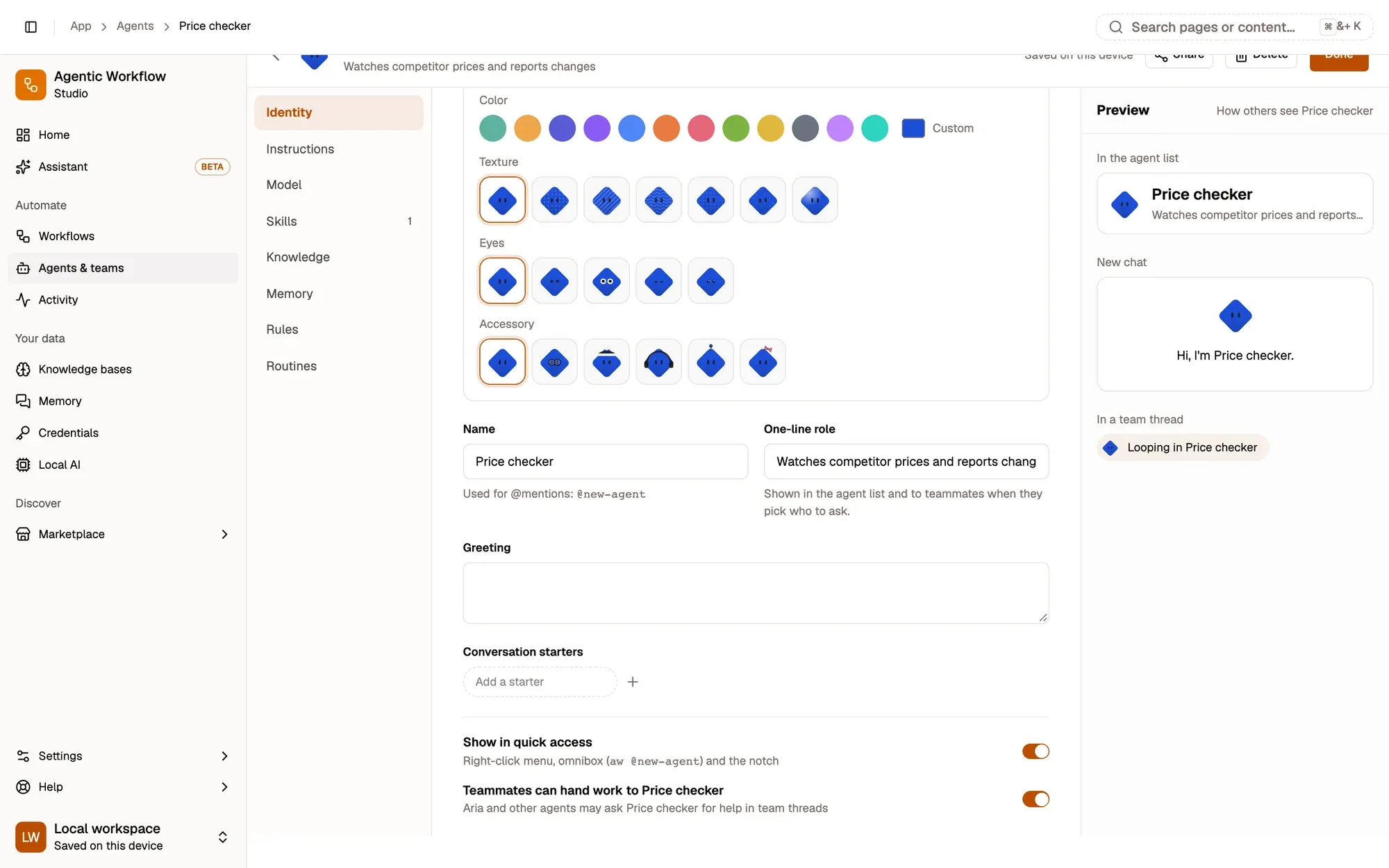
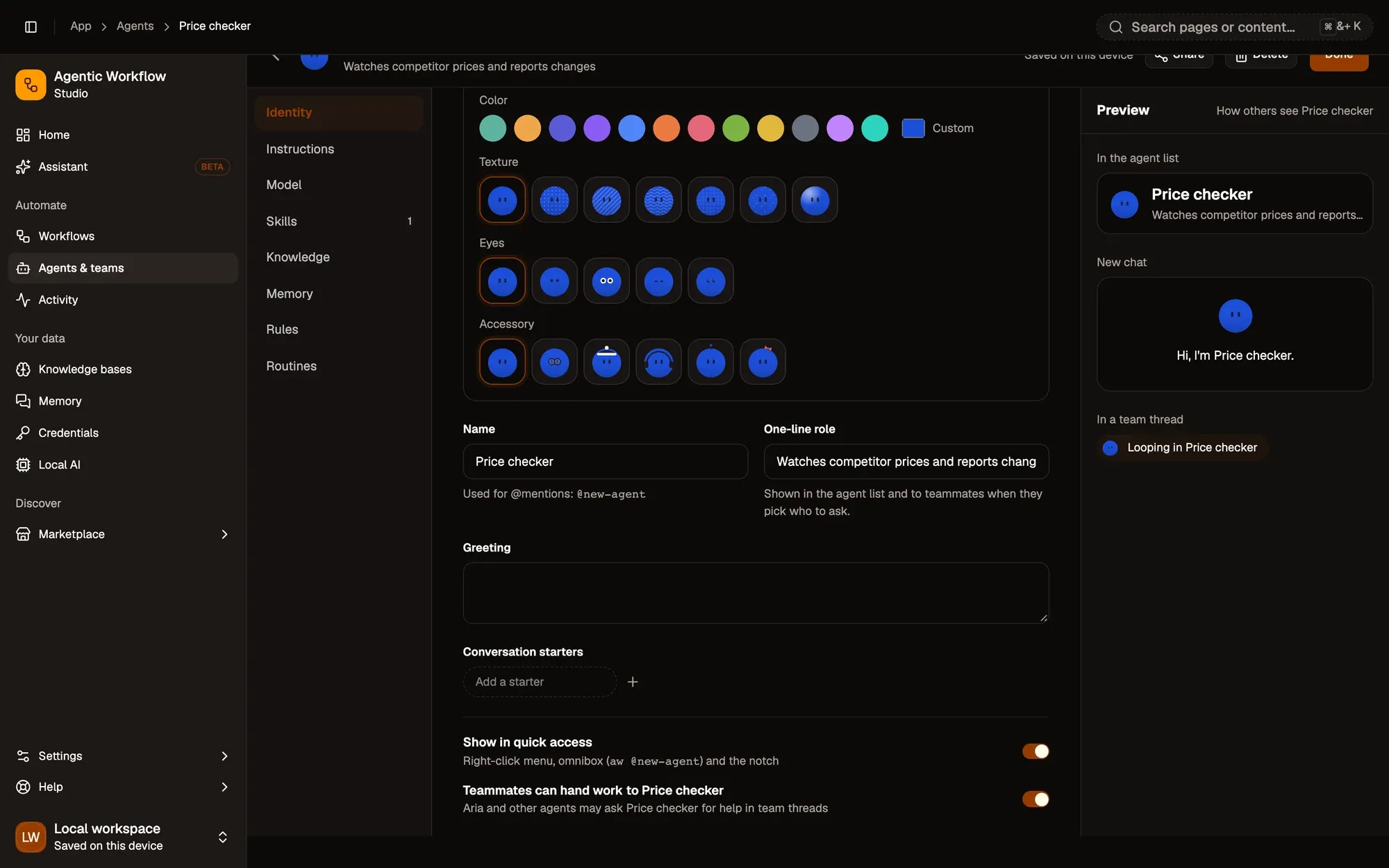
Open Agents in the sidebar and click Blank agent. The builder opens on the Identity tab, for an agent called New agent. Enter a Name (its @handle follows) and a One-line role, and pick a look if you like.
Write its instructions
On Instructions, say what its job is, how to work and what to avoid. Insert variables such as {today}, {my name} or {current tab}, or click Improve with Aria. The token count under the editor tells you whether the instructions fit the model. Earlier versions are kept.
Choose its model
On Model, keep Same as Aria or pick a specific model, then set Creativity and Max steps per task:
- On-device models (WebLLM, transformers.js or Chrome’s built-in Gemini Nano) run in your browser. Install them from Local AI.
- Ollama models are detected automatically while Ollama is running on your computer. If you changed
OLLAMA_ORIGINS, keep the extension allowed (chrome-extension://*). - A cloud model needs your key in Settings › Providers.
You can also let the agent fall back to on-device when you’re offline.
Turn on skills and try it
On Skills, switch on what it may use (module 2 covers each one). Then send a message in Try it on the right. Changes save automatically and apply on your next message.
Key takeaways
- Identity, Instructions, Model and Skills are enough for a first agent.
- Instructions can use variables such as today and current tab.
- Changes save automatically and apply on your next message.