Lesson 7 5 min
Create a knowledge base
A knowledge base is a set of your documents that Aria, agents and workflows can search. With the default search engine it is indexed on your device.
Create it
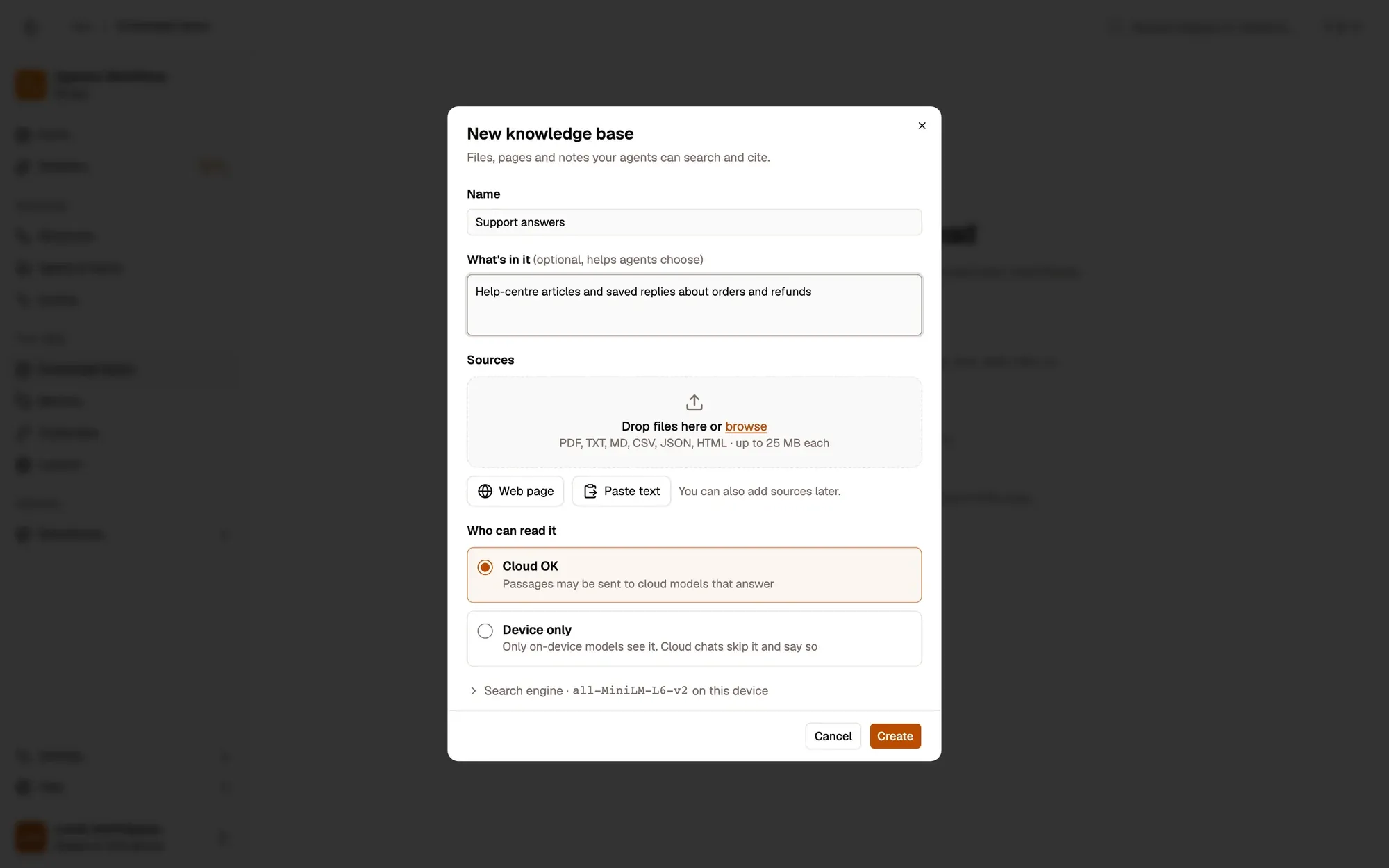
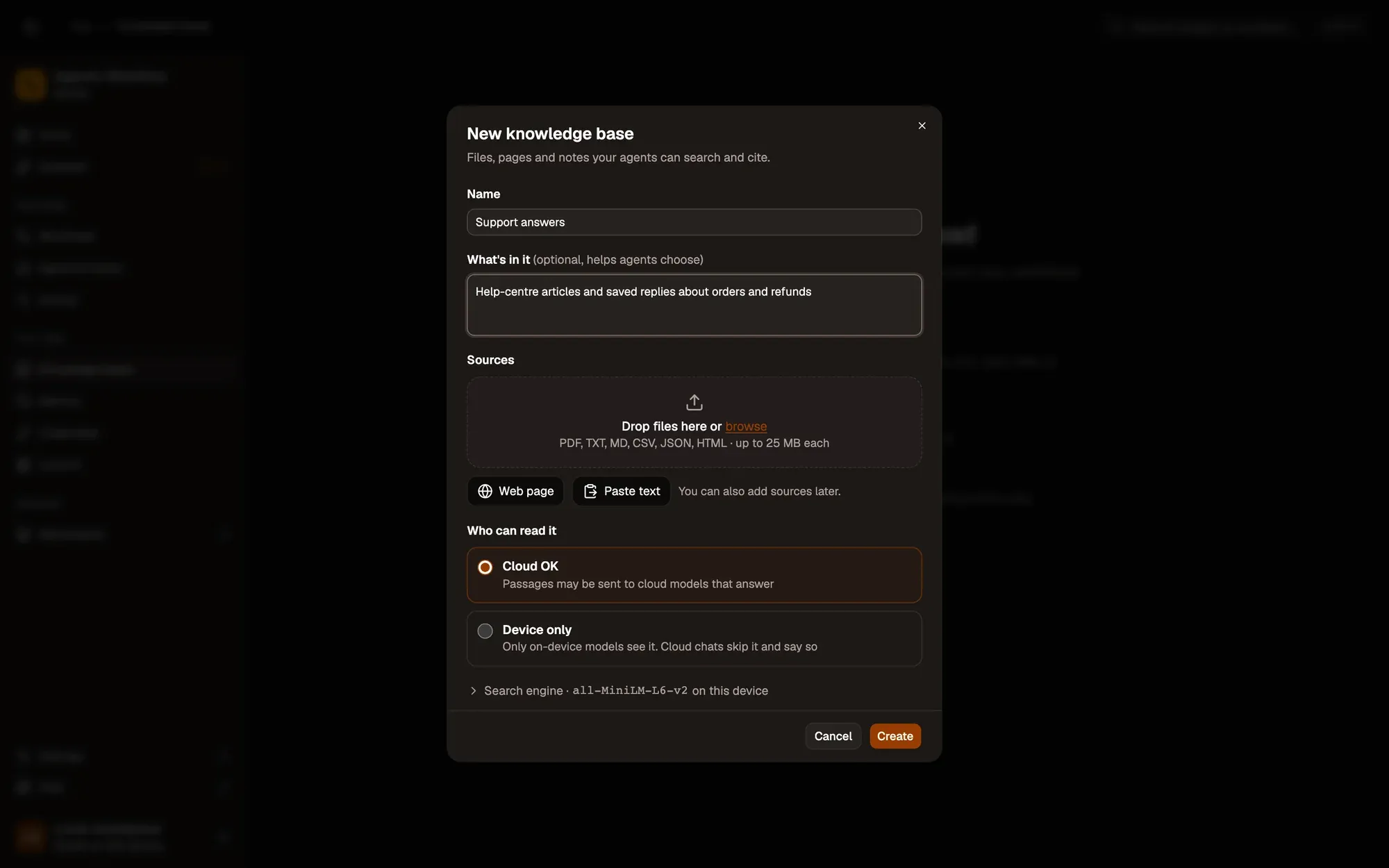
Open Knowledge bases in the sidebar and click New knowledge base. Enter a Name, say What’s in it (it helps agents pick the right base), add sources now or later, choose who can read it, and click Create. The button reads Create and index when you added sources.
Sources
Open a knowledge base and click Add sources:
| Tab | What it adds |
|---|---|
| Files | PDF, TXT, Markdown, CSV, JSON and HTML; text is extracted on this device |
| Web pages | One URL per line |
| Open tabs | Extension only; the text is read from the tab, so pages you’re signed in to work too |
| Paste text | A title and the text |
Each source shows its status, from Reading to Added · 40 chunks. Indexing keeps going if you close the dialog, a failed source never stops the others, and adding a source that is already there updates it in place.
Who can read it
The default search engine, all-MiniLM-L6-v2, runs on this device, so nothing is uploaded when you add sources. Only a base built with a cloud embedding model sends text to that provider. Then pick:
- Cloud OK: passages may reach the cloud model that answers.
- Device only: only on-device models see them. Use it for anything you wouldn’t paste into a cloud chat.
Your data
Documents, passages and their vectors stay in this browser, and knowledge bases aren’t limited by your plan. Clearing the browser’s site data removes them, so use Export in a base’s menu to keep a copy as an .awkb file.
Key takeaways
- Add files (PDF, TXT, Markdown, CSV, JSON, HTML), web pages, open tabs or pasted text.
- The default search engine runs on this device; nothing is uploaded when you add sources.
- Device only keeps a base's passages away from cloud models.