Lesson 2 4 min
A tour of the side panel and the app
The side panel keeps AWFlow beside the page you're working on. Learn where everything lives and the shortcuts that save you a trip.
Open the side panel
Go to any website and click the AWFlow icon in the toolbar. The app opens in Chrome’s side panel (in Firefox, the sidebar), and the page stays visible next to it. Click the icon again, or the panel’s close button, to hide it: your work stays where you left it.
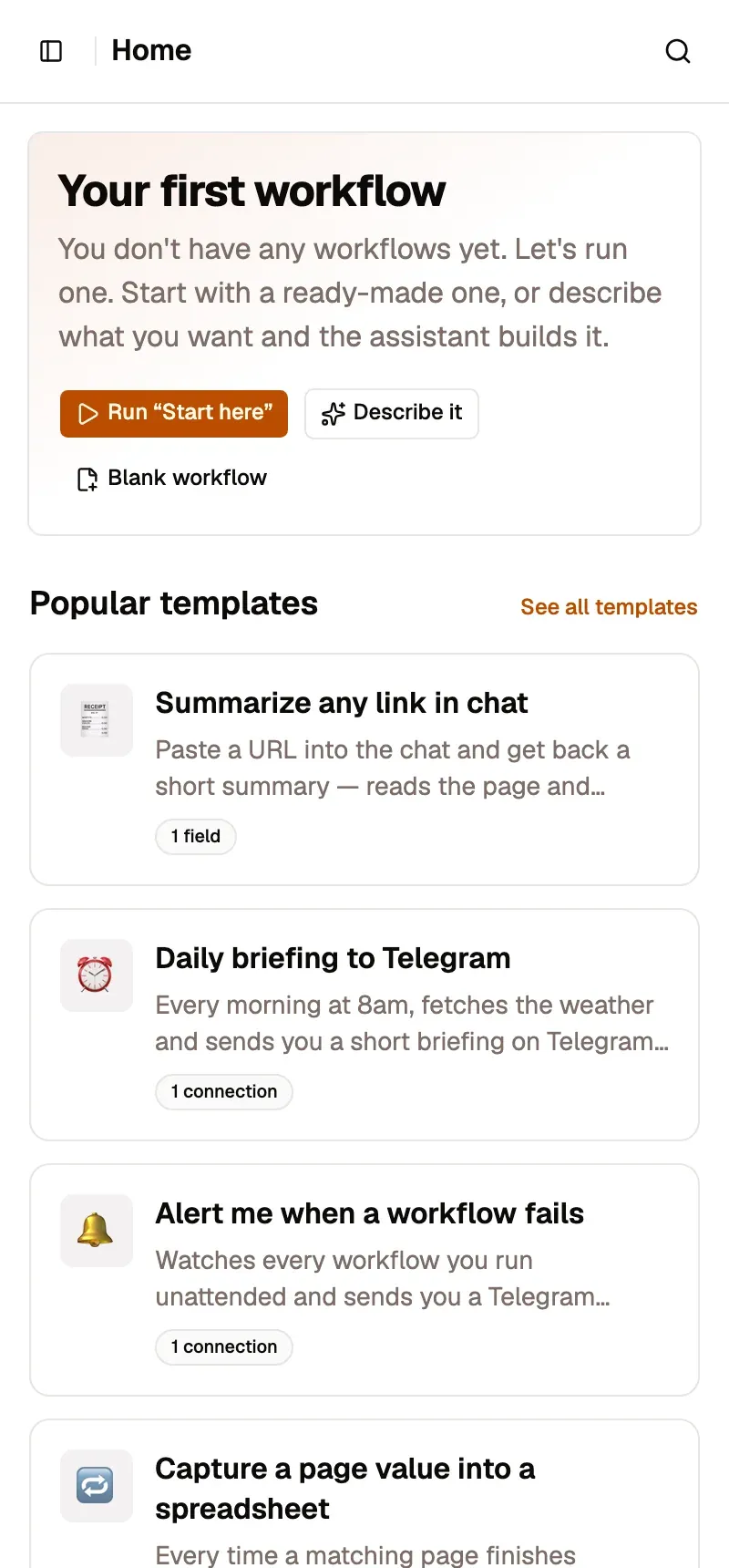
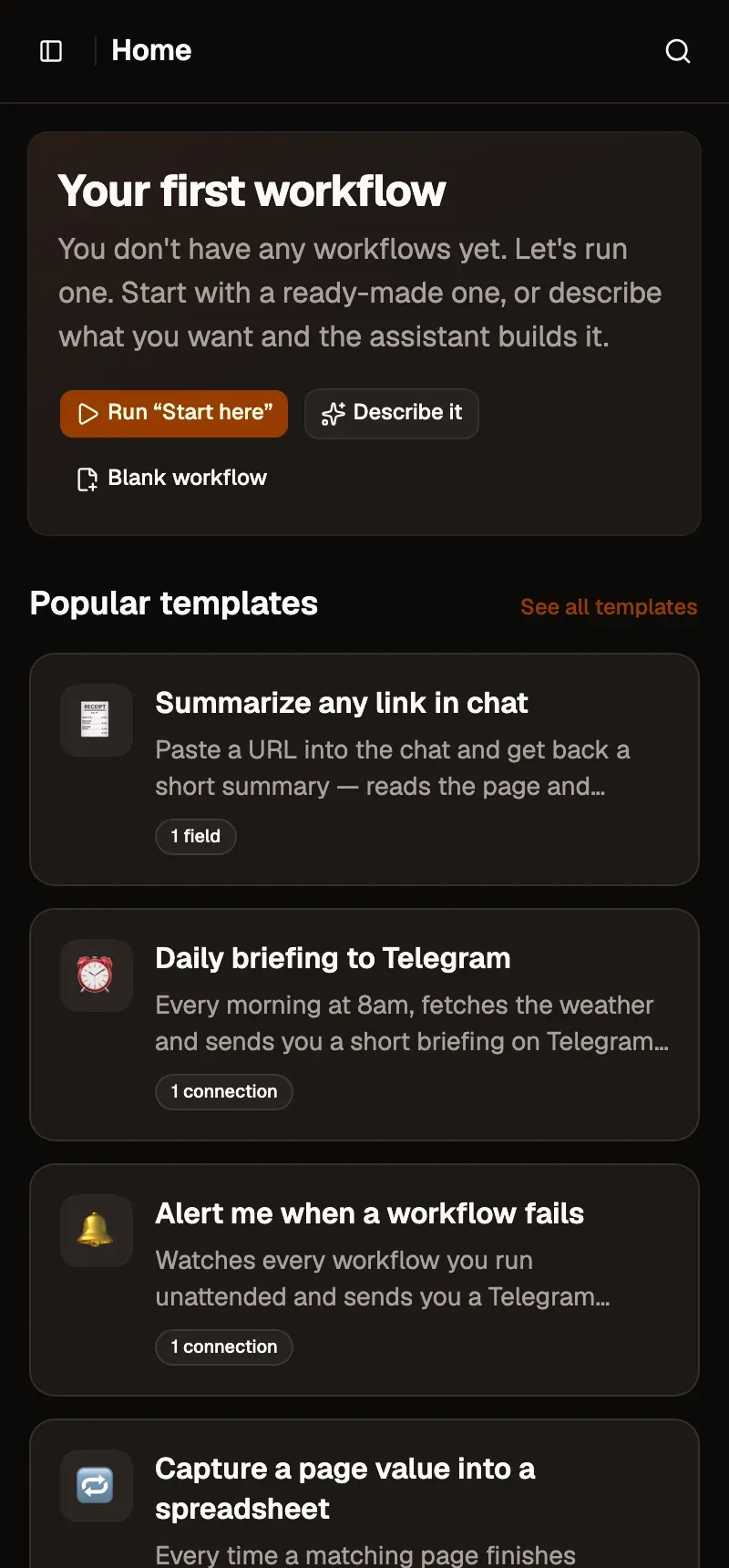
The panel starts narrow, and the app rearranges itself to fit. The sidebar button at the top left opens Workflows, Assistant and the rest. Drag the panel’s left edge to make it wider: the canvas is easier to use above about 670 px.
What’s in the sidebar
- Workflows: create, run and activate your workflows.
- Assistant: chat with Aria, or switch to Build to have a workflow written for you.
- Agents, Knowledge bases, Local AI and Credentials: you’ll meet them as you go.
- Settings, at the bottom: AI providers, privacy, site access and storage.
Other ways in
You don’t always need the panel:
- Press CtrlShiftK (⌘ShiftK on Mac, AltShiftK in Firefox) for Aria’s quick-chat palette over the current page.
- Type
aw, a space, then your question in the address bar. - Right-click a page for Summarize page, or selected text for Ask Aria about selection. Your own workflows can appear in the right-click menu too.
Key takeaways
- The toolbar icon opens AWFlow in the side panel (the sidebar in Firefox), next to the page.
- The sidebar button reaches Workflows, Assistant and the rest.
- Quick chat, the aw keyword and the right-click menu work without opening the panel.