Lesson 12 5 min
Schedule, hotkey or right-click
An automation starts by itself. Add a Hotkey trigger to your summary workflow, activate it, and find its runs.
So far you started workflows with Test Workflow. An automation starts by itself: when you press a shortcut, at a set time, when a page loads, or from the right-click menu. Triggers like these only listen while the workflow is active.
Add a Hotkey trigger
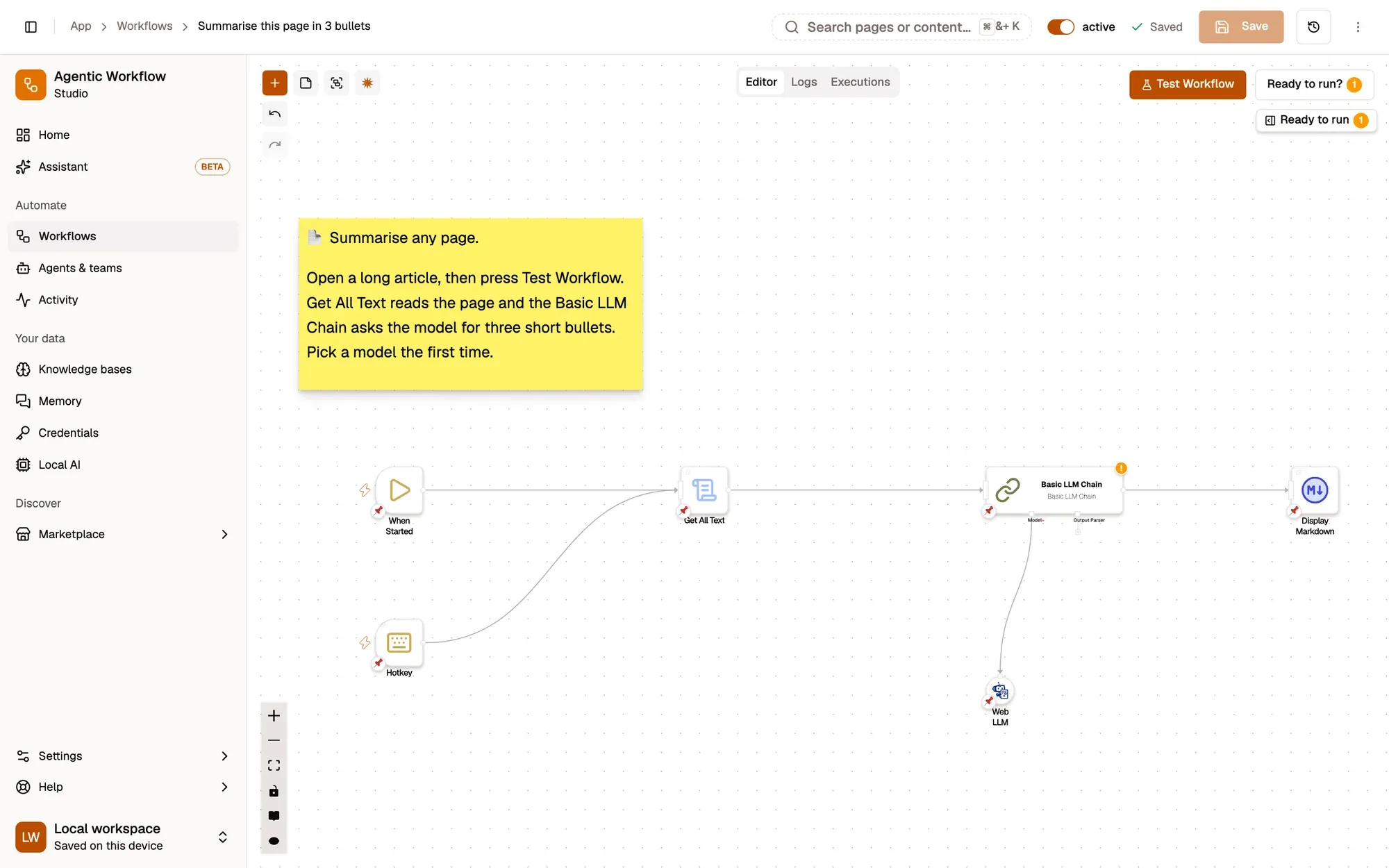
Open Summarise this page. Click Add a step (the + in the canvas toolbar), search for Hotkey and add it. Drag from the dot on the right of Hotkey onto the left edge of Get All Text, so both triggers lead to the same steps.
Pick a slot, then the keys
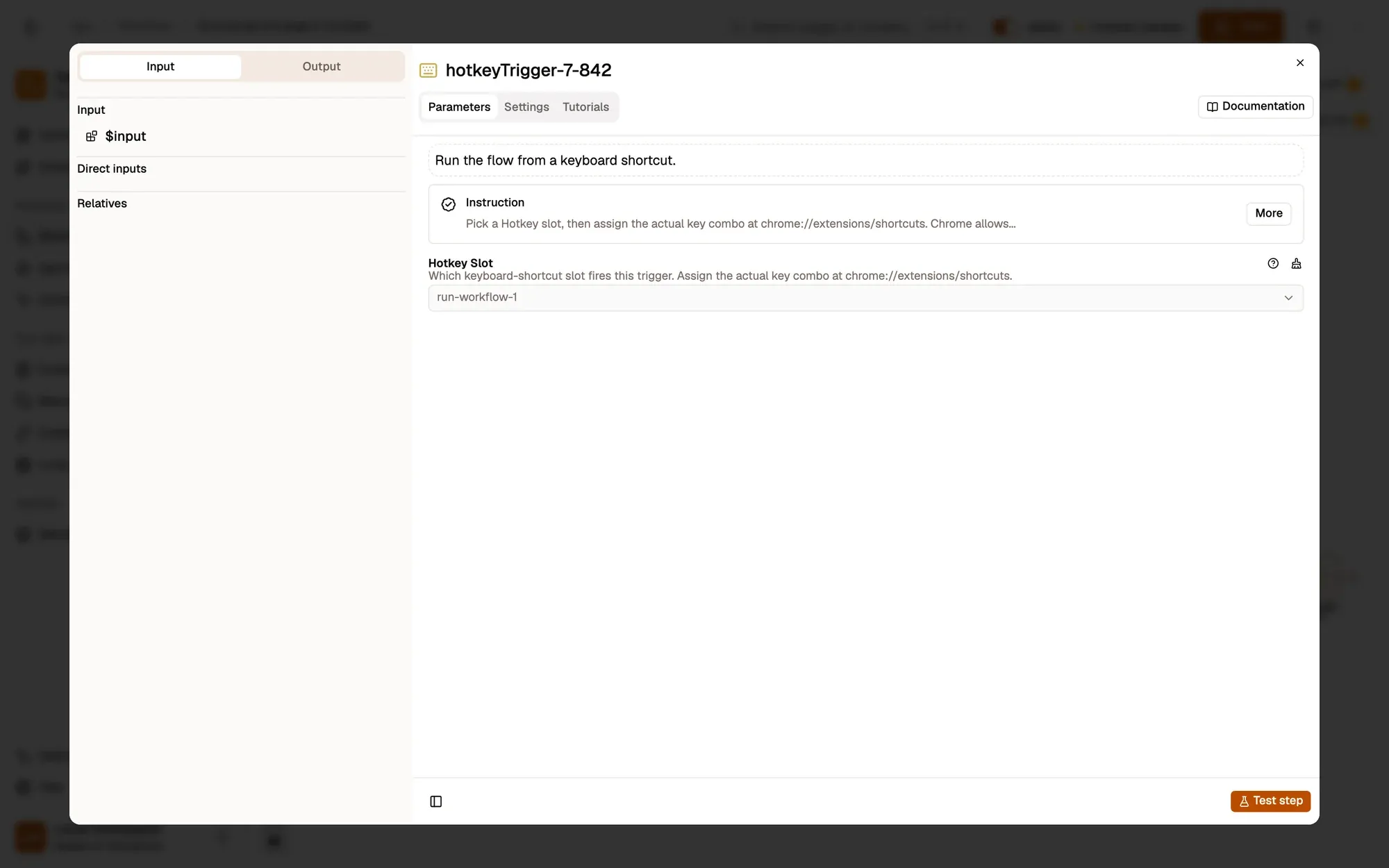
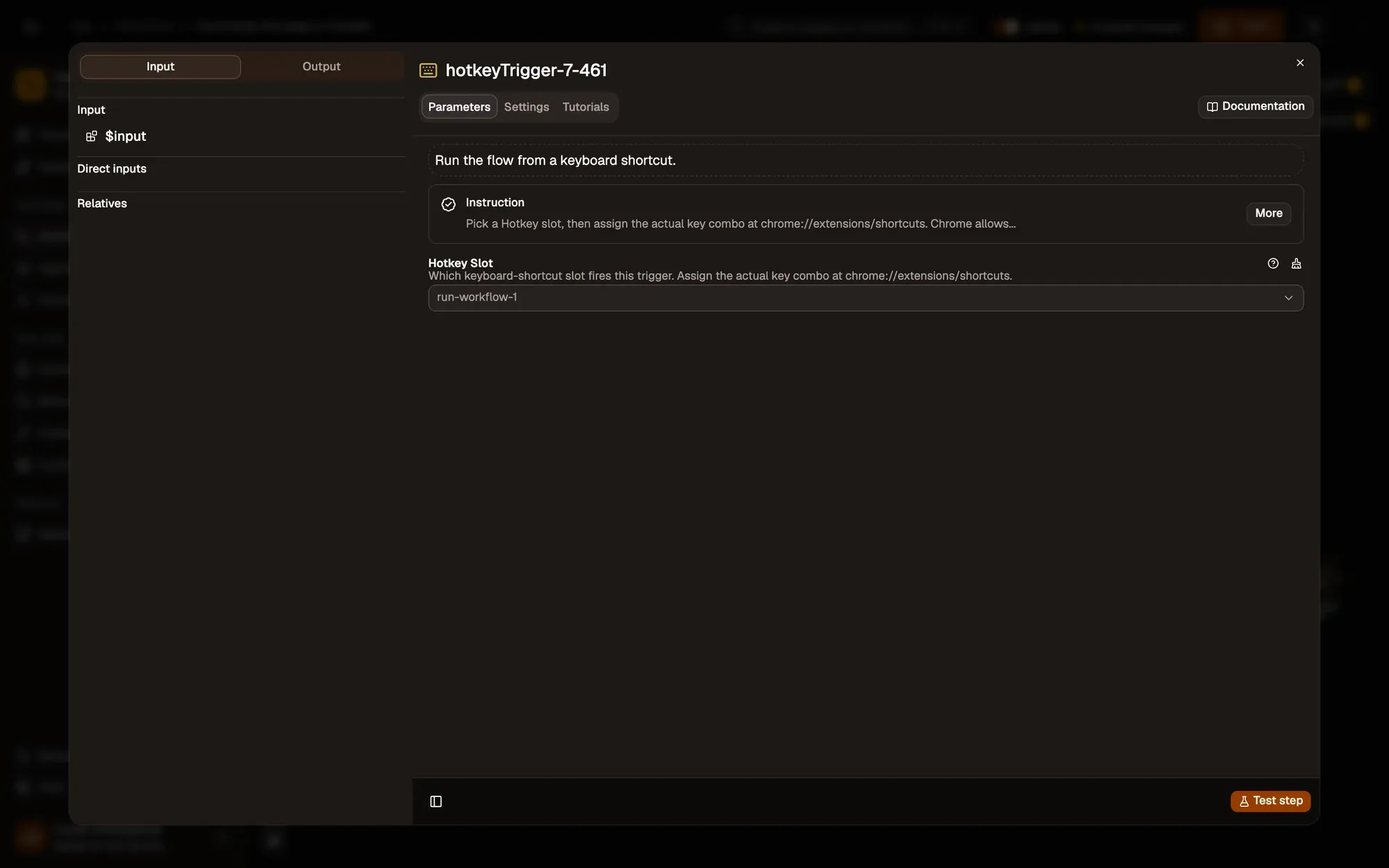
Double-click Hotkey and keep Hotkey Slot on the first slot, run-workflow-1. Slot 1 comes with CtrlShift1 (⌘Shift1 on Mac). Browsers don’t let extensions add a shortcut per workflow, so you choose the keys for each slot in the browser:
- Chrome, Edge, Brave: open
chrome://extensions/shortcuts. - Firefox: open
about:addons, click the gear menu, then Manage Extension Shortcuts.
Find Agentic Workflow. If slot 1 shows no keys (another extension already uses them), type your own combination.
Save, activate and fire
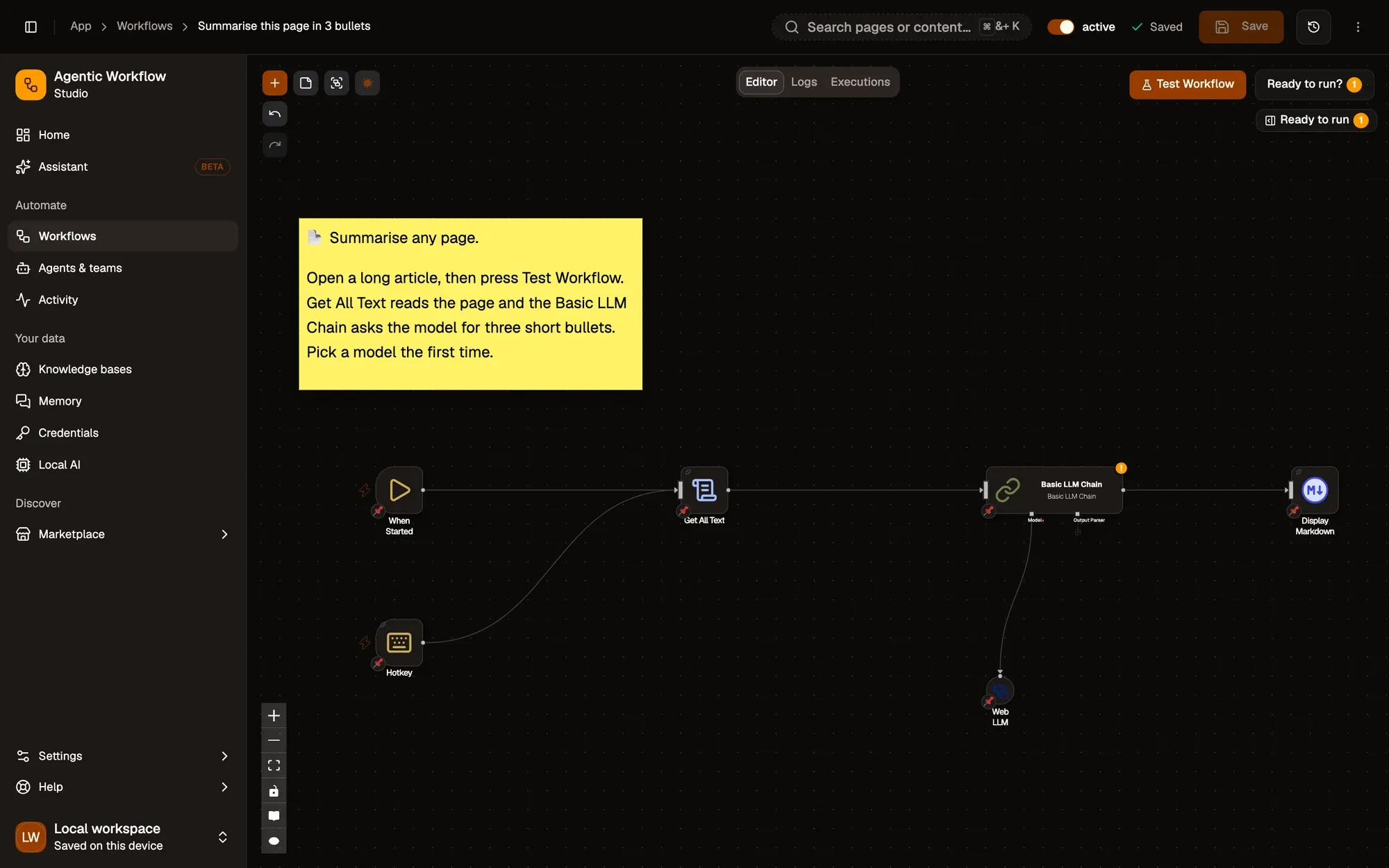
Click Save, then check the switch next to the workflow’s name in the canvas header: it must read active. You can also choose Activate in the workflow’s ⋯ menu in the Workflows list.
Switch to a tab with an article and press your shortcut: the summary appears without touching the canvas. Active workflows run in the background, so you can close the canvas first.
Check its runs
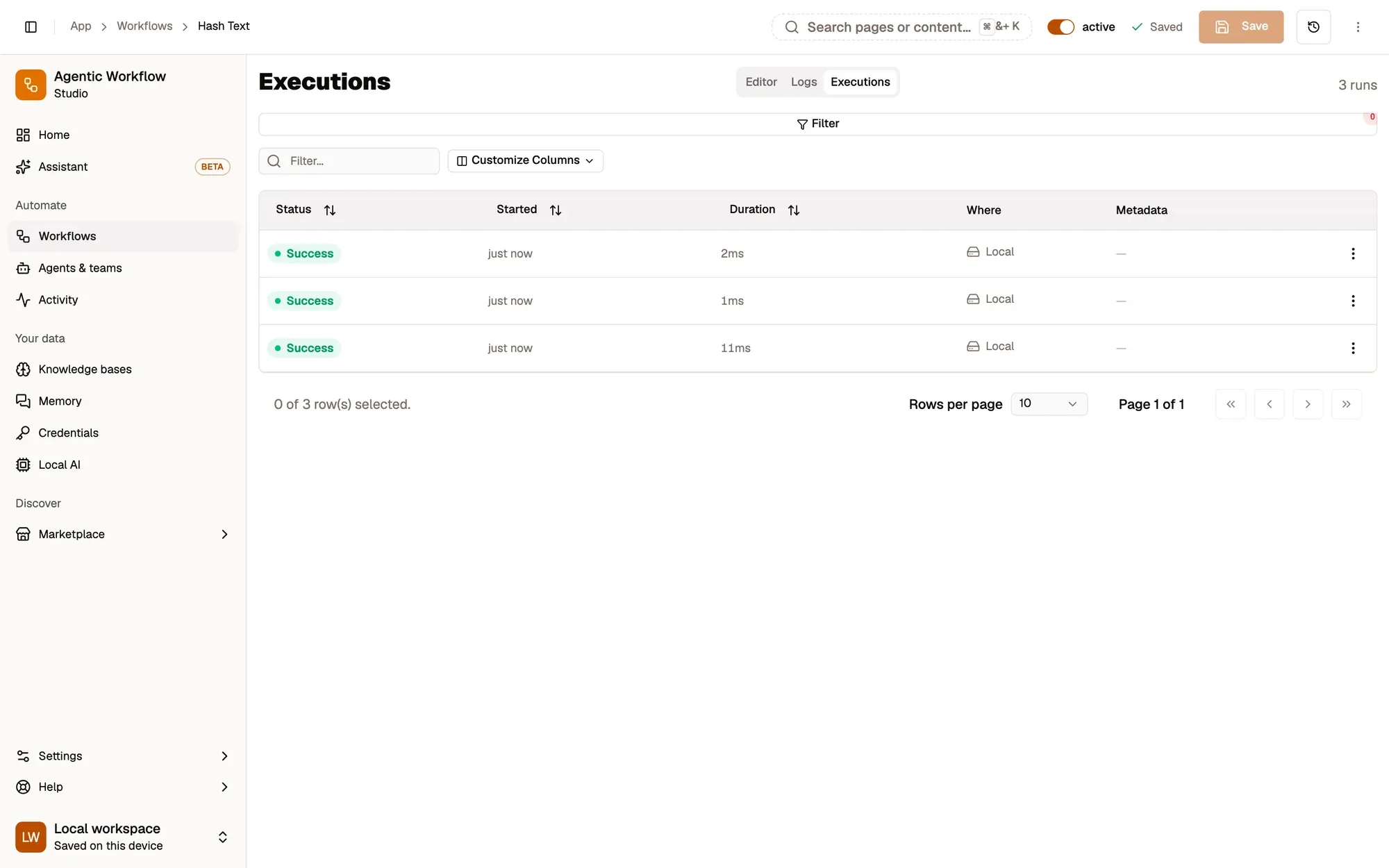
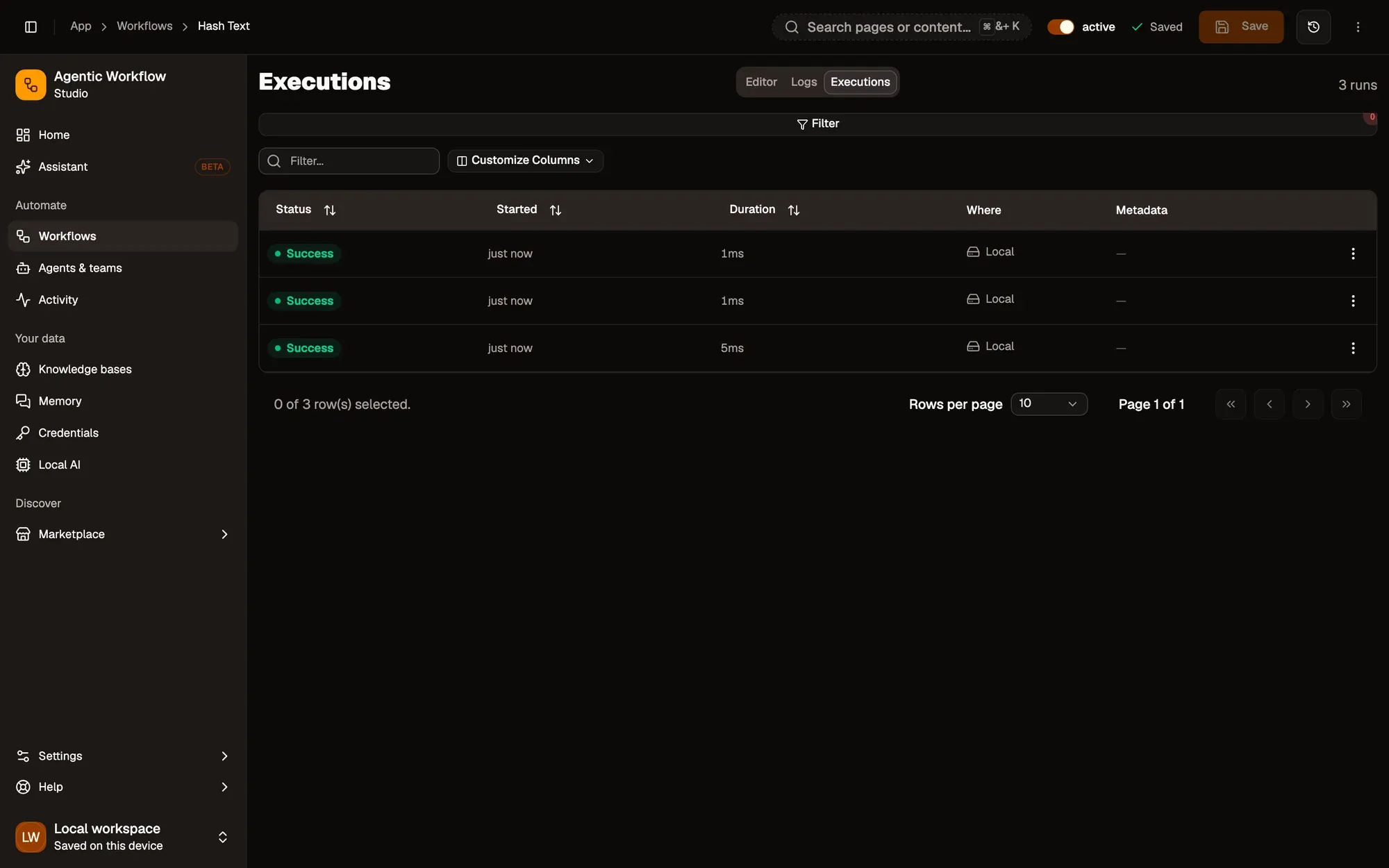
Open the workflow’s Executions tab (Runs in a narrow panel). Every run is listed with its status, start time and duration; click one to see what each step produced.
Prefer a schedule or the right-click menu?
- Schedule: under Rules, click Add and set the interval, for example every hour. The browser has to be open for it to fire. Hotkey and Schedule run in the browser extension, not the web app.
- Context Menu: an active workflow with this trigger appears in the right-click menu under Agentic Workflow › Personal Workflows. Its settings decide where the entry shows, for example only on links or on selected text. After a change, right-click and choose Get / Refresh Workflows.
Key takeaways
- Automatic triggers such as Hotkey, Schedule and Page Load only listen while the workflow is active.
- The Hotkey node picks a slot; the browser's shortcuts page sets its keys.
- The Executions tab lists every run with its status, start time and duration.