Lesson 13 5 min
Watch a page for changes
Element Change starts a workflow when something on an open page changes, such as a price, a job list or a status.
Add Element Change
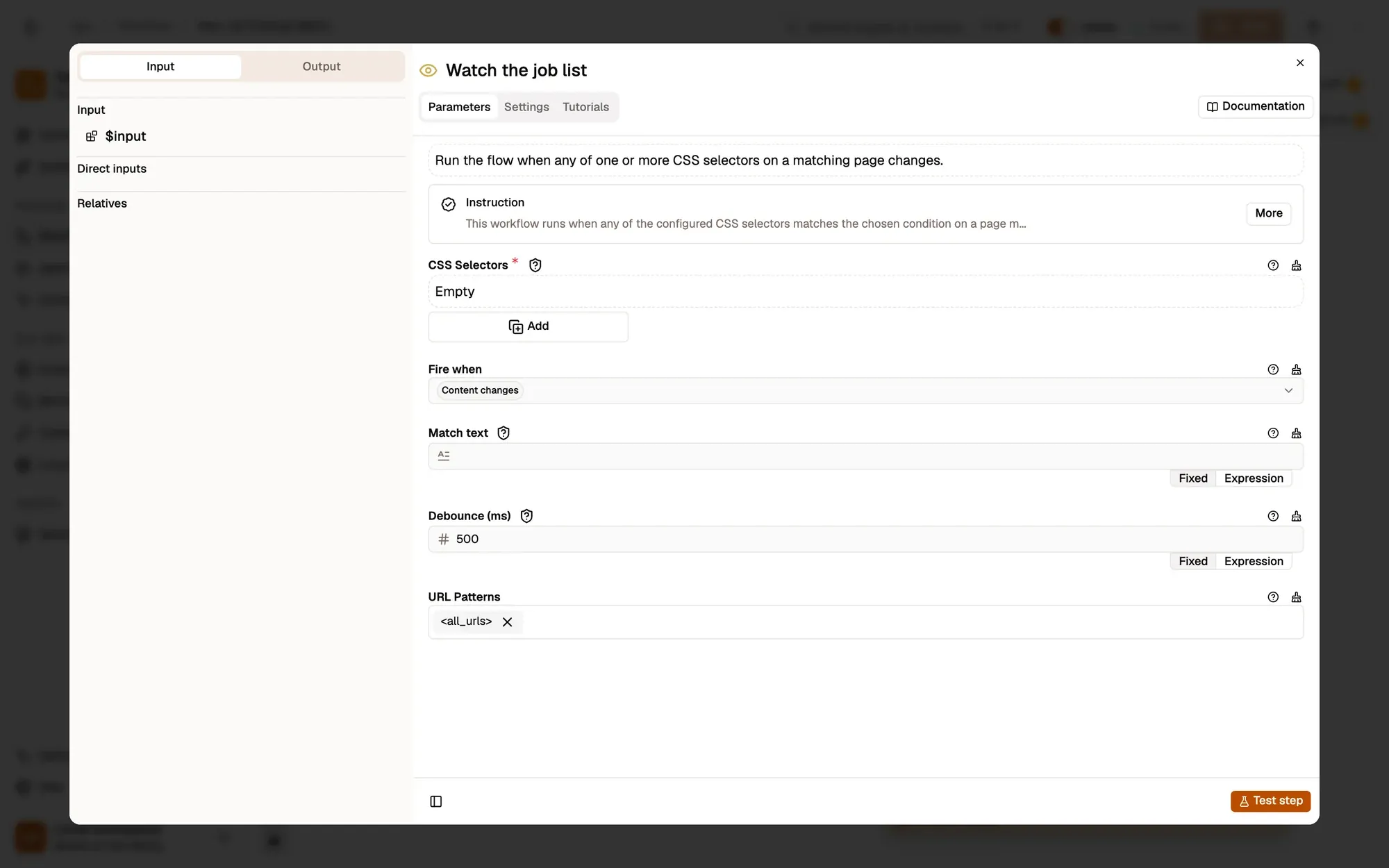
Create a workflow and add the Element Change trigger. In CSS Selectors, click the crosshair on a row, then click the element on the page, so you don’t have to write the selector yourself. Add a row per element to watch several: any of them can fire the workflow.
Limit it to the right pages
Set URL Patterns to the pages you care about, for example https://shop.example.com/product/*, instead of every page. Only http and https pages are watched.
Choose when it fires
Fire when decides what counts:
- Content changes: the element’s text is different from before (the default).
- Element appears or Element disappears.
- Text matches: the element’s text now contains Match text, such as
In stock. It’s case-sensitive.
Web pages often change many times in a split second. Debounce (ms) waits until the page has been quiet for that long (500 by default) before it checks, so a burst of changes fires once.
Tell yourself
Add Browser Notification after the trigger, then save and activate the workflow. Watching starts when a matching page finishes loading and lasts while it stays open, so reload pages that were already open and keep the tab on the page you watch.
Key takeaways
- Pick the element with the crosshair and limit the trigger with URL patterns.
- Debounce waits for the page to go quiet, so a burst of changes fires once.
- Element Change only watches matching pages that stay open.