Lesson 8 5 min
Fill a form safely
Ask before anything is typed, then fill each field by its id. Use Get Forms Schema when you don't know the ids.
Try it in AWFlow
Opens this lesson's workflow in AWFlow. You review it before anything is saved.
Ask first
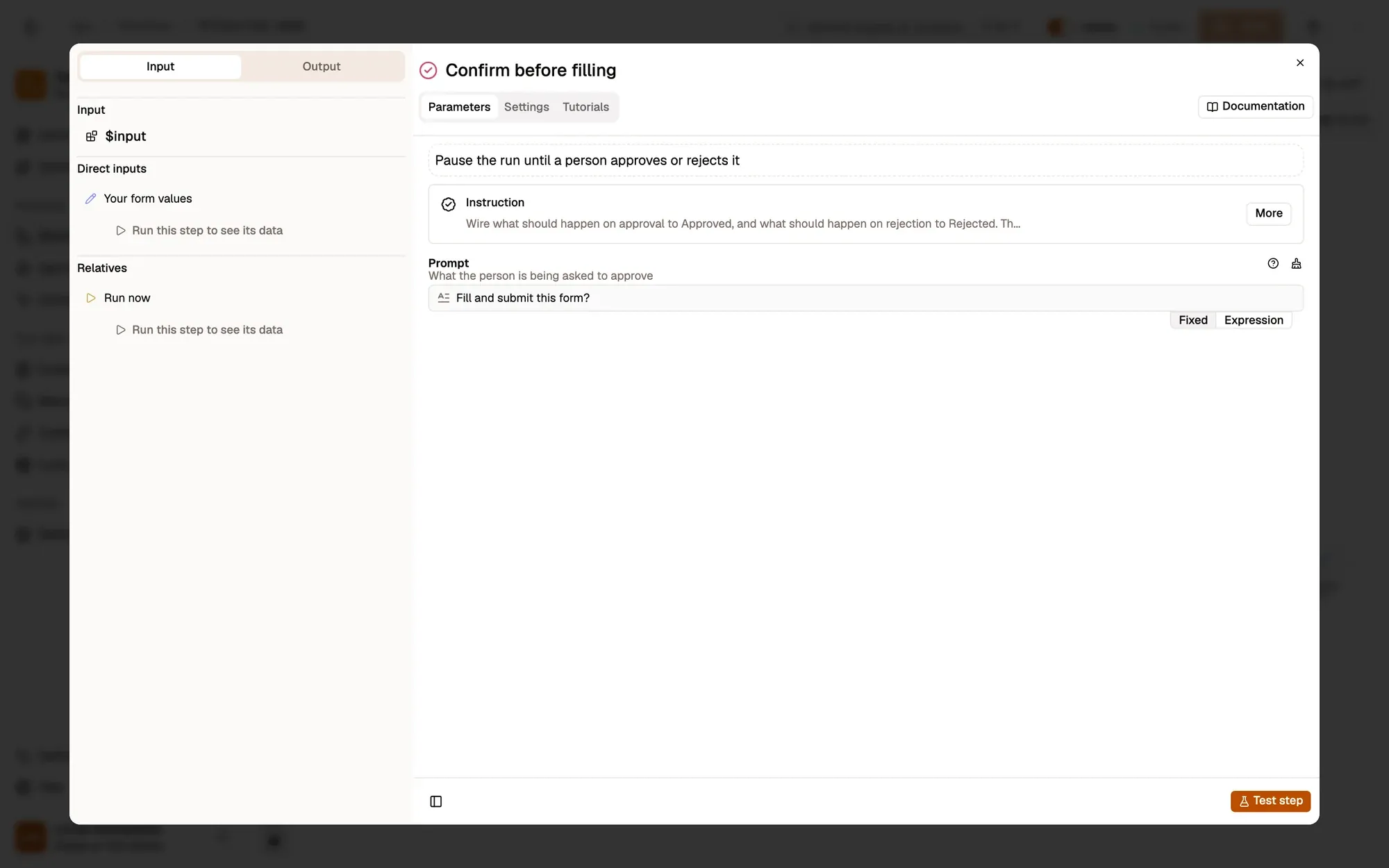
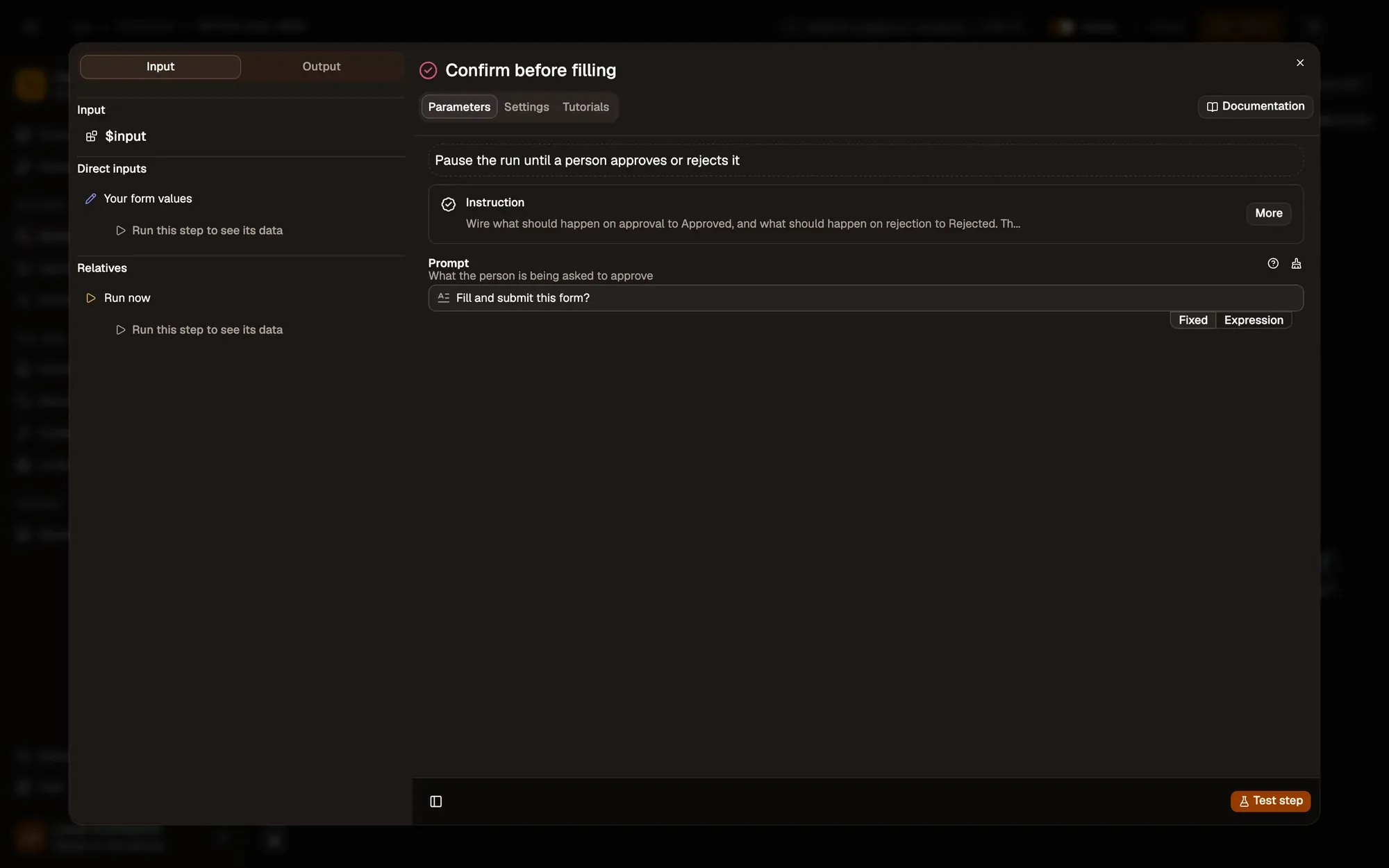
After your values, add Wait For Approval with the prompt Fill and submit this form?. The run pauses and nothing is typed until you approve: answer in the Executions pane or, in the browser extension, in the card dropped onto the page when the page allows it.
Fill the fields
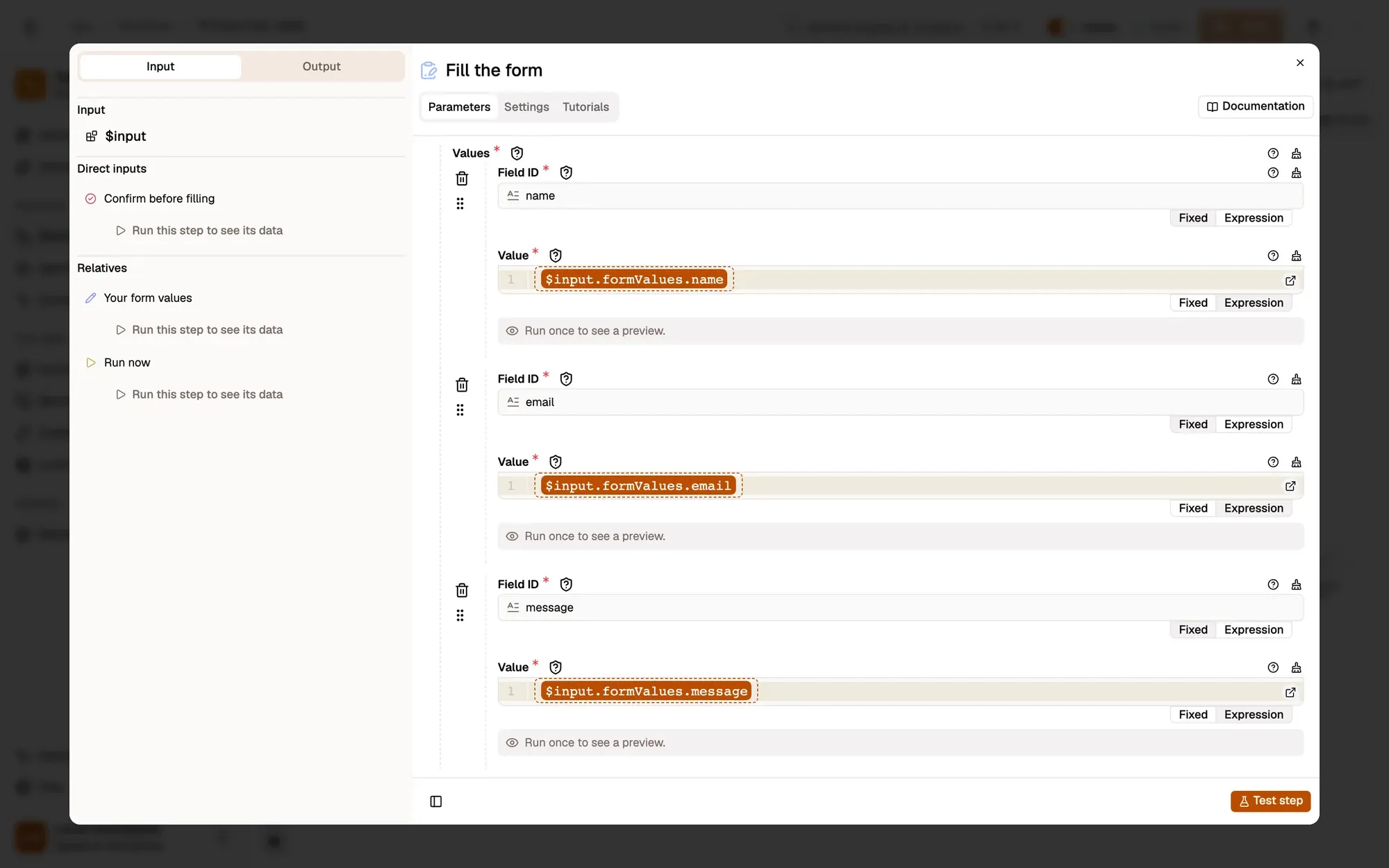
Add Form Fill. In the recipe it fills the first form on the page and types each value into the field whose id is name, email or message. Each key is matched against the field’s id first, then its name.

Find the real ids
Fields stay empty when their ids differ from your keys. Run Get Forms Schema once on the page: it lists every field’s label, name and id without changing anything. Rename your keys to match. If the page has several forms, point Form Fill’s Form setting at the right one with the crosshair, or type a selector such as #contact-form.
Run it
Save, open the page with the form, right-click it and choose Agentic Workflow › Personal Workflows, then the workflow. Approve the request: the fields fill in and, with the recipe’s Submit Form step, the form is sent.
Key takeaways
- Wait For Approval pauses until you answer; nothing is typed before.
- Form Fill types each value into the field whose id (or name) matches its key.
- Get Forms Schema lists the real field ids.