Lesson 9 4 min
Submit, or check first
Submit automatically when you trust the workflow, review first when you don't, and get through forms that span several pages.
Submit it
Submit Form submits the form that the element matching its DOM Selector belongs to; in the recipe that’s form. The page’s own checks, such as required fields, run first. Point it at the same form as Form Fill.
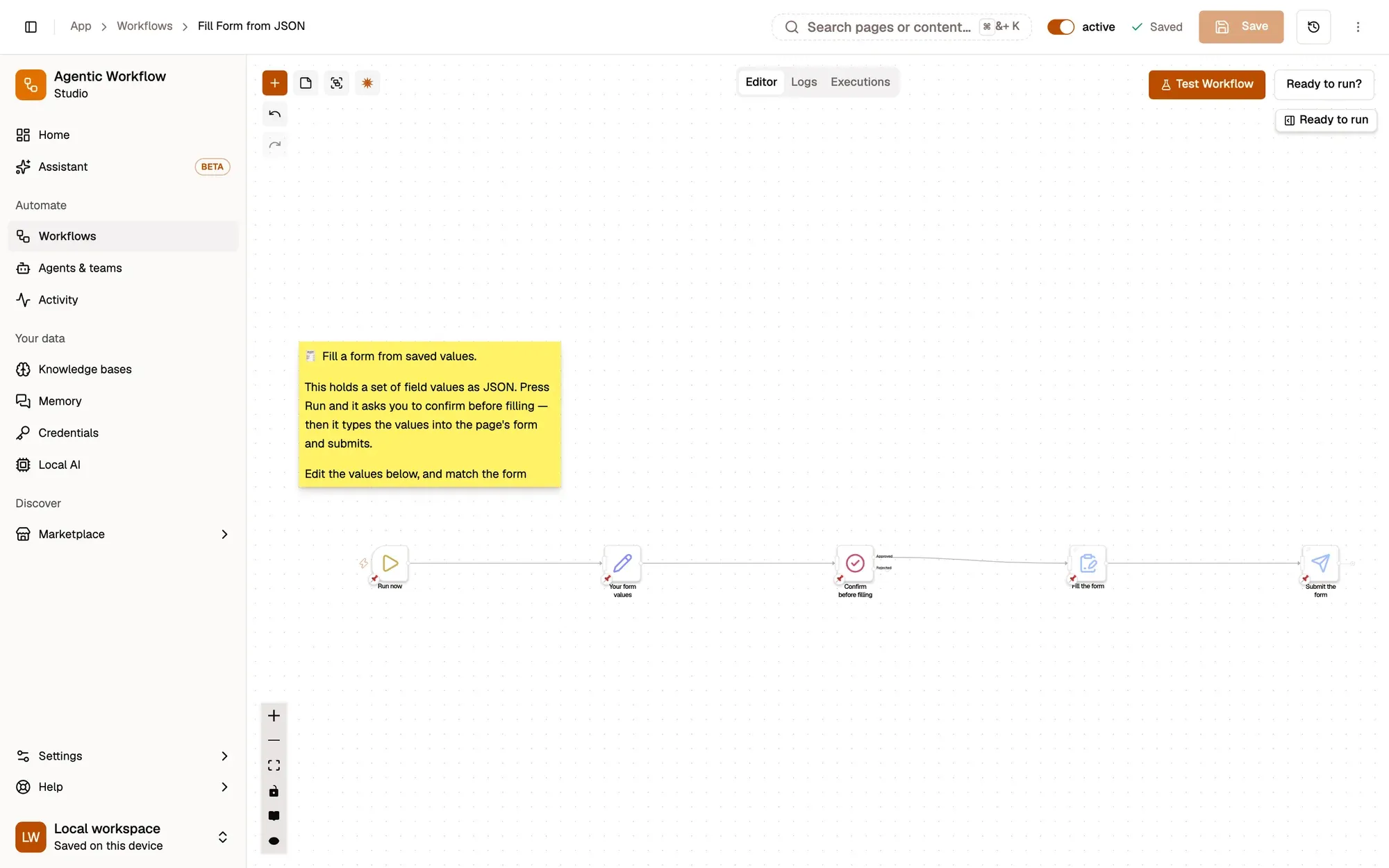
Or check it first
Delete Submit Form: the workflow stops after filling, so you can read the fields and press the button yourself. Once you trust it on that page, add it back, and remove Wait For Approval if you like.
Forms over several pages
Use UI Automation to click Next, and Wait For Element between pages. Wait For Element checks again and again until the next page’s element is there, so the run continues as soon as it’s ready instead of guessing a delay. If time runs out it doesn’t fail: it passes the item on with timedOut: true, which you can check with IF.
One value each time
Add an In-Page Form before Form Fill to type, say, an order number on the page. To offer the workflow every time you open the form, use a Page Load trigger with the form’s address.
Key takeaways
- Submit Form sends the form; remove it to review and send it yourself.
- UI Automation clicks Next; Wait For Element waits for the next page.
- In-Page Form asks you for one value right on the page.