Lesson 4 3 min
Copy a table as CSV
Right-click a page with a table and paste clean CSV into any spreadsheet. No account, no AI.
Try it in AWFlow
Opens this lesson's workflow in AWFlow. You review it before anything is saved.
How it works
- When Started: run it from the right-click menu on the page with the table.
- Get Structured Data in Table mode reads the first table on the page, using the first row as the column names.
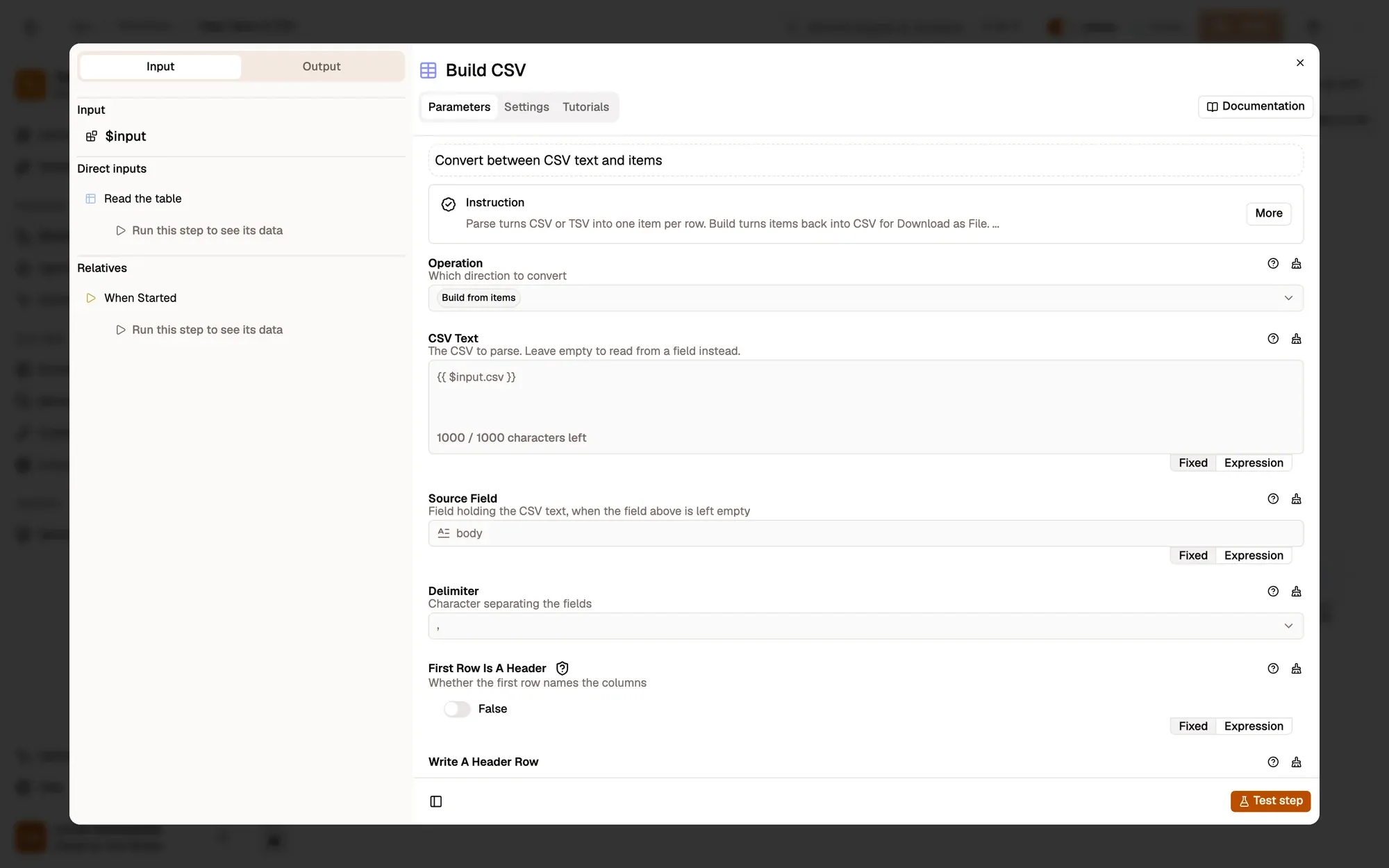
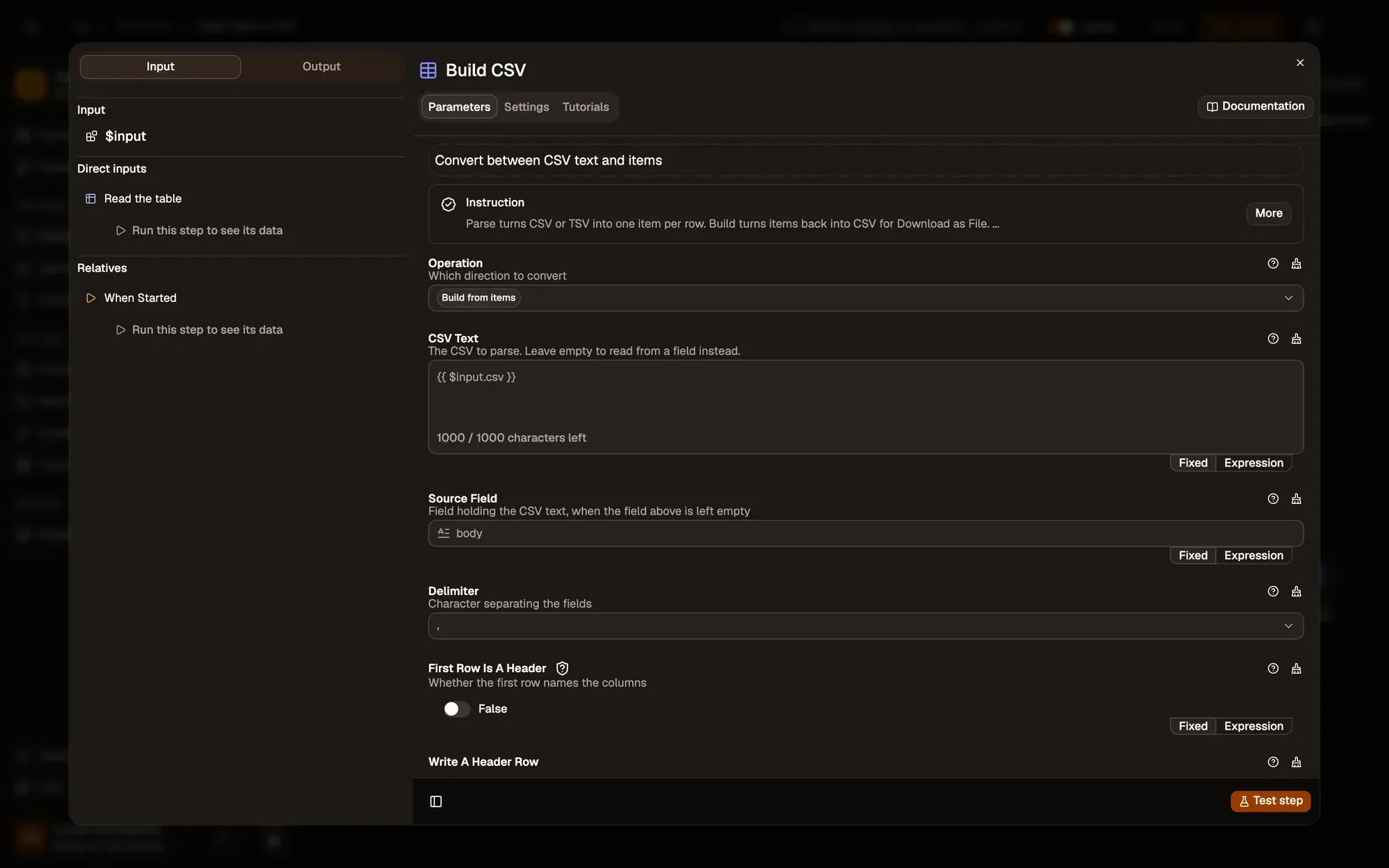
- CSV with Build turns the rows into CSV text in the
csvfield, quoting values that need it. - Clipboard Write copies it, ready to paste into Google Sheets, Excel or Numbers.
Run it
Import and save the recipe. Open a page with a table, such as a Wikipedia list, right-click it and choose Agentic Workflow › Personal Workflows › Page Table to CSV. Paste into a new spreadsheet: each column lands in its own cell.
If the page has several tables, set DOM Selector in Get Structured Data to the one you want. Nothing copied? Run it from the right-click menu on the page itself, not from the canvas.
Key takeaways
- Get Structured Data reads the table; CSV with Build writes the text; Clipboard Write copies it.
- Change the Delimiter to ; for spreadsheets set to a European locale.
- Run it from the right-click menu on the page itself.