Lesson 5 6 min
Connect Google Sheets
Google connections sign in with your own OAuth client. Set it up once and every Google Sheets node can use it.
Create your OAuth client once
Google connections sign in with your own Google OAuth client: a small app registration you create once in the Google Cloud Console. Follow the docs guide: create a project, enable both the Google Sheets API and the Google Drive API (the spreadsheet list is read through Drive), set up the consent screen with your own account as a test user, and create an OAuth client of type Web application with the redirect URI that AWFlow shows you. You can reuse the same client for Gmail, Drive and Calendar later.
Create the credential
Open Credentials, click Add Credential and pick Google Sheets. There is no Auth Type to choose: Google uses OAuth2. Paste the Client ID and Client Secret, click Check connection and approve Google’s window. AWFlow asks to read and edit your spreadsheets and to see the names of your Drive files. The sign-in is kept and refreshed for you.
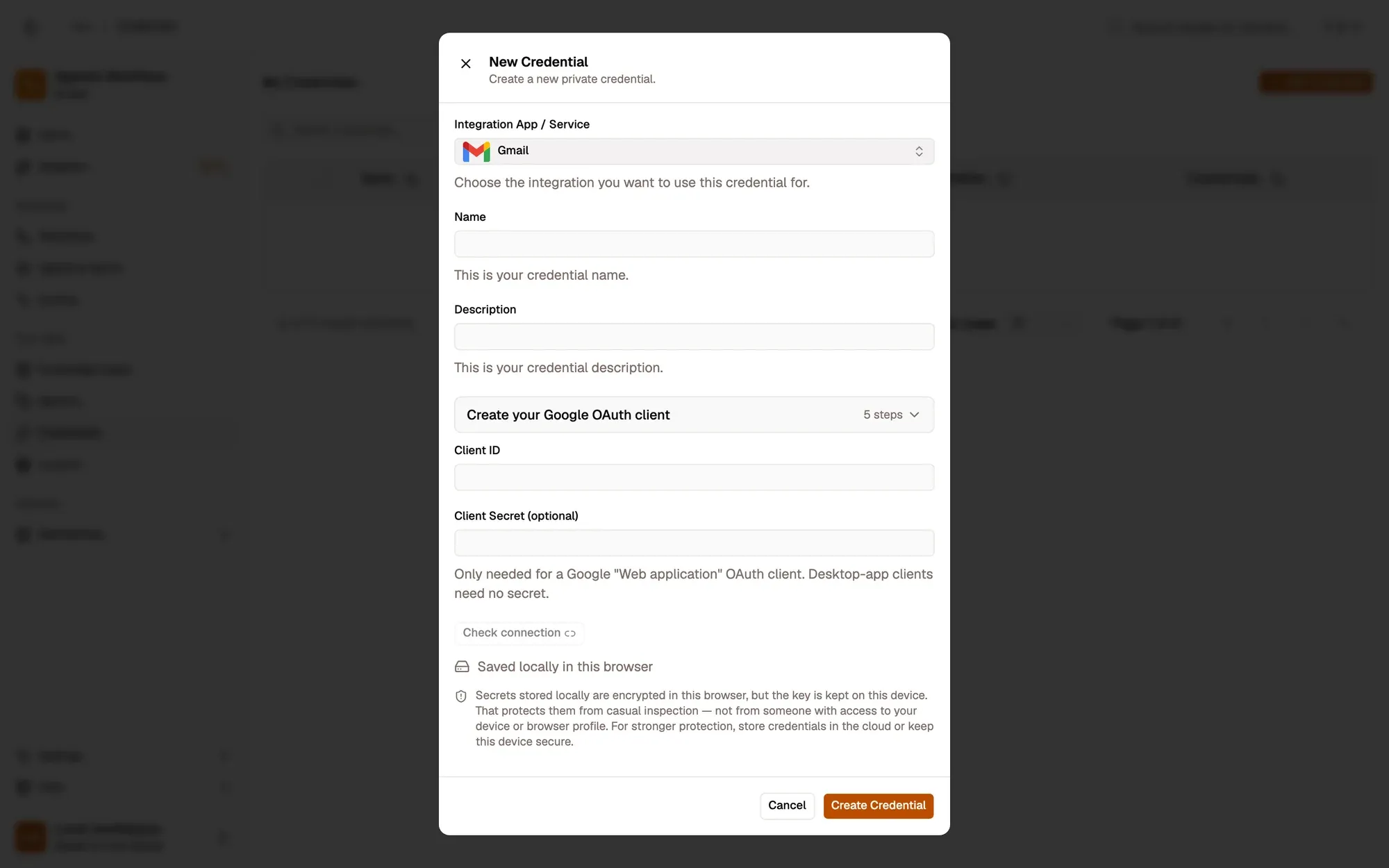
Google’s sign-in goes straight to your browser, and when a step runs your browser talks to Google’s APIs directly: AWFlow’s servers never relay the call.
Prepare the sheet
Put your column names in row 1 of the tab, for example Title and URL. When you append, each value goes under the matching header, and with the Worksheet operations the node shows one field per header.
Key takeaways
- Create your own Google OAuth client with the Sheets and Drive APIs enabled.
- The credential takes its Client ID and Client Secret, then Check connection.
- Put column names in row 1 of the tab before you append.