Lesson 13 4 min
Credentials in one place
Save a key, token or sign-in once in Credentials and pick it in any node. It stays behind when you share or export a workflow.
Create a credential
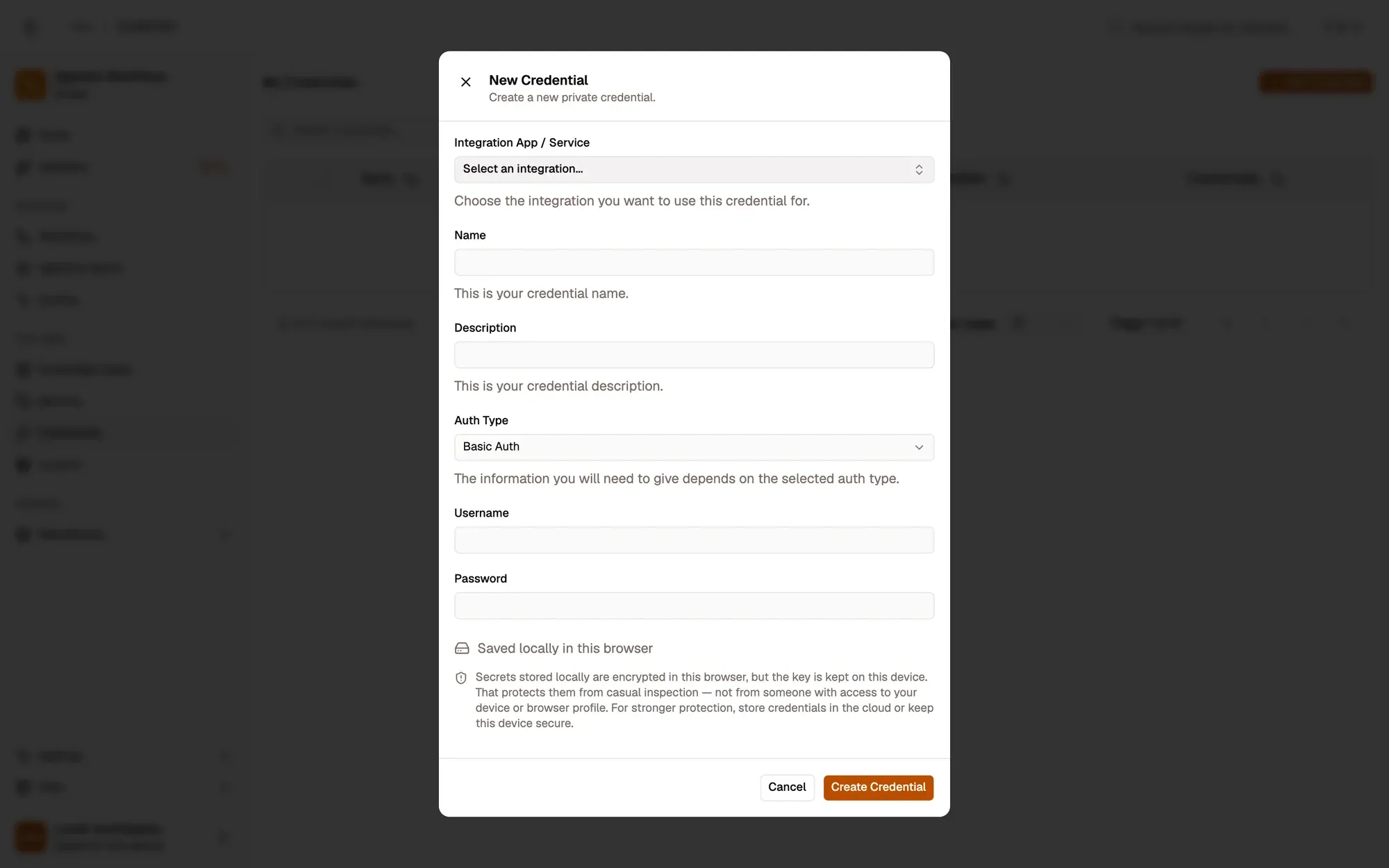
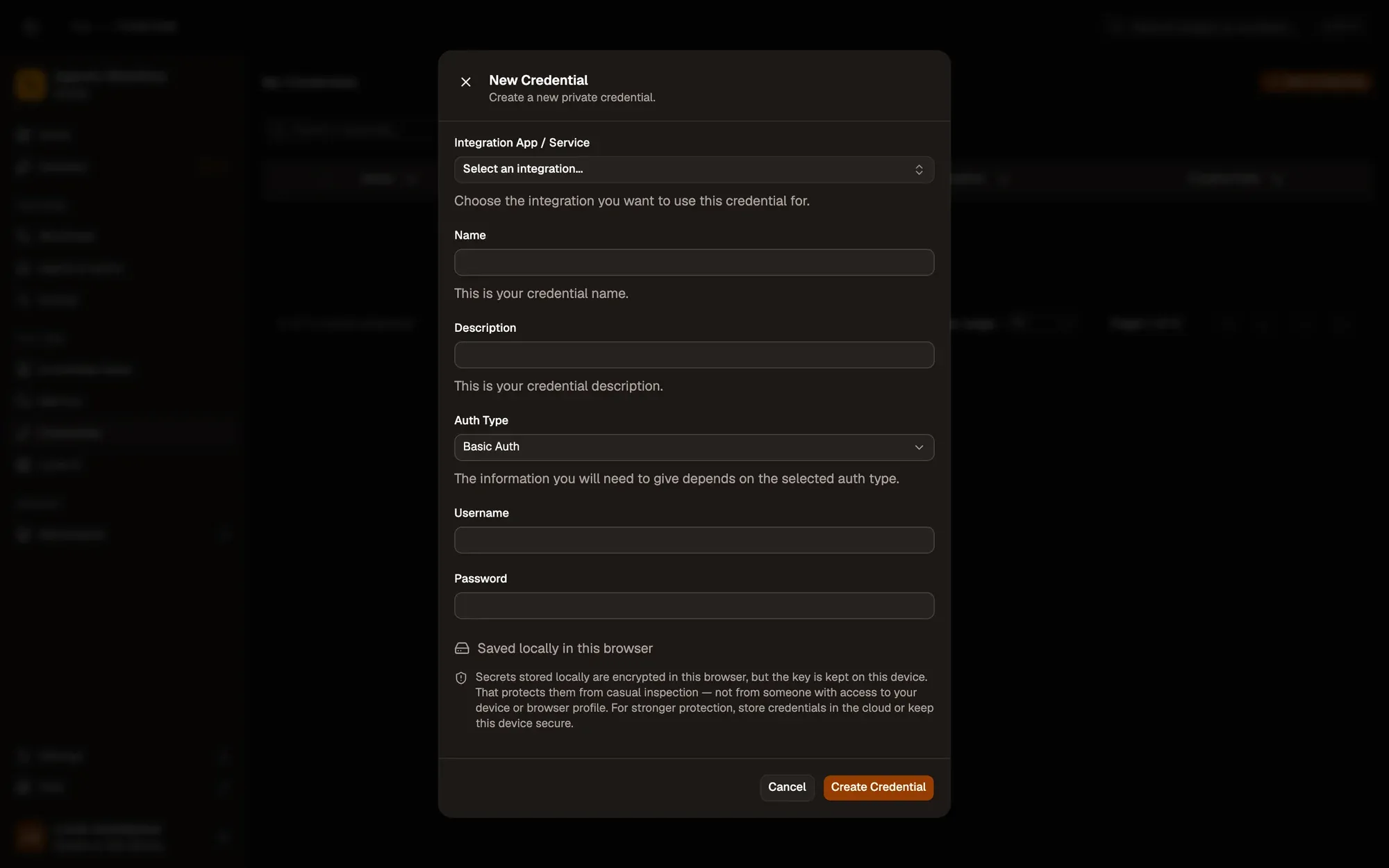
Open Credentials in the sidebar and click Add Credential, or click + Add Credential in a node’s Credential field. Pick the app under Integration App / Service (or Simple Credential for an AI provider or any other API), give it a Name you’ll recognise, such as Slack – marketing, fill its fields and click Create Credential.
Auth types
| Auth type | Use it for |
|---|---|
| Bearer Token | Most app tokens and API keys (Slack, Notion, GitHub). Paste only the token: AWFlow adds Bearer. |
| Basic Auth | Services that take two values, such as Trello or Pushover. |
| JWT | A value sent exactly as typed, such as AI provider API keys in workflow nodes. |
| OAuth2 | Google and Microsoft 365, with your own OAuth client. |
For an app the auth type is set for you. Updating a credential updates every workflow that uses it.
Where they’re stored
- Without an account, credentials are always local, encrypted in this browser. Turn on the local secret vault to lock them with a passphrase only you know.
- Signed in, choose Local (this browser only) or Cloud (synced to your account); Cloud is the default. Cloud credentials are stored encrypted on AWFlow’s server, which holds the key so it can give them back to you on your other devices. Keep a secret local if it must never leave your device.
When you share or export a workflow, your credentials stay behind.
Key takeaways
- Create one credential per account and purpose, and reuse it.
- Bearer Token covers most app tokens; OAuth2 is for Google and Microsoft 365.
- Without an account, credentials are always local, encrypted in this browser.