Lesson 14 4 min
Save a page to Airtable
Right-click any page and its title and link land as a new row in your Airtable base.
Try it in AWFlow
Opens this lesson's workflow in AWFlow. You review it before anything is saved.
The three steps
- Context Menu with Menu Contexts set to Page appears when you right-click anywhere on a page.
- Get Page Metadata returns the page’s
title,url, description and other details, with no settings to fill in. - Airtable creates a record with Name =
{{ $input.title }}and URL ={{ $input.url }}.
Set it up
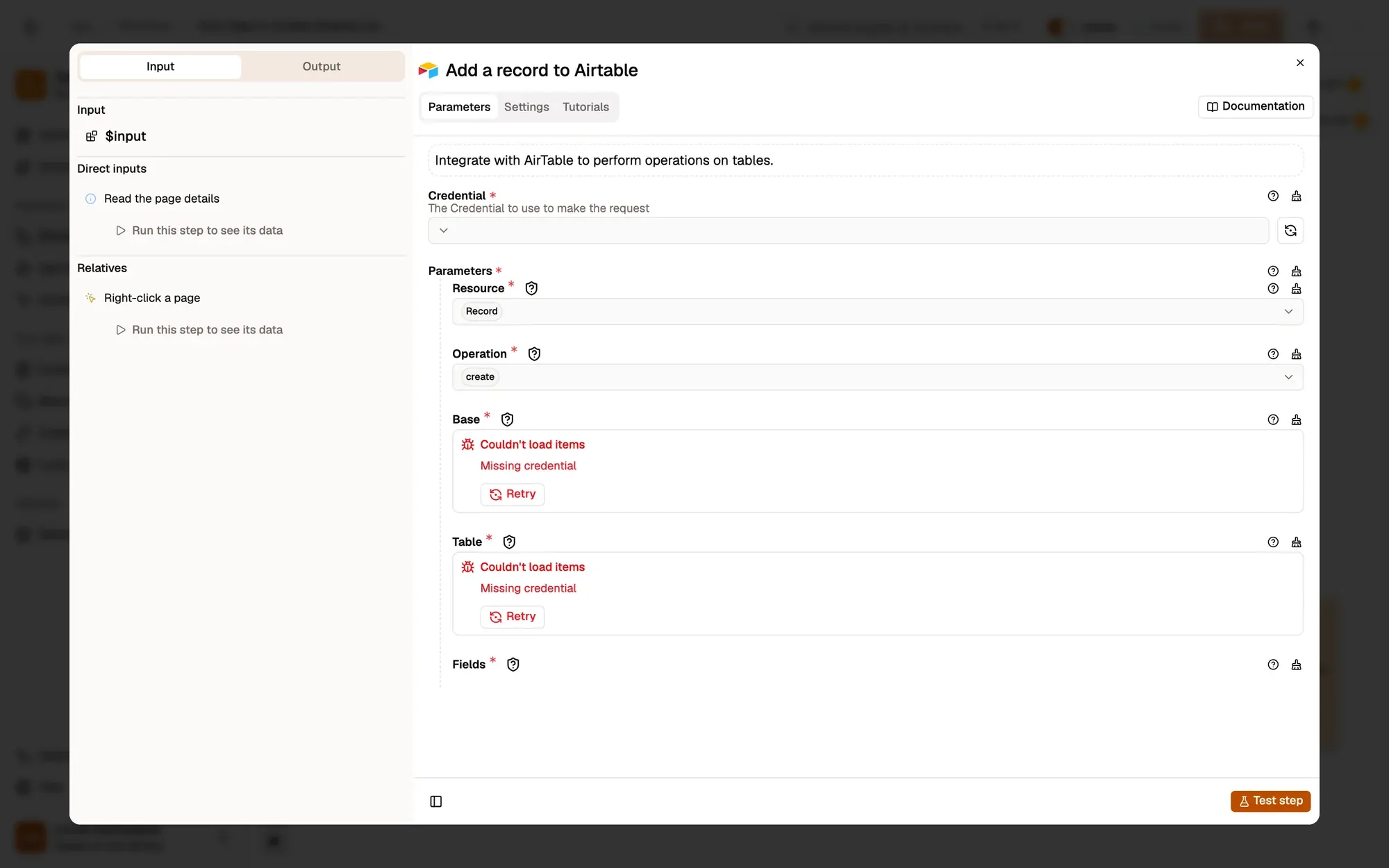
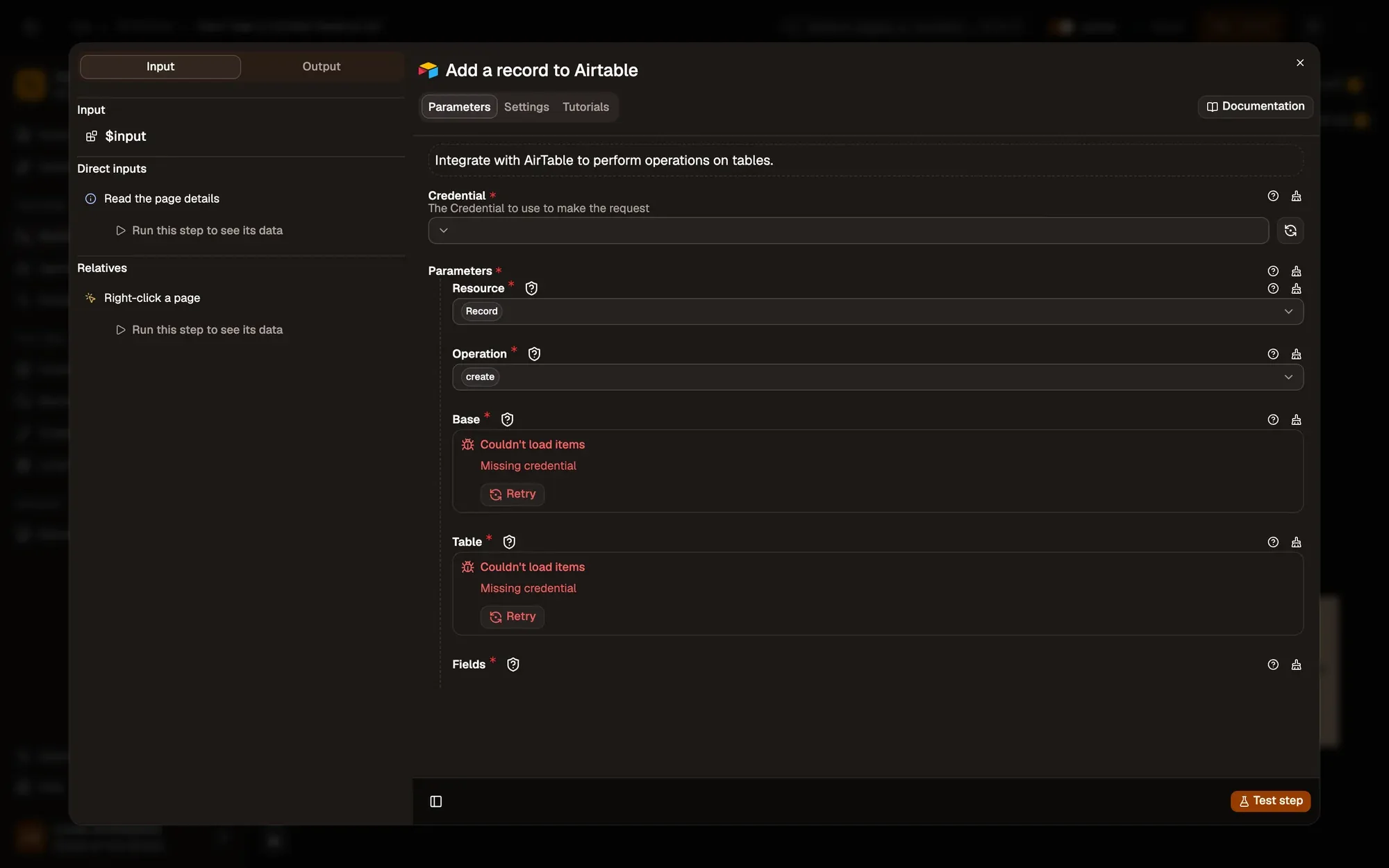
Open the Airtable step, choose or create an Airtable credential (a Bearer Token), then pick the Base and Table. Make sure the table has Name and URL columns, or rename the keys to your columns. Save and activate.
Right-click any page and choose Agentic Workflow › Personal Workflows › Save Page to Airtable Reading List. A new row appears in Airtable. When the step runs, your browser sends the record straight to Airtable: AWFlow’s servers never relay the call.
When it goes wrong
- “Unknown field name”: a key in the record’s fields doesn’t match a column in your table. Column names are case-sensitive: rename the key, or add the column.
- An authorization error: the token can’t reach this base. Give it access to the base in Airtable, then check the connection in AWFlow.
Key takeaways
- Context Menu with Menu Contexts set to Page adds the workflow to the right-click menu.
- Get Page Metadata returns the page's title, URL and description.
- Field keys must match your Airtable column names exactly; names are case-sensitive.