How do you automate a website that has no API? You automate the page itself, from inside the browser where you already use it. If you can read it, click it or type into it, a no-code workflow running in that same browser can do it for you, including on pages behind your own login.
Your company’s internal dashboard, a niche industry database, a supplier portal, most of the shops you buy from: none of them offer an API for what you want to do. That is the normal case, not the exception. This guide shows how to decide what to build, then points you to a ready-made workflow and a deeper tutorial for each job.
No API means no automation.
If a person can use it in a browser, a workflow in that browser can use it too.
Flip it. The page itself is the interface.Browser automation works on the rendered DOM, in your own session.
Version texte
- No API means no automation.
- If a person can use it in a browser, a workflow in that browser can use it too.
No API is the normal case
Building and maintaining a public API is expensive: authentication, rate limits, versioning, documentation, support. For most websites it isn’t worth it, because their product is the website, not a data feed. And when an API exists, it often doesn’t expose the data you need, or only on a paid plan.
That is reasonable for them, but it doesn’t have to stop you. Without an API, the interface is the page: the text, tables, buttons and forms your browser has already rendered for you. Work on the page, and the missing API stops mattering.
Developers have long done this with code: Selenium, Puppeteer or Playwright scripts that drive a browser. They’re the right tool for a production pipeline, but you write and host code, and the script starts in a fresh browser with none of your logins. If that’s your world, read browser automation without Selenium or Playwright. If you just want your own work done, the rest of this guide is for you.
Behind a login: why your own browser matters
The hardest pages to automate from a server are the ones behind a login: a supplier portal, an intranet, a CRM, the admin page of a tool you pay for. A server-side script has to log in by itself, store your password and look like a bot doing it.
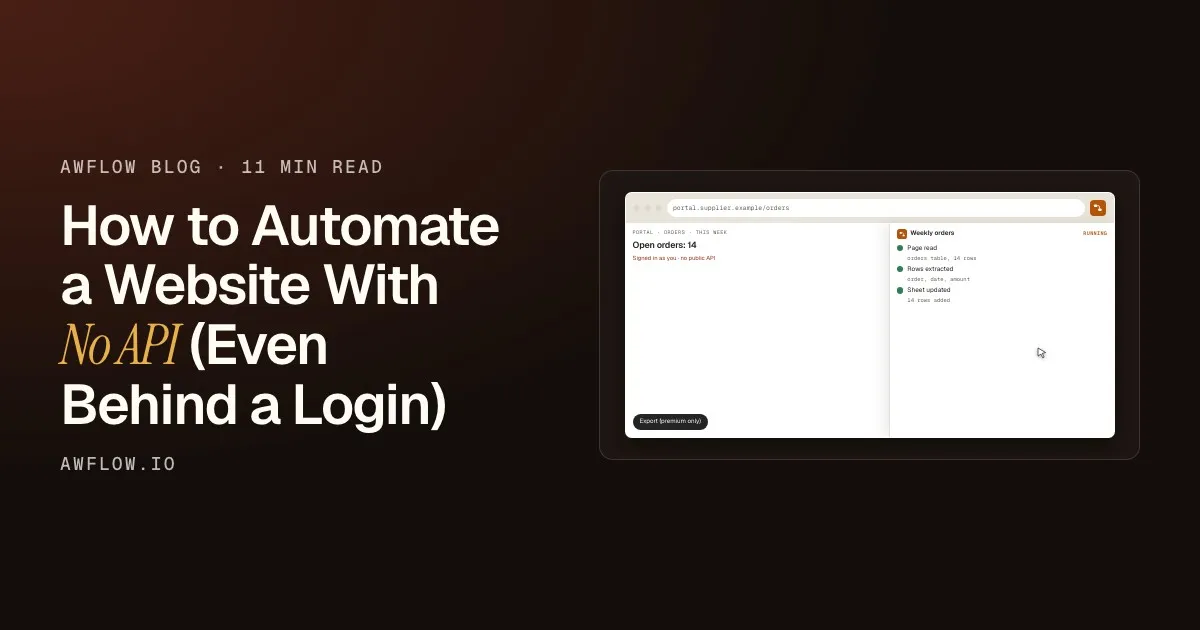
A browser workflow skips all of that. It runs in your own tab, with the session you already have, so it sees exactly what you see when you’re signed in. You don’t hand your password to a server, and nothing has to log in for you: you open the page as usual, and the workflow reads or acts on it.
portal.supplier.example/orders
- Page readorders table, 14 rows
- Rows extractedorder, date, amount
- Sheet updated14 rows added
It reads the table and sends the rows to your sheet.A page-reading node, then Google Sheets; every step is logged.
Version texte
- portal.supplier.example/orders: Open orders: 14
- Weekly orders
- Page read: orders table, 14 rows · Rows extracted: order, date, amount · Sheet updated: 14 rows added
This is what Agentic Workflow (AWFlow) does. It’s a Chrome extension with a visual, no-code builder: instead of writing a script, you connect nodes. Its page steps run in the tab you’re on (or a tab the workflow opens), so pages behind your login work the same way as public ones. For the longer argument, see why the browser sees more than an API.
- SortieUne ligne, un message, un fichier.
- Étape IALire, extraire, décider.
- Actions navigateurOuvrir, cliquer, taper, défiler.
- DéclencheurQuand il démarre : une page, une heure, un clic.
Décortiquez-le : un déclencheur, des actions, une étape IA et une sortie.Nœud déclencheur, nœuds d’action, un nœud LLM et une destination, reliés dans l’ordre.
Version texte
- Sortie / Étape IA / Actions navigateur / Déclencheur
- Sortie: Une ligne, un message, un fichier. · Étape IA: Lire, extraire, décider. · Actions navigateur: Ouvrir, cliquer, taper, défiler. · Déclencheur: Quand il démarre : une page, une heure, un clic.
- A trigger decides when it runs: when you start it, on page load, when part of a page changes, from the right-click menu, on a hotkey or on a schedule.
- Page nodes read what you point at (Get All Text, Get Element Data, Get Structured Data, Get All Links) or act on the page (Form Fill, Submit Form, UI Automation, Wait For Element).
- AI nodes (optional) summarise, classify or extract fields, with a cloud model or one on your device.
- Outputs show the result, notify you, copy it, or send it to an app such as Google Sheets.
Pick your job
Once you know the site has no API, the next question isn’t “which tool?” but “what do I want from this page?” Almost every request falls into one of four jobs.
Collect: the same fields from many pages.Loop over URLs or rows, Tab Control, extract, append.
Version texte
- A site with no API · Open it in your tab · Read it into a Sheet · Fill its forms · Watch for changes · Collect many pages
- A site with no API → Open it in your tab: signed in
- Open it in your tab → Read it into a Sheet: read
- Open it in your tab → Fill its forms: fill
- Open it in your tab → Watch for changes: watch
- Open it in your tab → Collect many pages: loop
Read a page into Google Sheets
You want a table, a list or a few fields from the page in a spreadsheet. Point a page node at what you need and append it as rows. The example below takes every link on the current page and writes one row per link: swap the first step for Get Structured Data or Get Element Data to pick a table or specific fields.
Save All Page Links to Sheet
Run it. Each node shows what it produced.One run, outputs per node (example values).
Version texte
- save-links-to-sheet.awf
- started on the current page
- 42 links found
- one item per link
- 42 rows added
Go deeper: extract data from any website to Google Sheets, or follow the short guides scrape a list from a web page and copy a table as CSV.
Fill a form from your data
You type the same values into the same form again and again: a supplier order, a support ticket, an application. Keep the values in the workflow (or take them from a sheet row), let Form Fill put them in the fields, and Submit Form send it. The ready-made example asks you to confirm with a Wait For Approval step before anything is submitted.
Go deeper: build an AI form filler for any website, the guide fill a web form from saved values, and the example fill-form-from-json.awf in the docs. If your form is a sequence of clicks rather than standard fields, record it once and replay it.
Watch a page for changes
You want to know when a price drops, a job appears or a status changes, without refreshing the page all day. An Element Change trigger starts the workflow when the part of the page you picked changes; a Schedule trigger runs it at set times instead. The workflow compares the new value with the last one and alerts you. Here is the full price watch:
Price On Page Watch
Run it. Each node shows what it produced.One run, outputs per node (example values).
Version texte
- price-on-page-watch.awf
- price changed on the page
- price: €389
- last price: €449
- dropped: yes (−13%)
It starts on its own
An Element Change trigger watches the price on the shop page and starts the workflow when it changes.
It reads the price
The workflow pulls the number out of the page: no API, just what you’d see.
It remembers the last price
A stored value from the previous run gives it something to compare with.
It decides
An IF node checks whether the price went down.
It tells you
When it did, you get an alert, and the new price is saved for next time.
Go deeper: monitor competitor prices automatically with AI, the guides price drop alert and new jobs phone alert, and the example job-postings-watch.awf.
Collect the same fields from many pages
You have a list of URLs, profiles or products and want the same few fields from each. A Loop goes through the list, Tab Control opens each page, a page node extracts the fields, and Google Sheets collects one row per page. Long waits between steps (a minute or more) survive closing the tab, which helps when you pace a long list.
Go deeper: save job posts to a sheet, and for prospect lists, automate LinkedIn prospecting without getting banned, which covers pacing and limits. To read and condense each page with AI, see scrape and summarize any web page with AI.
Limits to know
Browser automation on your own pages is powerful, and it has honest limits:
- The browser must be open. This is personal automation, not a 24/7 server process. Long waits survive closing a tab, but runs need the browser.
- Not every page cooperates. Canvas-drawn apps, captchas, bot checks and frames from other sites can block a step.
- Redesigns can break a step. Recorded and picked steps find elements with a selector; if the site changes a lot, re-pick the element.
- Terms of service. Check that your use is allowed by the site’s terms; some platforms restrict automated extraction.
- It’s tied to your account. Pages behind a login need you to be signed in, and the workflow sees what your account can see, nothing more.
Questions people ask
How do I automate a website that has no API?
Automate the page instead of an API. Open the site in Chrome, add a workflow that reads, fills or watches the part of the page you need, and send the result where you want it, such as a Google Sheet or a notification.
Can I automate a web portal behind a login?
Yes, as long as you can sign in to it yourself. The workflow runs in your browser tab with your existing session, so it sees what you see after you sign in. You don’t give your password to anyone.
What’s the best tool for long multi-step workflows behind a login?
For personal and team routines, a browser-based workflow builder fits best, because it reuses your session and you can add approval steps before anything is submitted. For high-volume, unattended runs on servers, a coded browser automation setup is the better fit; see browser automation without Selenium or Playwright for that trade-off.
Can AI tools automate apps that don’t have an API?
Yes, if the AI works where the app is: in the browser. AWFlow combines page steps (read, fill, click) with AI steps (summarise, classify, extract) in one workflow, and the AI can run on your device.
Does it work on Linux?
AWFlow is a Chrome extension, so it runs where Chrome runs.
Try it
The idea that automation needs an API is outdated. The web you use every day is interactive, JavaScript-rendered and signed in as you, and a workflow in your browser meets it where it is. Pick your job, start from the matching example and change the page it points at.
À vous
Watch a price on any shop
Open it in AWFlow, point it at the price on a shop page, and it alerts you when it drops.
Ouvrir dans AWFlow (s’ouvre dans un nouvel onglet)docs.awflow.io/examples/price-on-page-watch.awfCall to action. Scan the code or click the link.Opens the Price on page watch docs example in AWFlow's import page.
Version texte
- Watch a price on any shop · Open it in AWFlow, point it at the price on a shop page, and it alerts you when it drops. · https://docs.awflow.io/examples/price-on-page-watch.awf
In short
- The page is the interface
- Your tab, your login, no code
- Pick a job: read, fill, watch, collect
Three. Start from the job, not the tool.Each job has a docs example and a deeper tutorial.
Version texte
- In short
- The page is the interface
- Your tab, your login, no code
- Pick a job: read, fill, watch, collect