Lesson 7 4 min
Read something from the page
Give the workflow something to work on. Get Selected Text reads what you highlight on the page you're viewing.
Try it in AWFlow
Opens this lesson's workflow in AWFlow. You review it before anything is saved.
Add Get Selected Text
Click the + on the right edge of When Started, search for Get Selected Text and pick it. Double-click it to open its settings, set Output field name to text, then close the panel (× at the top right, or Esc).
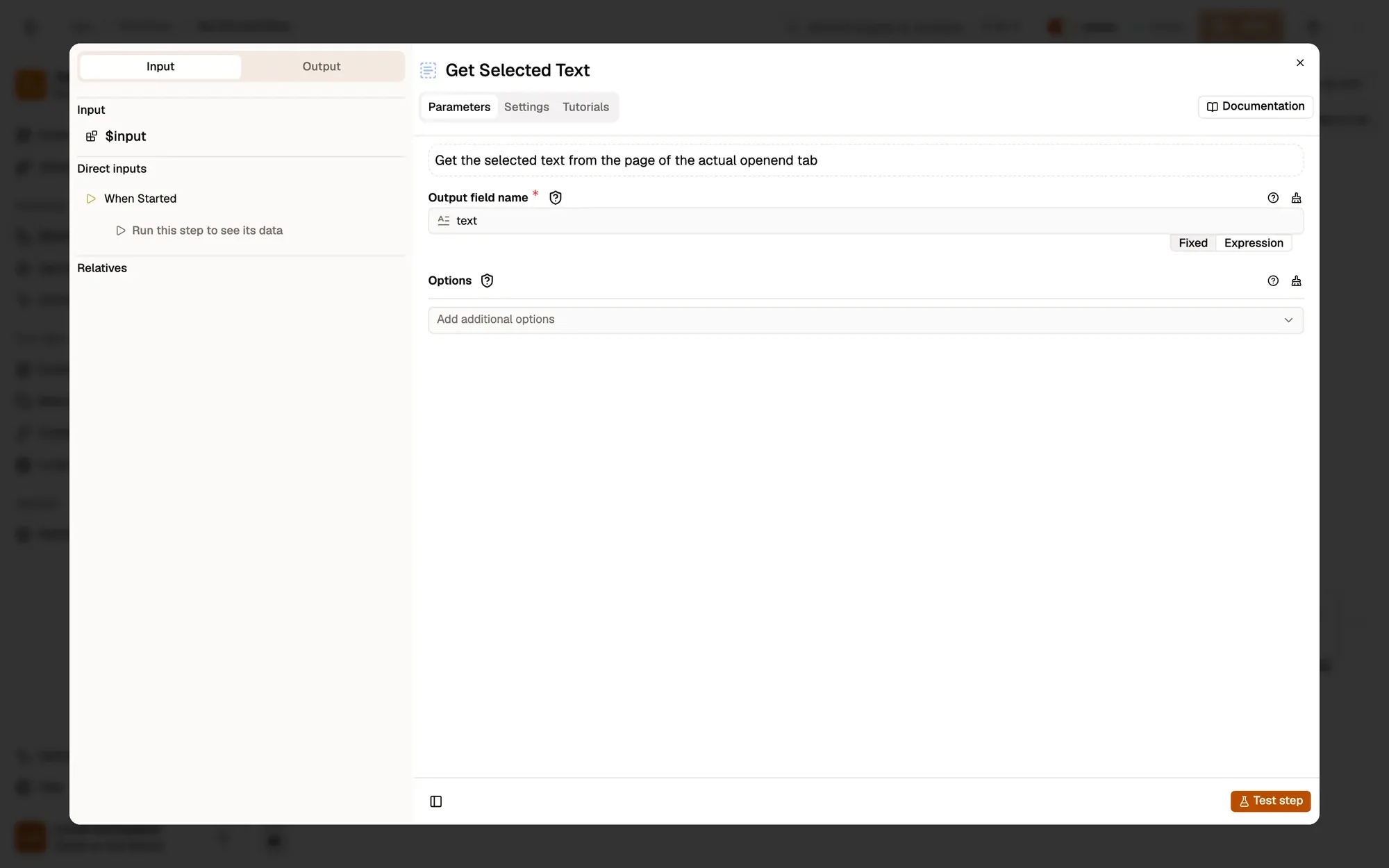
Check: Get Selected Text is linked to When Started by a line.
Run it
Switch to another tab and select (highlight) a sentence. Come back to the AWFlow panel and click Test Workflow. Open Get Selected Text and look at its Output tab, under Actual: a text field holds your sentence, as plain text.
The node fails when nothing is selected, so the rest of the workflow doesn’t run on empty text.
Other ways to read a page
- Get All Text reads the readable text of the whole page into one field.
- Get Page Metadata returns the page’s address, title, description and language.
- Get Structured Data reads tables and lists as data; you’ll use it in the Working with data track.
Key takeaways
- Get Selected Text puts your highlighted text in the field you name.
- Run, then read the node's Output tab under Actual.
- Get All Text and Get Page Metadata read the whole page or its details.