Lesson 5 3 min
Start from a blank canvas
Create your first workflow from scratch so you see every piece. Templates and Aria come later.
Create the workflow
In the AWFlow side panel, open Workflows and click Add Workflow. In Create a workflow, choose Blank canvas, then Triggered. Name it My first workflow and click Create & open.
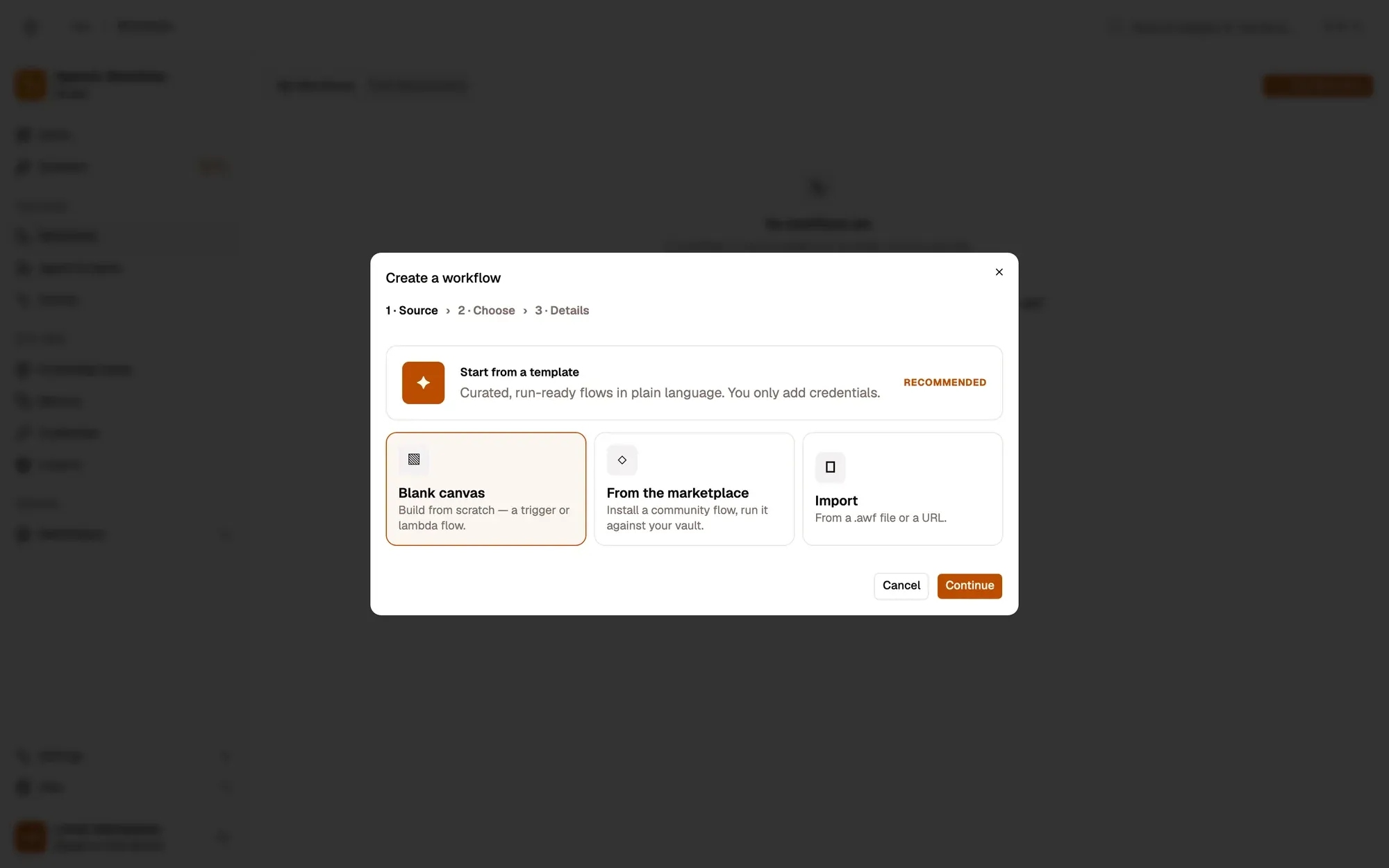
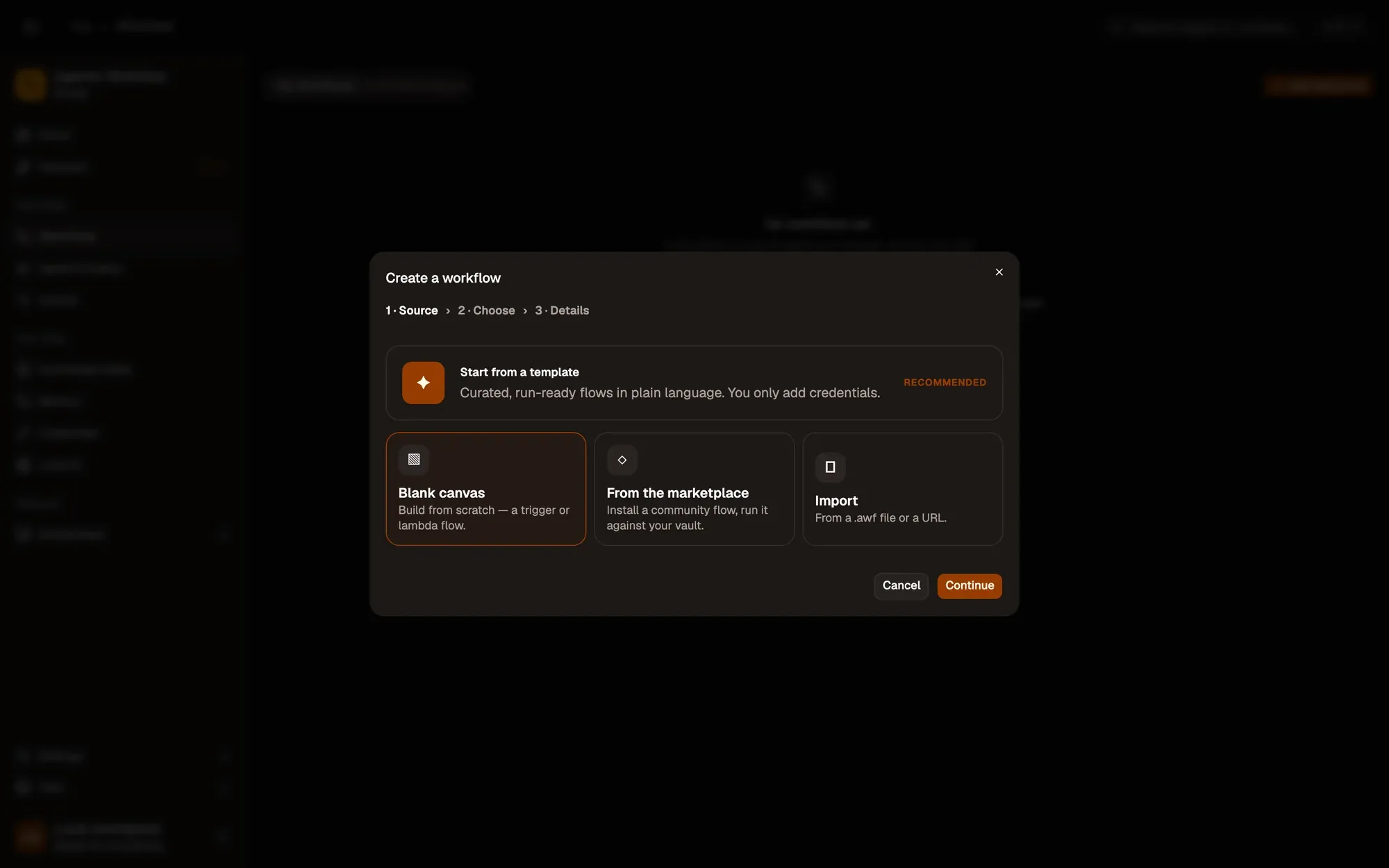
Check: an empty canvas opens with an Add Trigger button.
Find your way around
- Add Trigger adds the node that starts the workflow (in a narrow panel it sits in the middle of the canvas).
- The + on the right edge of any node adds the next step.
- Test Workflow, at the top of the canvas, runs it.
- Save, in the canvas header, keeps it. AWFlow doesn’t save automatically.
In the next three lessons you’ll turn this canvas into a small workflow: When Started, then Get Selected Text, then Edit Fields.
Key takeaways
- Workflows › Add Workflow › Blank canvas › Triggered creates an empty workflow.
- The + on a node's right edge adds the next step.
- AWFlow doesn't save on its own; Save is in the canvas header.